
Divi 5 has been publicly available since February 26, 2026. However, if you manage Divi sites for clients, the main question is not whether you should move to Divi 5, but what will actually happen to the website when you migrate it.
A site with custom CSS, a child theme, Theme Builder templates, third-party modules, or a WooCommerce store carries more risk than a plain brochure site. Test the Divi 4 to Divi 5 migration on a staging copy first, and repeat it on the live site only after staging passes.
This guide covers what to inspect before you migrate, what to test afterward, and when it makes sense to hand the work to someone else.
Why Divi 5 is a Different Kind of Update
Divi 5 replaces Divi 4’s shortcode-based rendering model with a new architecture. That’s why you should check compatibility rather than assume it when updating from Divi 4 to Divi 5.
Divi 5 includes a migration system that converts supported Divi 4 content into the Divi 5 format. Unsupported modules can continue operating through backward compatibility while you work through replacements or updates.
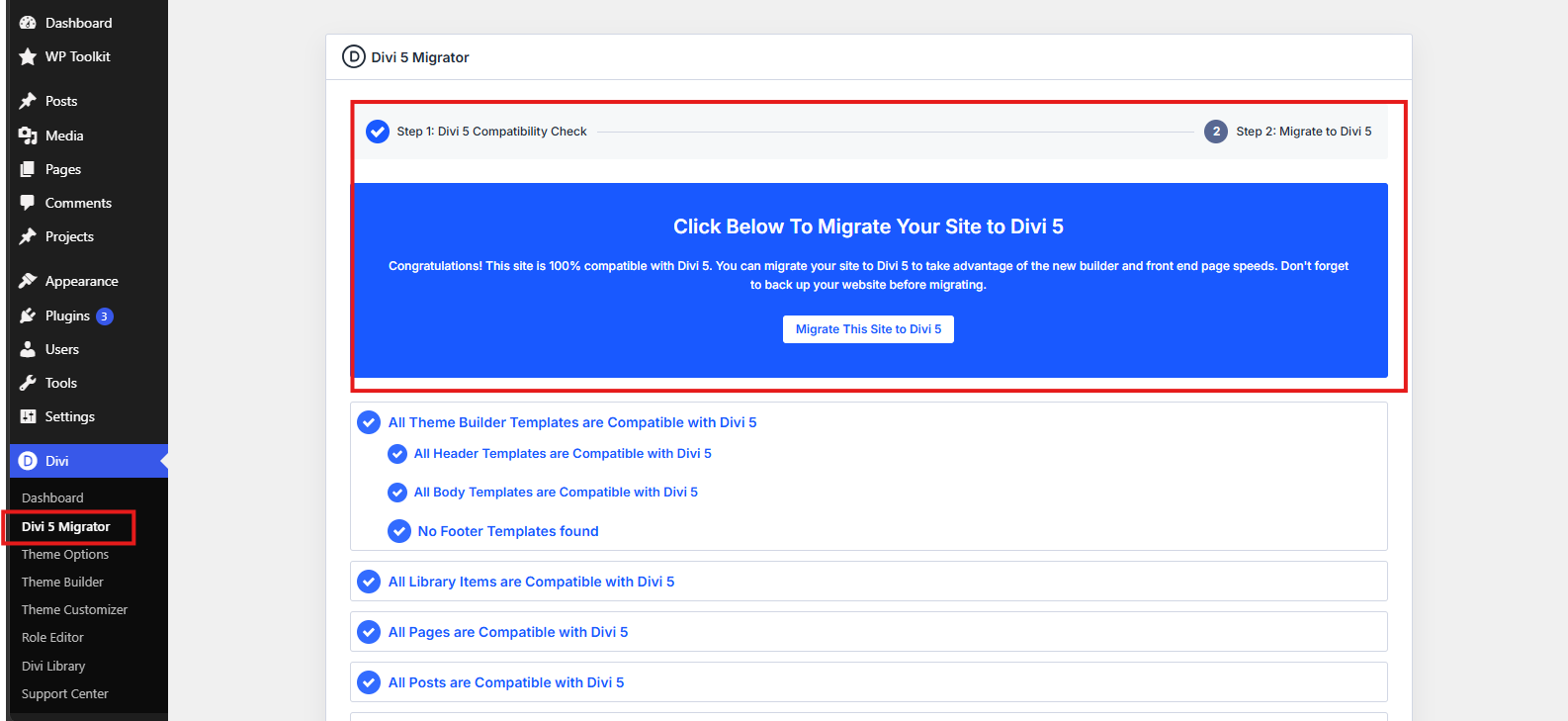
Elegant Themes provides a compatibility scan covering pages, posts, custom post types, Theme Builder templates, WooCommerce products, Divi Library items, widgets, and presets. The report marks what will convert cleanly and what will run in backward compatibility mode. With Divi 5 installed, open Divi → Divi 5 Migrator to run it.
So “the site loaded after the update” is not enough. A page can load while a third-party module, custom selector, form, or Theme Builder template still needs attention. For a broader feature tour, see Introduction to Divi 5.
1. Check Your Plugins and Modules First
Third-party plugins are one of the first things to audit before you migrate Divi 4 to Divi 5. Start by listing every Divi-related plugin on the site. Include plugins that add modules, extensions, carousels, forms, popups, WooCommerce features, or other builder functionality.
Check Plugins > All Plugins: check the product, check the installed version, then test it on staging. For the Divi extensions and modules, check each developer’s product page for a specific Divi 5 compatibility statement. Do not assume a plugin works because it worked with Divi 4. If there is no current compatibility statement, flag the plugin for testing or contact the developer.
Divi Extended’s current compatibility information provides a useful example. Its Divi 5 status page lists products including Divi Plus, Divi Ajax Search, All in One Carousel for Divi, Divi WooCommerce Extended, Divi Blog Extras, Divi Gallery Extended, and other products as compatible with Divi 5.
Divi Plus added Divi 5 compatibility in version 2.0.0 while retaining Divi 4 support. Versions 2.1.0 and 2.2.0 subsequently added seven modules and nine extensions for Divi 5. You can also have a look at Divi Plus for Divi 5: New Modules and Extensions.
2. Check Your Child Theme and Custom CSS
Before a Divi 5 upgrade, inspect what is inside the site’s child theme to find code that Divi 5 could break. You need to check style.css, functions.php, custom JavaScript, template overrides, and any other files added to the child theme. Look for selectors and scripts that depend on Divi’s generated HTML structure or class names.
Custom CSS does not automatically become unusable in Divi 5, but CSS that targets markup or selectors affected by the new architecture may need changes. The practical test is straightforward: compare important pages before and after migration. Be sure to check the:
- Navigation and menus
- Headings and buttons
- Forms
- Spacing and layout
- Responsive breakpoints
- Custom modules
- Popups and interactive elements
- WooCommerce elements
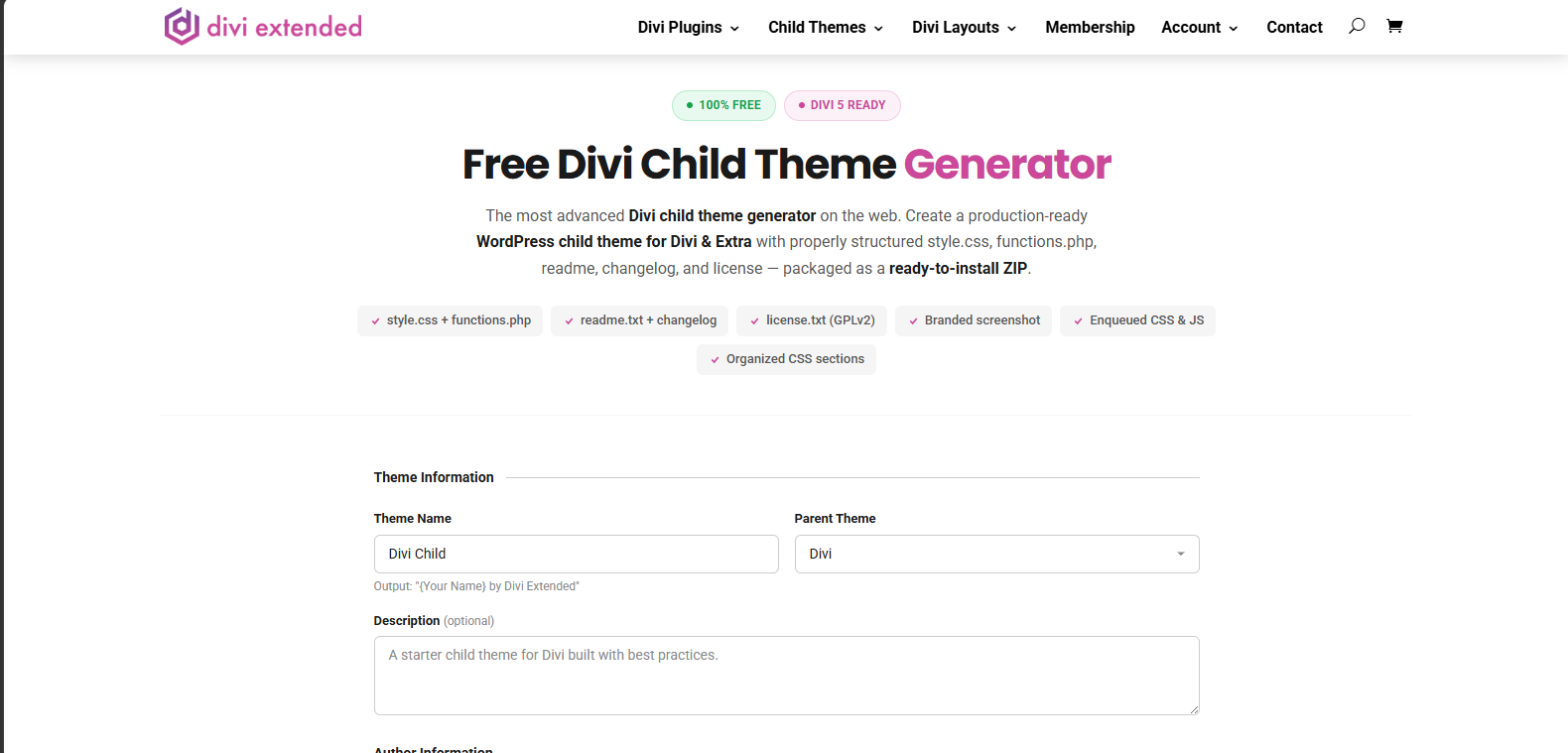
Do not test only the homepage. A selector that works there may fail on a blog template or product page. If you do not have a proper child theme, the Divi Child Theme Generator can create one designed to work with both Divi 4 and Divi 5.
3. Check Your Theme Builder Templates and Library Layouts
Pages are only part of the site. Therefore, review your Theme Builder templates for headers, footers, blog posts, archives, WooCommerce products, and other assigned templates. Also check important layouts stored in the Divi Library.
Divi 5’s migration system scans Theme Builder templates and Divi Library items as part of the compatibility process. Supported Divi 4 layouts are converted during migration, but you should still test the converted versions rather than assuming they will look identical.
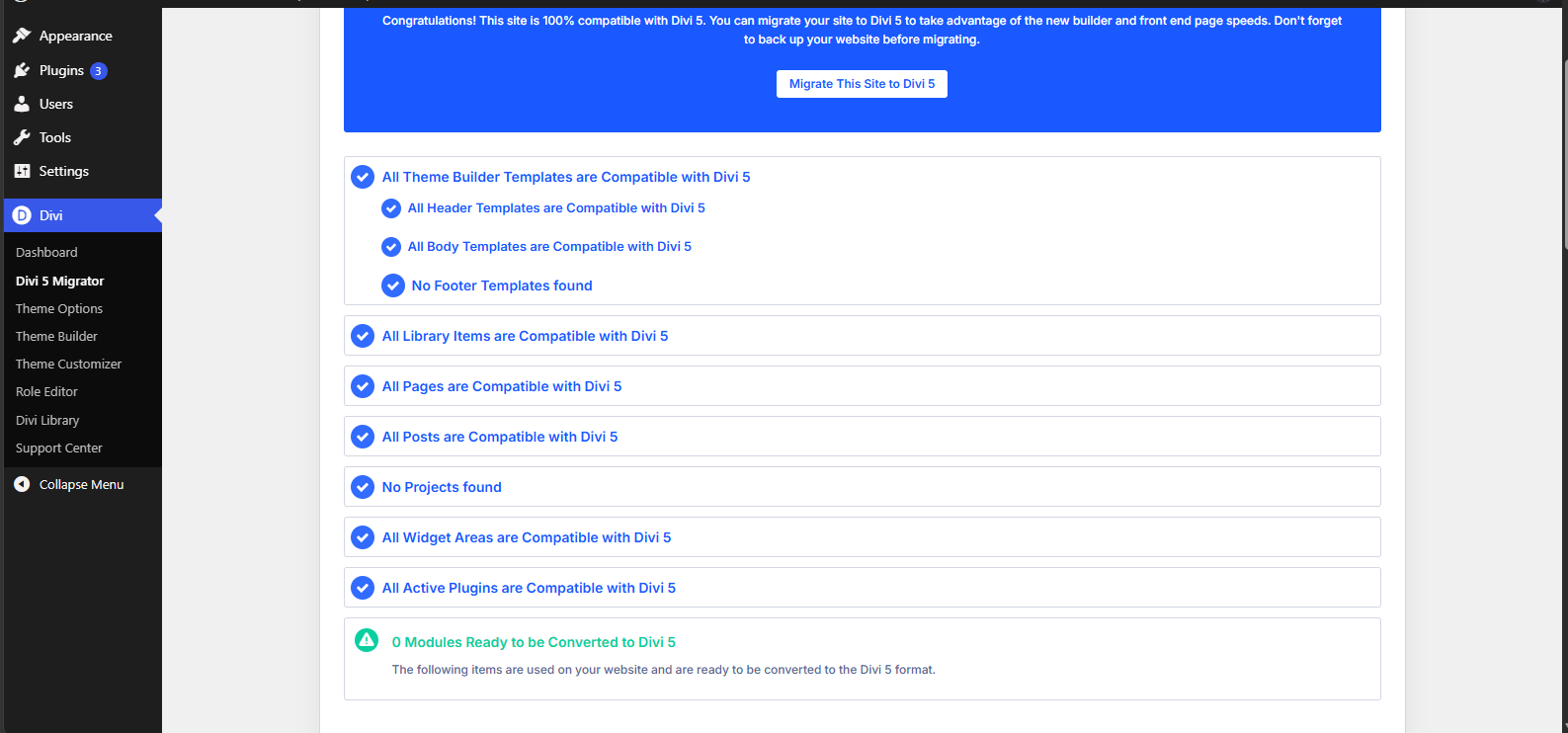
The Divi 5 scan that you can access via Divi → Divi 5 Migrator provides an overview of what’s compatible. The scan lists each affected page, template, Library item, and widget area by name, along with the modules causing the warning.
Then open representative Library layouts after migration and check their content, modules, spacing, responsive settings, global elements, and custom CSS. For more details on the Theme Builder workflow, check Divi 5 Theme Builder: Full Workflow.
Divi 4 to Divi 5 Migration Checklist: Run It on Staging, in This Order
1. Create a Complete Backup of the Live Site
Back up the database, uploads, theme files, plugins, and the rest of the site files as they are now, before you update anything. Your host’s backup tool can make a full backup. Or compress the site folder and export the database as an SQL file from phpMyAdmin. Store the backup separately from the staging copy.
2. Clone the Live Site to Staging
Once you have a backup in place, create a staging copy that matches production. It should match production: the same WordPress version, Divi version, plugins, child theme, custom code, and content.
3. Update the Software on Staging
On the staging copy, update WordPress, Divi, and your third-party plugins to their latest compatible versions. Divi 4.27.6 or later must be installed before the Divi 5 update option appears. Elegant Themes states that Divi 4 will be fully supported for at least 12 months after the Divi 5 release, which runs through at least February 2027. That is a minimum, not an end date, so plan your migration well before it.
4. Run the Divi 5 Compatibility Scan
Once you are done with staging the site, access your WordPress dashboard, select Divi → Divi 5 Migrator, and review the compatibility report before you open any existing page in the Divi 5 builder.
Record unsupported items and anything that will remain in backward compatibility.
This gives you a specific list to test. (Note it somewhere, as you will use it)
5. Migrate the Staging Site
Run the migration after reviewing the report. Supported Divi 4 modules are converted to the Divi 5 format, while unsupported modules can continue through backward compatibility. Check the documentation for each module the report flags.
6. Test the Site Like a Visitor
Use a defined test list rather than clicking around randomly.
Check the:
- Header and navigation
- Footer
- Homepage and key landing pages
- Contact and lead forms
- Blog archives and posts
- Theme Builder templates
- Divi Library layouts
- Popups and interactive elements
- WooCommerce products, cart, and checkout
- Desktop, tablet, and mobile layouts
- Custom CSS and JavaScript
- Third-party Divi modules
Then run the actions a visitor would: submit each form, open the mobile menu, add a product to the cart, and, in a store, complete a test checkout.
7. Fix, Retest, Then Migrate to Production
Fix problems on staging and repeat the test list. Once staging passes, take a fresh production backup and repeat the migration and checks on the live site.
The goal is not to discover whether the migration works. It is to discover what needs fixing before your client or customers do.
When to Hand It to Someone Else
Some sites carry more migration risk than others. Consider getting help if the site has heavy custom PHP, numerous third-party modules, complex Theme Builder conditions, custom integrations, or an active WooCommerce store. These dependencies can make troubleshooting more involved, particularly when the site generates leads or revenue.
If you do not have the time to test the site properly, a migration service can be a better option than experimenting on production. Divi Extended offers Divi 5 migration services for sites that need assistance.
Frequently Asked Questions
Supported modules convert to the Divi 5 format and unsupported ones keep running in backward compatibility mode, so most pages load as before. Third-party modules and custom selectors are where problems show up, which is why you test on staging first.
Yes, the Migrator scans Divi Library items and converts supported layouts to the Divi 5 format. After migrating, open your key layouts and check the modules, spacing, and responsive settings.
It keeps working when its selectors still match the page markup. Selectors tied to Divi 4’s older structure need updating, so compare your key pages on staging, including the blog and product templates.
Divi Extended’s current compatibility information lists its Divi 5-ready products, including Divi Plus, Divi Ajax Search, All in One Carousel for Divi, and Divi WooCommerce Extended. Check the current product page and installed version before migrating.
Divi 5’s migration system provides a restore option for Divi 4 content, but you should still create a complete site backup before migration. A separate backup gives you an additional recovery point if something goes wrong.
Elegant Themes states that Divi 4 will be fully supported for at least 12 months after the Divi 5 release on February 26, 2026, which runs through at least February 2027. It is a minimum, not a confirmed end date.
Conclusion
Start a Divi 4 to Divi 5 migration with an inventory, not the update button: list your active plugins, custom modules, child theme files, custom CSS and JavaScript, Theme Builder templates, presets, and Library layouts. Run the migration on a staging copy first, test the key pages, forms, menus, and responsive layouts, fix what breaks, and then repeat it on production.



0 Comments