
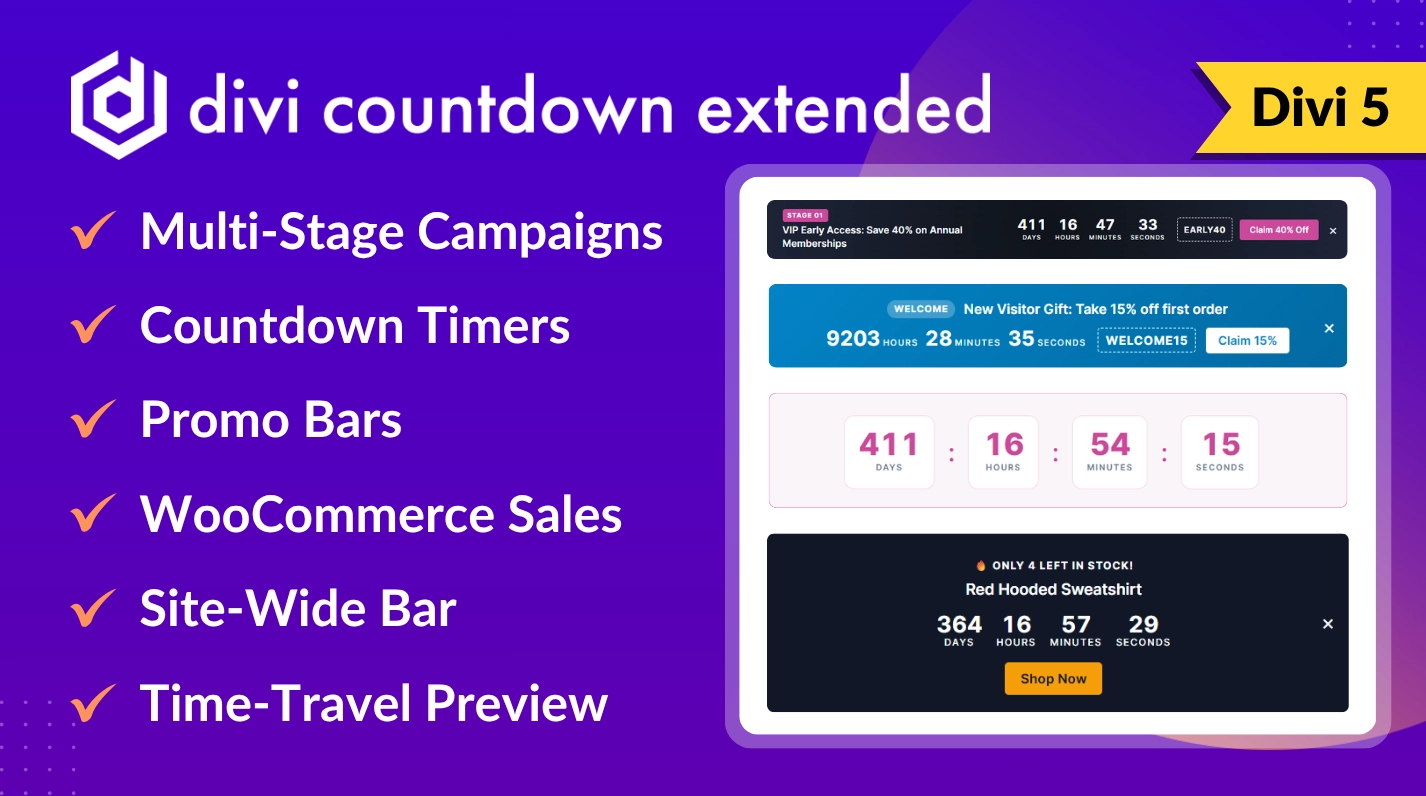
Fully Compatible with Divi 5
Set the sale up once, as a campaign
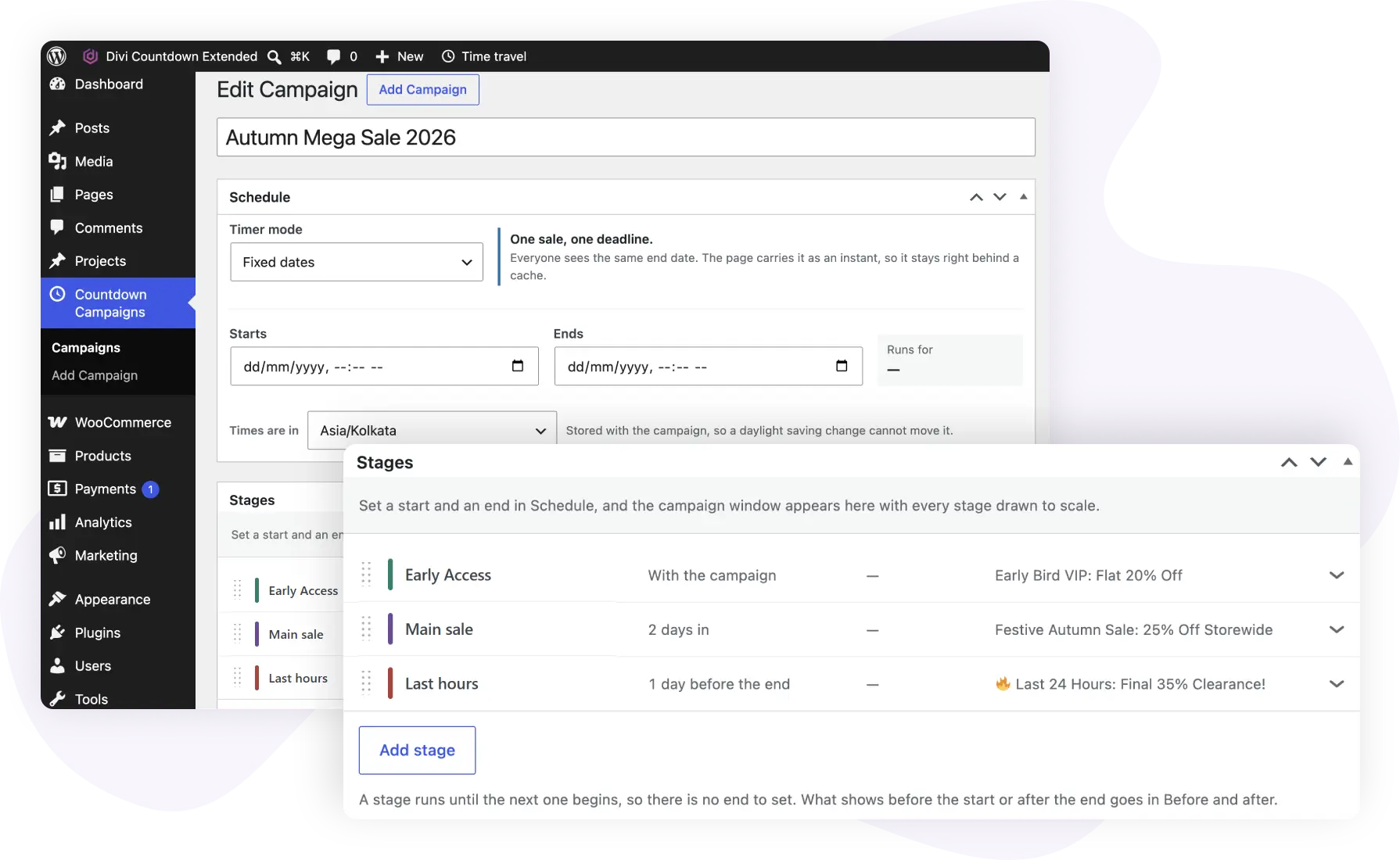
Campaigns have their own Countdown Campaigns menu in the dashboard, separate from your pages. Each one is a single screen with a Schedule, its Stages, the Before and after words, an optional Site-wide bar and a Status box. In the Divi Builder you pick the campaign from a list on each module, so the timer on your home page, the bar on your shop and the countdown inside a product template all read the same dates.
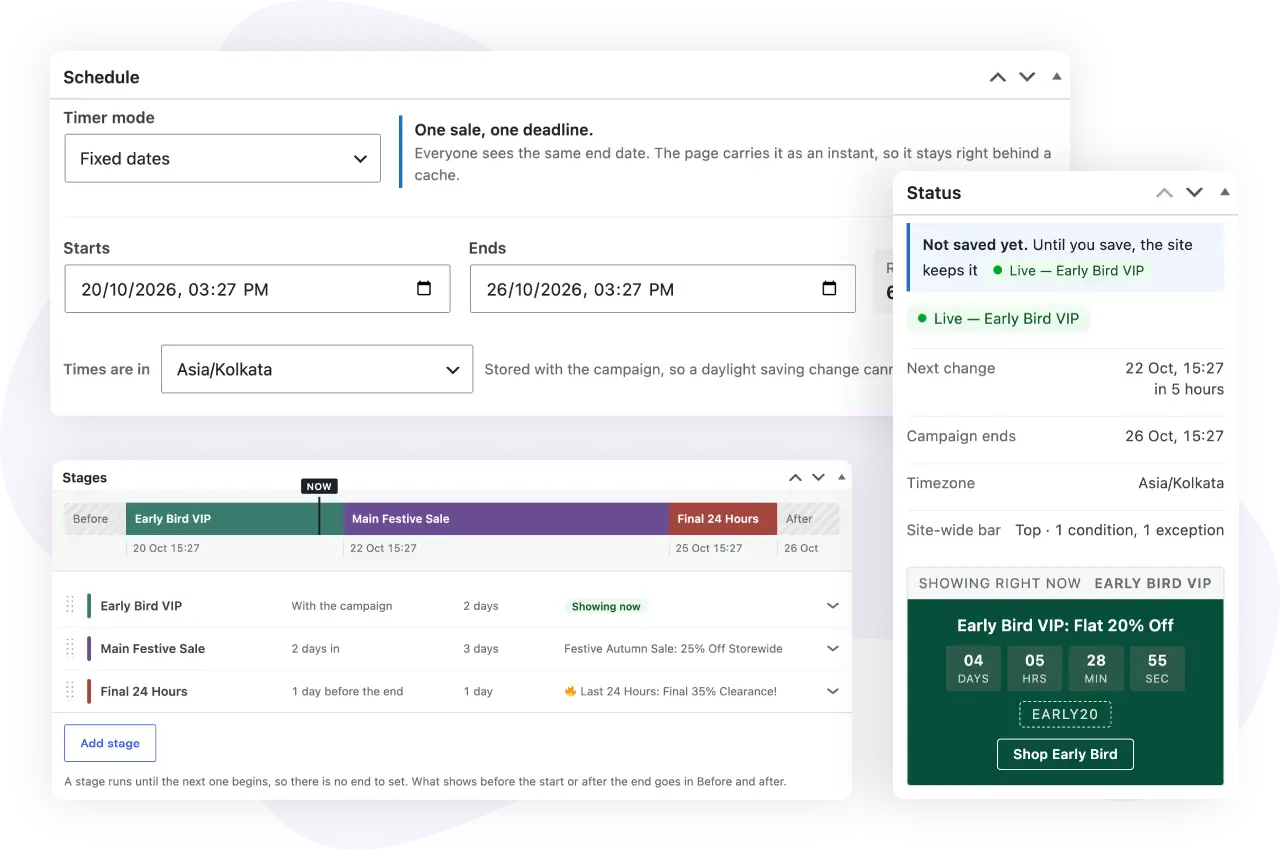
The Status box tells you what visitors are seeing at this moment: Scheduled, Live with the running stage’s name, Ended or Paused, when the next change happens, and a preview card drawn in that stage’s colors. Pause this campaign stops it showing anywhere without touching the dates, and the box flags problems in plain words, such as a stage that would start after the campaign ends.
Stages change the offer while the sale runs
A sale rarely says the same thing from start to finish. Split the campaign into stages, such as early access, the main sale and a last-hours push, and give each one a name, a headline, a subheading, a badge, a coupon code, and a button label and link. Each stage also gets its own look: a background color, gradient or image, a text color, and an accent color or gradient for the badge and button. The text on the badge and button switches between white and near-black, whichever reads better on the accent you chose.
There is no end field on a stage. The first one starts with the campaign, and each later one starts a set number of minutes, hours or days after the start, a set time before the end, or (on a fixed-date campaign) on a date you pick, then runs until the next one begins. Gaps and overlaps cannot happen. Above the list, a timeline draws the campaign to scale with a marker for now, and it redraws from your unsaved edits as you type.
Before and after holds what promo bars say outside the sale: a teaser with a countdown to the start, and a closing line once it is over. Leave Before empty and the bars stay hidden until the sale opens.
Divi countdown timer module
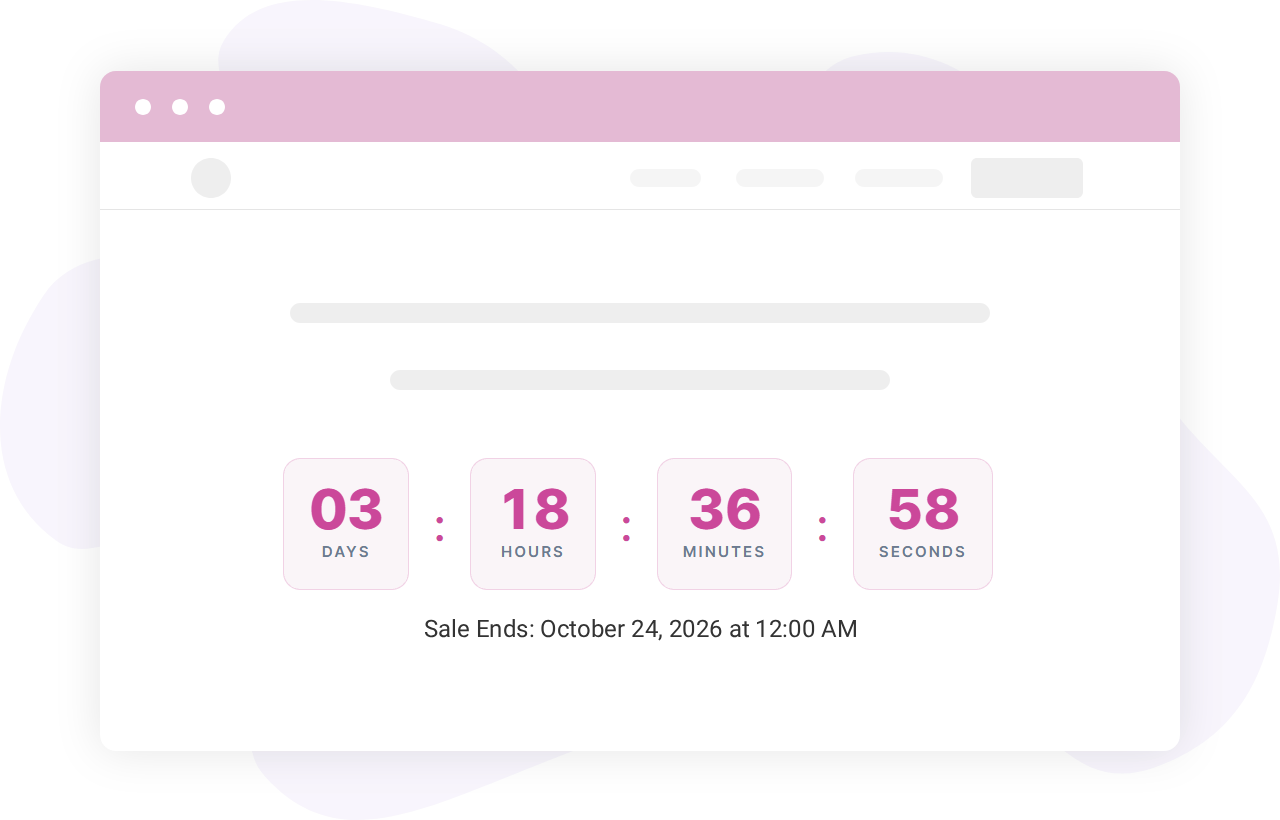
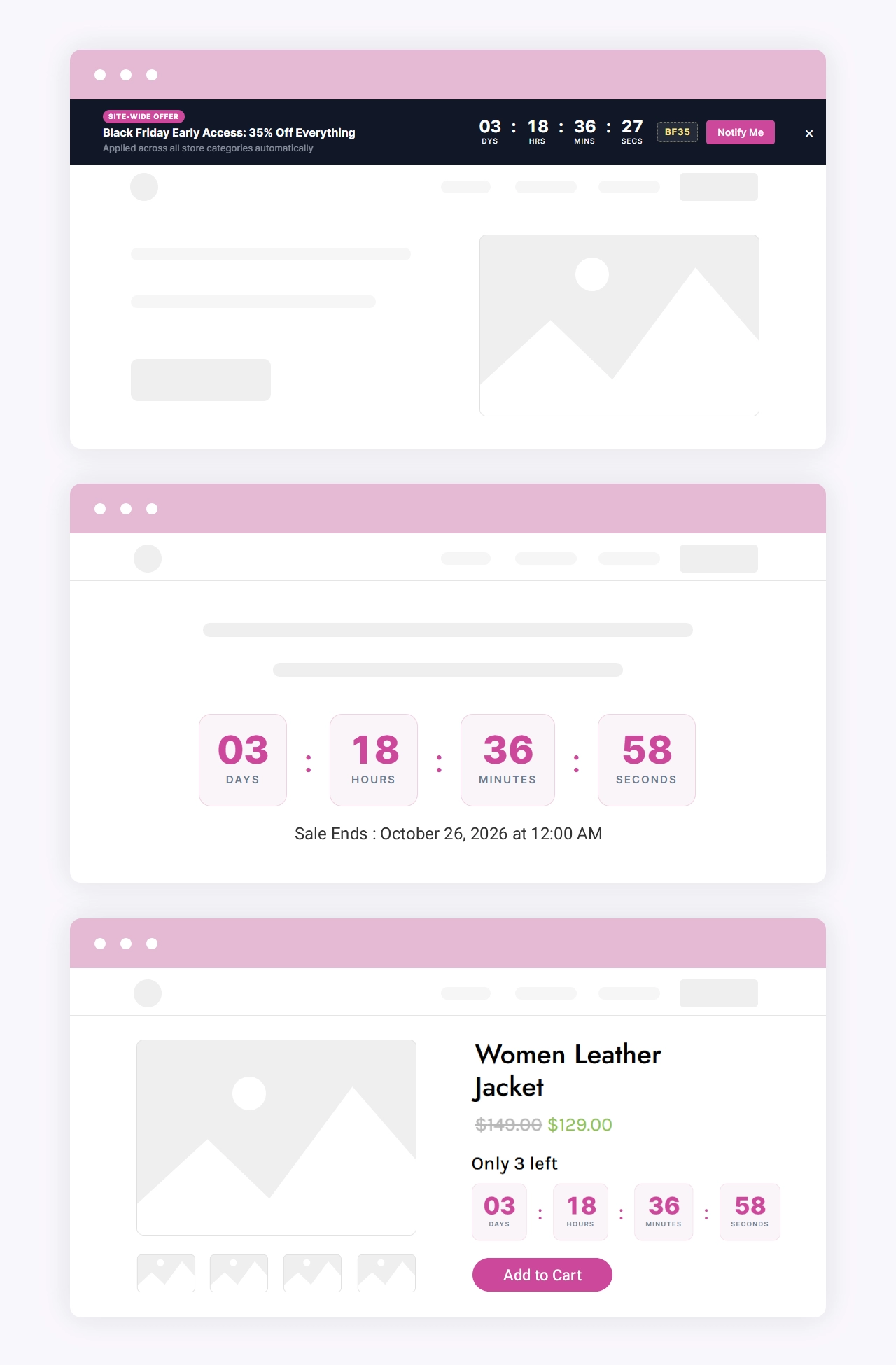
The Countdown Timer module counts down to a campaign’s end, to a date of its own, or to the end of a WooCommerce product’s sale, and before a campaign starts it counts down to the start. Choose any mix of days, hours, minutes and seconds; the largest unit you keep absorbs the rest, so 11 days and 4 hours with Days cleared reads 268 hours, not 4. Labels come in full, short or single-letter form, or not at all, and the separator can be a colon, pipe, slash, dot, dash or any character you type. Direction follows the campaign or is forced to count down or up, and Show The Date writes the deadline under the digits, with its timezone if you want it.
When the time is up, the module hides, shows a message, stays at zero, or sends the visitor to another page. The Design tab styles the digits, unit labels, unit boxes, separators, date line and stock line, on top of Divi’s usual background, border, spacing and visibility options.
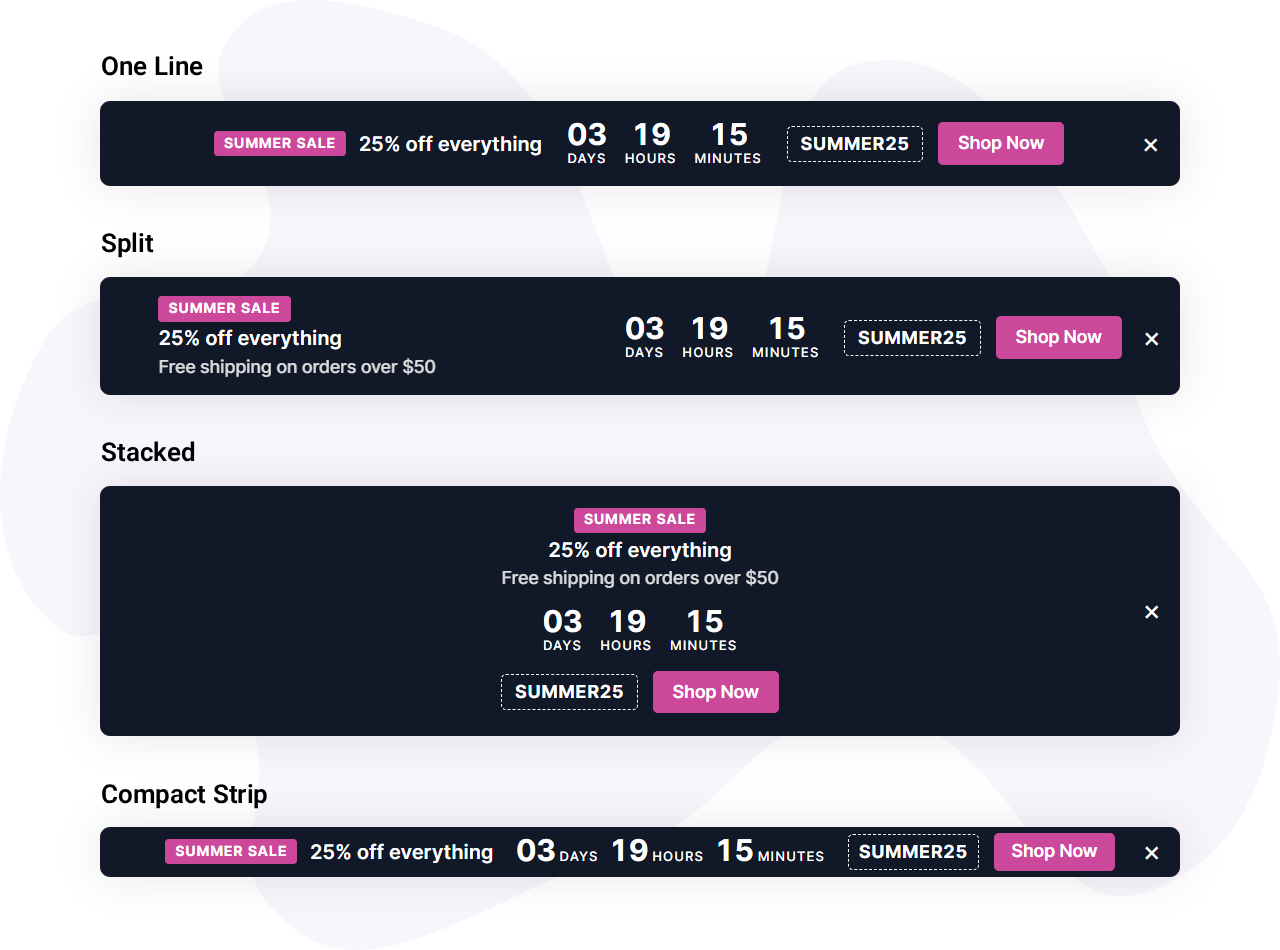
Divi promo bar module in four layouts
The Promo Bar module puts the running stage’s badge, headline, subheading, countdown, coupon code and button in one strip. There are four layouts: One line centers everything and wraps when space runs out, Split puts the words at one end and the offer at the other, Stacked is a single centered column for a bar placed inside the page, and Compact strip holds one row on desktop by shortening the subheading first.
Pin the bar to the top or bottom of the window, or leave it where you placed it in the layout. At the top it moves a fixed Divi header down instead of covering it, and Stay In View keeps it at its edge while the page scrolls. The badge, subheading, countdown, coupon, stock line, button and an optional image each switch on or off separately for desktop, tablet and phone.
Visitors can close the bar, and closing it hides every bar for that campaign on every page, until the browser is closed, for a number of days, or for good. The close button sits middle or top, on the left or the right, and mirrors on right-to-left sites. A bar can also run on its own date and words, or follow a WooCommerce product’s sale, with no campaign at all.
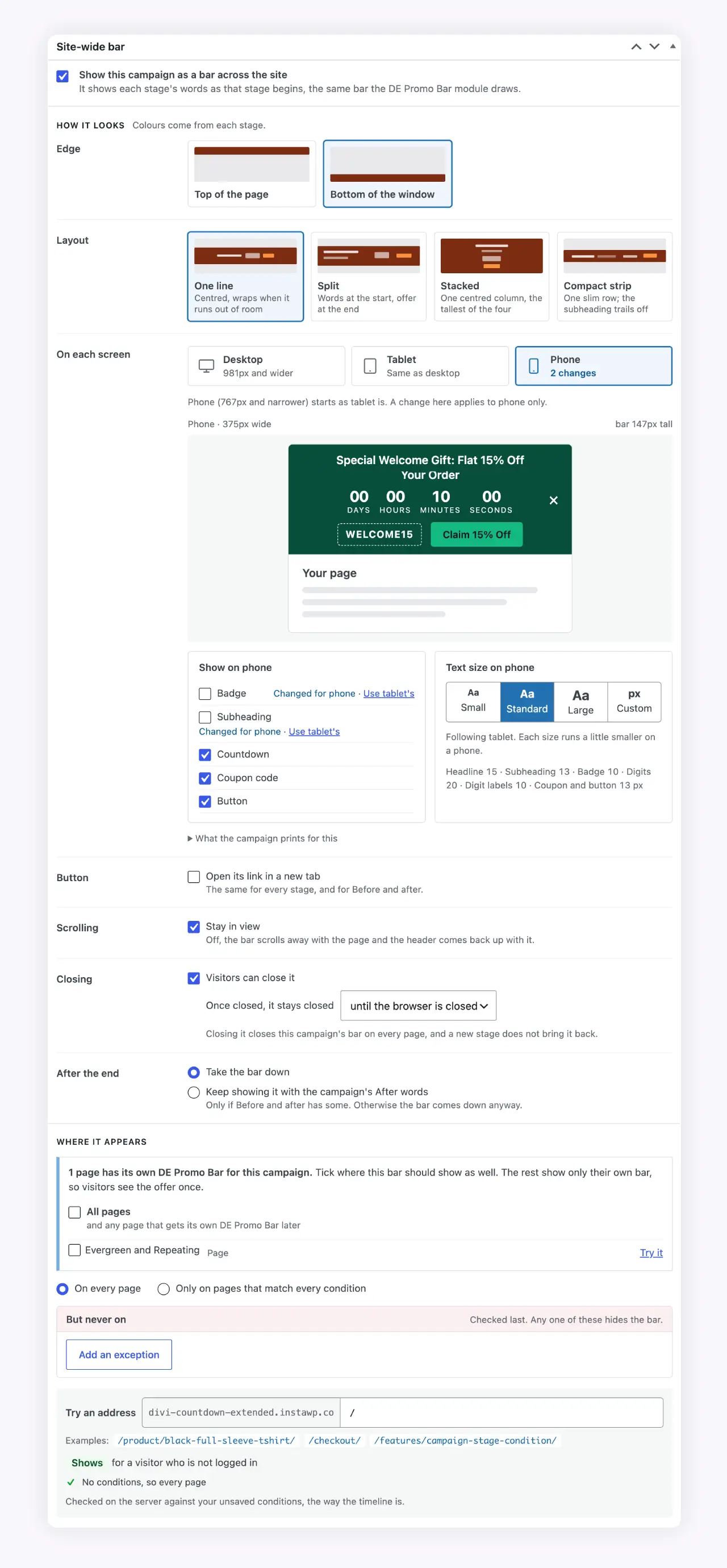
Site-wide promo bar with page targeting
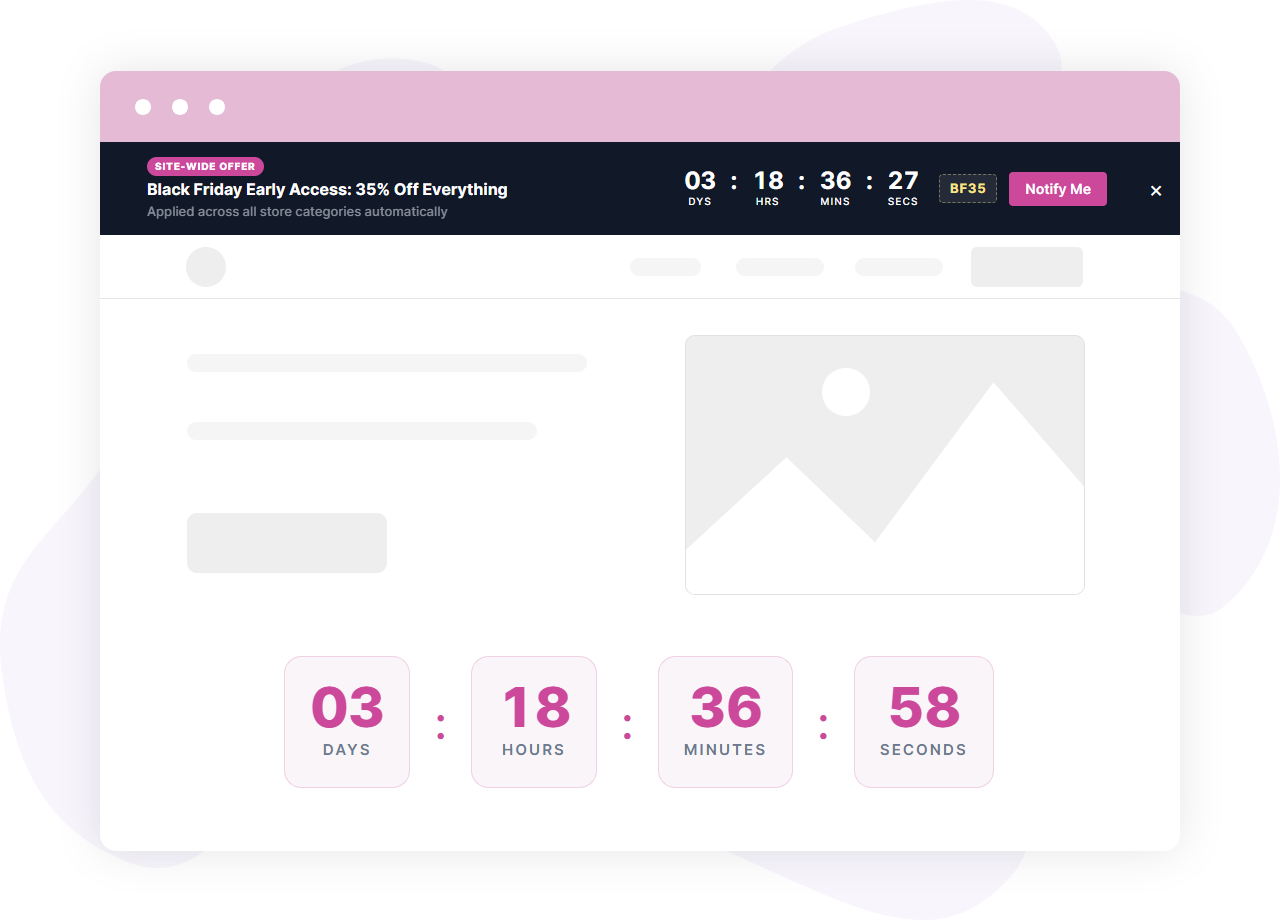
Any campaign can also run as a bar across the whole site, an announcement bar along the top or bottom edge, with no module placed anywhere. Tick Show this campaign as a bar across the site, choose the edge and a layout, then set what shows on each screen: desktop, tablet and phone each get their own parts and text size (Small, Standard, Large, or custom pixel sizes per part), previewed at that screen’s width as you change them. The screen widths come from your Divi breakpoints.
Where it appears is a list of conditions: content type, the front page, specific pages or posts, URL path (starts with, is exactly, or a pattern using *), logged-in or logged-out visitors, and user role, plus exceptions under But never on. Try an address checks any address on your site against the rules as they stand in the form, saved or not, and says which rule decided. Pages that already carry their own Promo Bar for the same campaign show that one instead, unless you tick them, or All pages, to show both.
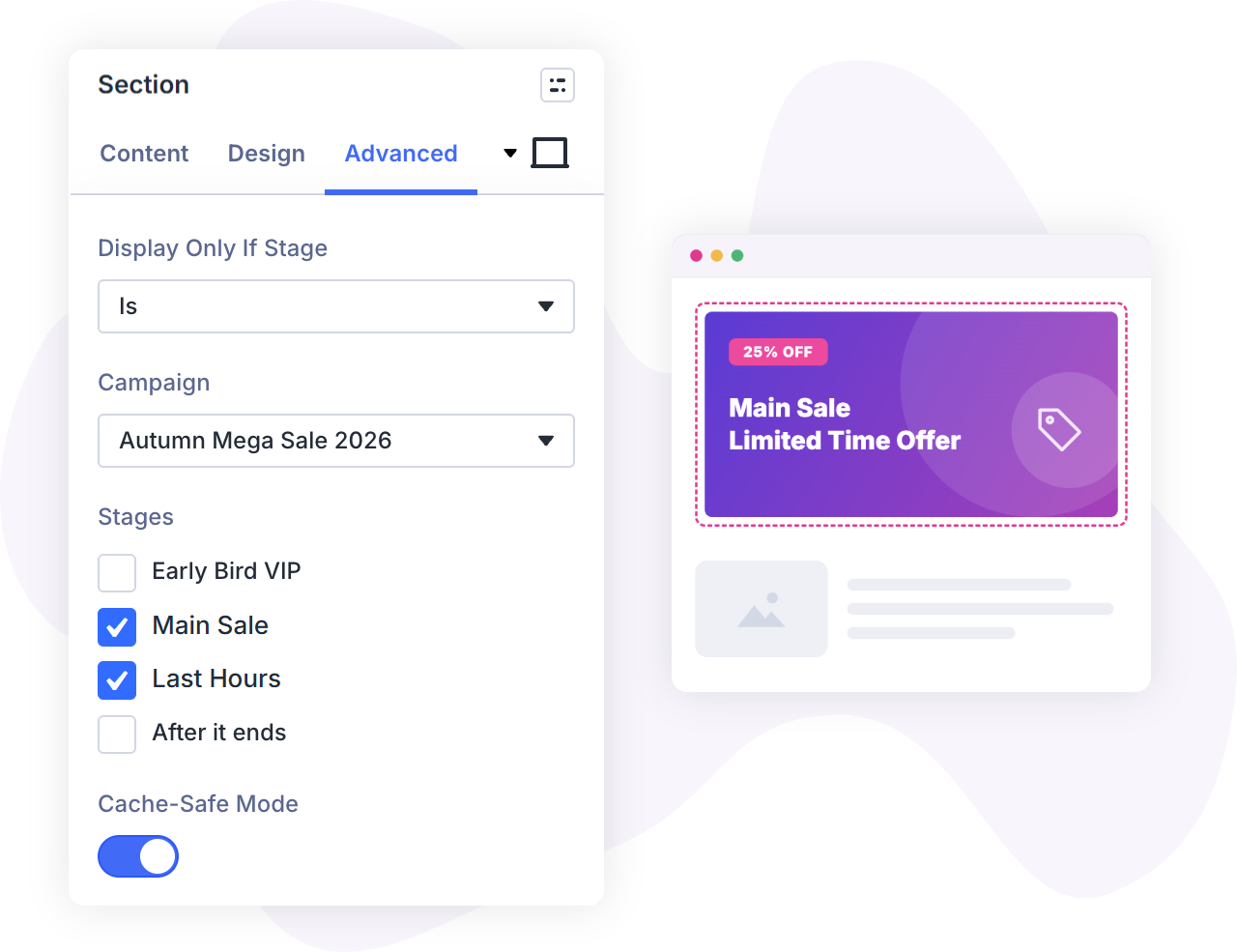
Show any module in Divi only during chosen stages
The Campaign Stage condition adds campaigns to Divi’s display conditions. On any module’s Advanced tab, add Campaign Stage, set Display Only If Stage to Is or Is Not, pick the campaign and tick its stages. Before it starts and After it ends are in the same list, so a teaser section can run until launch and a see-you-next-time section after the close, while Any live campaign covers a sale badge that should appear whenever something is running.
By default the server decides when the page is built, and the plugin clears the page cache at each stage change. For a site behind a full-page cache, turn on Cache-Safe Mode: the module goes to every visitor and the browser shows or hides it, so a cached copy is right the moment it opens. The hidden module is still readable in the page source, so never use it to guard a price, a private coupon or anything a visitor should not see.
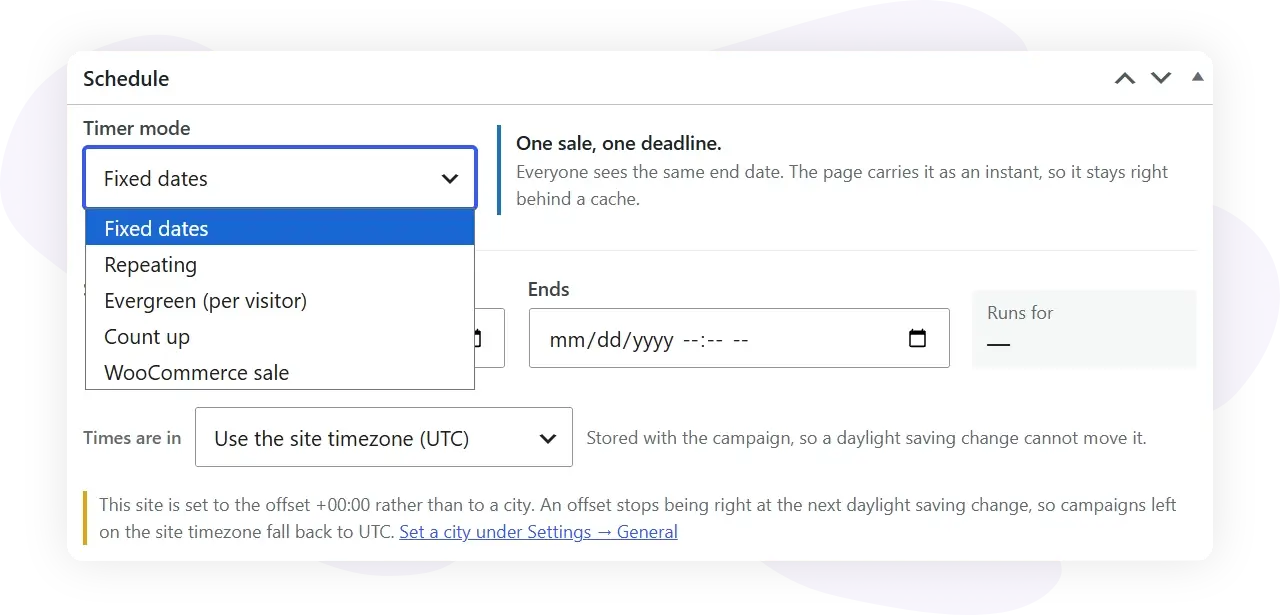
Five ways to schedule a campaign
Fixed dates
One start and one end, and the same deadline for everyone.
Repeating
Daily, weekly on the days you tick, every other week, monthly, the first or last instance of the start’s weekday each month, or annually, with a custom RFC 5545 rule for anything else. End it on a date or after a number of times, skip dates you list, and see the next three occurrences under the rule.
Evergreen countdown timer for Divi
Each visitor gets their own clock from their first visit, so the offer reads “an hour from when you arrived” rather than “ends Friday”. Stages run on that clock too. The start is kept in the visitor’s own browser storage, with no cookie and nothing sent to your server, and you choose whether the timer never restarts, restarts as soon as it runs out, or restarts after a number of days.
Count up
Shows how long a campaign has been running instead of how long is left.
WooCommerce sale
Takes its dates from a product’s own scheduled sale. Move the sale in WooCommerce and every timer and bar on the campaign follows.
Every campaign keeps its own timezone, chosen by city, so a sale set for 6pm in New York starts at 6pm in New York on both sides of a daylight saving change.
Countdowns for WooCommerce sales, with a stock line
With WooCommerce 8.0 or later, a campaign or a single module can follow a product’s sale price dates. Leave the module on the current product inside a Theme Builder product template and each product page counts down its own sale, and on a product with variations the timer follows the one a shopper picks. The sale needs an end date for there to be anything to count down to.
A stock line such as Only 7 left can sit with the countdown for products that track stock, and appears only at or under a threshold you set (10 by default, up to 100). Show the exact number, a softer Only a few left, or a Live number fetched as the page opens, which stays right on a cached page. Write your own sentence with {count} where the number goes, or keep the plugin’s wording, which picks the right plural for the site’s language. On the timer the line sits above the digits; on a promo bar it can go above the countdown, beside the badge, under or after the button, after the subheading or after the countdown.
Each stage’s coupon field suggests codes from your store. The plugin only reads WooCommerce and never changes a price, a sale date, a coupon or stock.

Built to stay right behind a page cache
A countdown that prints “3 days left” into the HTML is wrong as soon as a page cache stores that HTML. Divi Countdown Extended ships the schedule with the page instead, and a small inline script picks the right stage as the page is parsed, before the stage is painted. A copy cached last week still changes stage at the right moment and still knows when the sale is over.
Promo bars carry only the words of the stage that has begun, so a page served now never holds tomorrow’s offer or its coupon. When a cached page outlives its stage, the bar asks your site for the new stage’s words and appears a moment later. The plugin also clears the page cache at each stage change and when a live campaign or a product on sale changes, through Divi’s own cache-clearing helper plus LiteSpeed Cache and Nginx Helper.
Preview any moment of a campaign
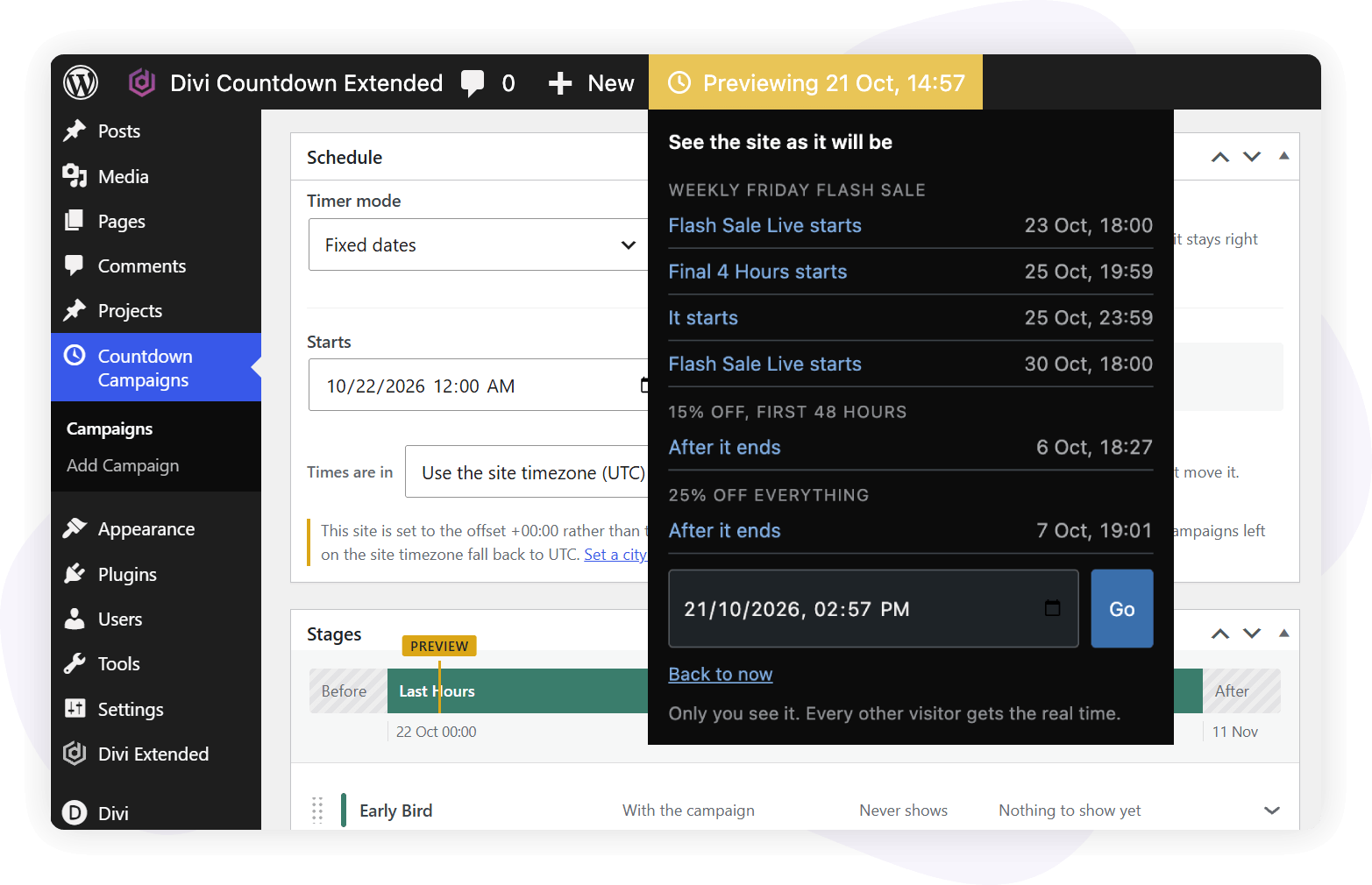
Time travel in the admin bar shows the site at another moment of a campaign. Jump to an upcoming stage change from the list or type a date and time, and every timer, bar and the campaign editor show that moment, to you and nobody else. Previewed pages are never cached, and the preview switches itself off after an hour.
Who it is for
- Store owners running seasonal sales who want early access, the main sale and a final-hours push to run from one schedule, with the coupon changing by stage.
- Marketers planning launches, with a Before teaser and a countdown to the opening, or evergreen timers that give each visitor their own deadline.
- Shops with recurring deals, such as a weekly flash sale or a monthly members’ day that comes round on its own.
- Agencies building client sites on Divi, who can check a campaign at any future moment with Time travel and test targeting with Try an address before a client sees it.
Specs
- Divi 5 only: requires Divi 5.6.1 or later, with the Divi theme or the Divi Builder plugin, and shows a notice listing anything missing instead of failing quietly. Divi 4 is not supported.
- Requirements: WordPress 6.7.2 or later, PHP 7.4 or later. WooCommerce is optional; its features need WooCommerce 8.0 or later.
- In the builder: Countdown Timer and Promo Bar modules in the DE Countdown Modules folder, and the Campaign Stage display condition under Campaigns.
- Schedules: fixed dates, repeating, evergreen (per visitor), count up and WooCommerce sale, each with its own city-based timezone.
- Settings: three switches under Divi Extended > Divi Countdown Extended: clear the page cache, load the plugin’s styles, and remember each visitor’s start. All three are on by default.
- Loads only where used: the plugin’s scripts and styles load only on pages that show a timer, a bar or a stage-gated module.
- Accessible: the timer is not read aloud every second; screen readers hear one sentence saying when the offer ends, a stage change is announced once, and closing a bar from the keyboard moves focus to what follows.
- Your campaigns stay put: deactivating or deleting the plugin leaves campaigns in the database, and reinstalling brings them back.
FAQs
Divi has its own Countdown Timer module. What does this add?
Does it work with caching plugins?
Do I need WooCommerce?
Can I show a countdown without creating a campaign?
How does an evergreen timer know when a visitor arrived?
My site needs consent before storing anything in a visitor's browser. What should I set?
Which Divi versions does Divi Countdown Extended support?
Plan the sale once, then let it run
Set the dates and the stages in one campaign, place a timer or a bar wherever the sale should show, and let each stage take over on time, on cached pages too.


Reviews