
A horizontal scroll section changes the direction of content as visitors scroll down a page. The next row won’t appear below the current one, and instead the content moves sideways using the normal vertical page scroll.
If you want to build a Divi horizontal scroll section, Divi Plus offers four modules for different types of content: Horizontal Scrolling Card, Horizontal Scrolling Posts, Horizontal Scrolling Portfolio, and Scroll Stack Cards.
The first three are useful for cards, published posts, and portfolio projects. Scroll Stack Cards is designed for a sequence of manually created cards and supports both horizontal and vertical layouts.
This guide walks through each method and shows which module fits which type of content. One version note: Horizontal Scrolling Portfolio works only with Divi 5 and was added in Divi Plus 2.1.0. The other three modules were released earlier, in Divi Plus 1.15.0 and 1.16.0, and are not restricted to Divi 5.
What a Horizontal Scroll Section Is Good For
A horizontal scroll section works when a collection of related items needs more horizontal space than the page can show at one time. The capability allows users to keep scrolling, but the module uses the vertical movement to reveal cards from left to right or right to left. It works best when the content is visual and can be divided into discrete items.
1. Portfolio
A portfolio can use one card per project, with the featured image, project title, category, excerpt, and action button. The Horizontal Scrolling Portfolio module is designed specifically for this type of content and can pull projects according to selected categories and sort order.
2. Product or Feature Showcases
If each item needs its own image, title, description, tag, and button, the Horizontal Scrolling Card module gives you manually created cards. It is suitable when the items do not need to come from a WordPress query.
3. Team Introductions
A manually created card can contain a person’s name, description, image, tag, and button. This makes the Horizontal Scrolling Card module suitable for a team section where each card needs individual content.
4. Step-by-Step Processes
When each card represents a stage in a process, Scroll Stack Cards provide a horizontal layout in which the cards appear as the visitor scrolls. Each card can contain a title, content, image, icon, and button.
Where It Does Not Fit
Horizontal scrolling is less suitable for long-form reading. If visitors need to scan headings, paragraphs, prices, specifications, or other information quickly, a conventional vertical layout makes the content easier to locate.
The same applies to information that users need to compare at a glance. A horizontal scroll section makes sense when the content itself benefits from being presented as a sequence of cards, rather than when the horizontal movement is the main purpose.
Can You Build a Horizontal Scroll Section With Divi Alone?
Divi 5 includes the native Group Carousel module, which displays grouped modules in a horizontal carousel that visitors move through with arrows, dot navigation, or automatic rotation. That movement is not tied to the vertical page scroll. Divi’s native scroll effects also include a Horizontal effect, but those controls belong to Divi’s scroll-effects system rather than the four Divi Plus modules covered here.
If you need a section where vertically scrolling through the page drives a set of cards or posts horizontally, Divi Plus provides purpose-built modules for that layout. This avoids building the effect around custom overflow and CSS rules.
For the separate native Divi scroll-effects approach, see the guide on Divi’s built-in scroll effects.
Method 1: Horizontal Scrolling Cards for Services, Features, or Team Members
The Horizontal Scrolling Card module fits when you want to create each card yourself. It is a good fit for a services section, team introduction, feature list, event showcase, or a small collection of selected projects.
The module supports two layouts and lets each card contain a title, description, image, tag, and optional button.
When to Use It
Choose this method when the content is manually controlled. For example, a services section might contain: web design, SEO, social media management, content writing, and website maintenance. In this case, each card can have its own image, description, tag, and call-to-action.
Step-by-Step on How to Set It Up
Step 1: Enable the Horizontal Scrolling Card Module
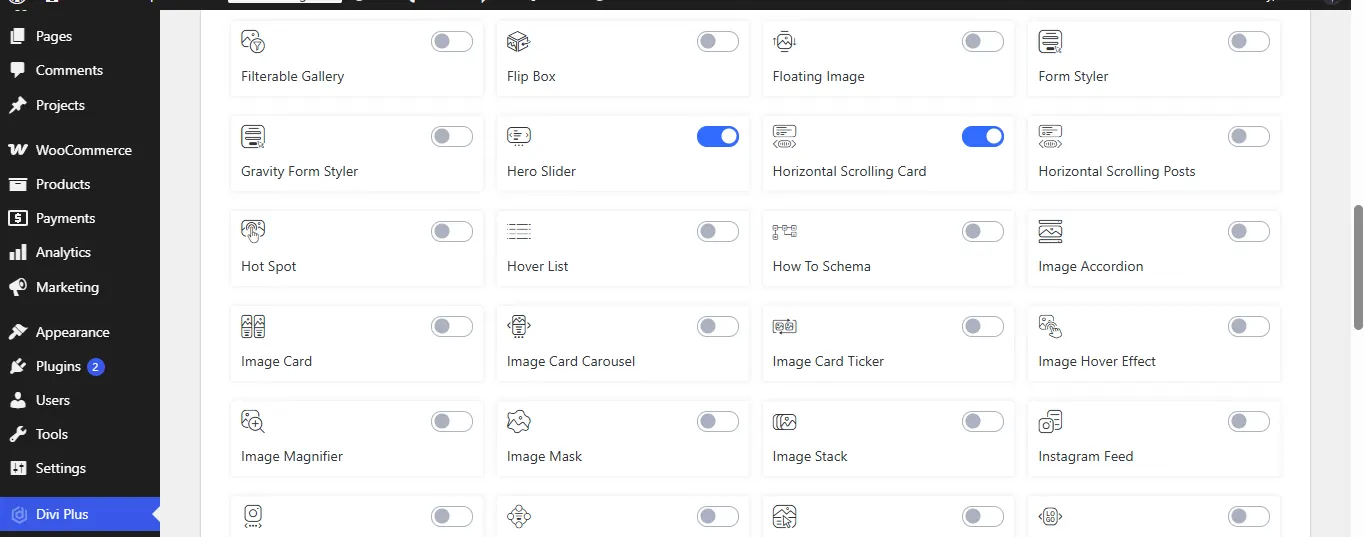
Divi Plus lets you switch individual modules on or off. In your WordPress dashboard, click Divi Plus in the left sidebar (in older versions, Settings > Divi Plus), find Horizontal Scrolling Card, and switch its toggle on. Enable Horizontal Scrolling Posts, Horizontal Scrolling Portfolio, and Scroll Stack Cards the same way if you plan to use them.
Step 2: Open Your Page
Go to Pages > All Pages, open the page where the cards should appear, and click Edit With The Divi Builder.
Step 3: Create or Edit the Row Where the Section Will Appear
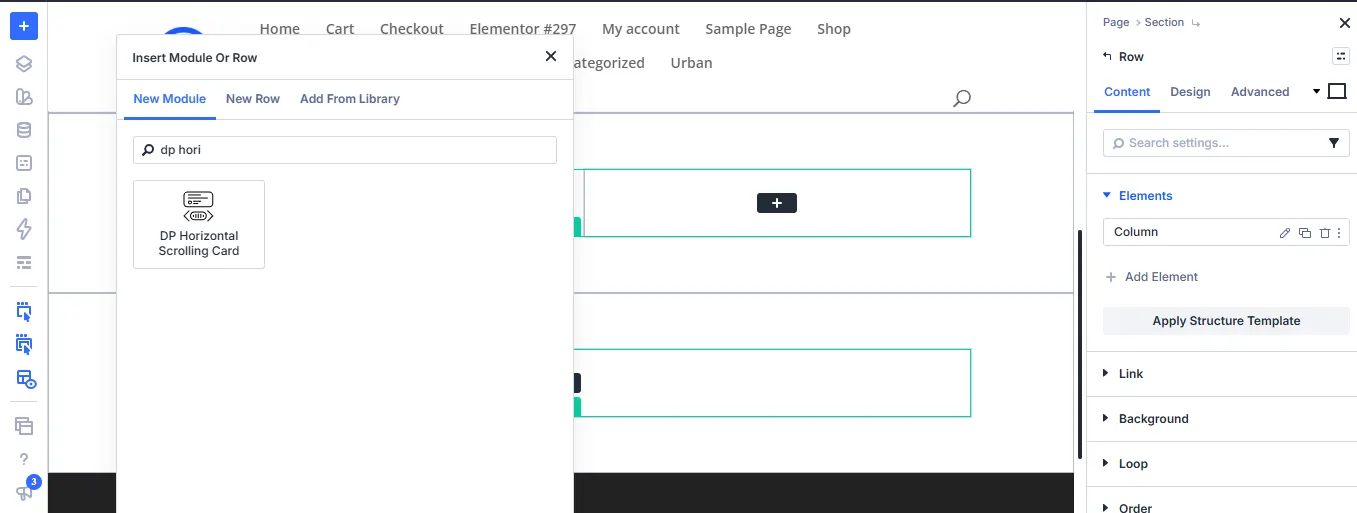
Create or edit the row where the section will appear, click the plus icon to add a new module, and search for DP Horizontal Scrolling Card.
Step 4: Add a New Horizontal Scrolling Card Item
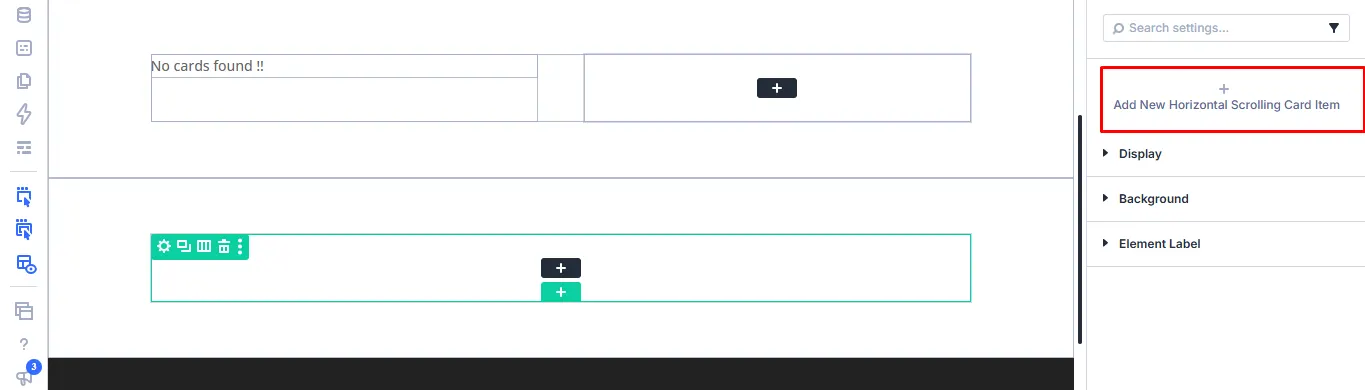
On the right-side menu, click the option to add a new Horizontal Scrolling Card item.
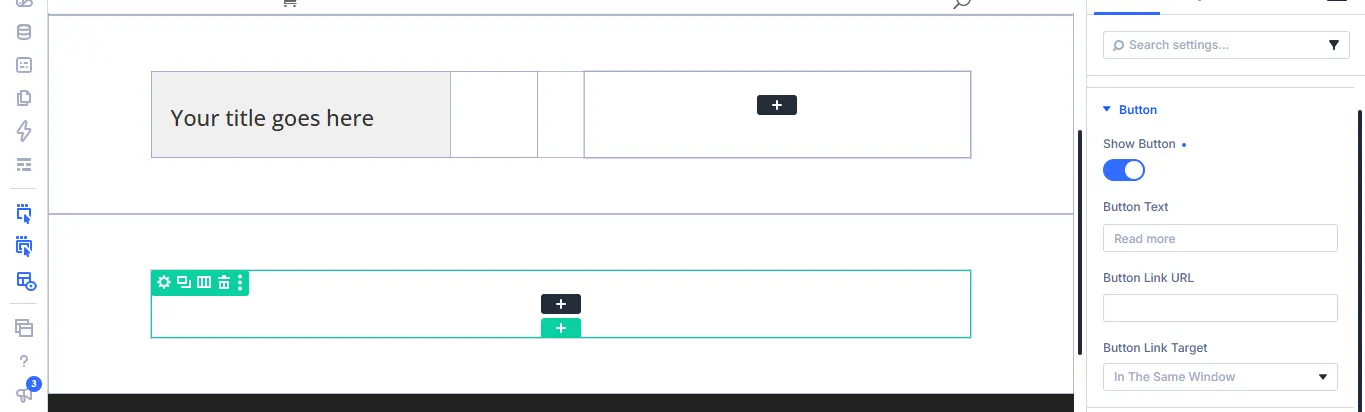
Enter the card’s title, description, and upload the card’s image, and add a tag. If the card needs a call to action, click the button option, select Show Button, enter the button text, and the button link URL.
Step 5: Check the Output on the Builder and Front End
Preview the cards in the builder and on the front end.
i) Divi Builder
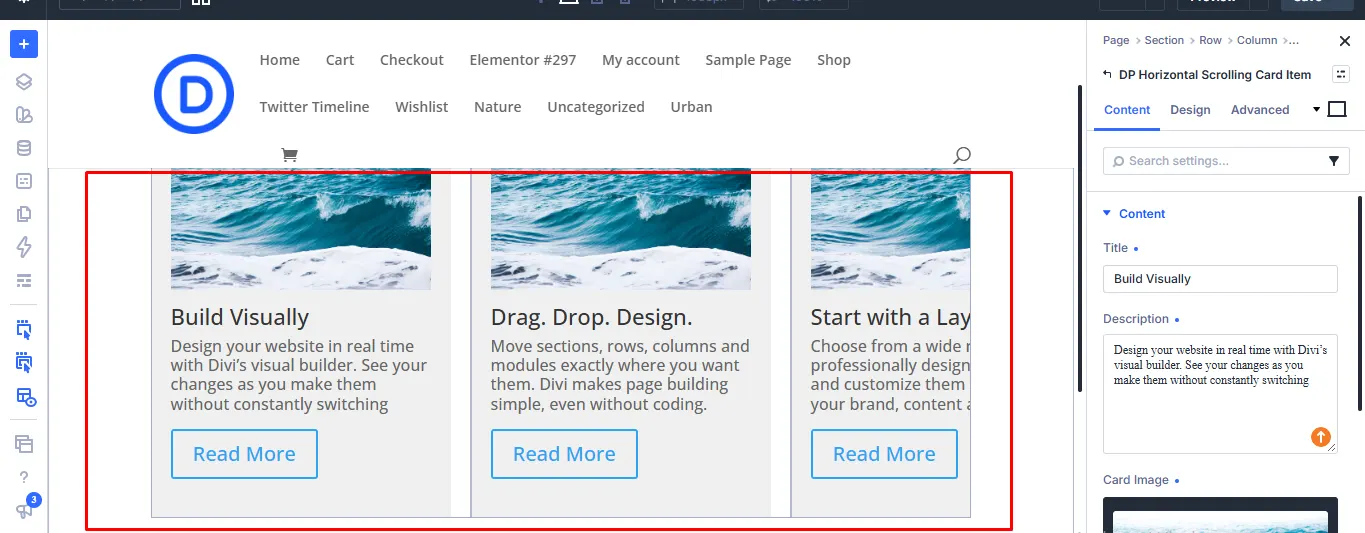
ii) Front end
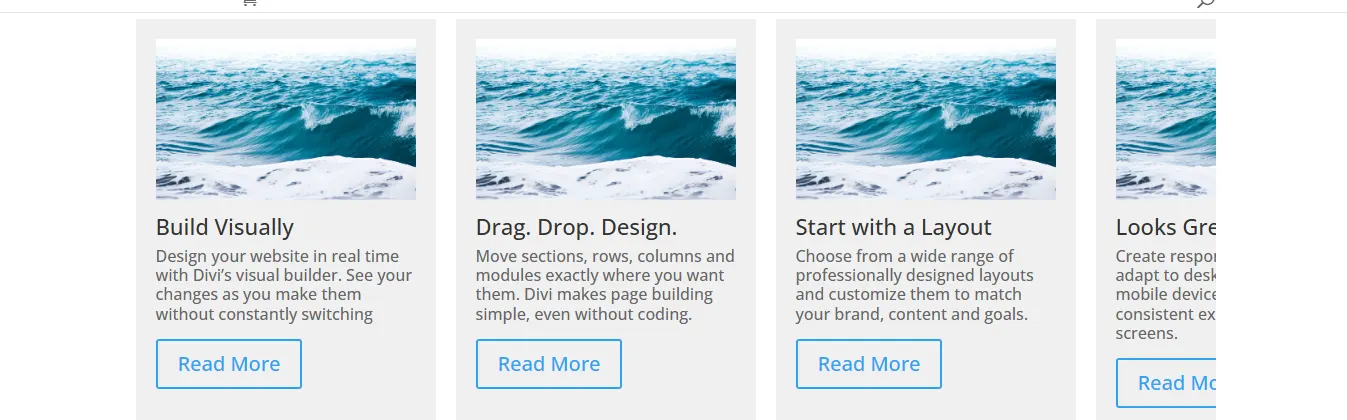
Open the module’s display settings after adding the cards. The main options are:
- Layout: It allows you to choose between Layout 1 and Layout 2. Test with both to see how the card content is arranged: images, text, etc.
- Space between cards: This option controls the horizontal gap between cards. A larger value creates more space between each item, while a smaller value places the cards closer together.
- Animation start element: It controls when the card animation begins based on how much of the card is visible in the viewport. For example, a 50% setting starts the animation when half of the card has entered the visible area.
- Animation start viewport: This controls the point within the viewport where the animation is triggered. A 50% value is placed around the middle of the screen.
The Horizontal Scrolling Card module page covers the module itself. For the remaining controls, use the full settings reference.
Since Divi Plus 2.4.0, Horizontal Scrolling Card, Horizontal Scrolling Posts, and Horizontal Scrolling Portfolio also include title and description options that display text at the top of the section.
The horizontal scrolling effect does not run in the Visual Builder preview, so check it on the front end.
Method 2: Horizontal Scrolling Posts for Blog and News Sections
The Horizontal Scrolling Posts module is for content that already exists as WordPress posts. Instead of manually entering each card, you configure the query and let the module pull the existing posts.
Because it pulls posts automatically, the module suits a homepage news section, a recent articles area, or a single category of blog content.
When to Use It
Use this method when the section should update as you publish or edit posts. A manually created card section needs to be maintained card by card, while the posts module can query published content.
Step-by-Step on How to Set It Up
Step 1: Edit the Page With Divi
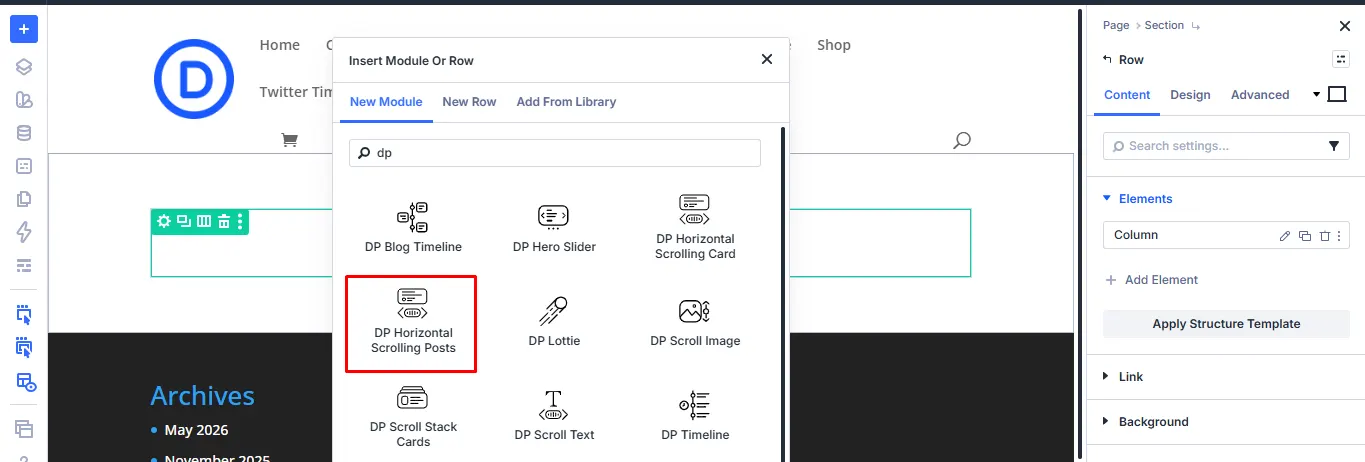
Open the page with Edit With The Divi Builder and create or edit the row where the posts should appear. Click the plus icon, search for DP Horizontal Scrolling Posts, and select it. If it does not appear, enable it under Divi Plus first (see Method 1, Step 1).
Step 2: Open the Posts Settings
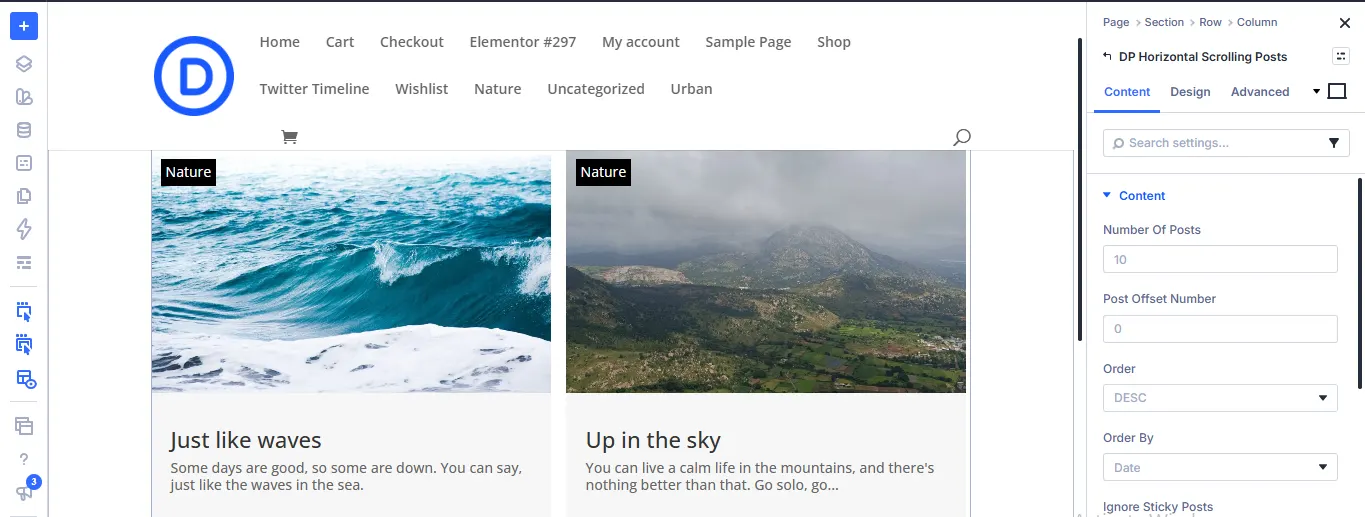
Open the module’s Content tab, where the query settings start with Number of Posts. If your site already has published posts, the module loads them right away, so you can see the cards change as you adjust the query.
Step 3: Set the Number of Posts
Use Number Of Posts to set how many posts appear in the section.
To skip posts at the start of the query, such as your latest post if it is already featured higher on the page, use Post Offset Number.
Step 4: Sort the Posts Order
Use Order to sort posts in ascending (ASC) or descending (DESC) order, and Order By to sort them by Date, Title, Random, Modified Date, ID, or Slug.
Step 5: Modify the Categories
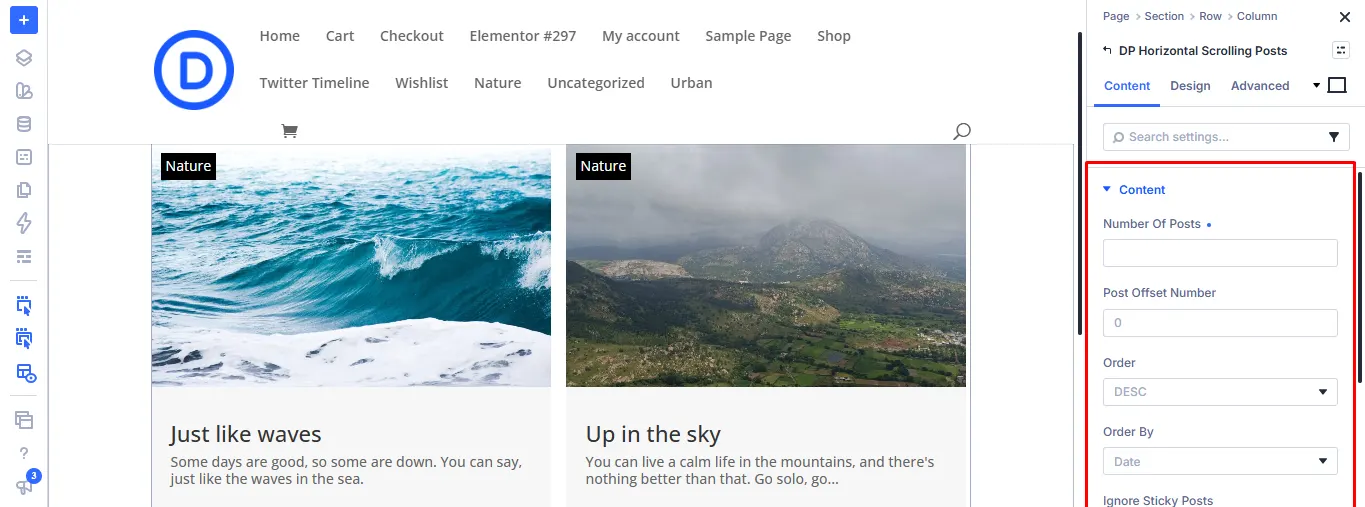
Use Select Categories to limit the query to specific post categories. Turn on Ignore Sticky Posts if pinned posts should not affect the list. You can also exclude password-protected posts or specific post IDs.
Step 6: Choose What Each Card Shows
Next, decide which information appears on each card. The element controls are Show Featured Image, Image Size, Show Title, Show Excerpt, Excerpt Length, Show Categories/Terms, and Show Author.
Under the display settings, choose a layout, set space between cards, and configure the animation start element and animation start viewport. This gives you a dynamically populated Divi horizontal scroll section without manually recreating a card whenever a new post is published.
The Horizontal Scrolling Posts documentation lists the available query, element, and display controls.
Method 3: Horizontal Scrolling Portfolio for Project Showcases
The Horizontal Scrolling Portfolio module is designed for Divi projects. It pulls portfolio projects into a horizontal section while the visitor scrolls vertically.
This is the most direct method for building a Divi horizontal scroll portfolio, because the module includes a portfolio query, similar to the posts module, instead of requiring each project to be entered manually. It was introduced in Divi Plus 2.1.0 as one of the new Divi 5-only modules.
When to Use It
Use it for: web design portfolios, agency project showcases, freelancer work, branding projects, photography projects, and other work stored as Divi portfolio projects.
Step-by-Step on How to Set It Up
Step 1: Edit the Page in Divi
Go to Pages > All Pages, open the page, and click Edit With The Divi Builder. Make sure Horizontal Scrolling Portfolio is enabled under Divi Plus (see Method 1, Step 1). The module requires Divi 5.
Create or edit a row, click the plus icon, and select DP Horizontal Scrolling Portfolio.
Step 2: Open Portfolio Query
Set the maximum number of projects to retrieve. Select the project categories you want to include. Then choose the sort order, such as ASC, DESC, and Date.
Step 3: Configure the Card Elements
Next, configure the card elements. The module lets you control the display of: featured image, project title, short description excerpt, categories, and action buttons.
This gives visitors enough information to identify each project before they click through to it.
Step 4: Control the Horizontal Movement with Track Height
The scroll track height setting controls how long the section remains locked while the portfolio cards move horizontally. A larger track height keeps the section active for longer and results in slower horizontal movement.
A smaller track height reduces the amount of vertical scrolling assigned to the horizontal movement. For example, if you have a small number of large project cards, a shorter track may be sufficient. If the portfolio contains several projects that need more time on screen, increase the track height and check the frontend.
The Horizontal Scrolling Portfolio documentation contains the portfolio query, card element, track height, card dimension, gap, and action-button settings.
Method 4: Scroll Stack Cards for Step-by-Step Storytelling
Scroll Stack Cards are useful when the content should be presented as a sequence. Instead of pulling posts or portfolio projects from WordPress, you create individual card items inside the module.
The module supports both vertical and horizontal layouts. In the horizontal layout, the cards move across the screen as the visitor scrolls.
When to Use It
Use Scroll Stack Cards for: multi-step processes, product walkthroughs, service processes, feature explanations, numbered guides, and a short story told card by card.
Step-by-Step on How to Set It Up
Step 1: Edit Your Page With Divi
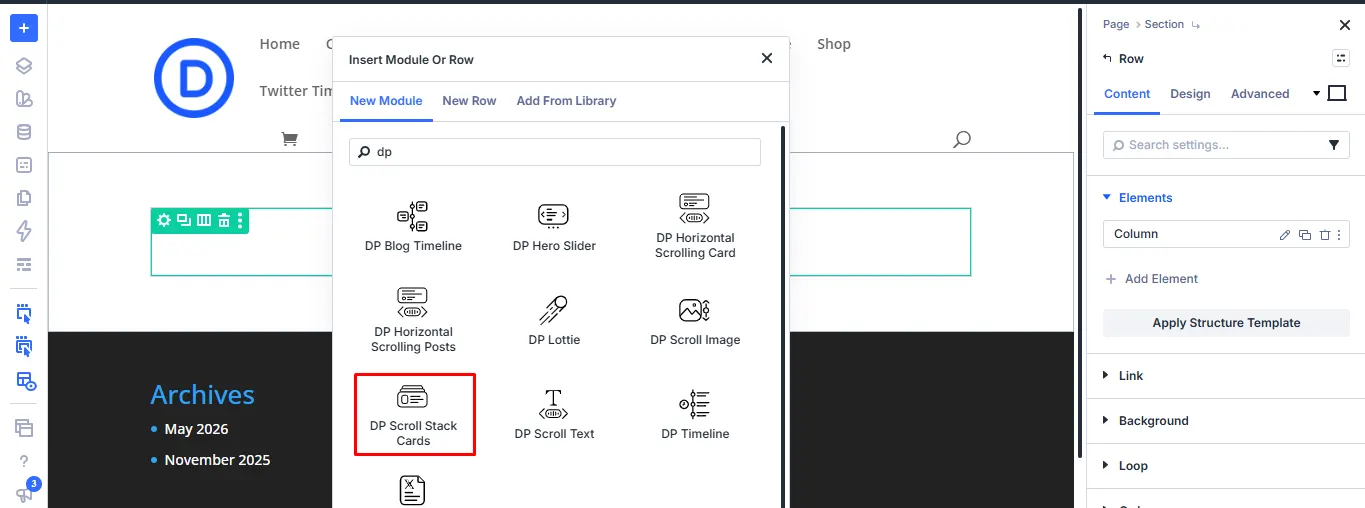
Open the page with Edit With The Divi Builder, create or edit a row, click the plus icon, and choose DP Scroll Stack Cards. Enable the module under Divi Plus first if it does not appear.
Step 2: Add the Required Card Items
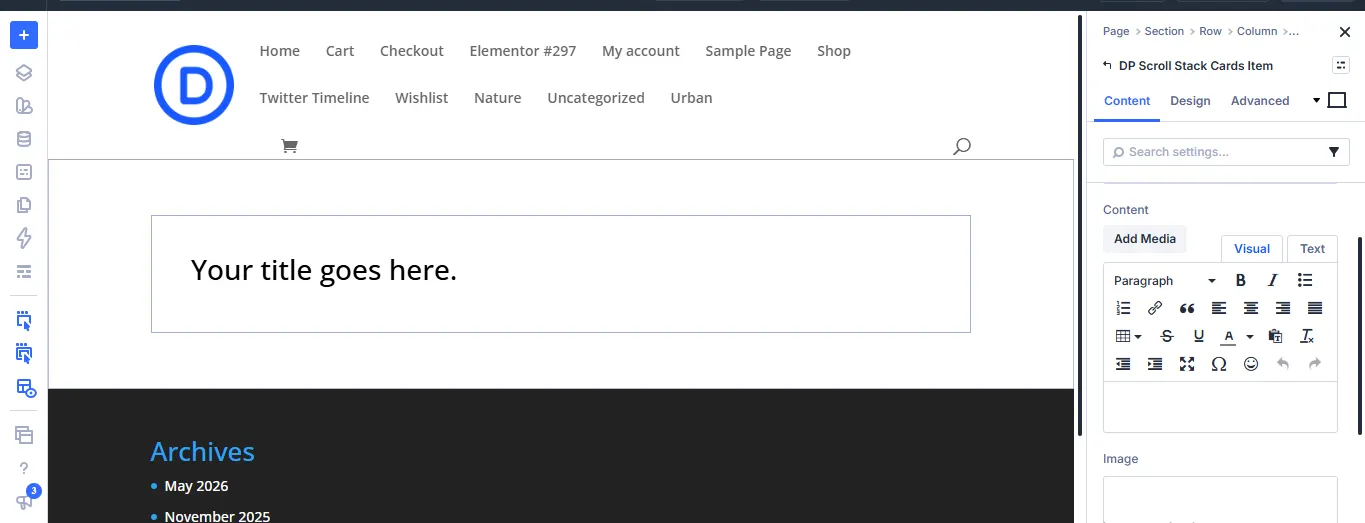
For each card item, add a title, content, and an image.
Step 3: Add an Icon or Button
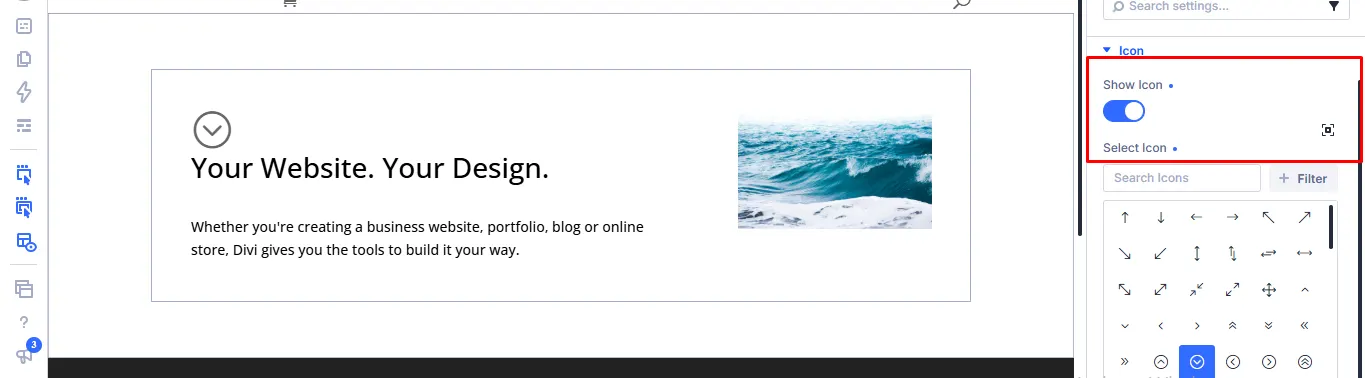
Turn on Show Icon and pick one with Select Icon, or turn on Show Button and add Button Text if the card needs a call to action.
Step 4: Add Another Card
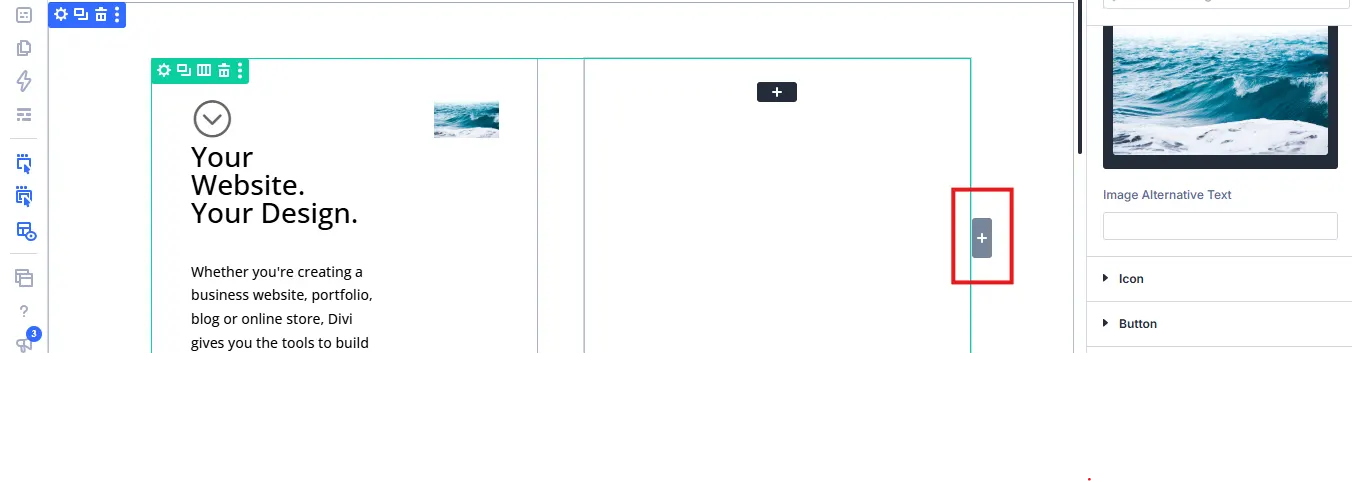
Click the plus button on the right to add the next card, then repeat Steps 2 and 3.
Step 5: Preview
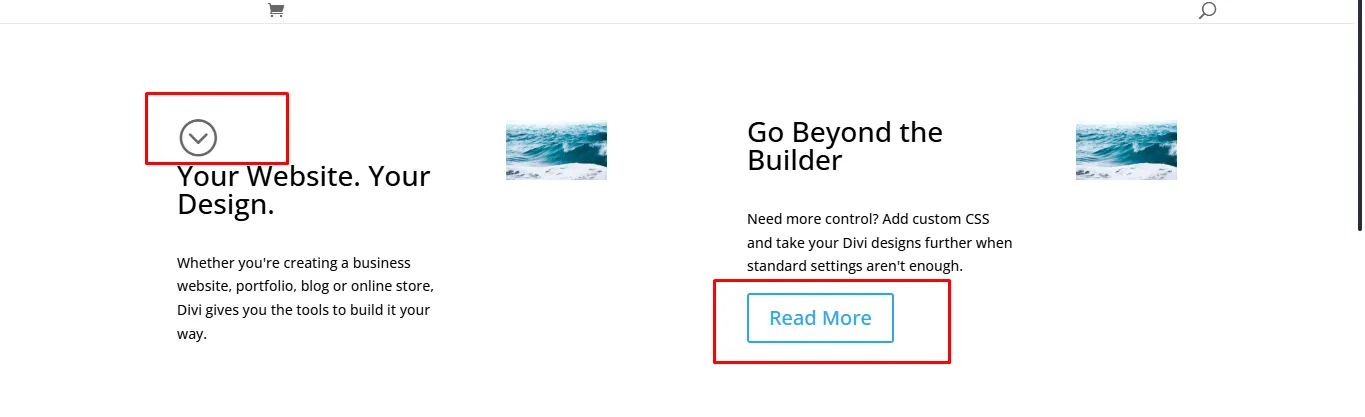
Preview the result on the front end. In this example, the first card shows an icon and the second shows a button.
Step 6: Set the Layout and Animation
In the Layout setting, choose Horizontal for the sideways version. Choose Vertical if the cards should stack down the page instead.
The animation start viewport setting determines the percentage of the viewport height at which the animation begins. If you set it at 0%, the animation starts as soon as the section enters the viewport.
Divi Plus 2.3.0 also added a scrolling speed option to Scroll Stack Cards, which controls how quickly the next card appears.
The Scroll Stack Cards module page provides an overview, while the full settings reference covers the available card and display controls.
Which Module Should You Use?
The four modules overlap in appearance, but their content sources are different.
| Module | Content Source | Best For | Availability |
| Horizontal Scrolling Card | Manual cards | Services, features, teams, and curated content | Added in Divi Plus 1.15.0 |
| Horizontal Scrolling Posts | WordPress posts | Blogs, news, articles, and other post-based content | Added in Divi Plus 1.16.0 |
| Horizontal Scrolling Portfolio | Portfolio projects | Agencies, freelancers, and project showcases | Divi 5 only, added in Divi Plus 2.1.0 |
| Scroll Stack Cards | Manual cards | Processes, workflows, and step-by-step content | Added in Divi Plus 1.16.0 |
If you need to control every card yourself, use Horizontal Scrolling Card or Scroll Stack Cards. If the section should update from WordPress posts, use Horizontal Scrolling Posts. For Divi portfolio projects, use Horizontal Scrolling Portfolio.
Making Horizontal Scroll Sections Work on Mobile
Check responsive behavior on the front end at phone width rather than assuming it from the desktop layout, because the scroll animation does not run in the Visual Builder preview.
For a phone-width check, test each module with the same content you intend to publish:
i) Horizontal Scrolling Card: check the card width, image proportions, text wrapping, and spacing.
ii) Horizontal Scrolling Posts: check featured-image sizing, title wrapping, excerpt length, and the spacing between post cards.
iii) Horizontal Scrolling Portfolio: check the project card dimensions and the length of the scroll track.
iv) Scroll Stack Cards: check the horizontal layout and the point at which the animation starts.
Divi 5 also provides responsive controls and visibility settings for phone, tablet, and desktop breakpoints. Its visibility settings include horizontal overflow controls, although those controls are separate from the Divi Plus module’s own scroll behavior.
Because the exact result depends on the number of cards, card dimensions, content length, theme styles, and viewport width, test the actual page on a phone before publishing rather than relying on a desktop preview.
FAQs
Divi 5 has the native Group Carousel module, which moves grouped content sideways with arrows, dots, or automatic rotation, but it does not link that movement to page scroll. For a section that moves sideways as visitors scroll down, Divi Plus adds Horizontal Scrolling Card, Horizontal Scrolling Posts, Horizontal Scrolling Portfolio, and Scroll Stack Cards.
Yes. Horizontal Scrolling Posts queries your blog by category and sorts by Date, Title, Random, Modified Date, ID, or Slug, while Horizontal Scrolling Portfolio pulls Divi projects by project category with ASC, DESC, or Date sorting.
Each module has its own control. Horizontal Scrolling Portfolio uses Scroll Track Height, where a taller track slows the slide; Scroll Stack Cards has a scrolling speed option added in Divi Plus 2.3.0; and the card and posts modules use Animation Start Element and Animation Start Viewport to set when the movement begins.
Yes. All four modules are part of Divi Plus, which is compatible with Divi 5, and Horizontal Scrolling Portfolio works only with Divi 5 (added in Divi Plus 2.1.0).
Yes. Scroll Stack Cards has a Layout setting with Vertical and Horizontal options, so you can switch the same set of cards between a stacked sequence and a sideways one without rebuilding them.
Yes, but test it on the front end at phone width, because the scroll animation does not run in the Visual Builder preview. Check card width, image proportions, and text wrapping, then use Divi’s phone breakpoint settings to adjust spacing or card content where needed.
Conclusion
A Divi horizontal scroll section is useful when a page needs to present a sequence of cards without placing every item in a conventional vertical stack. Use Horizontal Scrolling Card for manually created cards, Horizontal Scrolling Posts for WordPress posts, Horizontal Scrolling Portfolio for project showcases, and Scroll Stack Cards for sequential content.
Divi Plus includes all four modules, along with more than 100 other Divi modules. Test the finished section on the front end at desktop and phone widths before publishing.


0 Comments