

Divi Gallery Extended has shipped three updates since our post on the Grid, Bento and Instagram Feed galleries: 2.3.0 in August, a fix release (2.3.1) in September and 2.4.0 at the end of September. Together they add three gallery modules for Divi 5, new options on two existing modules, and a settings page for the builder. This post covers each one, what it is good for, and the settings that matter.
All three new modules are for Divi 5. Your Divi 4 galleries are not affected.
Circle 3D Gallery (2.3.0)
The Circle 3D Gallery places your images as cards around a ring and turns the ring in 3D. The card facing the visitor shows at the size you set, and the rest recede around the circle. The ring sizes itself to fill the width of its container, and Card Spacing lets you spread the cards further apart.
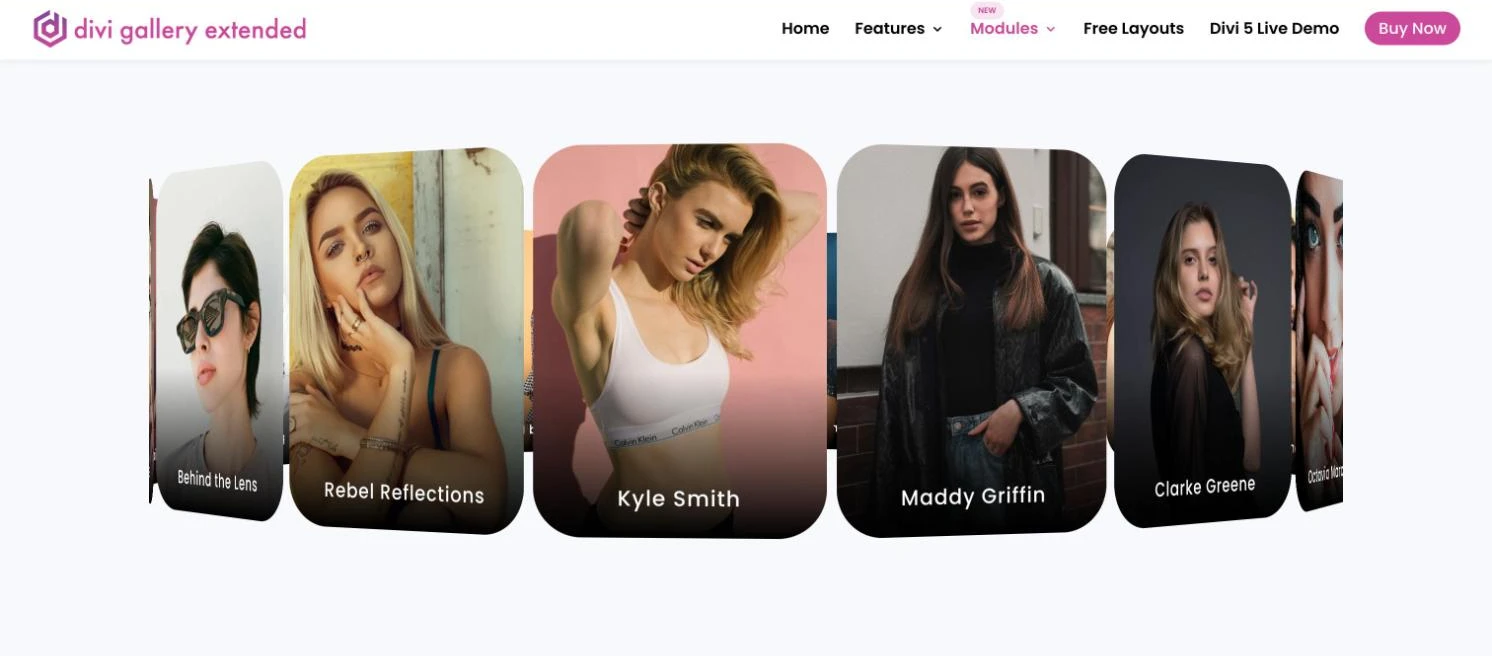
Rotation Trigger decides how the ring moves:
- Mouse Wheel (Hover): visitors scroll the wheel while the pointer is over the gallery. The page does not scroll while they do this.
- Drag / Swipe: visitors drag with the mouse or swipe on a touch screen. Vertical page scrolling still works on phones.
- Autoplay: the ring turns on its own, left or right, at a Rotation Speed from 1 to 10, and pauses while the pointer is over it.
You can add previous and next arrows with any trigger; each click turns the ring one card.
Two more options change how the cards behave. Flip Cards On Hover (on by default) turns a card over to a back face when the pointer is over it, with a Flip Speed you can slow down or speed up. Image Click Action sets what happens on click: nothing, open the full-size image in a lightbox, or follow the image’s Custom Link. Only the cards in the front half of the ring react to hover and clicks, so visitors cannot open a card that is facing away.
Each card can show the image title (on by default), the caption and an overlay icon, positioned at the top, center or bottom of the card.
Use it for a short set of images you want people to explore rather than scan: a product from several angles, a team, a set of featured projects.
Layered Gallery (2.4.0)
The Layered Gallery shows one image in front with the others fanned out above and below it, each tilted, smaller and more faded the further back it sits. Visitors click any visible card to bring it to the front, use the arrows, or let autoplay move through the stack. It has no swipe gesture; on a touch screen a tap acts as a click.
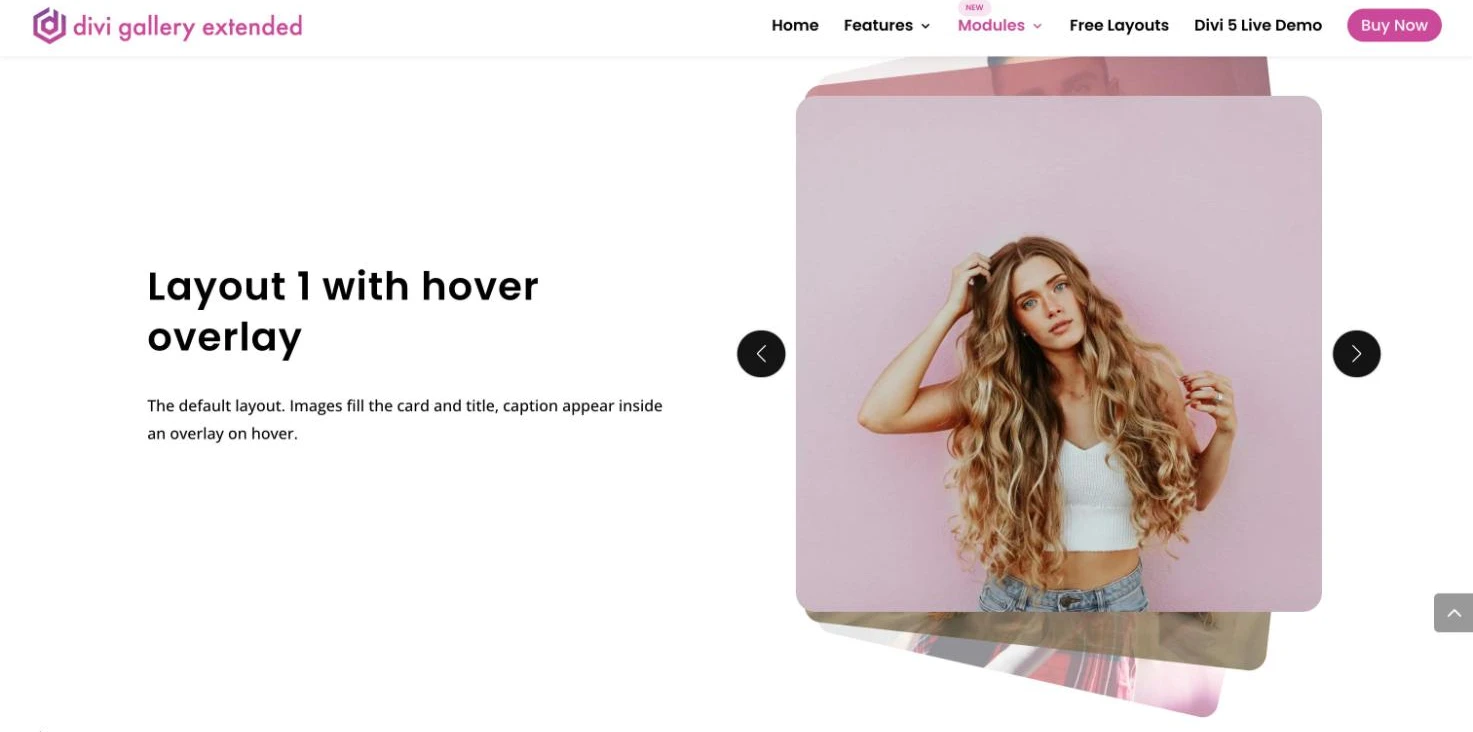
Settings that shape the stack:
- Visible Cards: 3, 5, 7 or 9 cards in view at once, the active one included (5 by default).
- Stack Depth: how far back the cards behind sit.
- Stack Spread: how far apart and tilted they look.
- Slide Trigger: Click Only, Autoplay Only, or Click & Autoplay, with an autoplay speed of 1 to 10 seconds and Pause On Hover. With Autoplay Only, clicking a card no longer brings it forward, but the arrows still work.
- Randomize Image Order: shuffle the order on each page load.
There are two layouts. Layout 1 shows the title and caption over the image on hover. Layout 2 puts them in a panel below the image, with an optional fixed image height. Active Card Click Action sets what the front card does when clicked: nothing, open a lightbox, or follow the image’s Custom Link in the same window or a new tab. The lightbox has its own options for image size, a zoom or fade effect, next and previous navigation, and title and caption placement.
Stack Cards Gallery (2.4.0)
The Stack Cards Gallery turns your images into a deck. Visitors drag the front card in any direction with a mouse, or swipe it sideways on a touch screen, where a vertical swipe still scrolls the page; let go past half the card’s width and it moves to the back of the deck, while a shorter drag springs it back. Dragging never opens the lightbox or link by mistake.
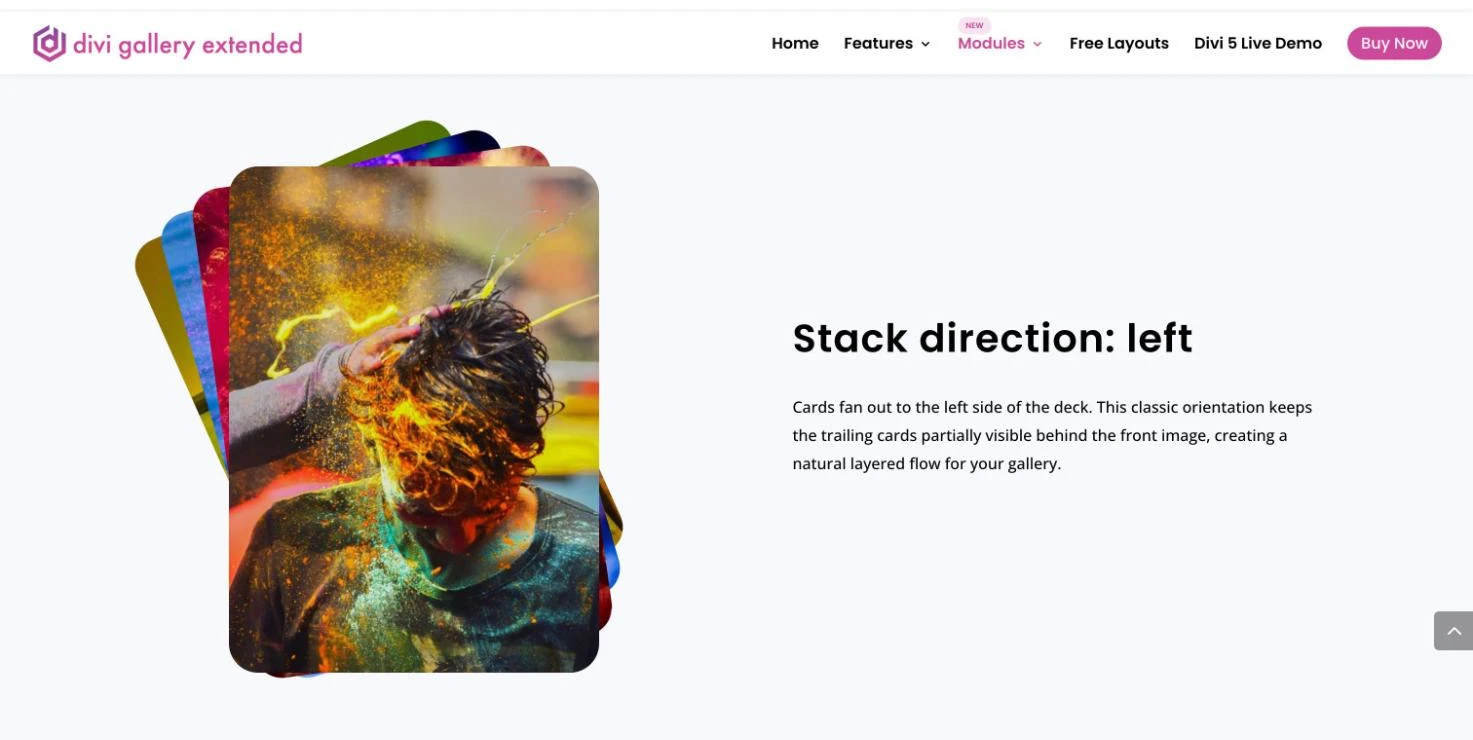
- Stack Direction: fan the cards to the left, to the right, or to both sides alternately for a symmetric deck.
- Stack Depth and Stack Spread: how many cards show in the stack, the front one included, and how far apart and tilted they are.
- Advance Trigger: Drag / Swipe Only, Autoplay Only, or Drag / Swipe & Autoplay, with an autoplay speed of 1 to 10 seconds and Pause On Hover.
- Randomize Image Order, the same as in the Layered Gallery.
The title, caption and an optional overlay icon show on the front card, by default when the pointer is over it, and you can align them to the top, center or bottom. Image Click Action and the lightbox options match the Layered Gallery. There are no arrows in this module; it is built for dragging.
It suits portfolios, product shots and event photos where you want visitors to flick through one image at a time.
You can try all three on the demo site: Circle 3D Gallery, Layered Gallery and Stack Cards Gallery.
New options on Grid Gallery and Justified Gallery (2.3.0)
Grid Gallery gets four Half Flip overlay styles: Half Flip Left, Right, Top and Bottom. With any of them, Flip Overlay Size sets how much of the image the overlay covers (55% by default). A separate Image Hover Effect works on the image itself, whatever overlay you use: Zoom In, Zoom Out, Grayscale to Color or Blur to Sharp.
Justified Gallery in Divi 5 gets a Randomize Order toggle that shows the images in random order. It works with pagination, the Load More button and the category filter.
Choose which galleries appear in the builder (2.4.0)
Divi Gallery Extended now has a settings page in the WordPress admin under Divi Extended > Divi Gallery Extended, also reachable from the Settings link under the plugin on the Plugins screen. Under Enable Modules for Builder it lists every gallery module with a toggle, plus Select All and Deselect All. A module you switch off no longer appears in the Divi builder.
Divi 5 only modules carry a “Divi 5” badge, and their toggles are locked while Divi 5 is not active. After the update every module stays switched on until you change the list.
Fixes
- Media Library bulk edit works again with WordPress 7.1 (2.3.0).
- Lightbox: HTML tags no longer show as text in the lightbox in some cases (2.3.1).
- Dynamic Masonry Gallery: the setting for which category is active by default is back in Divi 5 (2.3.1).
- Category lists: in the Dynamic Masonry Gallery and Image Carousel settings, categories load faster and the 100-category limit is gone (2.3.1).
How to update
- From your WordPress dashboard: with an active license, the update shows under Plugins like any other plugin.
- From your Divi Extended account: download the latest version and upload it.
- From the Elegant Themes Marketplace: if you bought the plugin there, update it from the marketplace.
Take a backup first and clear any caching plugin afterwards so the new scripts and styles load.
FAQ
Do the new galleries work in Divi 4?
No. Circle 3D, Layered and Stack Cards are Divi 5 modules. Your existing Divi 4 galleries keep working.
Which of the new galleries can visitors swipe?
Stack Cards Gallery, and Circle 3D Gallery when its Rotation Trigger is Drag / Swipe. Layered Gallery moves by click, arrows or autoplay.
Can the images open in a lightbox?
Yes, in all three. Circle 3D, Layered and Stack Cards each have a click action with None, Lightbox and Link.
Will updating change my existing galleries?
No. The new options are off by default, and every module stays enabled on the new settings page until you change it.
Which version do I need?
2.3.0 for Circle 3D Gallery and the Grid and Justified options, 2.4.0 for Layered Gallery, Stack Cards Gallery and the settings page.
See all the gallery modules and their demos on the Divi Gallery Extended product page.











0 Comments