
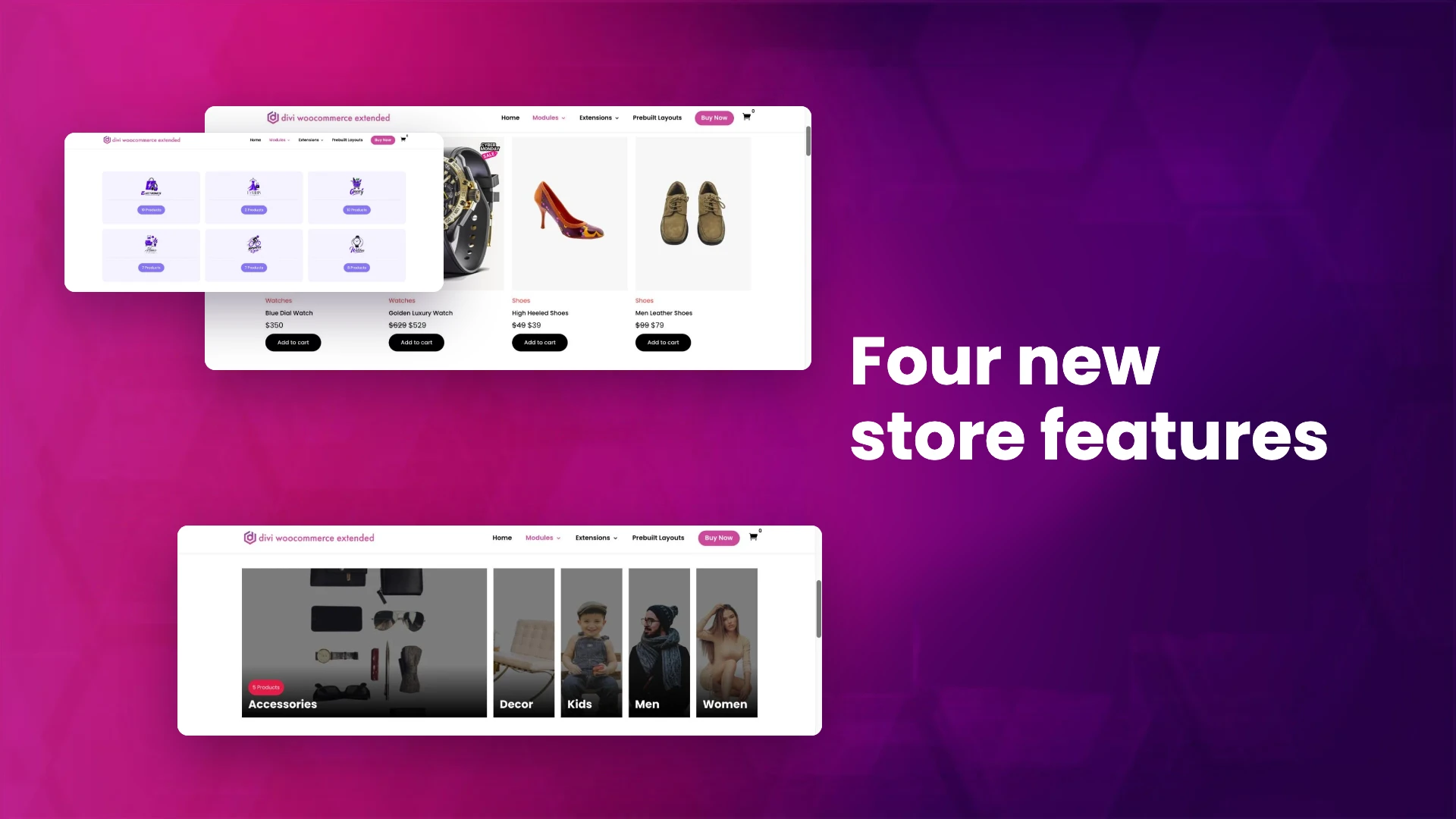
Divi WooCommerce Extended 2.3.0 is out. It adds one store-wide extension and three new modules, and they all help with the same two things: giving shoppers a reason to trust your store, and helping them find their way back to products. Here is what each one does, how to set it up, and what else changed.
Recently Purchased Popup
The Recently Purchased Popup shows a small notice in a corner of the page each time someone on your store buys something. By default it reads like “Anna purchased Linen Shirt 12 mins ago”, with the product image next to it and a link to the product. It is built from your real WooCommerce orders, so there is nothing to make up or type in by hand.
You turn it on under Divi Extended > Divi WooCommerce Extended > Recently Purchased, where the settings are split into General, Display and Style.
Which orders it shows
- Order statuses: Completed and Processing by default, with On Hold as an option.
- Show orders from last (days): 30 by default, anything from 1 to 365.
- Number of notifications: up to 10 by default, and up to 50.
- Products per order: one notification for every product in an order, or only the first product, so each notice comes from a different order.
- Display order: newest purchase first, or a random order that changes on every page load.
- Hide out of stock products: leave out products customers cannot buy right now.
Only published products are shown, and a variation is shown as its parent product.
What the message says
You write the message yourself and use placeholders for the details: customer name, product name, product price, quantity and time ago. Basic HTML such as bold and links is allowed. The customer name is always the billing first name only. If an order has no first name, the popup uses a fallback you set, “Someone” by default. Nothing else about the order or the customer is sent to the page.
Where and when it appears
- Position: any of the four corners, with your own distance from the edge.
- Layout: image on the left, image on the right, or a card with the image on top.
- Timing: a delay before the first popup (5 seconds by default), how long each one stays (6 seconds) and the gap between them (8 seconds). After the last one it can start again or stop.
- Animation: ten entrance animations, from fade and zoom to flips and slides.
- Close button and pause on hover: visitors can close the popup, and it stays on screen while they point at it.
- Do not show on: the cart and checkout pages are excluded by default, and you can add the My Account page or any page, post or product by ID.
- Hide for user roles: keep it from showing to you and your shop managers while you are logged in.
- Hide on tablet or mobile if you want it on desktop only.
The Style tab covers colors, font size and weight, padding, border, image size and an optional progress bar.
It works with page caching
By default the popup loads its list after the page loads, so a cached page still shows current purchases. If you do not use page caching, you can switch to inline data, which puts the list in the page itself. The list is kept for up to 10 minutes and refreshed as soon as a new order comes in or an order status changes.
Recently Viewed Products module for WooCommerce
The Recently Viewed Products module shows each visitor the products they have looked at on your store. Put it on a product page, the cart page, a sidebar or the home page, and returning shoppers see the products they were thinking about instead of starting their search again.
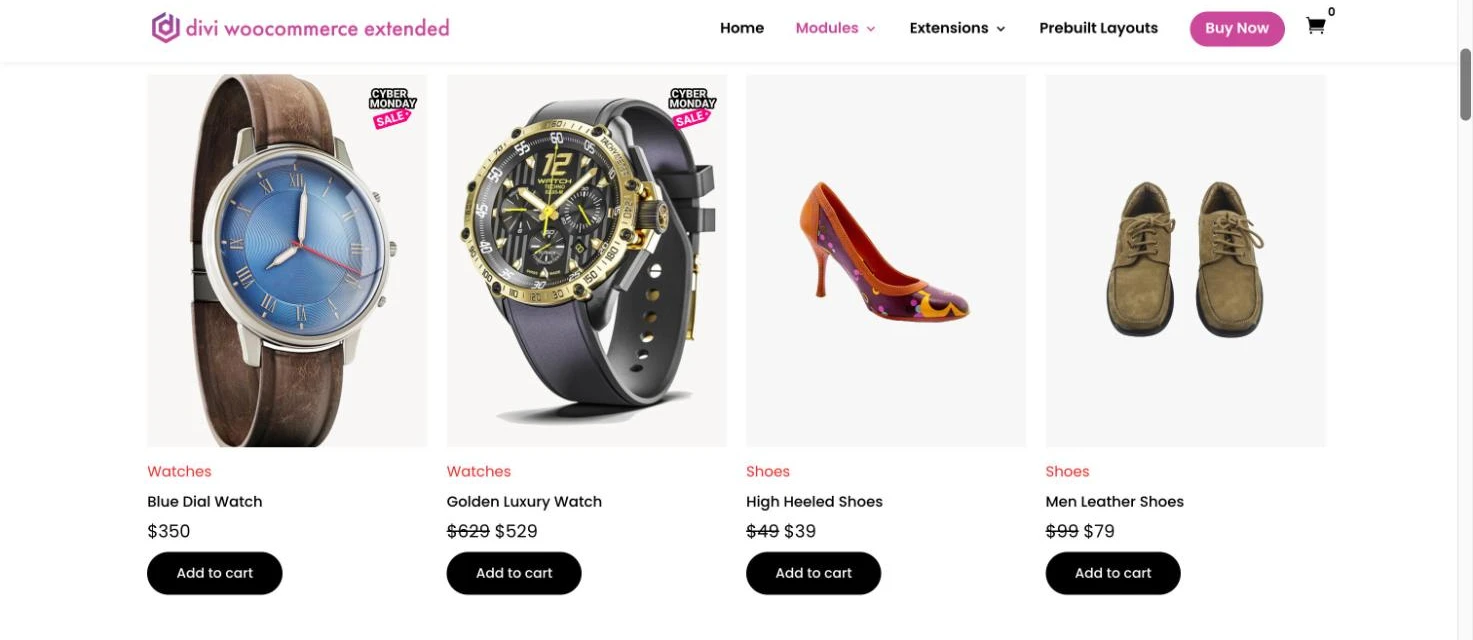
Products are remembered in a browser cookie, so nothing is stored in your database. To use it, turn on Enable Recently Viewed Products under Divi Extended > Divi WooCommerce Extended > General. That also makes the module appear in the builder. Two more settings there control how long products are remembered (30 days by default, up to 365) and how many (up to 50, oldest dropped first).
In the module you can choose:
- Four layouts: three grid layouts and a compact row per product that suits a sidebar.
- Order: most recently viewed first, oldest first, or by price.
- Exclude current product: on a product page, leave out the product the visitor is looking at.
- Hide out of stock products, or show them with an out of stock label.
- What each product shows: image, title, category, rating, price, excerpt, sale badge, add to cart button and Quick View.
What a first-time visitor sees
A new visitor has not viewed anything yet. Under Fallback Content you decide what they see instead: a message only, or recently added, featured, sale, best selling or top rated products, or a list of product IDs you pick.
Cached pages
If your site uses a caching plugin or host cache, set Products Loading Method to AJAX. The products then load right after the page, so each visitor sees their own list and not one cached from someone else. Without page caching, Standard loads them with the page and skips the extra request.
Brands Grid module for WooCommerce
If you sell several brands, the Brands Grid module shows them as a grid that links to each brand’s page. It uses the brands you set up in WooCommerce under Products > Brands.
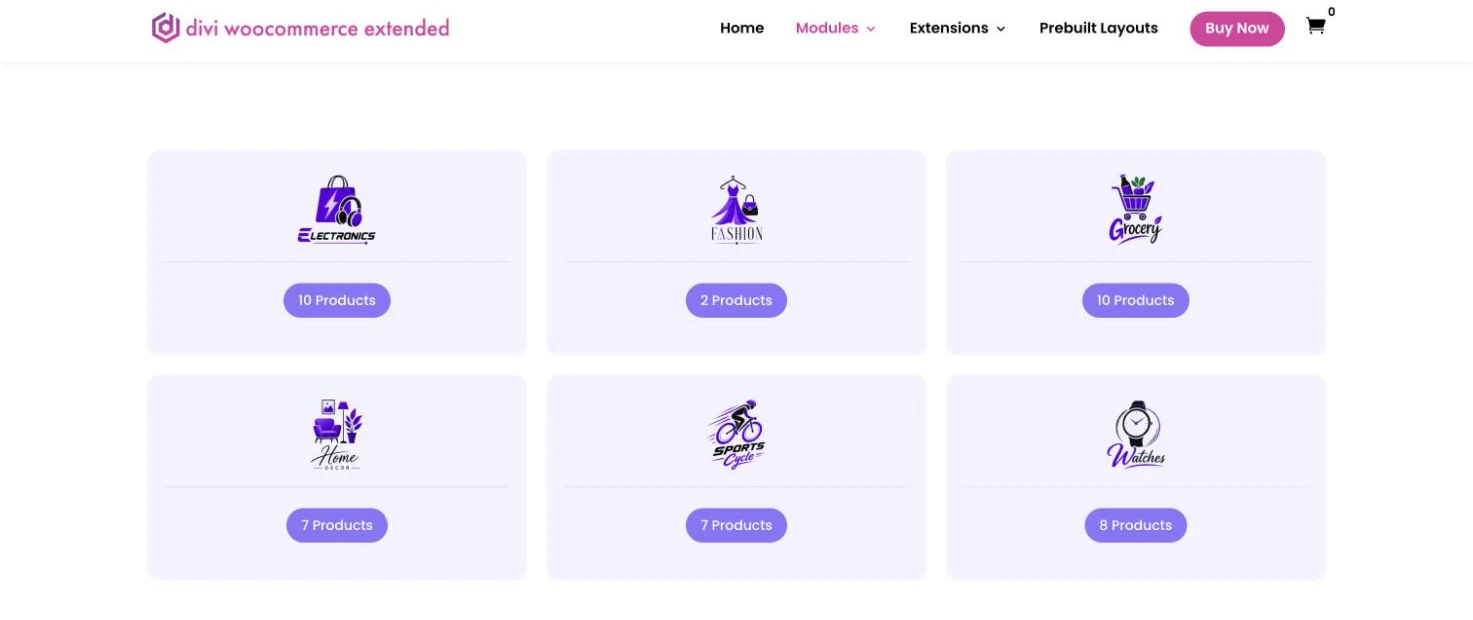
- Three layouts, with columns per device (3, 2 and 1 by default).
- Which brands: pick specific brands or show all, set how many, sort them, and hide brands with no products.
- Card content: brand image, name, product count and description, each with its own toggle.
- Button: an optional button to each brand’s page.
- Hover overlay: show the name, description or product count on hover, separately from what the card shows.
Categories Accordion module for WooCommerce
The Categories Accordion module shows your product categories as image panels side by side. One panel is open, and the others open on hover or on click. Each panel uses the category’s thumbnail image, with WooCommerce’s placeholder image if a category has none.
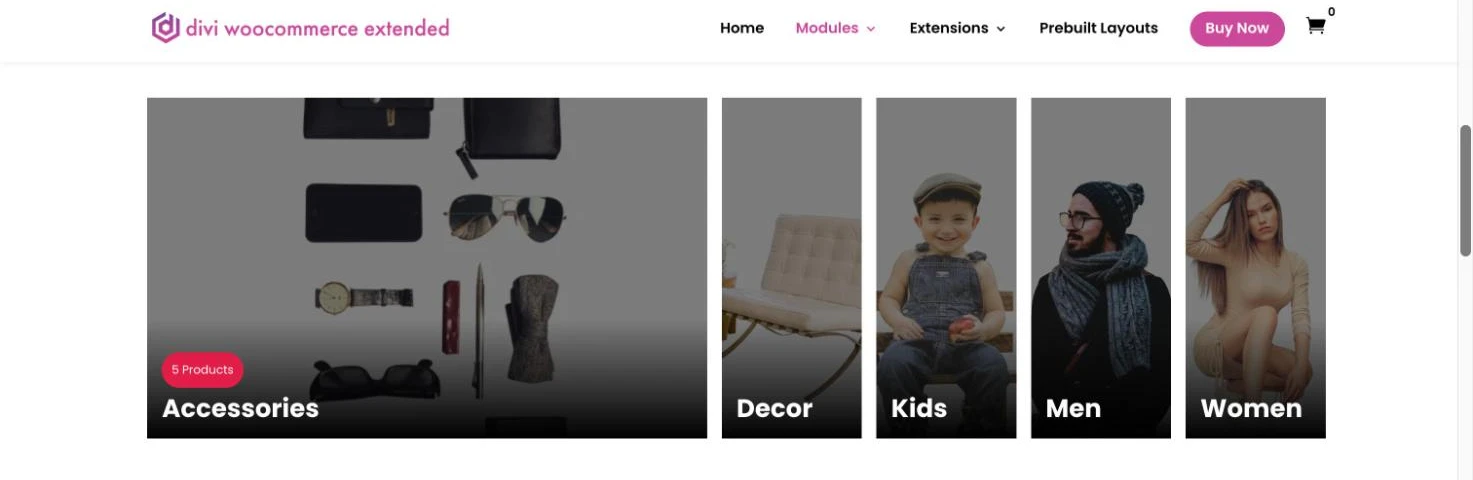
- Horizontal or vertical, and you can switch per device.
- Which categories: pick them or show the first few (4 by default), sort them, and hide empty ones.
- Panel content: category name, product count, description and a Shop Now button, with the content placed at the top, middle or bottom of the panel.
- Closed panels: choose whether the name and product count still show while a panel is closed.
- Size and speed: how much wider the open panel is, the space between panels, which panel starts open and how fast they change.
It works well as a home page section that sends shoppers straight into a category.
You can try the three new modules on the demo site: Recently Viewed Products, Brands Grid and Categories Accordion.
Changes to modules you already use
- Wishlist: when a visitor’s wishlist is empty, show recently added, featured, sale, best selling, top rated or chosen products instead of only a message.
- Woo Products and Products Carousel: a Show Product Badges toggle, so you can turn off the badges from the Product Badges extension on one module and keep them everywhere else.
- Disable Lazy Loading: a new toggle on the Products Carousel, Categories Carousel, Brands Carousel, Hero Slider and Ticker modules. Use it for images near the top of the page that should load straight away.
Lighter pages
- Quick View scripts and styles in Woo Products and Products Carousel now load only when Quick View is turned on in that module. Pages that do not use Quick View no longer load them.
- Module JavaScript and CSS files are now minified.
- Product category, tag and brand fields in module settings load faster.
Version 2.2.1, released in September, also fixed product categories showing up among the products on the shop page and category archives in Woo Products and Products Carousel, and the Products Carousel not showing products properly on tablet and mobile.
How to update
- From your WordPress dashboard: the update shows under Plugins like any other plugin.
- From your Divi Extended account: download the latest version and upload it.
- From the Elegant Themes Marketplace: if you bought it there, update it from the marketplace.
Take a backup first and clear your caches afterwards, so the new scripts and styles load. Then turn on Recently Purchased and Recently Viewed Products in the plugin settings if you want to use them, since both are off until you switch them on.
FAQ
Does the Recently Purchased Popup show customer details?
Only the billing first name, or your fallback name when there is none. The popup gets the message, the product image and the product link, and nothing else about the order.
Can I show fake or sample purchases?
No. The popup only uses real WooCommerce orders with the statuses you choose, from the number of days you set.
Does Recently Viewed Products store data on my server?
No. The list of viewed products is kept in the visitor’s browser cookie. Nothing is saved in your database.
Why can’t I find the Recently Viewed Products module in the builder?
Turn on Enable Recently Viewed Products under Divi Extended > Divi WooCommerce Extended > General first. The module appears once it is on.
Do these work with a caching plugin?
Yes. Both the popup and the Recently Viewed Products module can load their content after the page loads, so cached pages still show the right purchases and each visitor’s own products.
Which builder are the new modules for?
The Categories Accordion, Recently Viewed Products and Brands Grid modules are added in the Divi 5 builder. The Recently Purchased Popup is a store-wide setting and does not depend on the builder.
See everything Divi WooCommerce Extended adds to your store on the Divi WooCommerce Extended product page.







0 Comments