
Search Divi Events Extended Documentation
Search for answers or browse our knowledge base.
Theme Builder starter layouts
Overview
How to create Divi Theme Builder templates for your event pages in one click, with the Starter Layouts screen. Each starter is a ready-made Theme Builder template made of the plugin’s own modules, such as Event Date and Time, Event Venue and Events Feed. After it is created, the template is yours: open it in the Divi Theme Builder and change anything.
Note: Starter layouts need the Divi Theme Builder, which comes with the Divi theme and the Divi Builder plugin. If you don’t want to use the Theme Builder, choose a layout in Page layouts instead.
Pages you can create
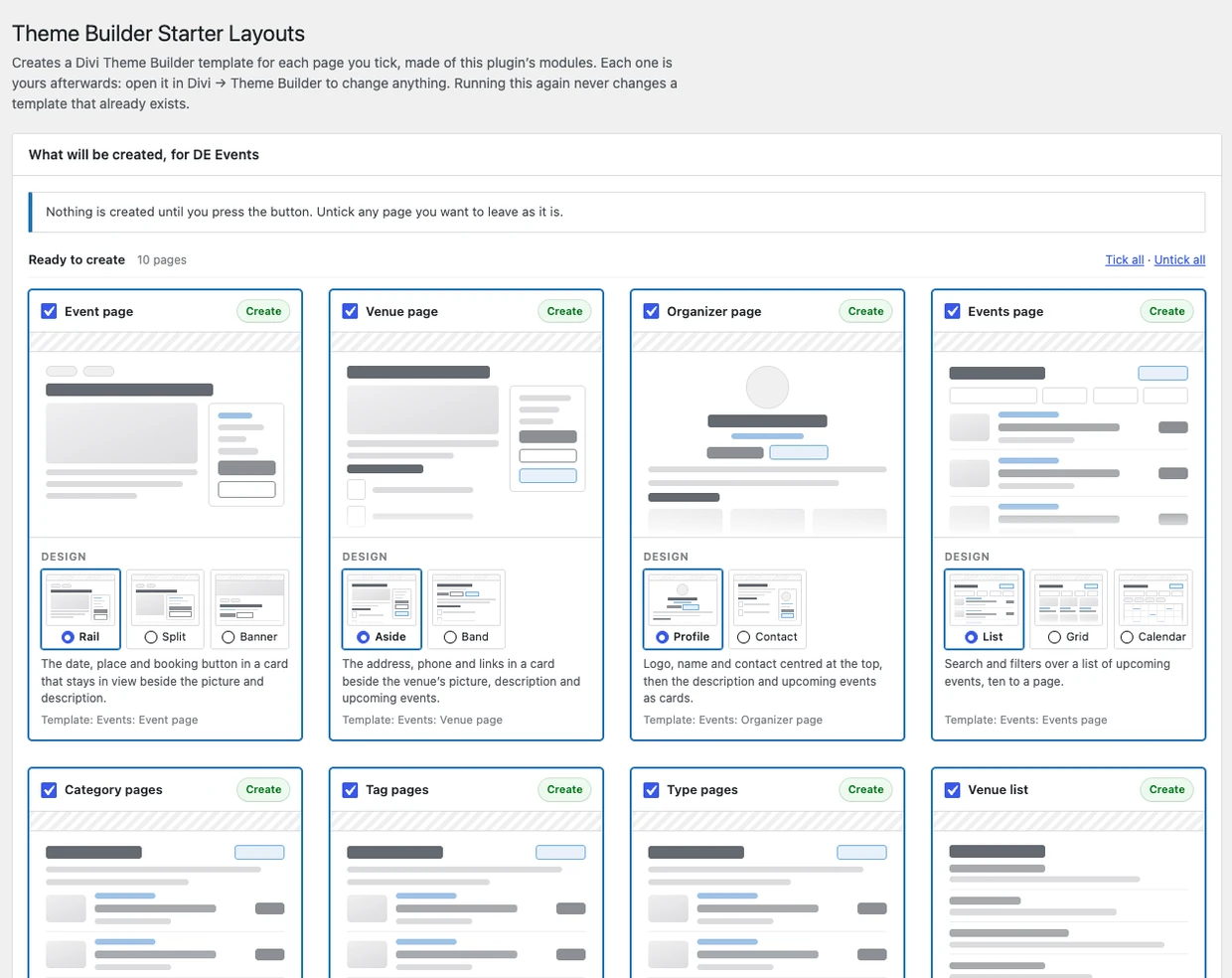
There is a starter for each page of the plugin: Event page, Venue page, Organizer page, Events page, Category pages, Tag pages, Type pages, Venue list, Organizer list and Series page. The screen shows only the pages that don’t have a Theme Builder template yet.
Create the starter templates
- Go to Events > Starter Layouts.
- Tick the pages you want a template for. Use Tick all or Untick all to change all of them at once.
- Choose a Design for each page. The picture above the designs shows how the page will look.
- Click Create the ticked templates.
The templates are live on your site as soon as they are created. Each one is named “Events: (page)”, for example “Events: Event page”.
Designs for each page
- Event page: Rail, Split or Banner.
- Venue page: Aside or Band.
- Organizer page: Profile or Contact.
- Events page: List, Grid or Calendar.
- Category, tag and type pages: List or Grid.
- Venue list and organizer list: List or Cards.
- Series page: one design, with the description, Subscribe and every event in date order with its place in the series.
Each design matches the page layout of the same name, which you can see in Page layouts.
Edit or start again
- To change a template, open Divi > Theme Builder and edit it like any other template. Your changes are kept.
- The Starter Layouts screen never edits or replaces a template, including one it made. Pages that already have a template are listed under Already on your site.
- To start a page again from its starter, or with another design, delete its template in the Theme Builder, then create it again here.
Note: If the Theme Builder is open in another tab with unsaved changes, save or discard them first. Saving the Theme Builder replaces its whole list of templates, so templates created here in the meantime would be lost.