Search Divi Events Extended Documentation
Search for answers or browse our knowledge base.
Events calendar module
Overview of the events calendar module
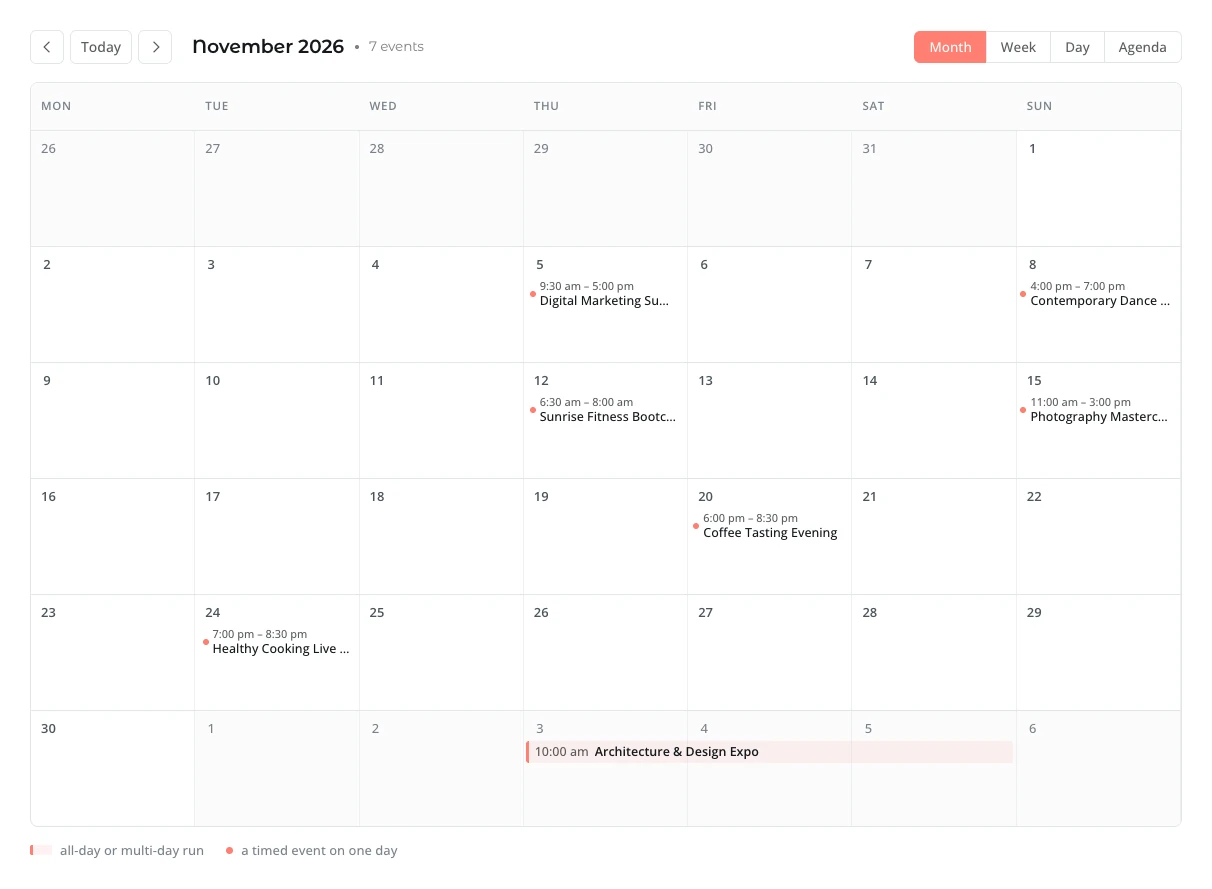
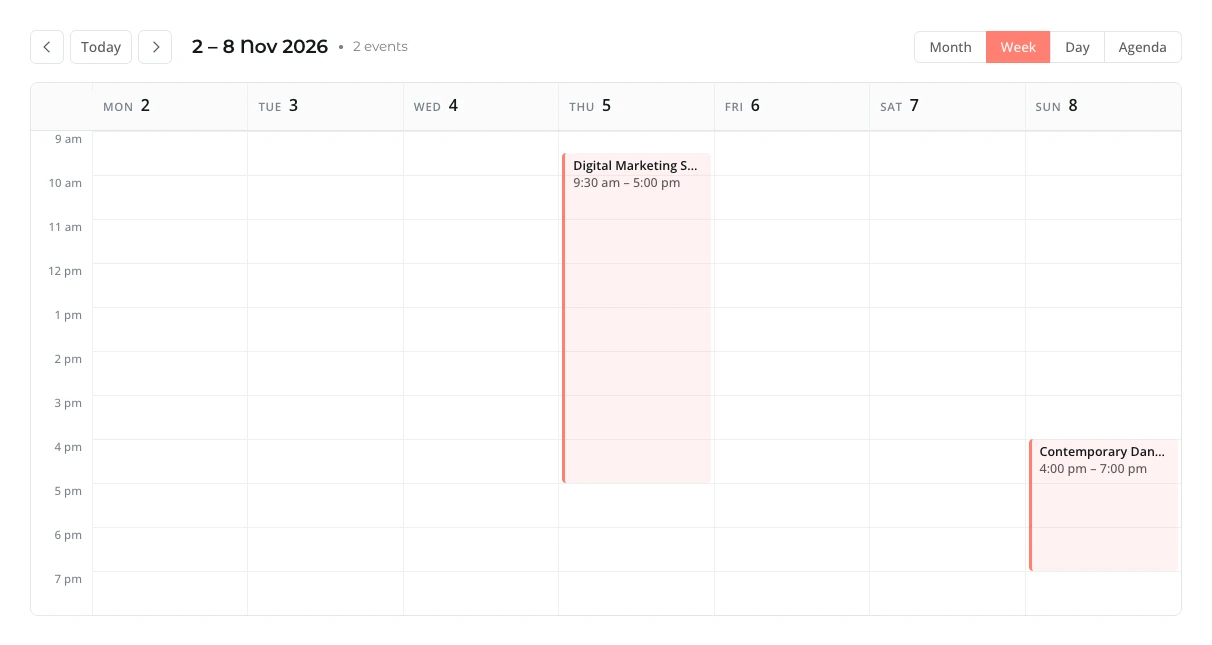
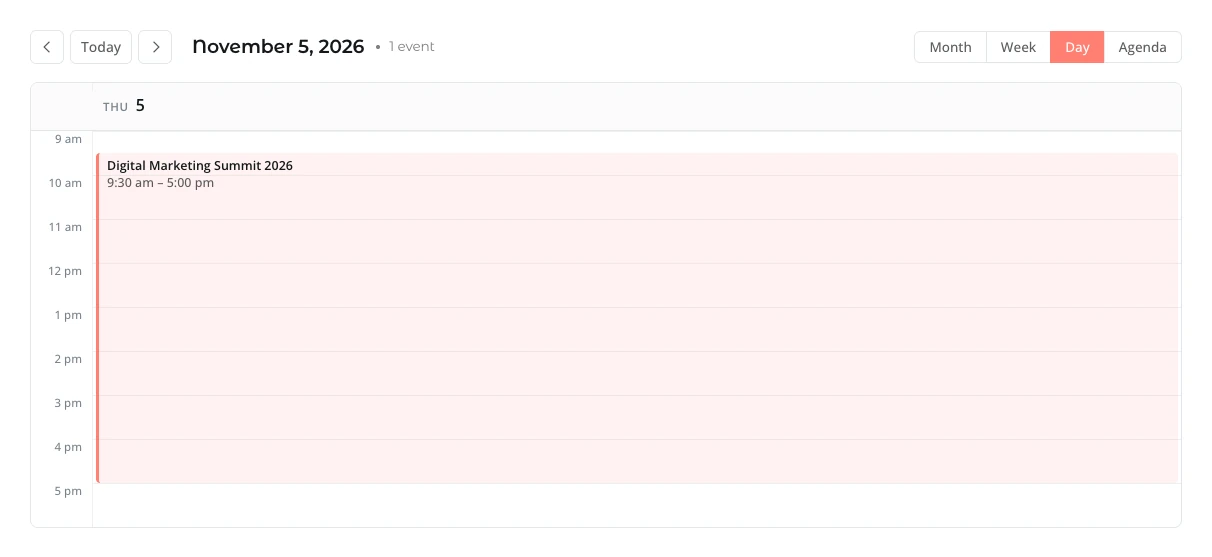
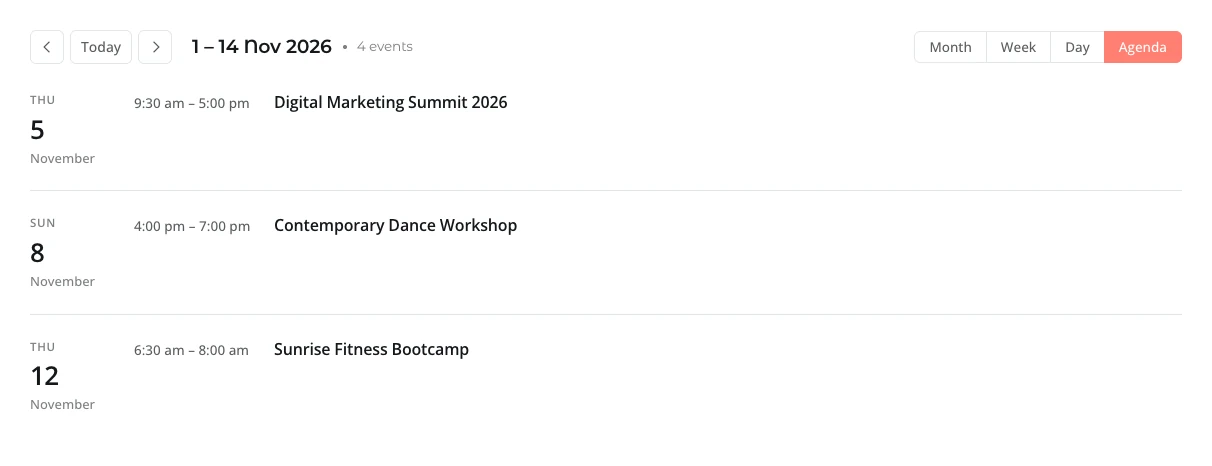
This document provides a comprehensive guide on configuring and using the Events Calendar module for Divi 5. The Events Calendar module shows your events in Month, Week, Day or Agenda view. Visitors can switch views and move between periods, and their choice is kept in the URL, so a shared link opens on the same view and date.
How to add the events calendar module to your page
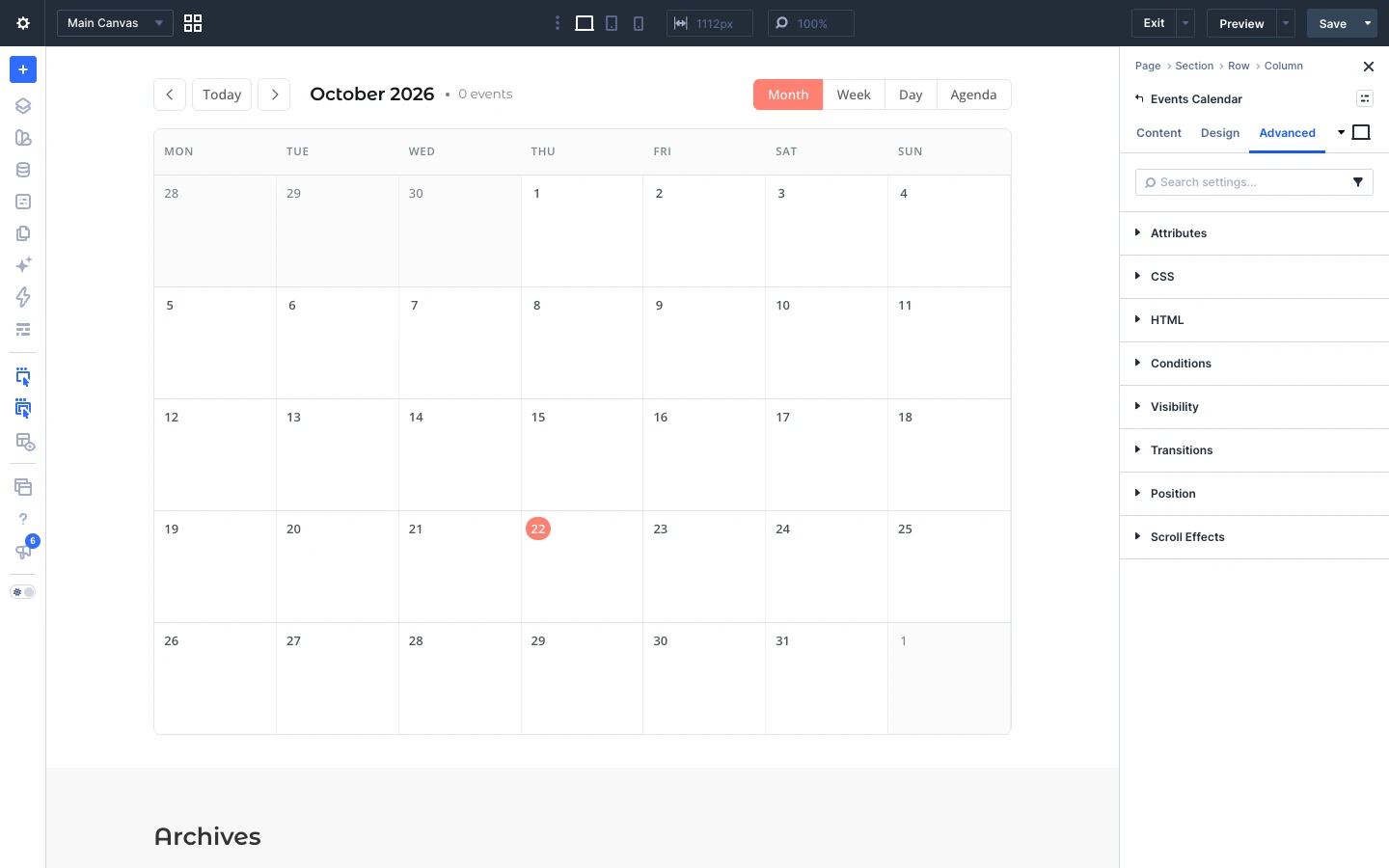

- Open your page in the Divi Visual Builder.
- Click the gray (+) icon inside a row to add a new module.
- Search for Events Calendar in the module search box.
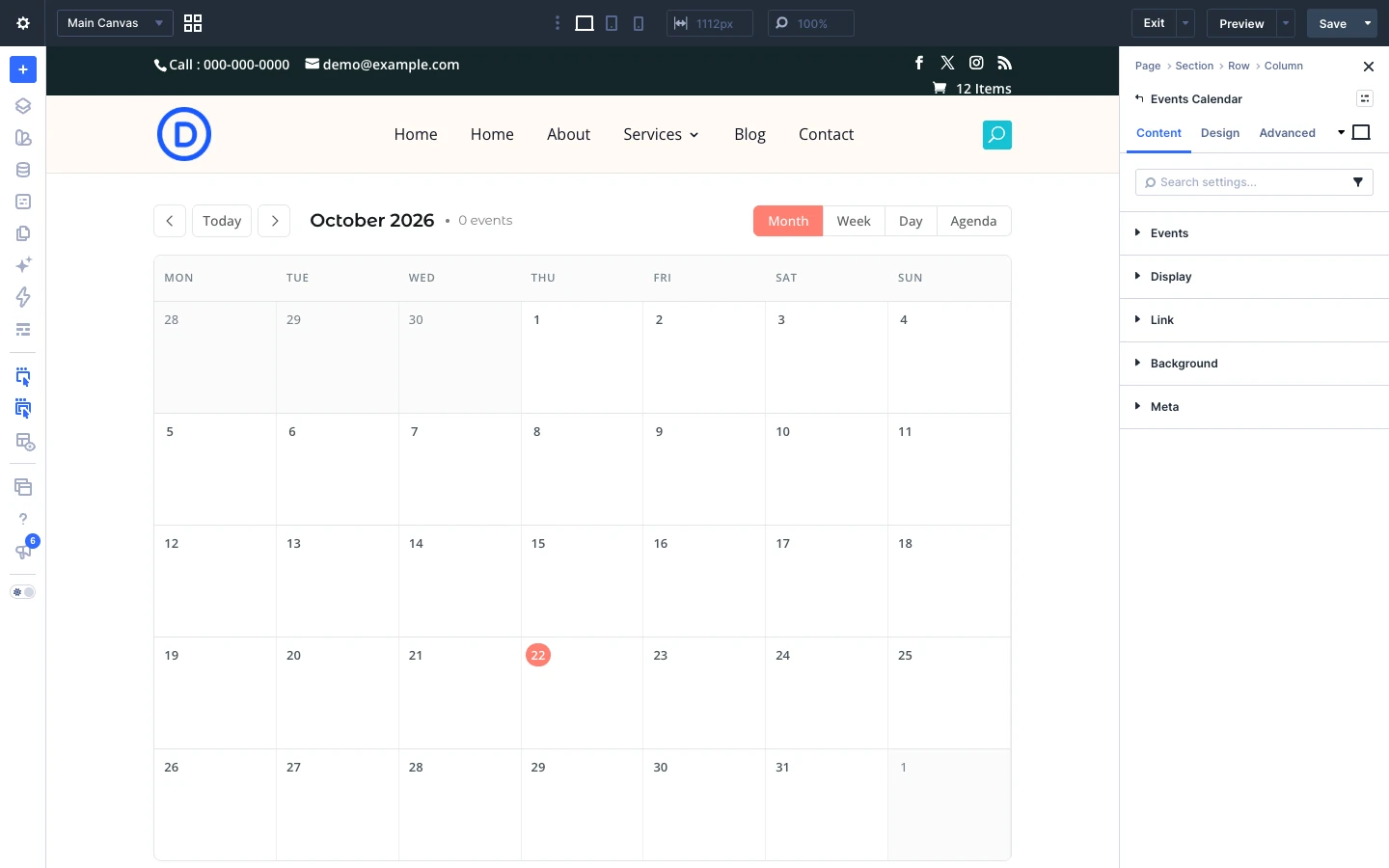
- Click the module to insert it. Its settings open on the right.
Content tab settings
The Content tab controls which events the module shows and how they are displayed. The module-specific settings are grouped into the toggles below; Link, Background and Element Label are the standard Divi options.
Events
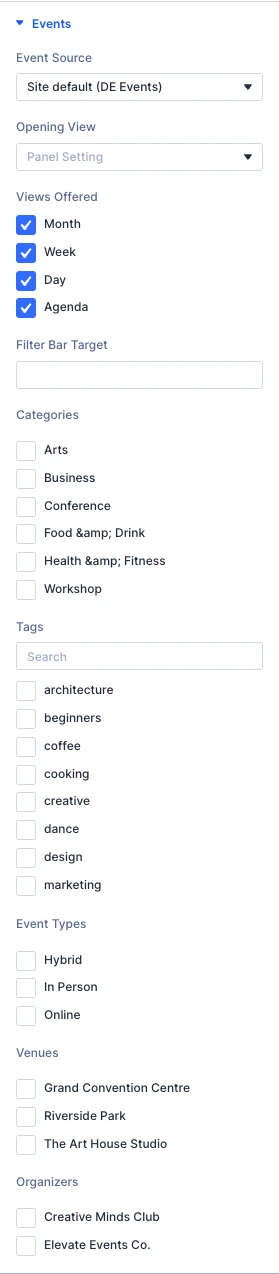
- Event Source: Which event source this calendar lists. Site default follows the setting under Divi Extended → Events.
- Opening View: Which view a visitor arrives on. Panel Setting follows Default calendar view under Divi Extended → Events; name a view only when this one calendar should disagree with the rest of the site. Options: Panel Setting, Month, Week, Day, Agenda.
- Views Offered: Which views a visitor can switch between. Tick one and the switcher does not render at all — that is how you get a calendar fixed to a single view without a second setting saying so. Options: Month, Week, Day, Agenda.
- Filter Bar Target: Which Events Filter Bar narrows this calendar. Leave it blank and any bar on the page drives it, which is right for almost every layout.
- Categories: Limit the calendar to these categories. Leave every box clear for all of them.
- Tags: Limit the calendar to these tags. Leave every box clear for all of them.
- Event Types: Limit the calendar to these event types. Leave every box clear for all of them.
- Venues: Limit the calendar to these venues. Leave every box clear for all of them.
- Organizers: Limit the calendar to these organizers. Leave every box clear for all of them.
Display
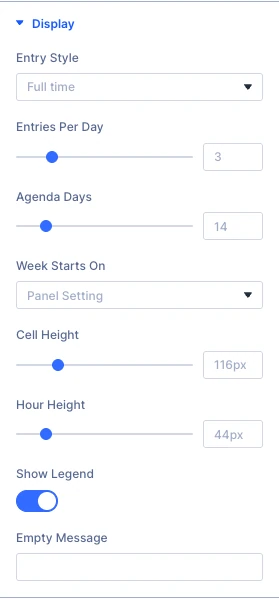
- Entry Style: How much of an event a month cell prints. Full time puts the whole range on its own line and gives the title the width of the cell. Options: Full time, Start time, Title only.
- Entries Per Day: How many a month cell draws before it says how many it is holding back. The last slot goes to that link, so a day with more than this shows one fewer than the number here.
- Agenda Days: How far forward agenda view runs, and how far one press of next moves it. Days with nothing on them are left out rather than printed empty.
- Week Starts On: Panel Setting follows Week Starts On under Divi Extended → Events, which itself falls back to Settings → General. Name a day only when this one calendar should disagree with the rest of the site. Options: Panel Setting, Sunday, Monday, Tuesday, Wednesday, Thursday, Friday, Saturday.
- Cell Height: The shortest a month row may be. A row holding more than fits grows past this rather than hiding anything it had room for.
- Hour Height: How tall one hour is in week and day view. Taller rows separate events that start close together; shorter ones fit more of the day on screen.
- Show Legend: A key under the month grid saying what the shapes mean. It lists only what is on screen — a month with nothing cancelled does not mention cancelled, and an empty month has no key at all.
- Empty Message: What a period with no events says. The grid itself stays either way — a visitor who pressed next four times has to be able to press previous.
Tip: Add an Events Filter Bar module on the same page and it filters this calendar without changing the month being viewed.
Design tab settings
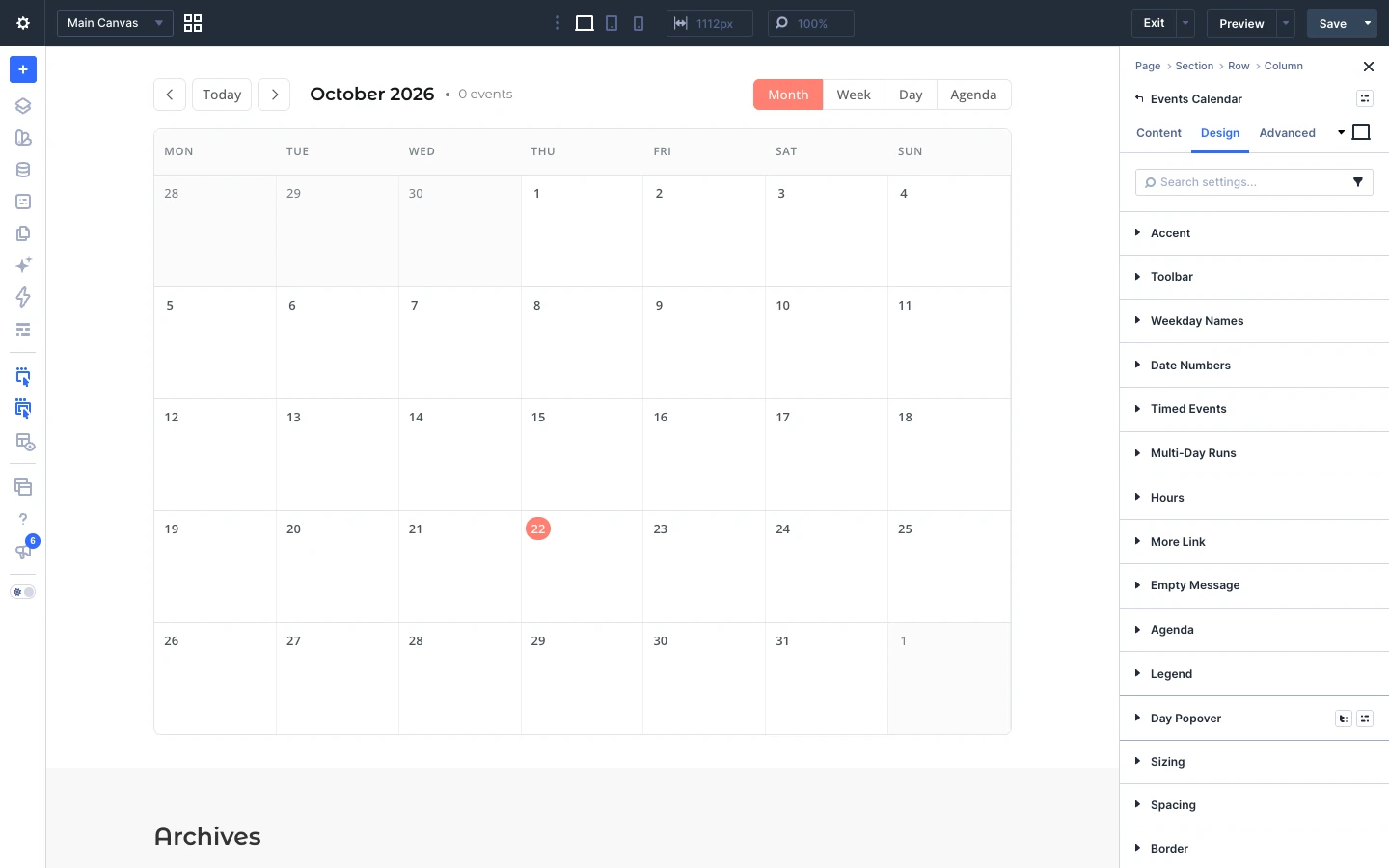
The Design tab lets you style every part of the module. Each toggle below controls one element:
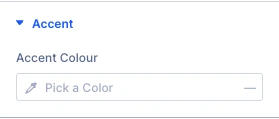
- Accent: the accent color used for today, the active view and highlights.
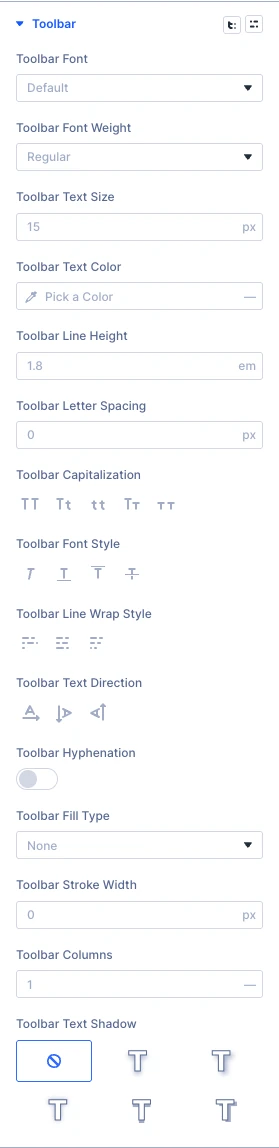
- Toolbar: style of the navigation and view switcher bar.
- Weekday Names: style of the weekday headings.
- Date Numbers: style of the day numbers.
- Timed Events: style of events with a start time.
- Multi Day Runs: style of all-day and multi-day event bars.
- Hours: style of the hour labels in Week and Day view.
- More Link: style of the “+ more” link in busy days.
- Empty Message: style of the empty period message.
- Agenda: style of the Agenda view list.
- Legend: style of the key under the month grid.
- Day Popover: style of the day panel that opens from a busy day.
- Sizing, Spacing, Border, Box Shadow, Filters, Transform, Animation: the standard Divi design options for the whole module.
Advanced tab settings
The Advanced tab has the standard Divi options: Attributes (add a CSS class or ID), CSS, HTML, Conditions, Interactions, Visibility, Transitions, Position and Scroll Effects.