Search Divi Events Extended Documentation
Search for answers or browse our knowledge base.
Add to calendar module
Overview of the add to calendar module
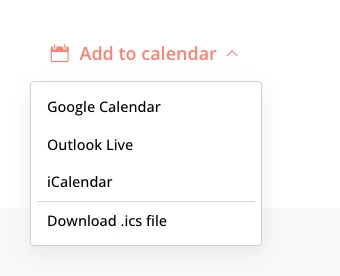
The Add to Calendar module lets visitors save an event to Google Calendar, Outlook, their own calendar app (iCalendar) or as a downloadable .ics file. It can be one button that opens a menu, an inline row of buttons, or plain links.

How to add the add to calendar module to your page

- Open your page in the Divi Visual Builder.
- Click the gray (+) icon inside a row to add a new module.
- Search for Add to Calendar in the module search box.
- Click the module to insert it. Its settings open on the right.
Content tab settings
The Content tab controls which events the module shows and how they are displayed. The module-specific settings are grouped into the toggles below; Link, Background and Element Label are the standard Divi options.
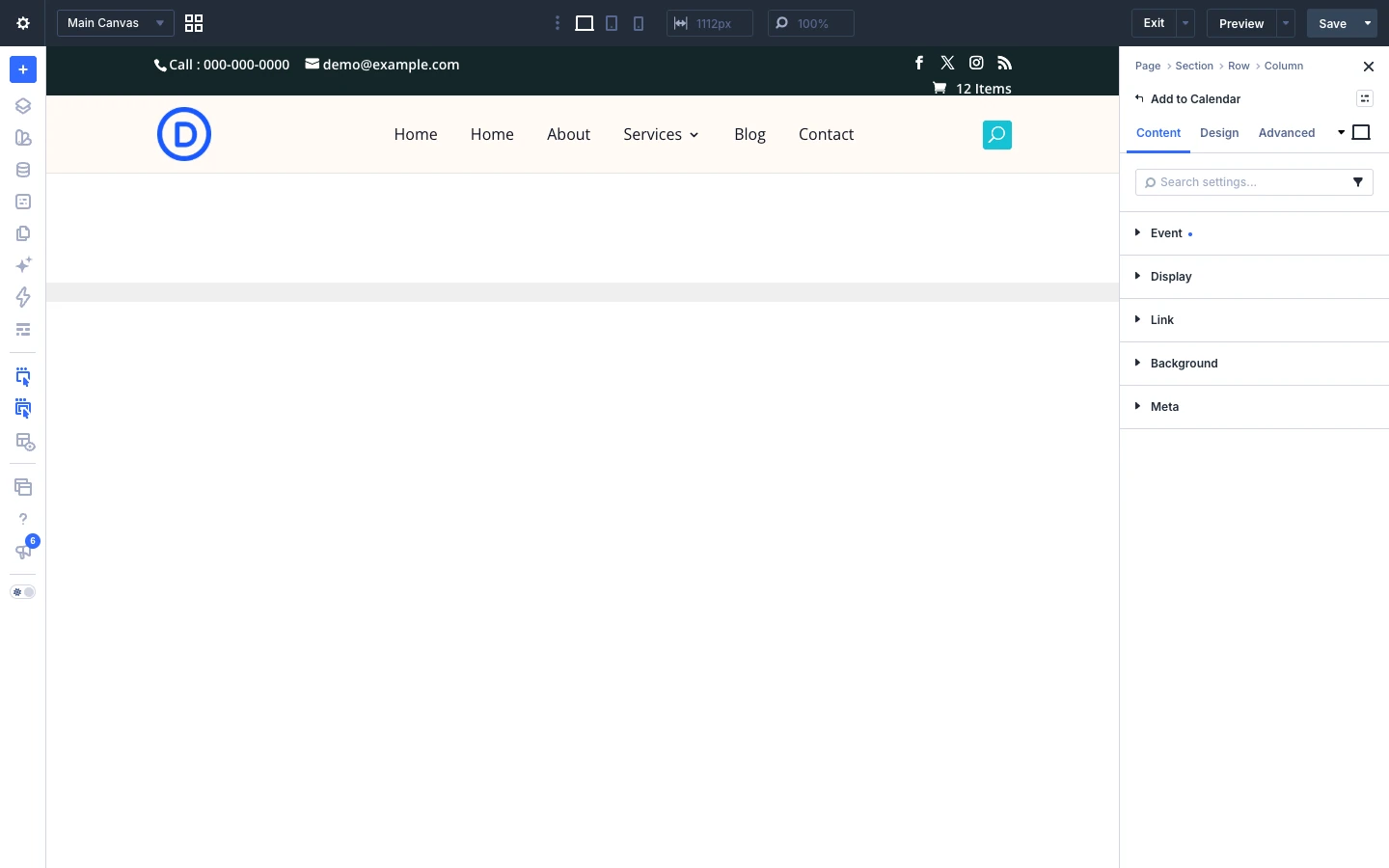
Event
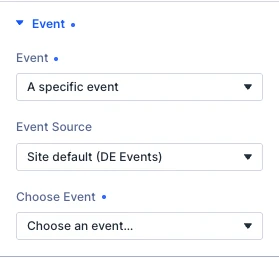
- Event Source: Which event source this module reads from. Site default follows the setting under Divi Extended → Events.
- Event: Which event goes into the calendar. “This event” follows the event the page is about, so one layout serves every event. Options: This event, Next upcoming event, A specific event.
- Choose Event: The event this shows. If it is later deleted or unpublished the module renders nothing rather than switching to another event.
Display
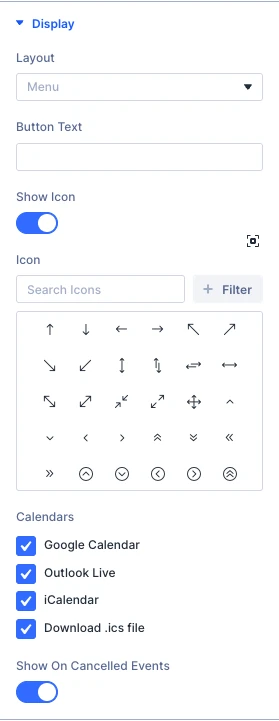
- Layout: Menu is one button that opens a short list — it has the room to say that Apple Calendar and the .ics download are the same file, which four separate buttons would not. Inline row suits a wide single event page; Plain links suit a sidebar. Options: Menu, Inline row, Plain links.
- Button Text: The words on the button that opens the menu. Leave it empty for “Add to calendar”.
- Show Icon: A calendar glyph before the button text. Drawn inline beside the label; pick the glyph below, and set its colour and size under Design → Icon.
- Calendars: Which calendars are offered. Google and Outlook hand the event to a website. iCalendar opens the reader’s own calendar app through webcal: — that needs the site to be served over https, and on an http site the item serves the same file as a download instead. Options: Google Calendar, Outlook Live, iCalendar, Download .ics file.
- Show On Cancelled Events: Keep the links on an event that has been cancelled. On by default: the file carries the cancellation, which is how a calendar tells anyone who already added the event.
Tip: The iCalendar option needs your site on https. On an http site it downloads the .ics file instead.
Design tab settings
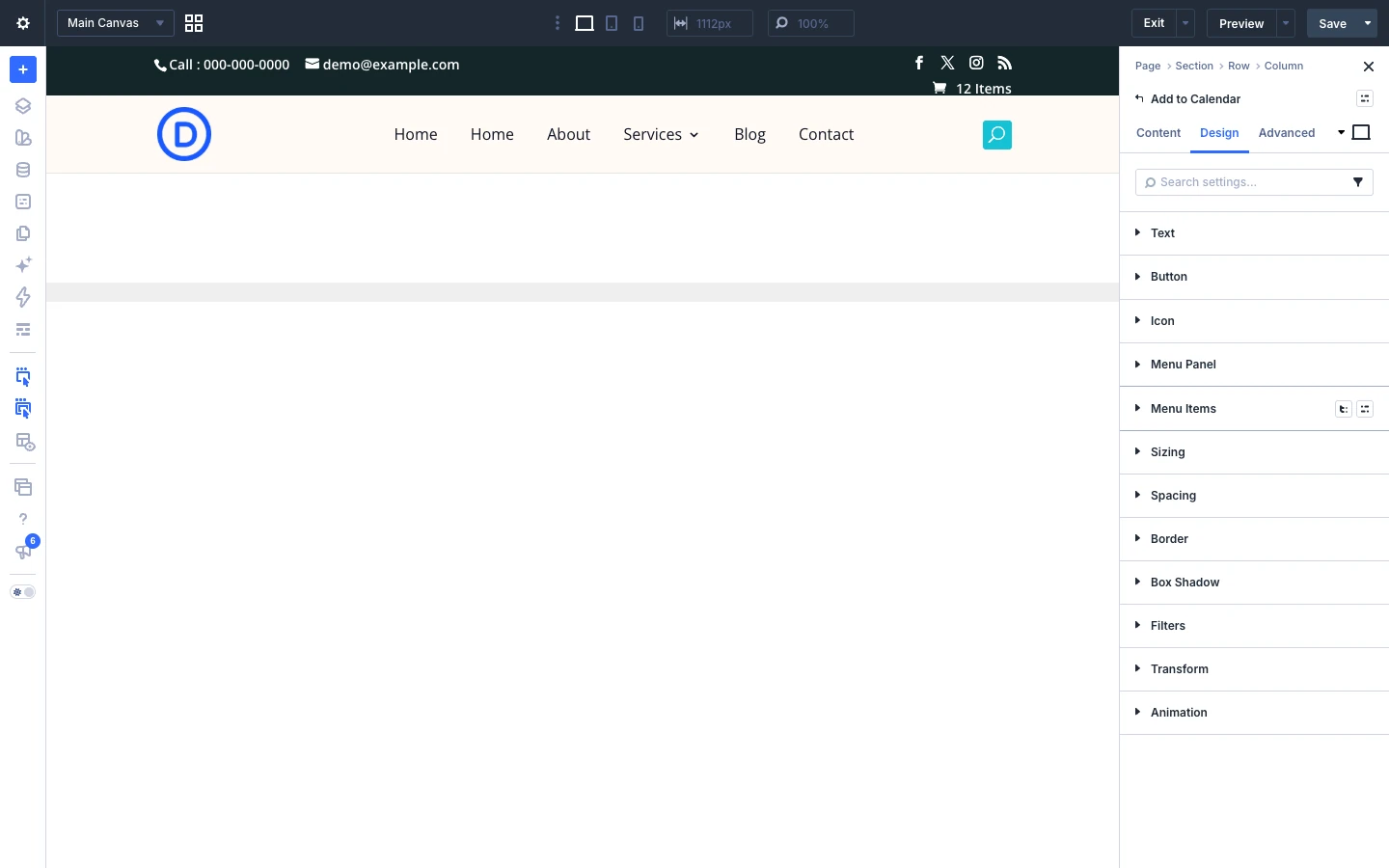
The Design tab lets you style every part of the module. Each toggle below controls one element:
- Button: colors, border, font and spacing of the button.
- Icon: color and size of the calendar icon.
- Menu Panel: background, border and shadow of the dropdown menu.
- Menu Items: style of the links inside the menu.
- Sizing, Spacing, Border, Box Shadow, Filters, Transform, Animation: the standard Divi design options for the whole module.


Advanced tab settings
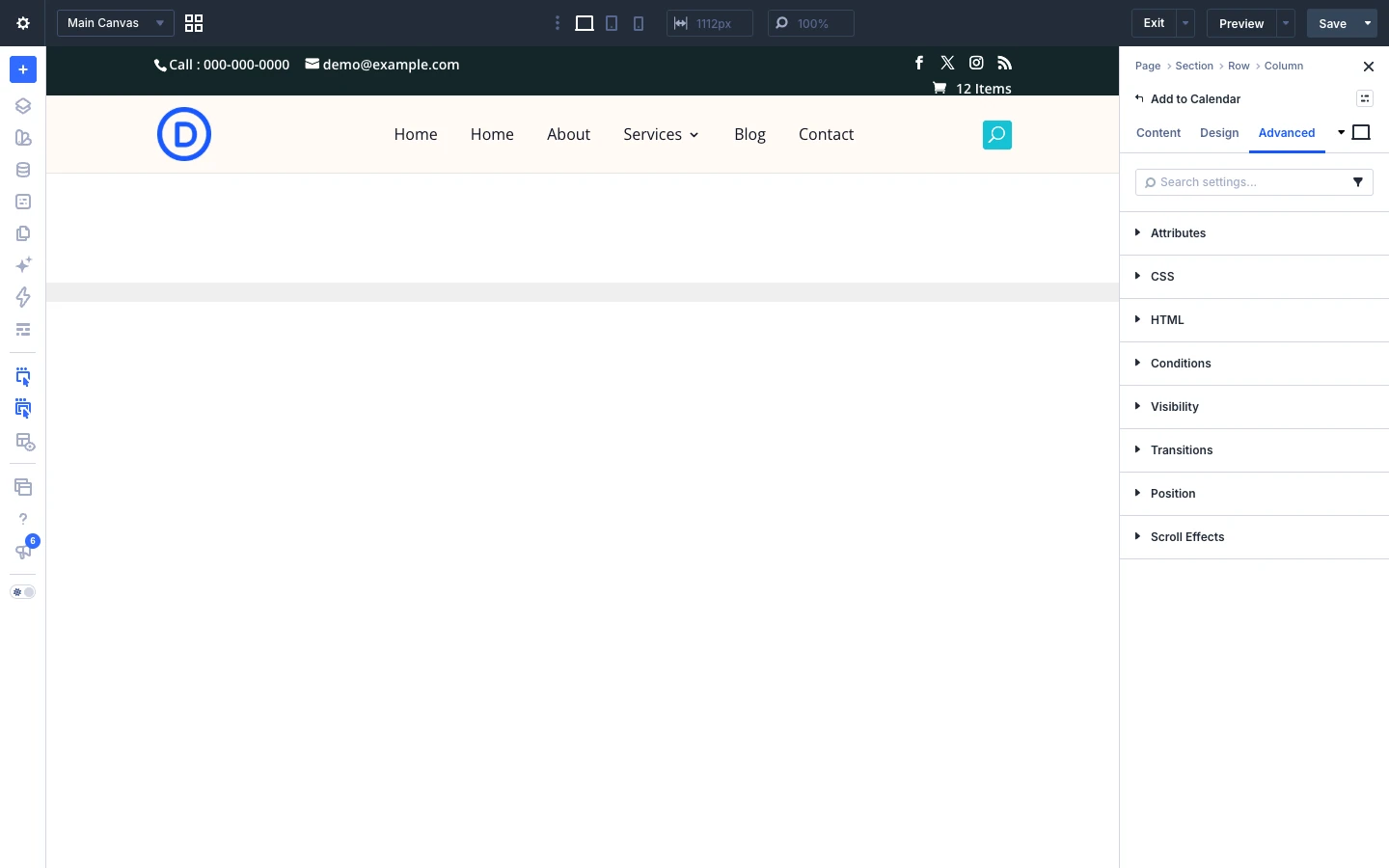
The Advanced tab has the standard Divi options: Attributes (add a CSS class or ID), CSS, HTML, Conditions, Interactions, Visibility, Transitions, Position and Scroll Effects.