Search Divi Events Extended Documentation
Search for answers or browse our knowledge base.
Event status module
Overview of the event status module
The Event Status module shows whether an event is Cancelled, Postponed, Moved Online or Rescheduled. By default it shows nothing for events going ahead as planned, so the badge only appears when there is something visitors need to know.

How to add the event status module to your page

- Open your page in the Divi Visual Builder.
- Click the gray (+) icon inside a row to add a new module.
- Search for Event Status in the module search box.
- Click the module to insert it. Its settings open on the right.
Content tab settings
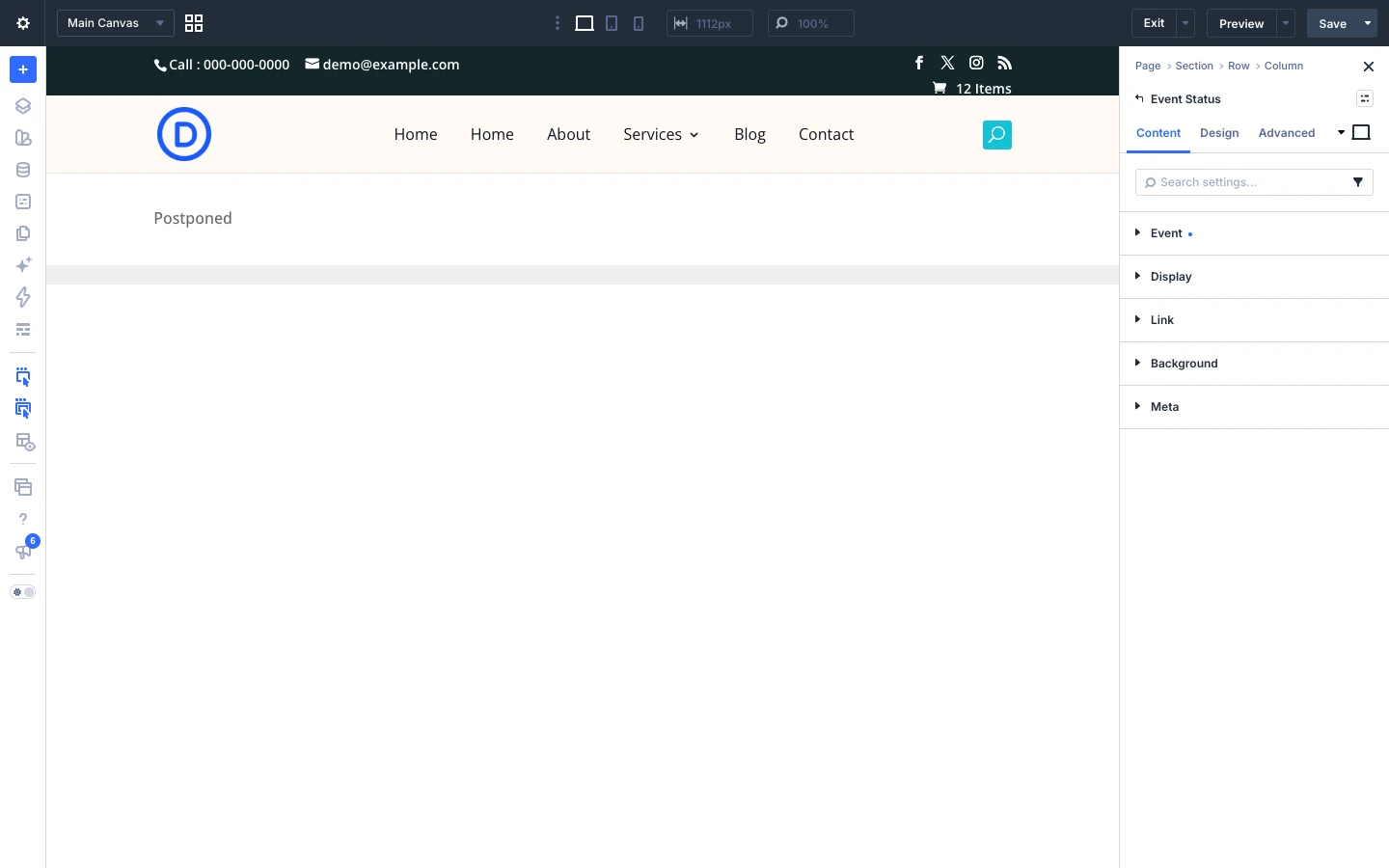
The Content tab controls which events the module shows and how they are displayed. The module-specific settings are grouped into the toggles below; Link, Background and Element Label are the standard Divi options.
Event
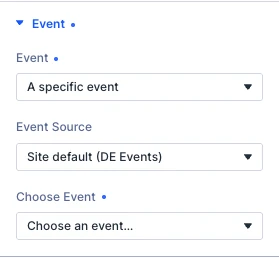
- Event Source: Which event source this module reads from. Site default follows the setting under Divi Extended → Events; pinning one lets a second module on the same page read from another, which is a supported configuration rather than a migration step.
- Event: Which event this shows. “This event” follows the event the page is about, so one layout serves every event, and is offered only where there is one — a single event or a Theme Builder template. Options: This event, Next upcoming event, A specific event.
- Choose Event: The event this shows. If it is later deleted or unpublished the module renders nothing rather than switching to another event, so a pinned field never quietly becomes a different event’s.
Display
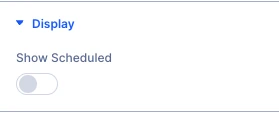
- Show Scheduled: Show a status on events that are going ahead as planned. Off by default, because a badge reading “Scheduled” on every event that is simply happening is noise, while one reading “Cancelled” is the most important thing on the page.
Tip: Turn on Show Scheduled if you want every event to display a status, for example in a status column.
Design tab settings
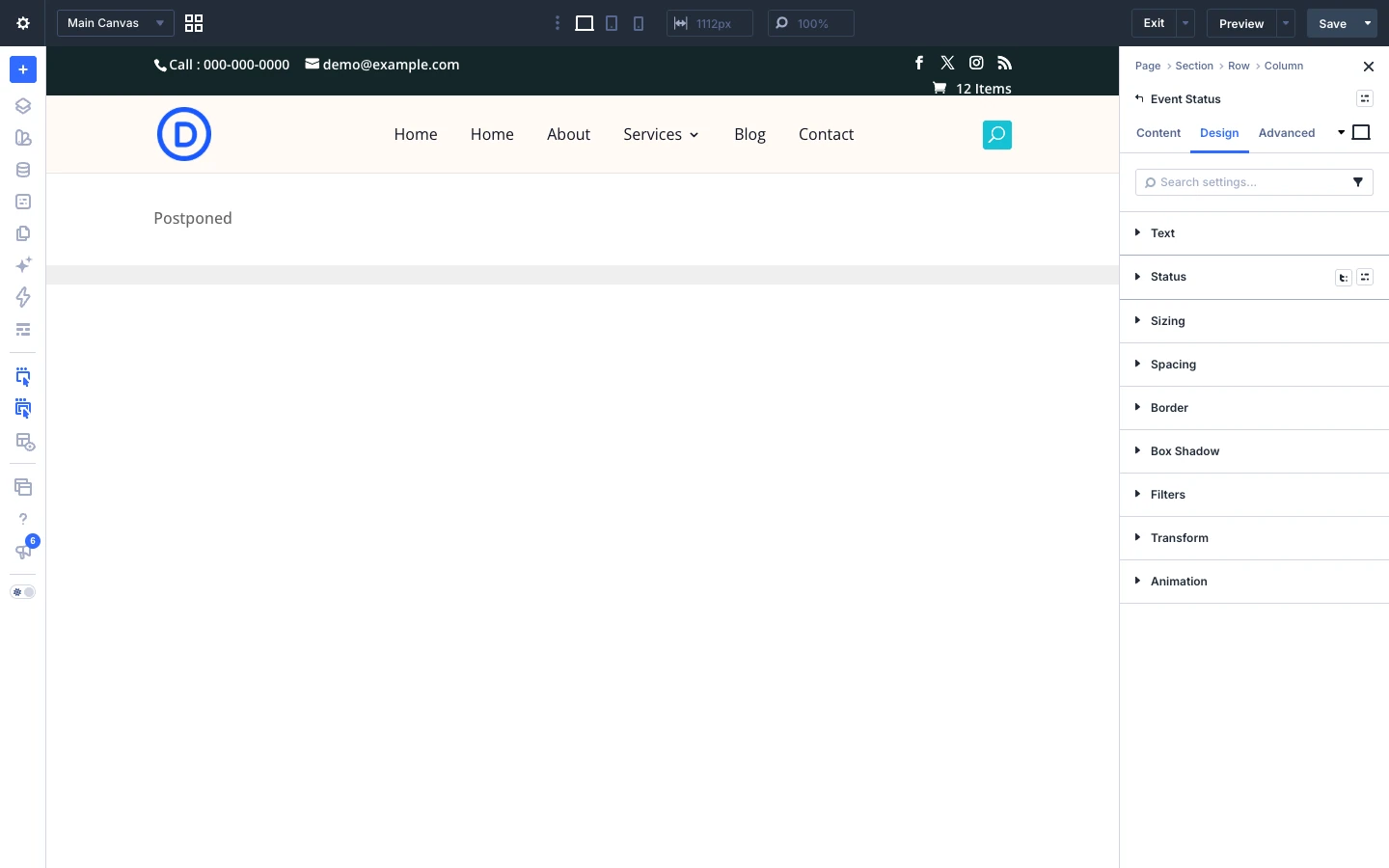
The Design tab lets you style every part of the module. Each toggle below controls one element:
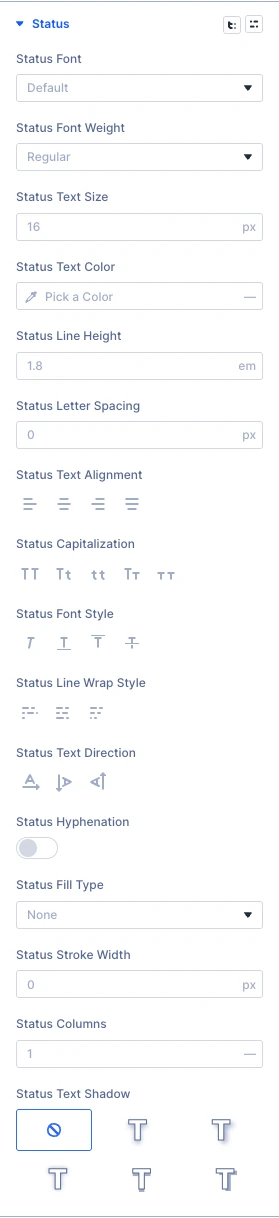
- Status: style of the status text.
- Sizing, Spacing, Border, Box Shadow, Filters, Transform, Animation: the standard Divi design options for the whole module.
Advanced tab settings
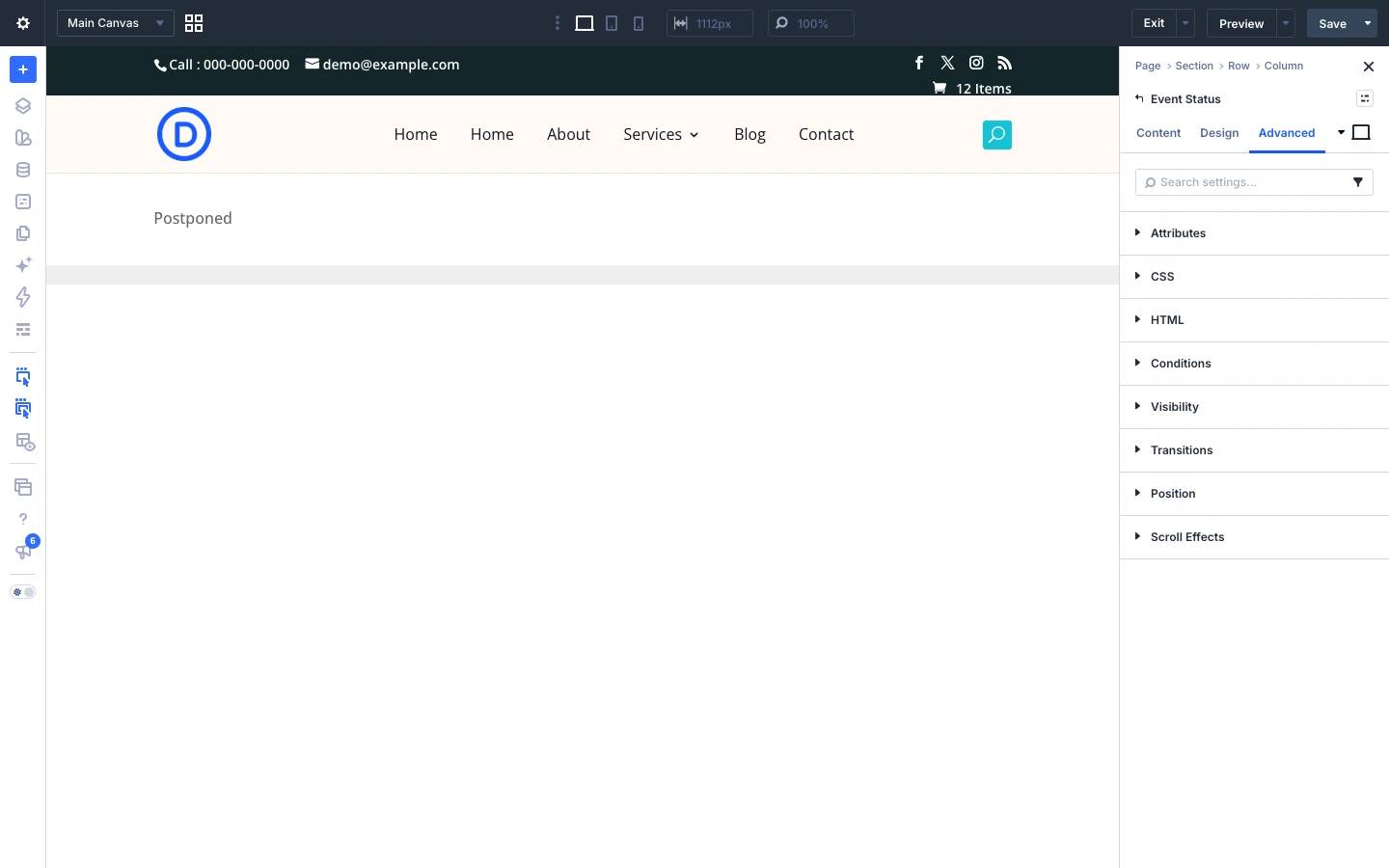
The Advanced tab has the standard Divi options: Attributes (add a CSS class or ID), CSS, HTML, Conditions, Interactions, Visibility, Transitions, Position and Scroll Effects.