Search Divi Events Extended Documentation
Search for answers or browse our knowledge base.
Events feed module
Overview of the events feed module
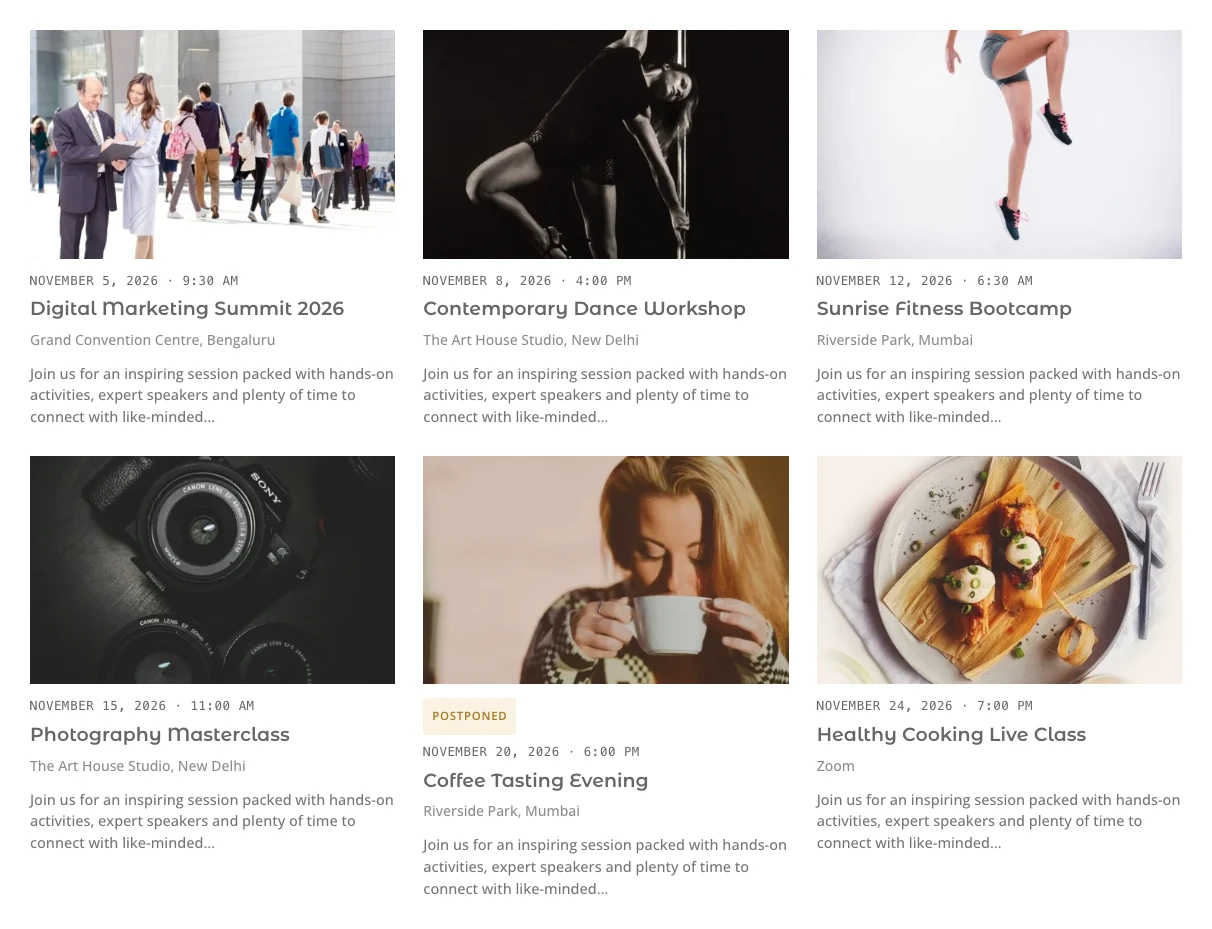
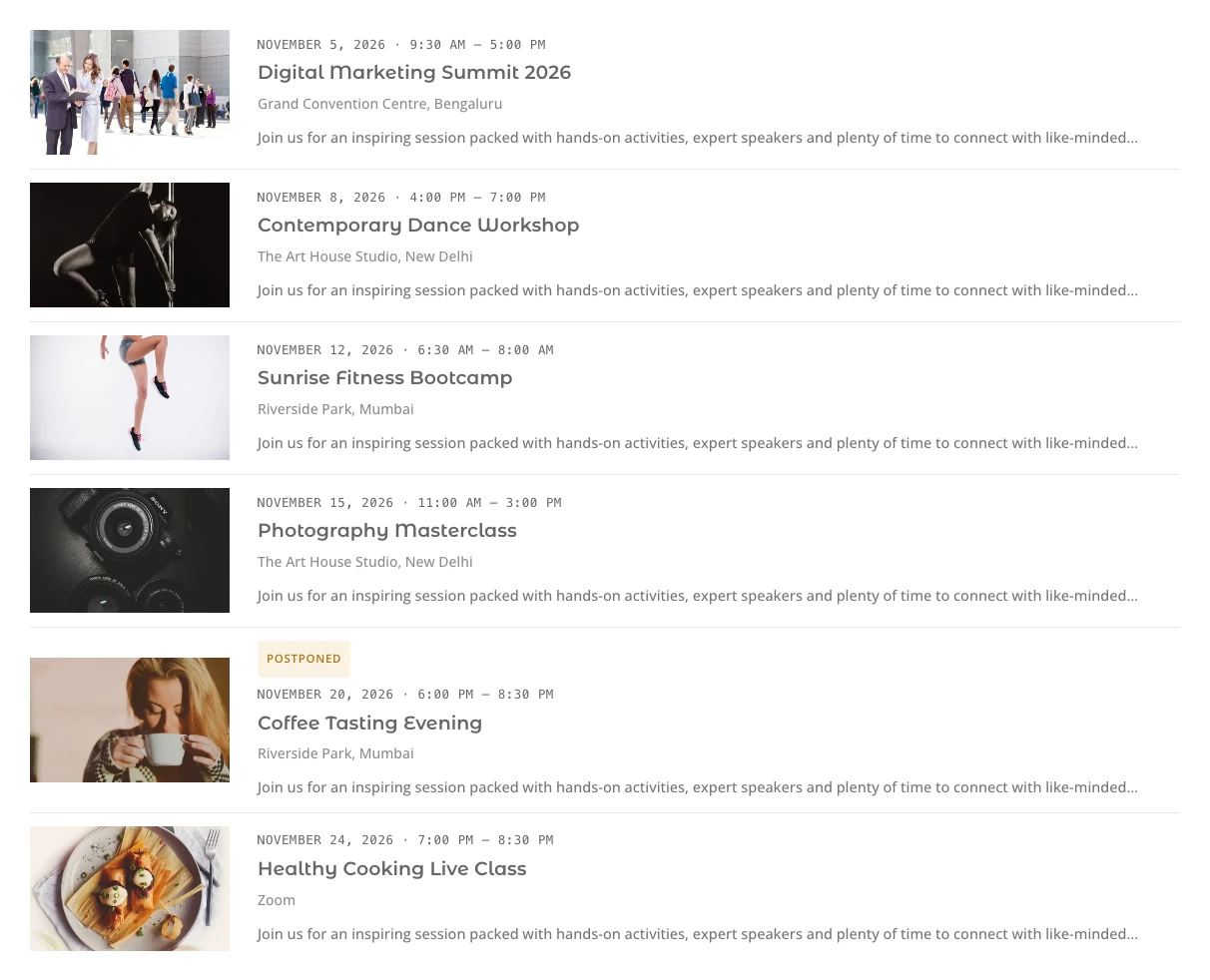
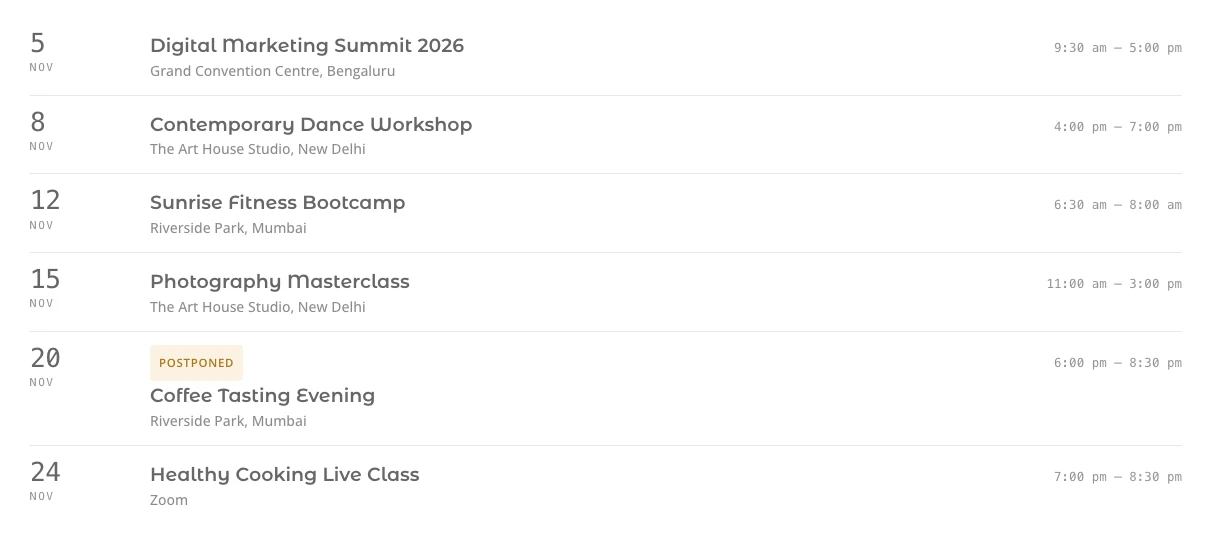
This document provides a comprehensive guide on configuring and using the Events Feed module for Divi 5. The Events Feed module lists your events as a card grid, a full-width list or compact date-first rows. It can show upcoming, ongoing or past events, filter them by category, tag, type, venue or organizer, and page through them with page numbers, a Load More button or infinite scroll.
How to add the events feed module to your page

- Open your page in the Divi Visual Builder.
- Click the gray (+) icon inside a row to add a new module.
- Search for Events Feed in the module search box.
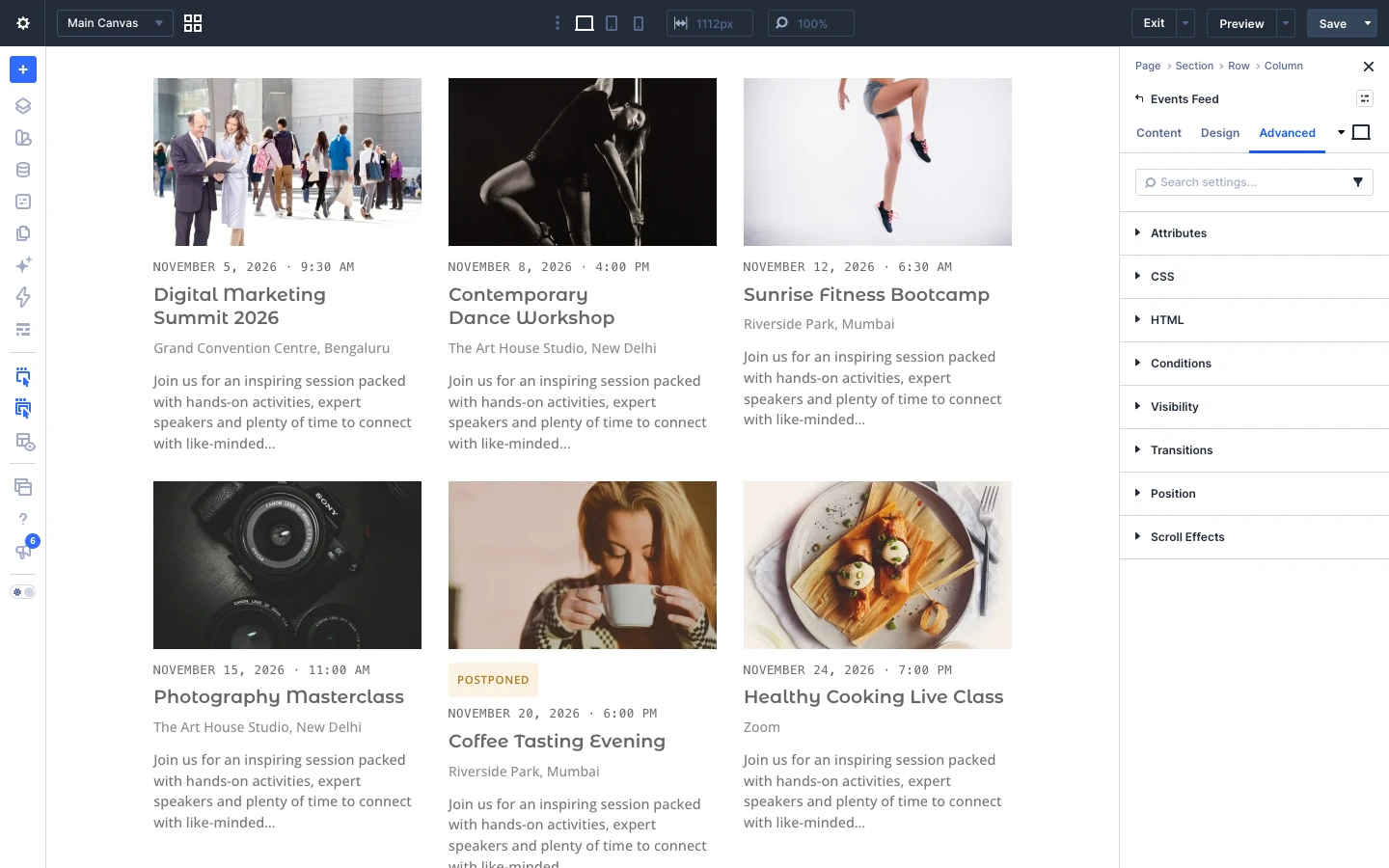
- Click the module to insert it. Its settings open on the right.
Content tab settings
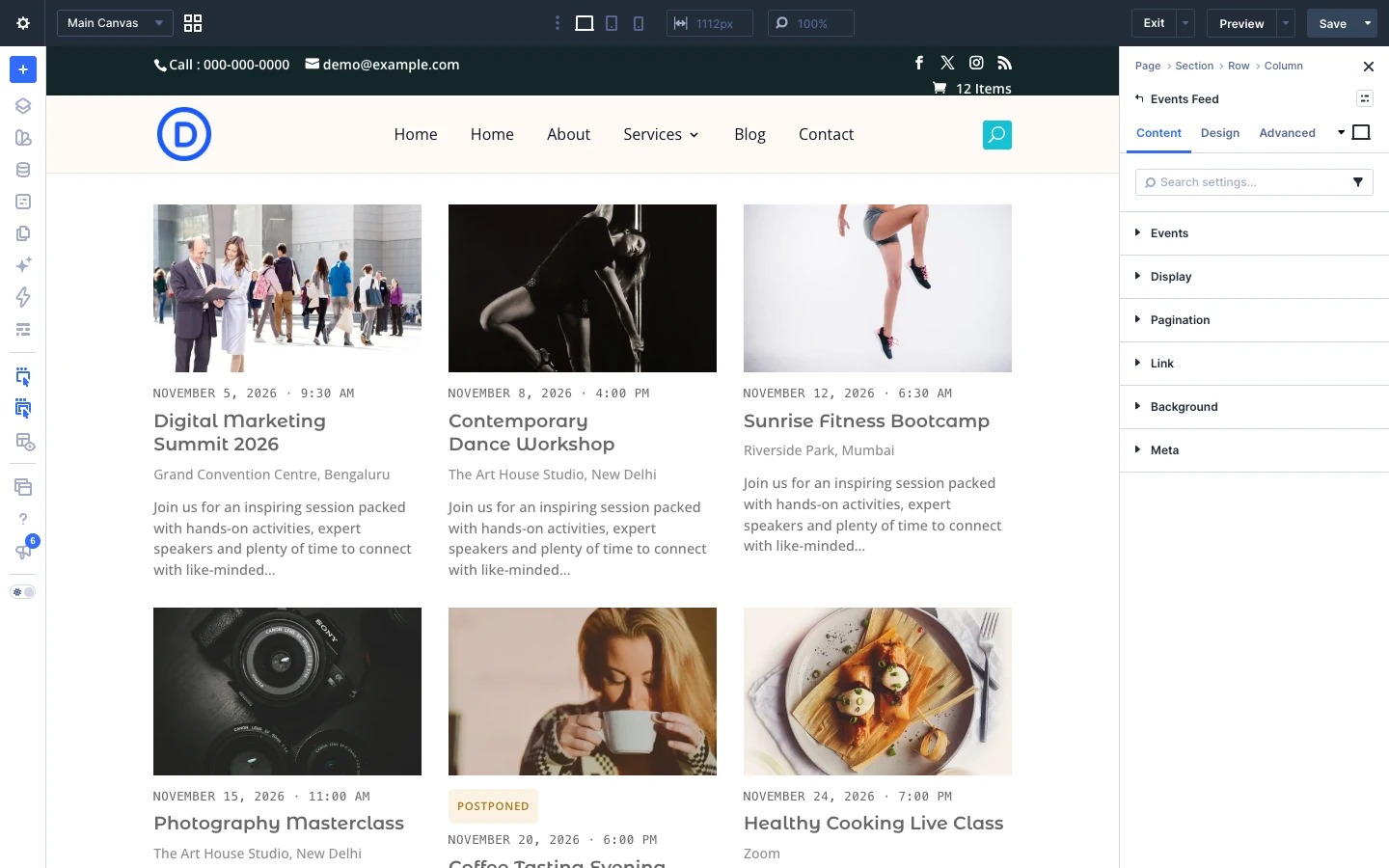
The Content tab controls which events the module shows and how they are displayed. The module-specific settings are grouped into the toggles below; Link, Background and Element Label are the standard Divi options.
Events

- Event Source: Which event source this module reads from. Site default follows the setting under Divi Extended → Events; pinning one lets a second module on the same page read from another, which is a supported configuration rather than a migration step.
- Show: Which events the feed lists. Panel Setting follows Default scope under Divi Extended → Events; name a scope only when this one feed should disagree with the rest of the site. Options: Panel Setting, Upcoming events, Events happening now, Past events, All events.
- Number Of Events: How many events to show, up to 48. With pagination switched on this is the number per page.
- Order By: What the list is sorted on. Options: Date it starts, Title.
- Repeating Events: An event that repeats has one entry per date it happens on. A daily event can fill a whole feed on its own, so this can reduce it to a single entry — the next one coming up, or the most recent for a list of past events. Options: Show every date, Show each event once.
- Direction: Ascending puts the soonest event first, which is what an upcoming list usually wants. Descending suits a list of past events, where the most recent one is the interesting end. Options: Ascending, Descending.
- Categories: Lists only events in the chosen categories. Nothing ticked lists them all.
- Tags: Lists only events carrying the chosen tags. Nothing ticked lists them all.
- Event Types: Lists only events of the chosen format — conference, workshop, webinar. Nothing ticked lists them all.
- Venues: Lists only events at the chosen venues. Nothing ticked lists them all.
- Organizers: Lists only events run by the chosen organizers. Nothing ticked lists them all.
- Events For Current Page: Lists the events belonging to the page this template is rendering — a venue, an organizer, an event category or an event tag. On any other template, including a single event, there is no such page to follow and the feed lists events normally.
- Filter Bar Target: Ties this feed to a Filter Bar carrying the same Target. Leave it blank and every Filter Bar on the page drives this feed — right for almost every layout.
- Filters: Narrows which events the feed can list. Any includes all events, Yes includes only events with the Featured setting enabled, and No includes only events that are not featured.
Display
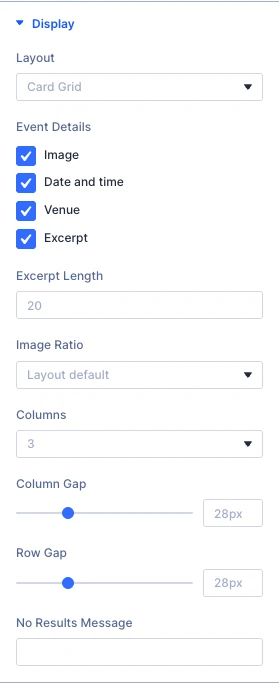
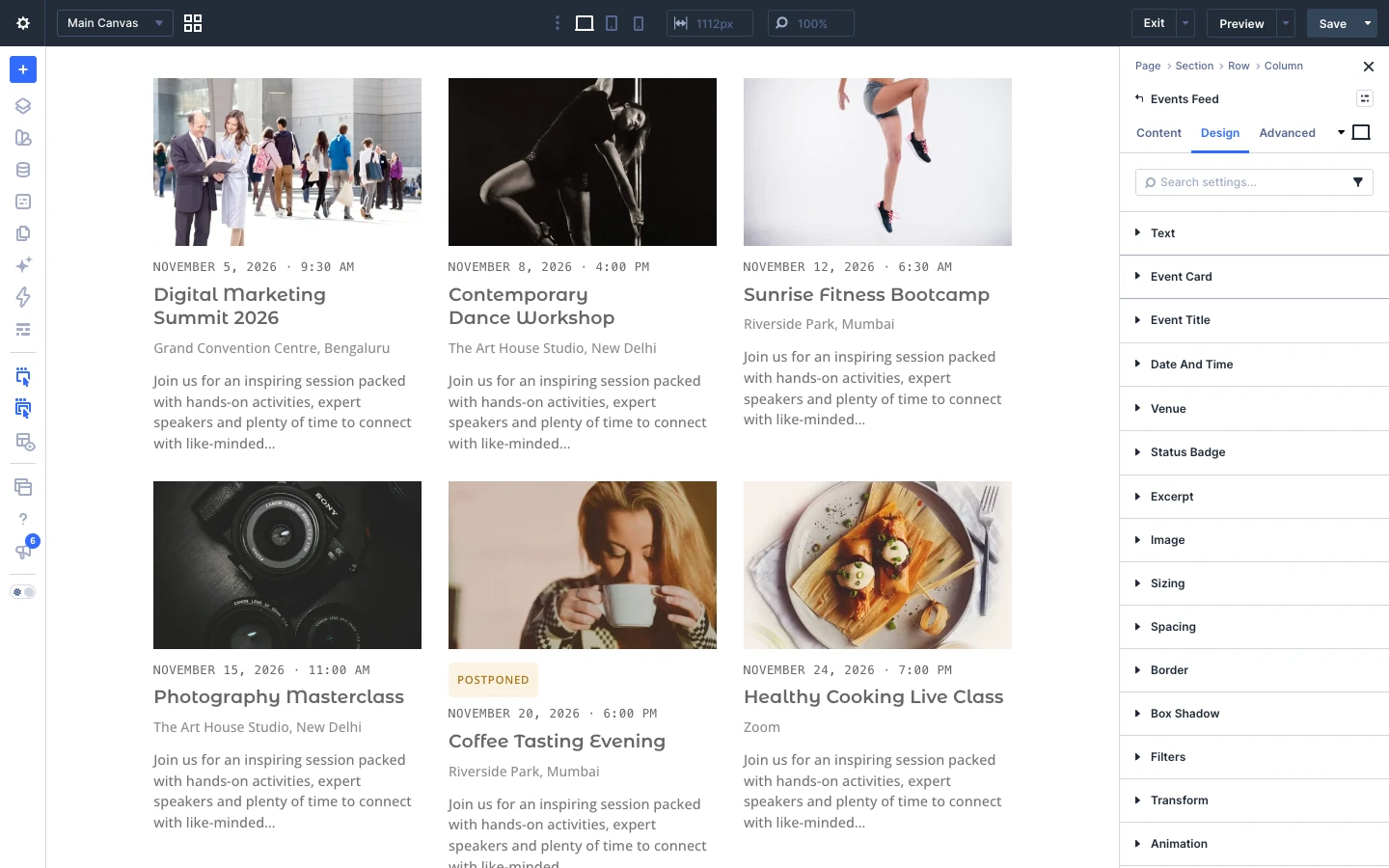
- Layout: How each event is drawn. Card Grid puts events in columns with the image on top. Options: Card Grid, List, Compact.
- Event Details: Which parts of an event to show. A part with nothing behind it — an event with no image, or no venue — is left out whether it is ticked here or not. Options: Image, Date and time, Venue, Excerpt.
- Event Details (Compact layout): Which parts of an event a compact row shows. Compact has no image and no excerpt, so it offers what it can actually draw rather than options that would do nothing. Options: Date and time, Venue.
- Excerpt Length: How many words of the excerpt to show, between 5 and 100. Events with no excerpt of their own fall back to the start of their description.
- Columns: Cards across the grid, set per breakpoint. Nothing narrows it on your behalf — what you set for a breakpoint is what that breakpoint renders. Options: 1, 2, 3, 4.
- Column Gap: Space across a row: between one card and the next in the grid, and between the image and the text in a list row.
- Row Gap: Space between one row and the next. In the list layout this is split above and below each row, either side of the dividing line.
- Date Column Width: How wide the date column is in the compact layout. Fixed rather than sized to its contents so the dates line up down the feed, which is the reason the layout leads with them.
- No Results Message: Shown in place of the cards when nothing matches. Leave it blank for the default.
- Image Ratio: The shape every card’s image is cropped to. Layout default keeps the one each layout was drawn for — 16:10 on a grid card, 16:9 on a full-width list row. Options: Layout default, 16:10, 16:9, 3:2, 4:3, Square, The image’s own shape.
Pagination
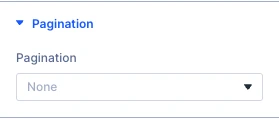
- Pagination: How a visitor reaches the events past the first page. With this off, the feed shows the number above and nothing more. Options: None, Page numbers, Load more, Infinite scroll.
- Load More Text: Wording for the button that fetches the next set of events. Leave it blank for the default.
Tip: Add an Events Filter Bar module on the same page and it filters this feed automatically.
Design tab settings
The Design tab lets you style every part of the module. Each toggle below controls one element:
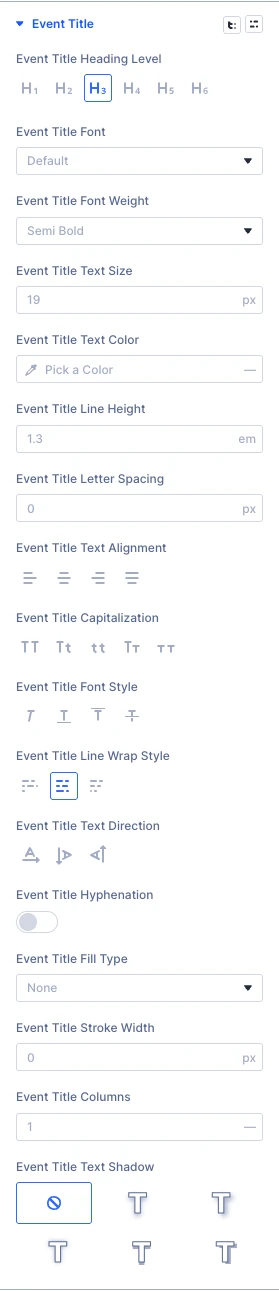
- Event Title: font, size, color and spacing of the event title.
- Date & Time: style of the date and time text.
- Venue: style of the venue text.
- Excerpt: style of the event excerpt.
- Image: corner radius, border and filters of the event image.
- Status Badge: colors and text of the status badge (Cancelled, Postponed and so on).
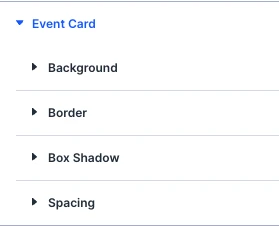
- Event Card: background, border, shadow and padding of each event card.
- Sizing, Spacing, Border, Box Shadow, Filters, Transform, Animation: the standard Divi design options for the whole module.
Advanced tab settings
The Advanced tab has the standard Divi options: Attributes (add a CSS class or ID), CSS, HTML, Conditions, Interactions, Visibility, Transitions, Position and Scroll Effects.