
Search Divi Events Extended Documentation
Search for answers or browse our knowledge base.
Event submissions
This page shows you how to let visitors submit events from your site, and how to review them. Visitors fill in the Event Submission Form module. Each submitted event is saved as Pending and waits for your review, so nothing goes live until you publish it. The plugin emails the sender and you at each step.
Turn on event submissions
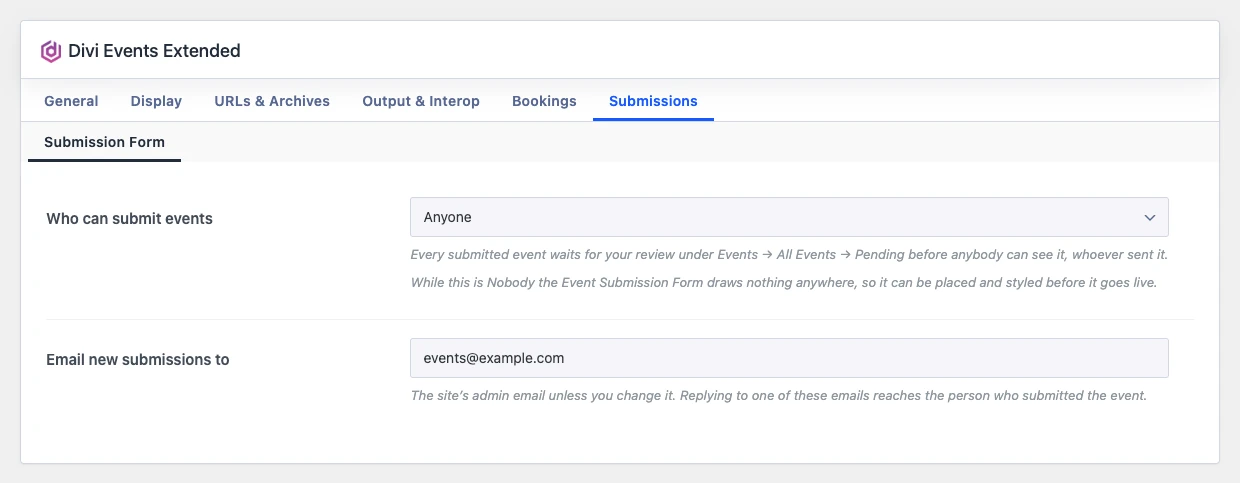
Go to Divi Extended > Divi Events Extended > Submissions.
- Who can submit events: Nobody, Logged-in visitors only or Anyone. While this is Nobody, the Event Submission Form shows nothing anywhere, so you can place and style it before it goes live.
- Email new submissions to: Where the new submission emails go. It is the site’s admin email unless you change it. Replying to one of these emails reaches the person who submitted the event.
Then add the Event Submission Form module to a page.
What happens when an event is submitted
- The event is saved with the Pending status. It is not public.
- A new venue or organizer typed in the form is saved with it and goes live only when you publish the event.
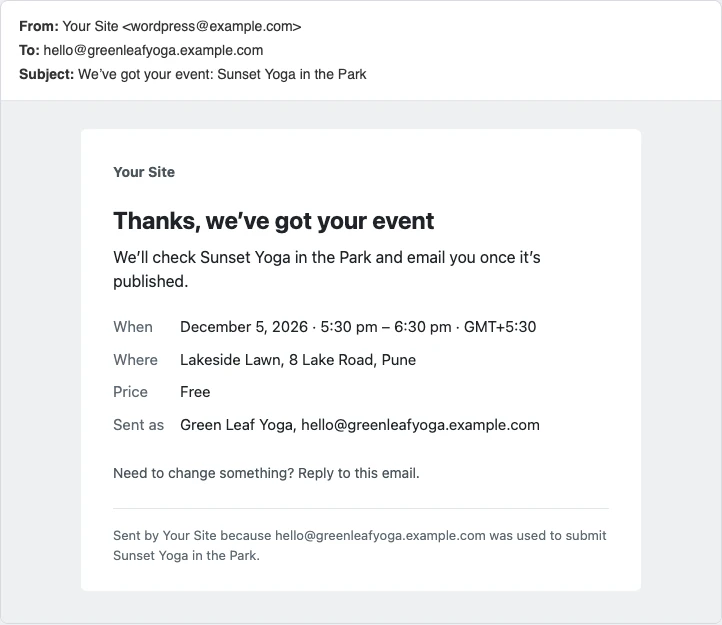
- The sender gets a “We’ve got your event” email with a copy of what they sent.
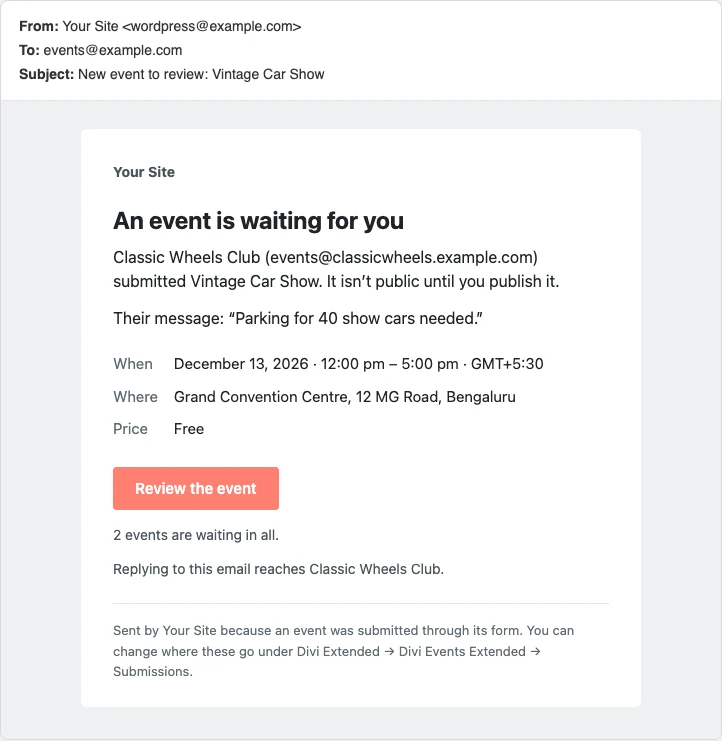
- You get a “New event to review” email with a Review the event button.
Find events waiting for review
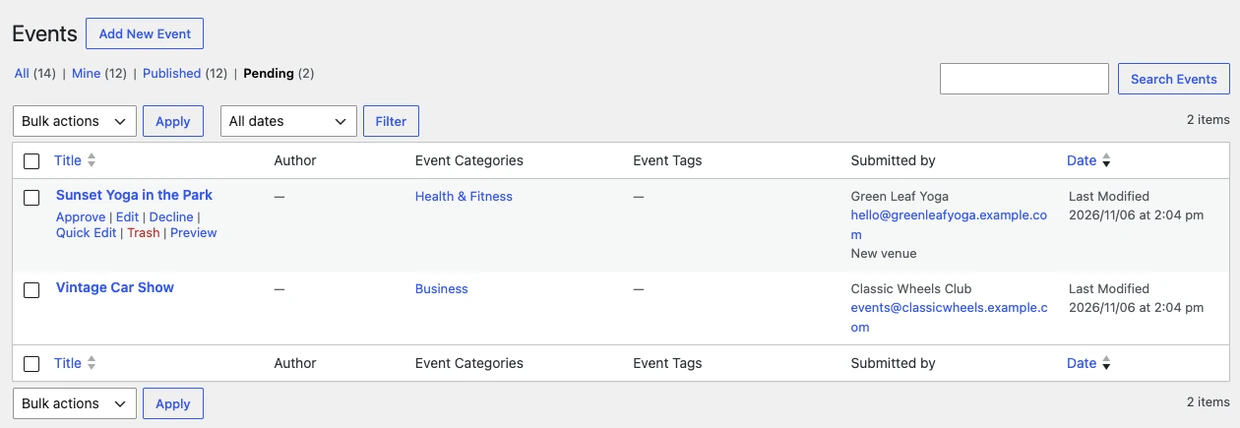
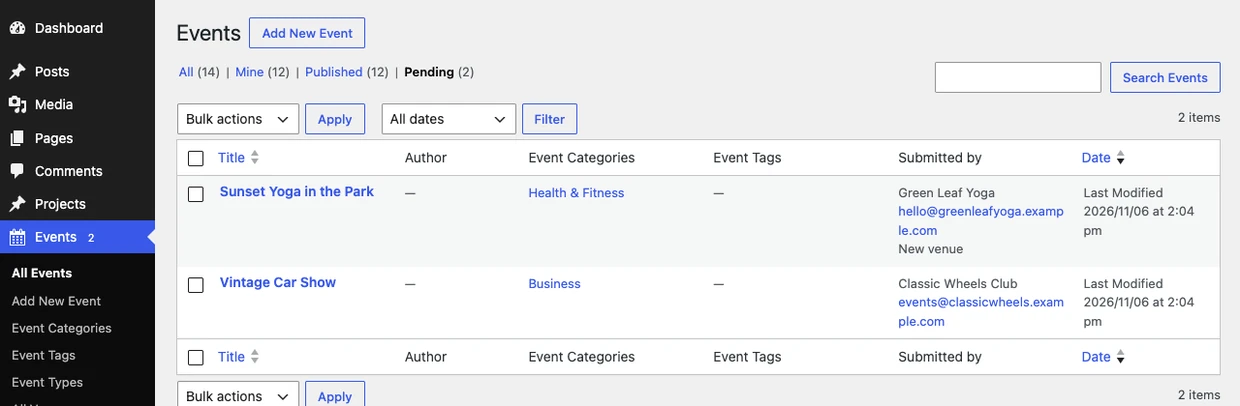
Go to Events > All Events and click Pending. The Events menu shows how many events are waiting. The Submitted by column shows the sender’s name and email, and notes like “New venue” or “organizer may already exist”.
Review an event
Click the event title to open it. The Submitted from the form box shows who sent it, when, and their message. Check and change anything you need, for example the venue, categories or the event image, then click Publish to approve it.
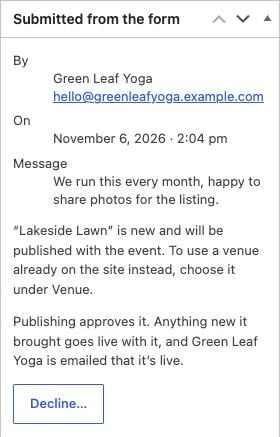
If the organizer name or email matches an organizer already on your site, the box lists the match with a Use this one button, so you don’t end up with the same organizer twice.
Approve an event
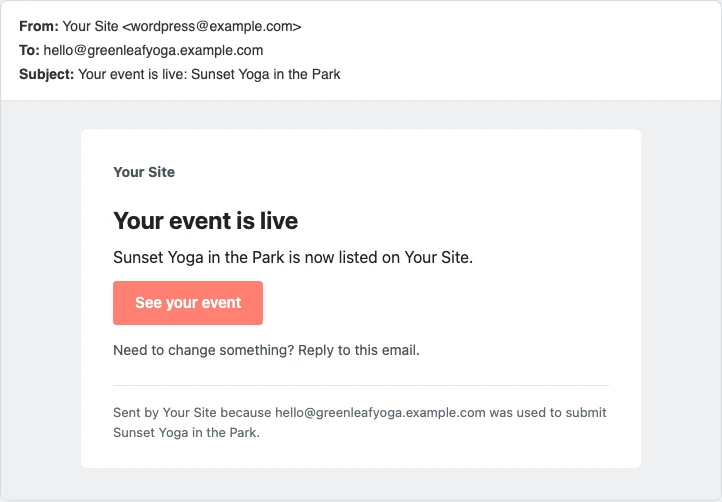
Hover over the event in the Pending list and click Approve, or click Publish in the event editor. The event goes live with any new venue or organizer it brought, and the sender gets a “Your event is live” email with a link to it.

Decline an event
- Hover over the event in the Pending list and click Decline, or click Decline… in the Submitted from the form box.
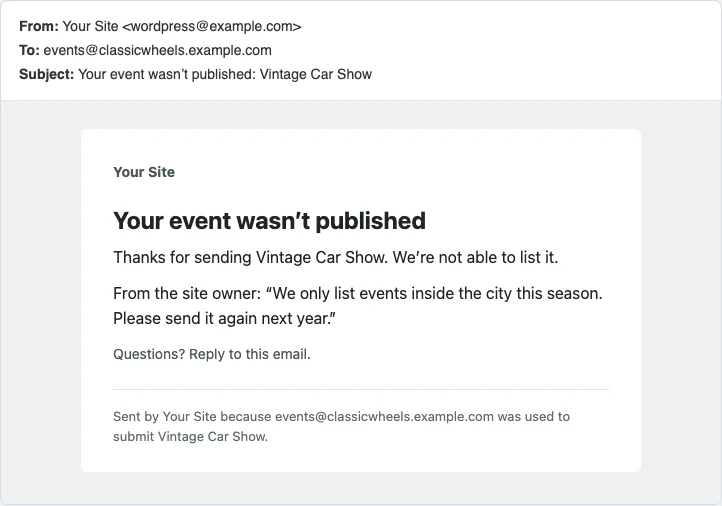
- Type a reason if you want one. It is included in the email.
- Click Decline and email them, or Keep it to go back.
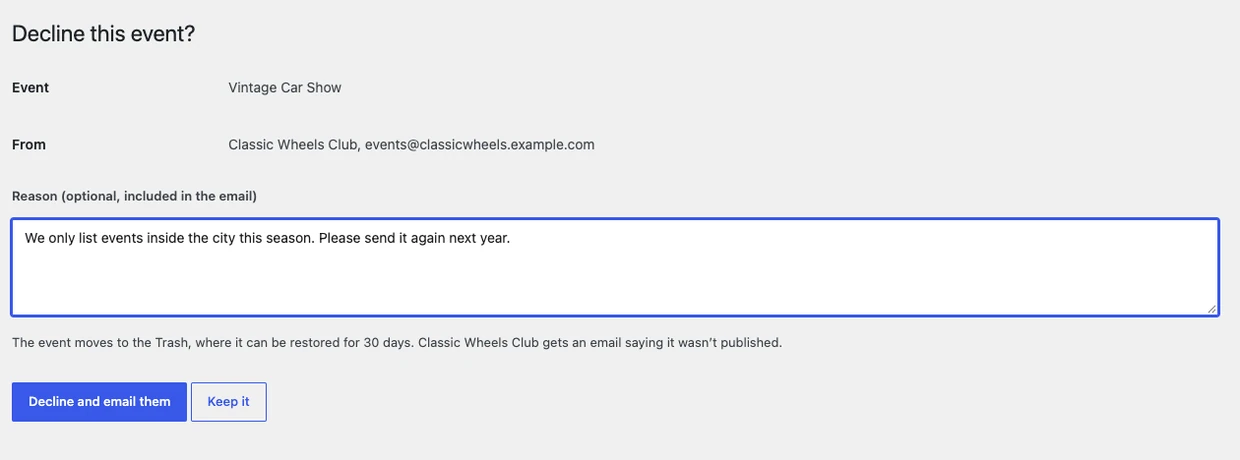
The event moves to the Trash, where it can be restored, and the sender gets a “Your event wasn’t published” email with your reason.
Note: WordPress’s own Tools > Export Personal Data and Tools > Erase Personal Data tools include submitted events and the details of the person who sent them.