Search Divi Events Extended Documentation
Search for answers or browse our knowledge base.
Subscribe module
Overview
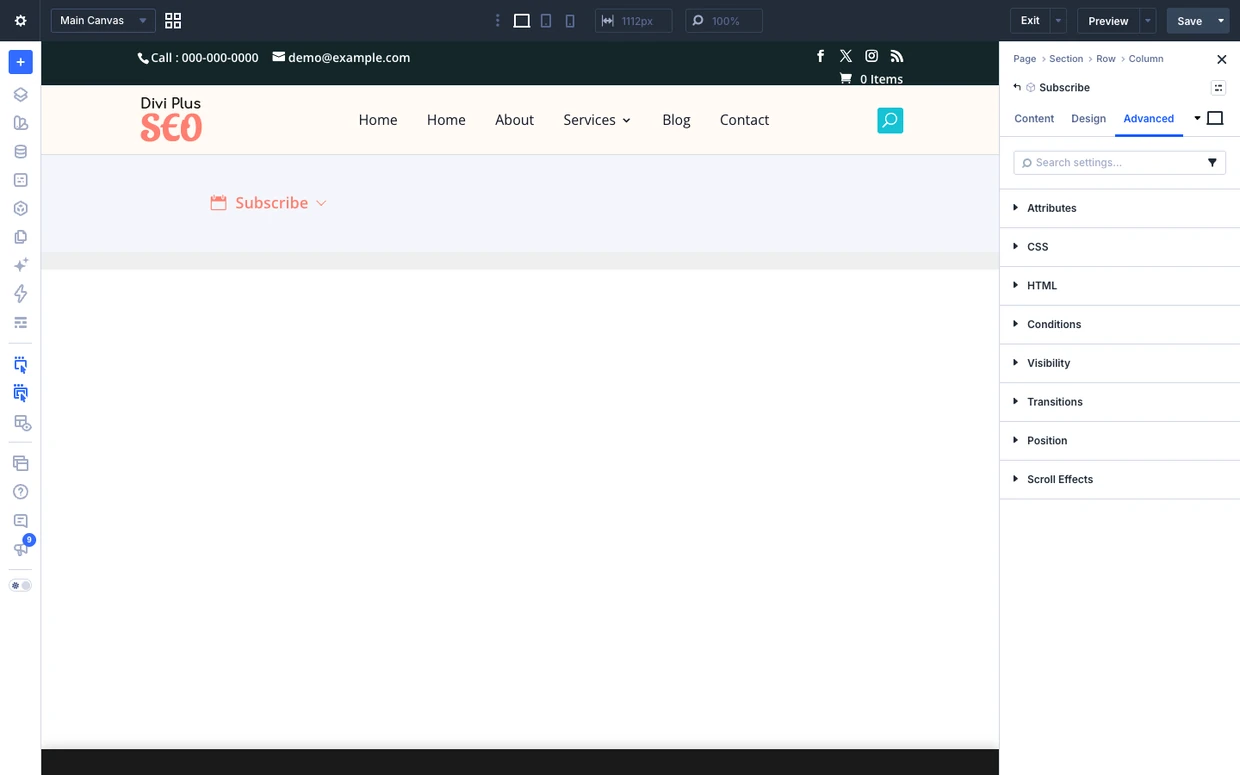
How to add the Subscribe module to your page and explains every setting. This module lets visitors follow your events in Google Calendar, Outlook or any calendar app. Unlike Add to calendar, which adds one event, a subscription keeps the visitor’s calendar up to date: new and changed events appear there on their own.
Note: Subscribing needs the calendar feeds to be on. Go to Divi Extended > Divi Events Extended > Output and Interop > Calendar Feeds and turn on Publish subscribable calendar feeds. It is on by default.
How to add the module
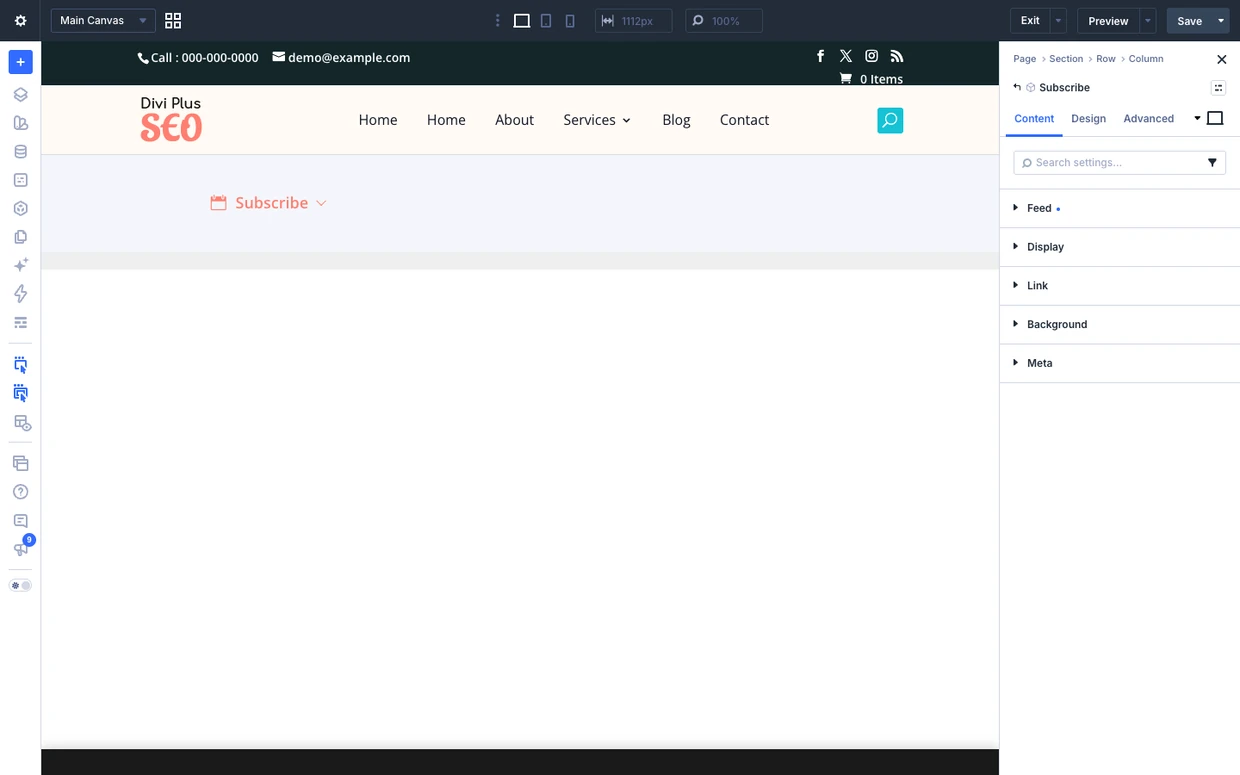
- Open your page in the Divi Visual Builder.
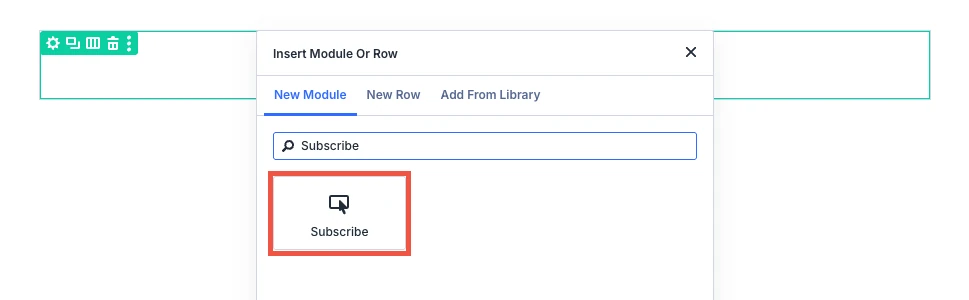
- Click the (+) icon inside a row to add a new module.
- Search for Subscribe in the module search box.
- Click the module to insert it. Its settings open on the right.
Content tab
The Content tab sets which events the visitor subscribes to, how the module looks and which calendars are offered.
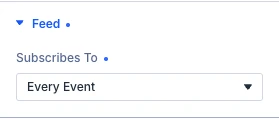
Content tab: Feed
Use This page’s events in a Divi Theme Builder template, so one template works for every category, tag, type, venue, organizer or series page.
- Subscribes to: This page’s Events subscribes to the category, tag, type, venue, organizer or series the page is about, and to every event on any other page, so one Theme Builder template serves every category. Every event subscribes to the whole calendar wherever it is placed. Options: This page’s Events and Every event.
Content tab: Display
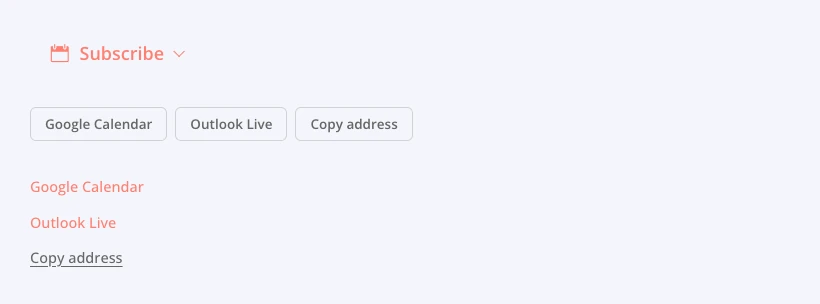
- Layout: Menu is one button that opens a short list, with room to say what is being subscribed to and to show the address. Inline row suits a wide page; Plain links suit a sidebar. Options: Menu, Inline row and Plain links.
- Button text: The words on the button that opens the menu. Leave it empty for “Subscribe”.
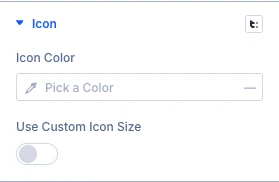
- Show icon: A glyph before the button text. Drawn inline beside the label; pick the glyph below, and set its colour and size under Design → Icon.
- Calendars: Which calendars are offered. Google calendar and Outlook live open the visitor’s calendar on that website, ready to confirm. iCalendar hands the feed to the calendar app on a computer or iPhone, and needs the site to be served over https, so on an http site it is left out. Options: Google calendar, Outlook live, ICalendar and Copy address.
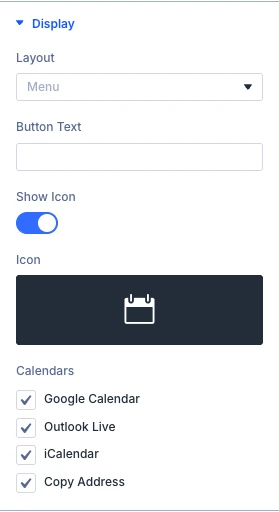
Note: iCalendar (for Apple Calendar and other calendar apps on a computer or iPhone) is shown only when your site uses https. Copy address lets visitors paste the feed address into any calendar app.
The Link, Background and Meta groups are the standard Divi options.
Design tab
The Design tab styles the button, its icon, the menu panel and the items in the menu. The other groups (text, sizing, spacing, border, box shadow, filters, transform, animation) are the standard Divi design options.
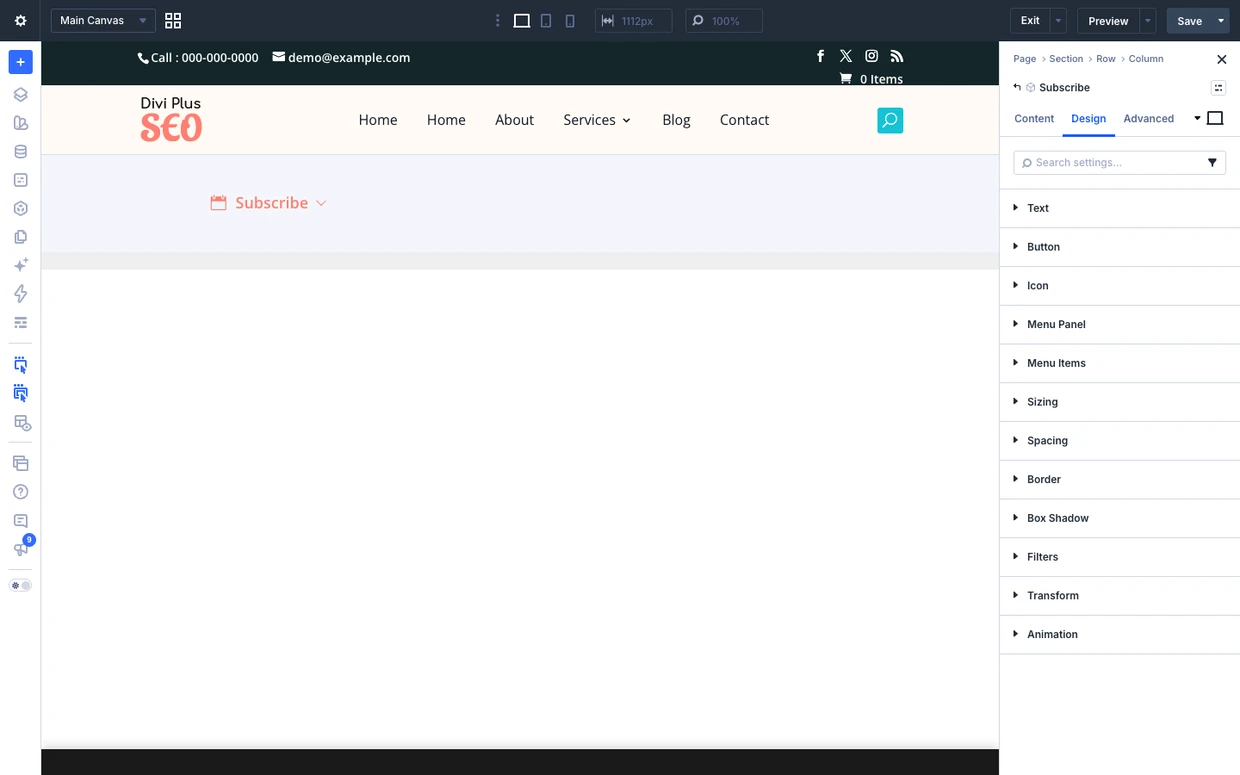
Design tab: Button
Use the standard Divi font, background, border and spacing settings to style the Subscribe button.

Design tab: Icon
Design tab: Menu panel
Use the standard Divi background, border, box shadow and spacing settings to style the menu panel.

Design tab: Menu items

Design tab: Row buttons
Use the standard Divi font, background, border and spacing settings to style the row buttons.
Design tab: Plain links
Use the standard Divi font, border and spacing settings to style the plain links.
Advanced tab
The Advanced tab has the standard Divi options: CSS ID and classes, custom CSS, attributes, conditions, visibility, transitions, position and scroll effects.