
Search Divi Events Extended Documentation
Search for answers or browse our knowledge base.
Bookings screen
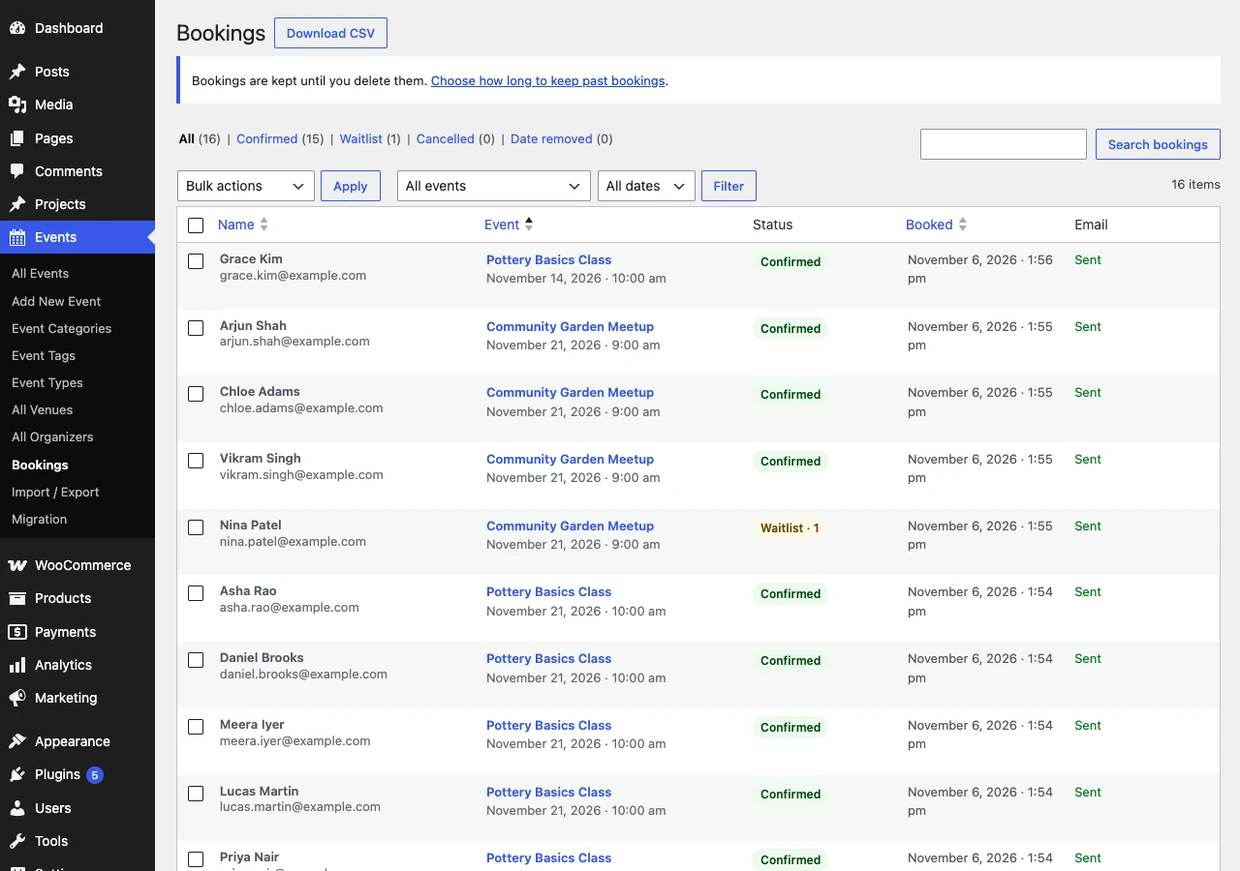
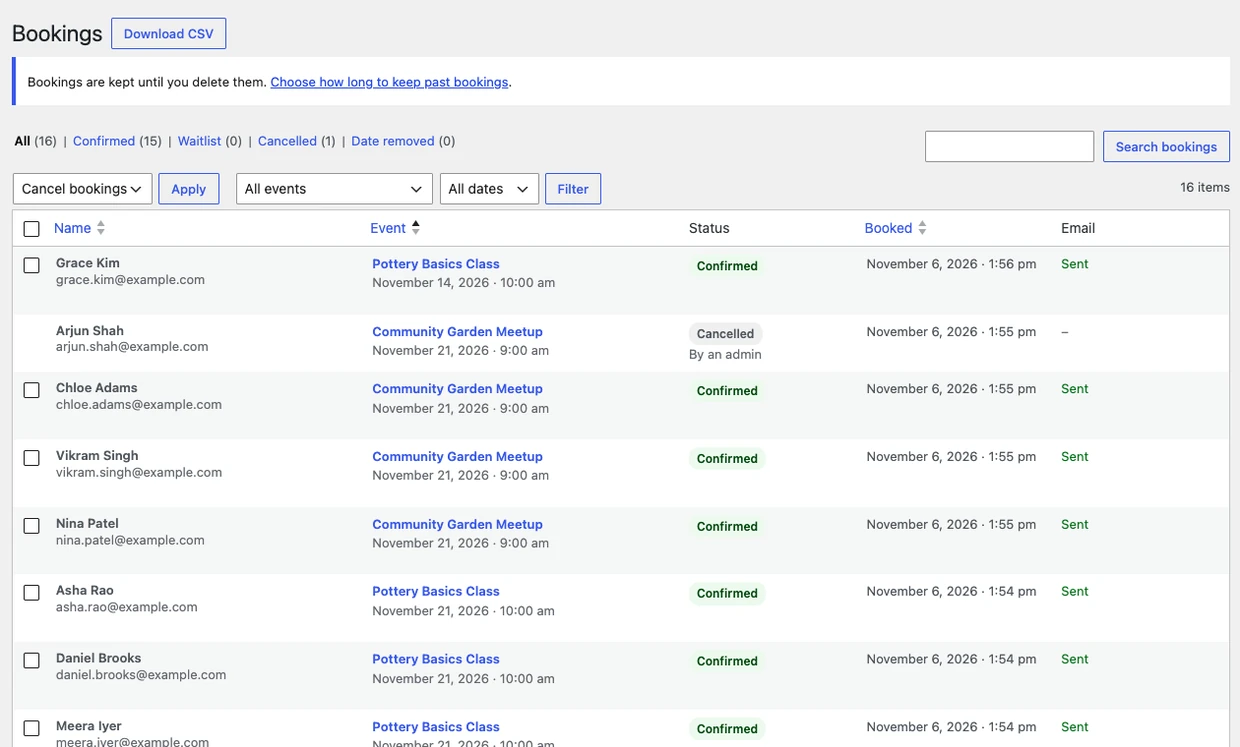
This page shows you how to see, filter, download and cancel event bookings on the Bookings screen. Go to Events > Bookings. The screen lists every booking for every free event that takes bookings, across all dates.
You can also open it from an event: in the event editor, the Registration section shows how many people have a place, with a See the bookings link that opens the screen filtered to that event.
The bookings list
- Name: The name and email the visitor booked with.
- Event: The event and the date booked. On a repeating event, each date is listed on its own.
- Status: Confirmed, Waitlist (with the position, for example “Waitlist · 1”), Cancelled, or Date removed (the date was removed from a repeating event).
- Booked: When the booking was made.
- Email: Whether the last email for the booking was sent: Sent, Not sent yet (tried again every hour) or Not sent.
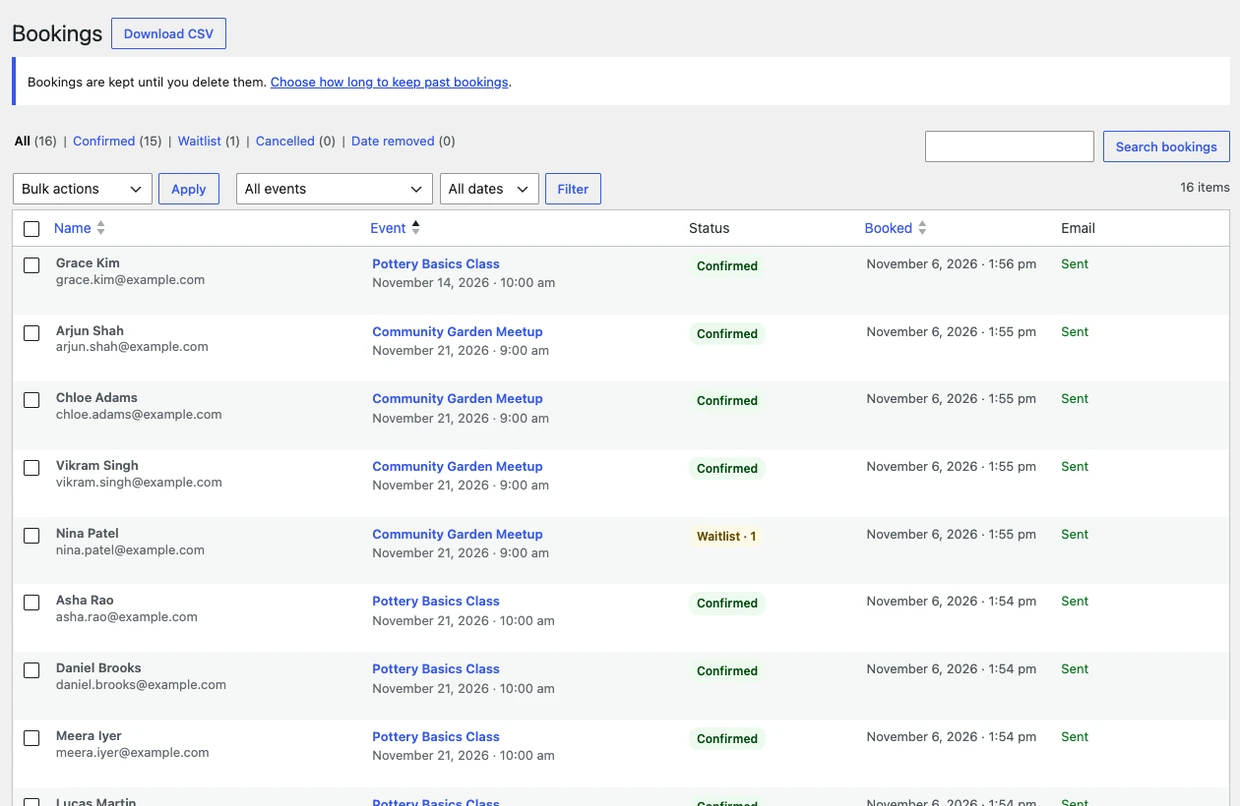
Filter and search bookings
- Click All, Confirmed, Waitlist, Cancelled or Date removed above the list to show one status.
- Choose an event in All events and a time in Upcoming, Past or All dates, then click Filter. The list shows upcoming dates by default.
- Type a name or email in the search box and click Search bookings.
- Click the Name, Event or Booked column title to sort the list.
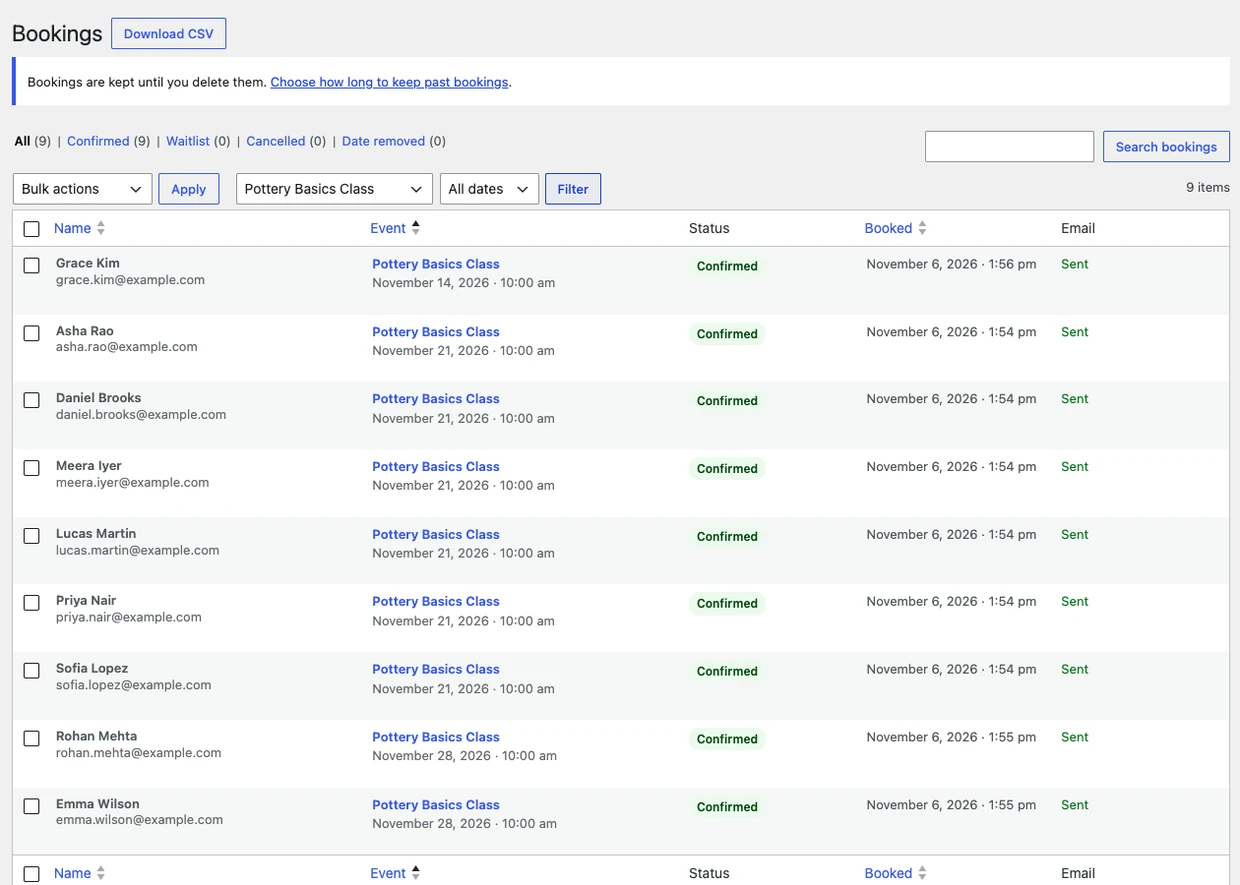
Download bookings as CSV
Click Download CSV at the top of the screen. The file has the bookings that match the filters you chose, with these columns: event ID, event, date, timezone, name, email, status, waitlist position, booked and cancelled.
Cancel a booking
- Hover over the booking and click Cancel booking.
- Check the details and click Cancel the booking, or Keep it to go back.

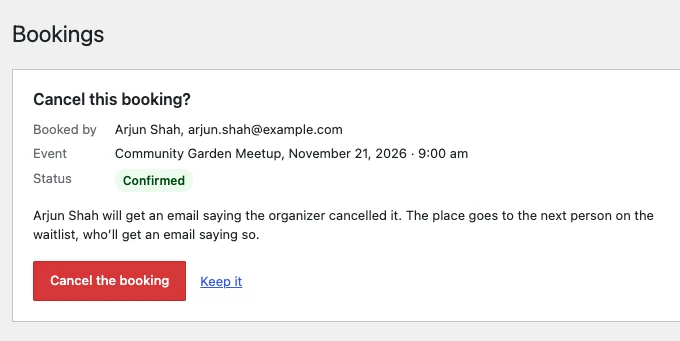
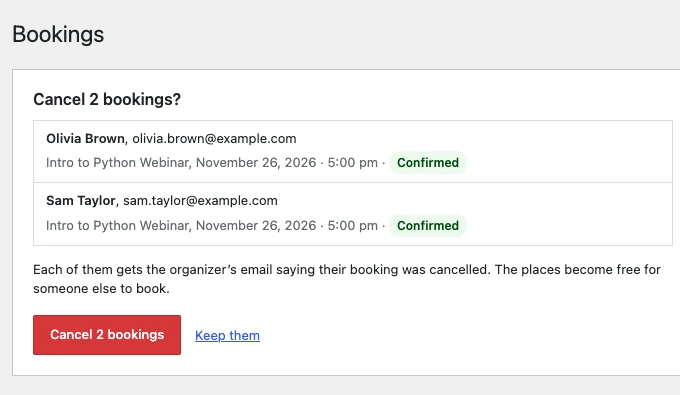
The person is emailed that the organizer cancelled their booking. The place goes to the first person on the waitlist, who is emailed too, or becomes free for someone else to book.

Cancel many bookings at once
- Tick the bookings you want to cancel.
- Choose Cancel bookings in Bulk actions and click Apply.
- Check the list and click Cancel N bookings, or Keep them to go back.
Note: A booking whose date has already started can’t be cancelled.
Keep or delete past bookings
Bookings are kept until you delete them. To delete past bookings on their own, go to Divi Extended > Divi Events Extended > Bookings > Privacy and choose a time in Delete past bookings. The notice at the top of the Bookings screen links there.