
Search Divi Events Extended Documentation
Search for answers or browse our knowledge base.
Bookings for free events
This page shows you how to take bookings for a free event with Divi Events Extended. From version 1.1.0, visitors can book a place on a free DE Events event right on your site, with only their name and email. The plugin counts the places left, can keep a waitlist, emails each person about their booking and lists every booking on the Bookings screen.
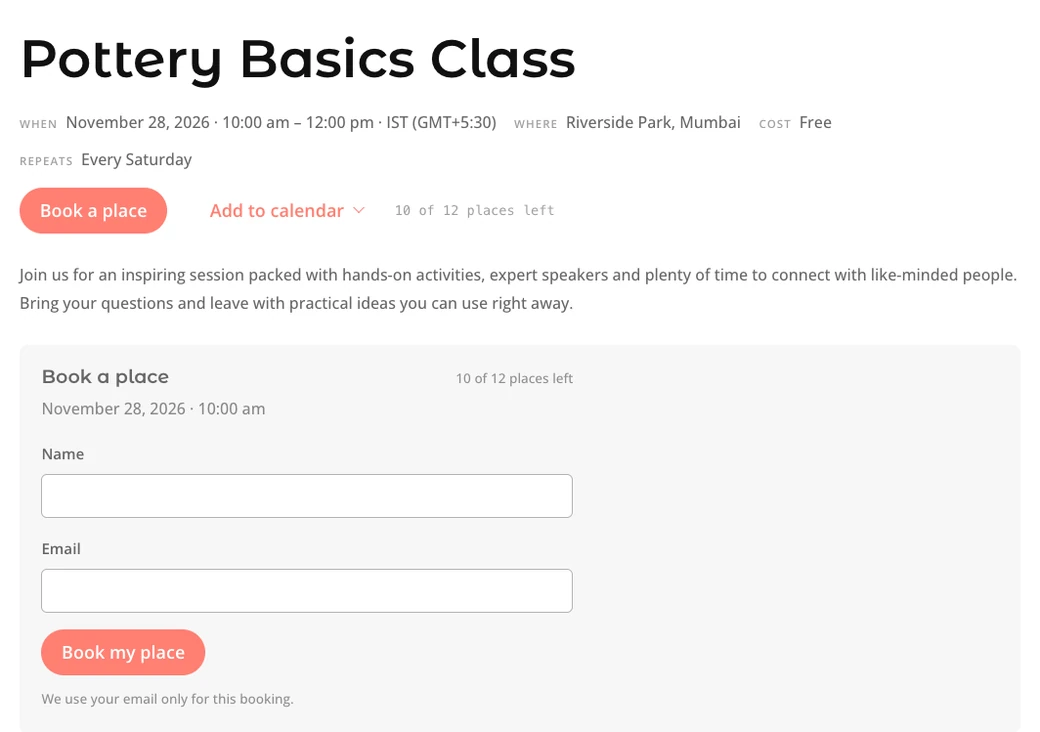
Note: Bookings work with the DE Events event source (the events you add under Events) and only for free events. For a paid event, keep using the Ticket URL to send visitors to your ticket page.
Turn on bookings for an event
- Go to Events > All Events and edit the event, or add a new one.
- In the Event Details box, go to the Cost section and tick This event is free, or leave the price empty.
- In the Registration section, tick Take bookings for this event.
- Enter the number of places in Capacity and, if you want one, the size of the waitlist.
- Click Update (or Publish).

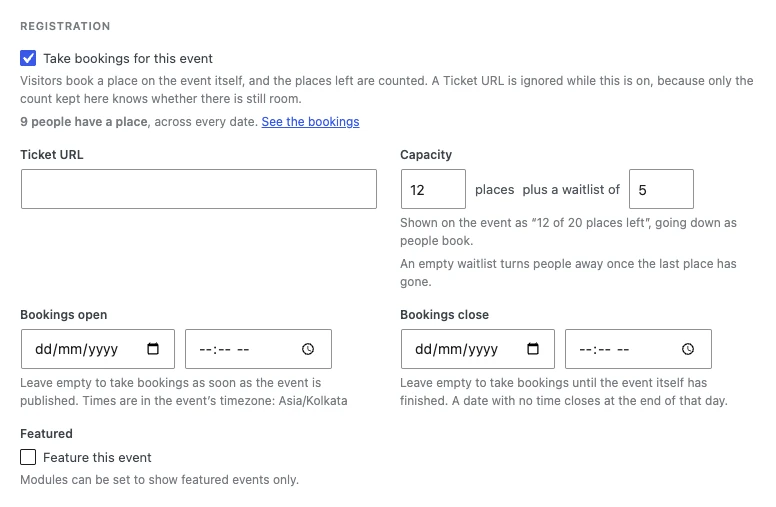
Registration settings
- Take bookings for this event: Visitors book a place on the event itself, and the places left are counted. A Ticket URL is ignored while this is on, because only the count kept here knows whether there is still room.
- Ticket URL: The link to an outside ticket page. It is used only when bookings are off, or when the event has a price.
- Capacity: The number of places. With bookings on, the event shows the places left, for example “12 of 20 places left”, going down as people book. Leave it empty for no limit.
- Plus a waitlist of: How many people can join a waitlist once every place is taken. An empty waitlist turns people away once the last place has gone.
- Bookings open: Leave empty to take bookings as soon as the event is published. Times are in the event’s timezone.
- Bookings close: Leave empty to take bookings until the event itself has finished. A date with no time closes at the end of that day.
Once people have booked, the Registration section shows how many have a place and a See the bookings link to the Bookings screen.
Note: If you add a price to an event that already has bookings, the bookings are kept, but the booking form is hidden and visitors are sent to the Ticket URL. Clear the price to take bookings again.
Where the booking form shows
On the plugin’s own single event page, the booking form shows on its own below the event details, as in the image above. If you build your single event pages with the Divi Theme Builder, or want the form on another page, add the Event RSVP Form module. The Event Register module shows “Sold out”, “Join the waitlist” or “Closed” when the event is full or bookings have closed.
Places and the waitlist
- Each person books one place with their name and email. One email address can hold only one place per date.
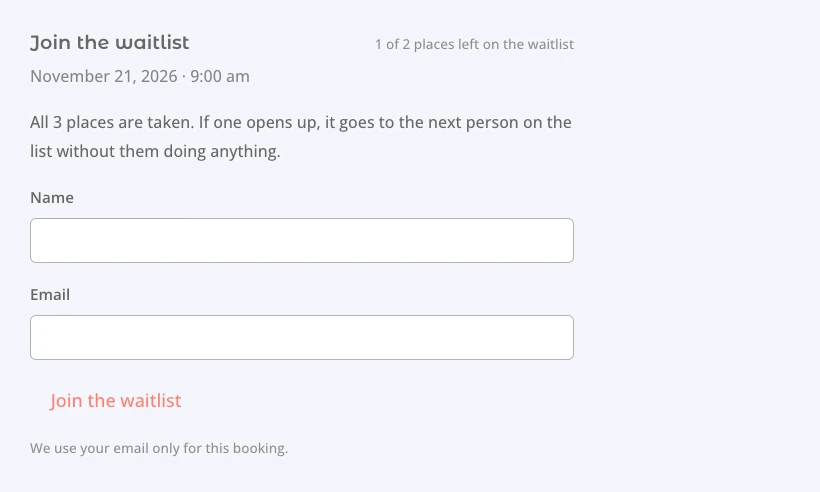
- When every place is taken and the event has a waitlist, the form changes to Join the waitlist and shows the waitlist places left.
- When someone with a place cancels, the first person on the waitlist gets the place automatically and is emailed. They don’t need to do anything.
- When the waitlist is full too, or bookings have closed, the form says so and takes no more bookings.
Repeating events
On a repeating event, every date has its own places and its own waitlist. The form books the date the page is about, and its date line shows which one. Each date has its own URL, so a link to one date opens that date. See Pretty URLs for repeating events.
Online events
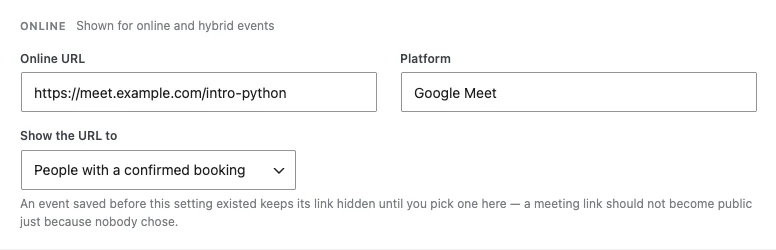
For an online or hybrid event, the Show the URL to setting in the Online section decides who sees the meeting link: Everyone, Everyone, N minutes before the start, or People with a confirmed booking. With the last option, logged-in visitors who have a place see the link on the event page, and everyone else gets it in their booking emails. People on the waitlist don’t get it until they have a place.
How visitors manage their booking
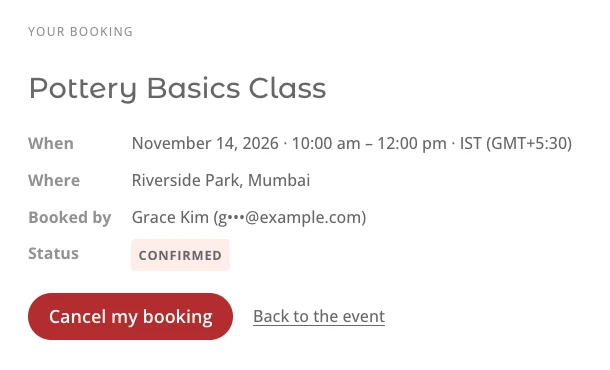
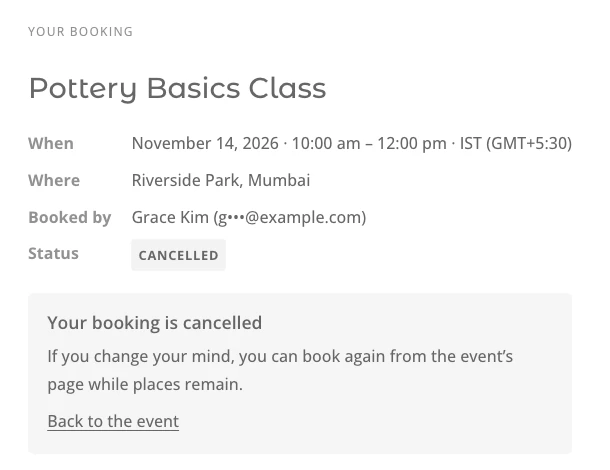
Every booking email has a View or cancel your booking button. It opens a private page with the booking details, where the visitor can cancel the booking or leave the waitlist. Visitors don’t need an account.
Bookings settings
Go to Divi Extended > Divi Events Extended > Bookings. The tab has two sections.
- Emails > Reminder: Sends a reminder to everyone with a confirmed place: Off, 1 hour before, 1 day before, 2 days before or 1 week before. Somebody who books closer to the start than this gets no separate reminder.
- Privacy > Delete past bookings: Never, 30 days after the event, 90 days after, 6 months after or 1 year after. Counted from the end of each date, and cancelled bookings go too. Deleted bookings can’t be recovered, so download a CSV from the Bookings screen first if you need a record.
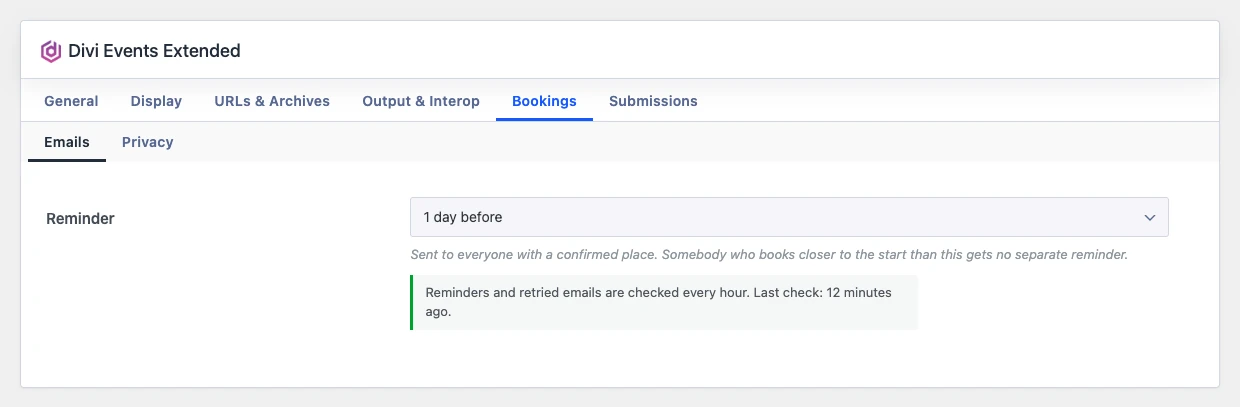
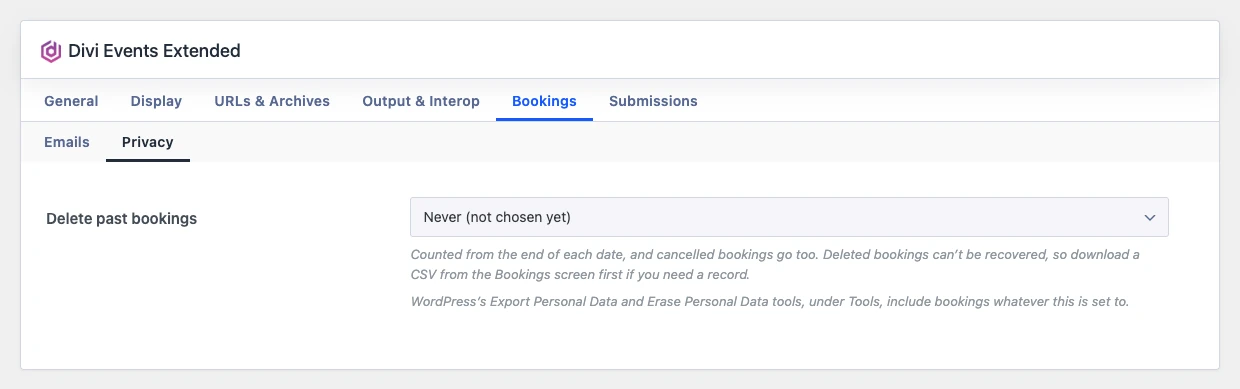
Note: Reminders, and emails that failed and are tried again, are sent by WordPress scheduled tasks (WP-Cron), checked every hour. The Emails section shows when the last check ran. WordPress’s own Tools > Export Personal Data and Tools > Erase Personal Data tools include bookings, whatever the Delete past bookings setting is.