
Search Divi Events Extended Documentation
Search for answers or browse our knowledge base.
Page layouts
How to choose the layout of the plugin’s own pages: the event page, venue page, organizer page, the events page and the venue, organizer and series lists. From version 1.2.0 each of these pages has more than one layout, and you choose them from a dropdown, with no Theme Builder needed.
Choose a page layout
- Go to Divi Extended > Divi Events Extended > Display > Page Layouts.
- Choose a layout for each page.
- The change is saved on its own. Open the page on your site to see it.
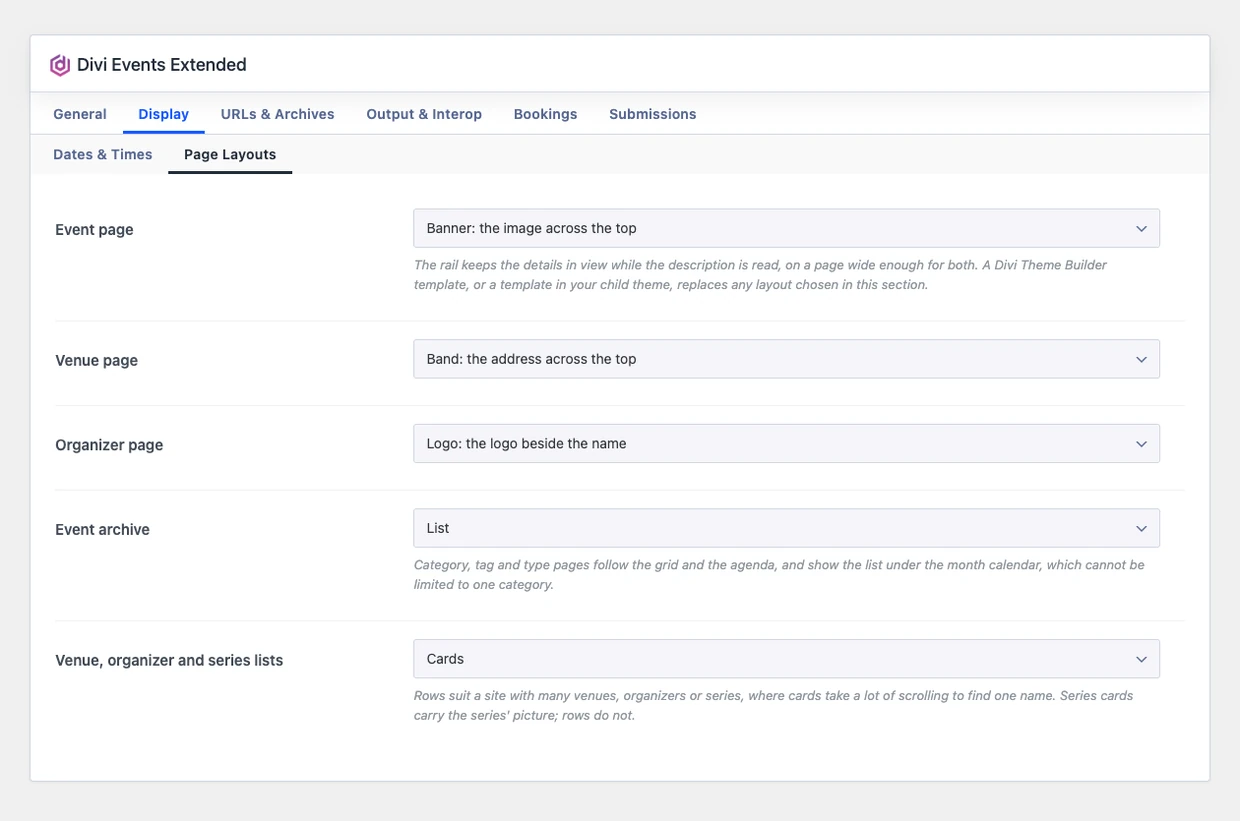
Note: A Divi Theme Builder template, or a template in your child theme, replaces any layout chosen here. If a page doesn’t change, check Divi > Theme Builder for a template assigned to it.
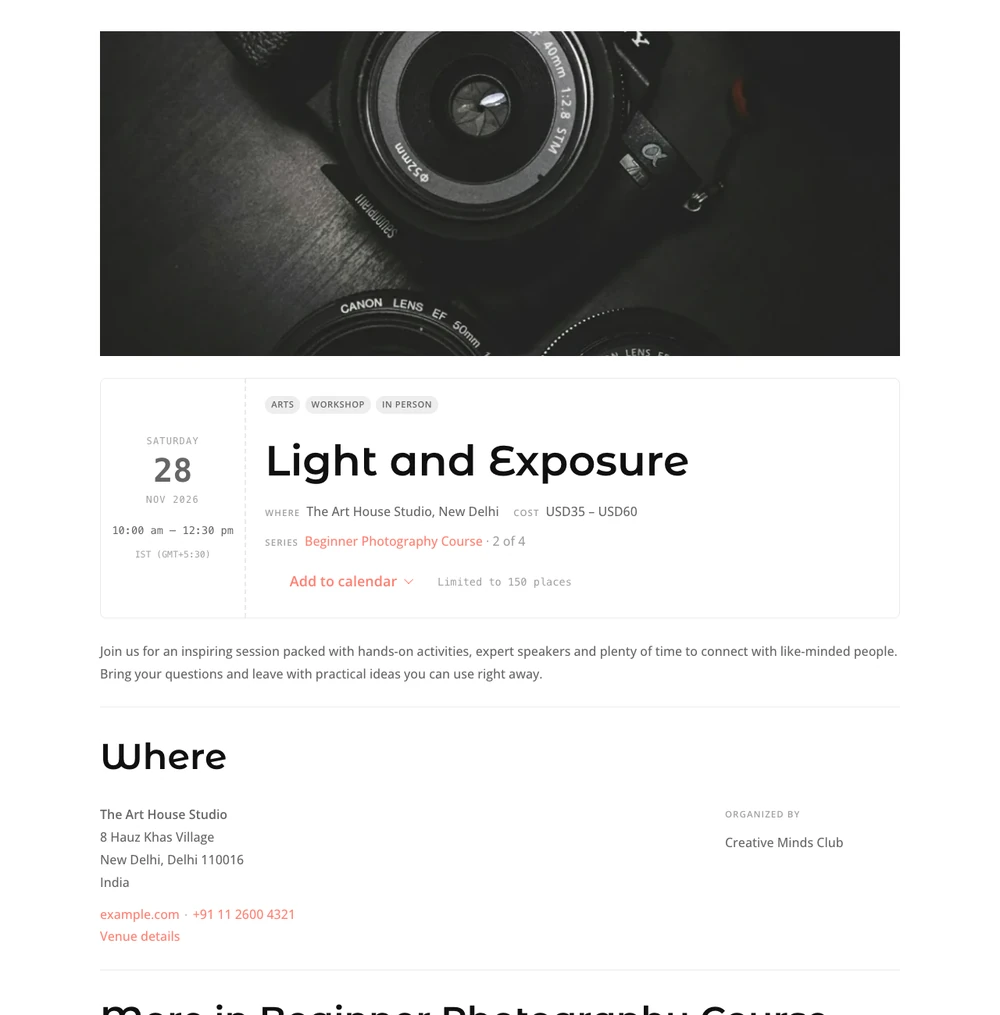
Event page
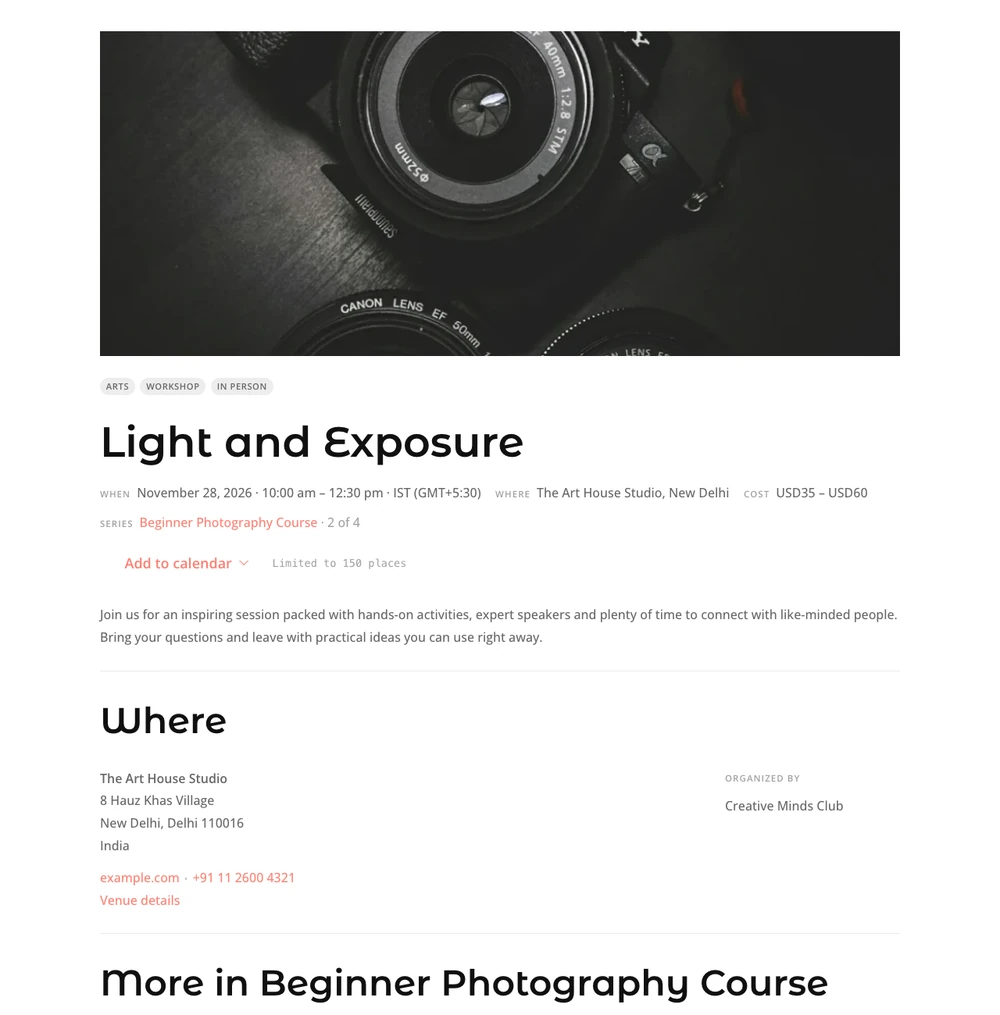
- Banner: the image across the top, then the title and details.
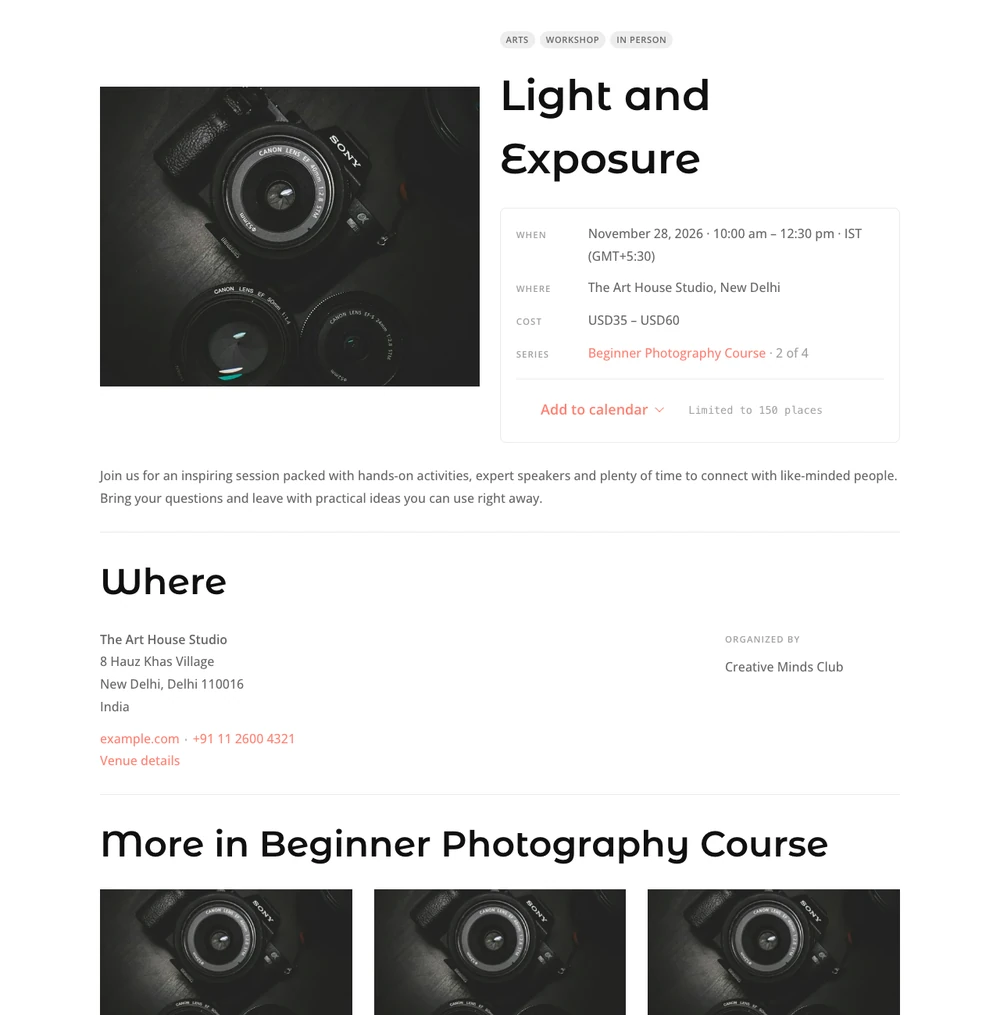
- Split: the image beside the details.
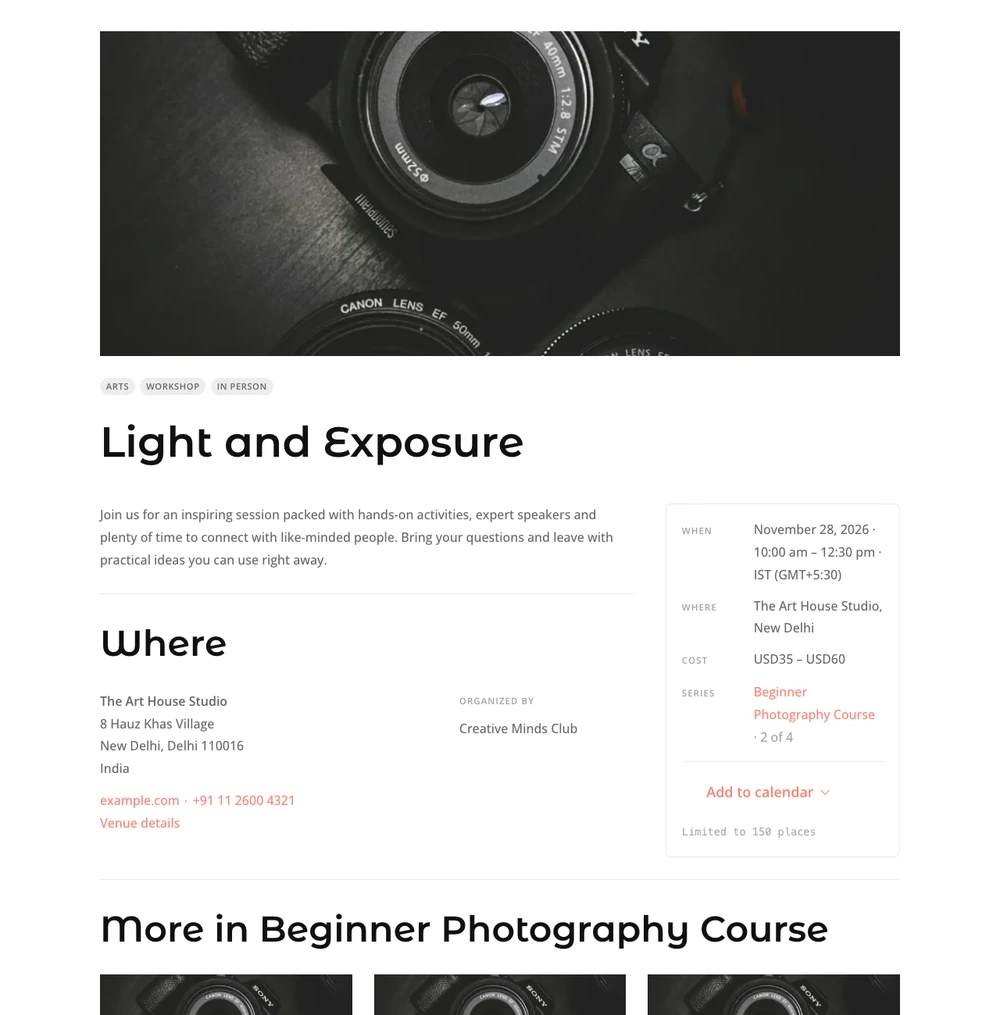
- Rail: the details in a card beside the description. The card stays in view while the description is read, on a page wide enough for both.
- Ticket: the date first, like a ticket, beside the title and details.
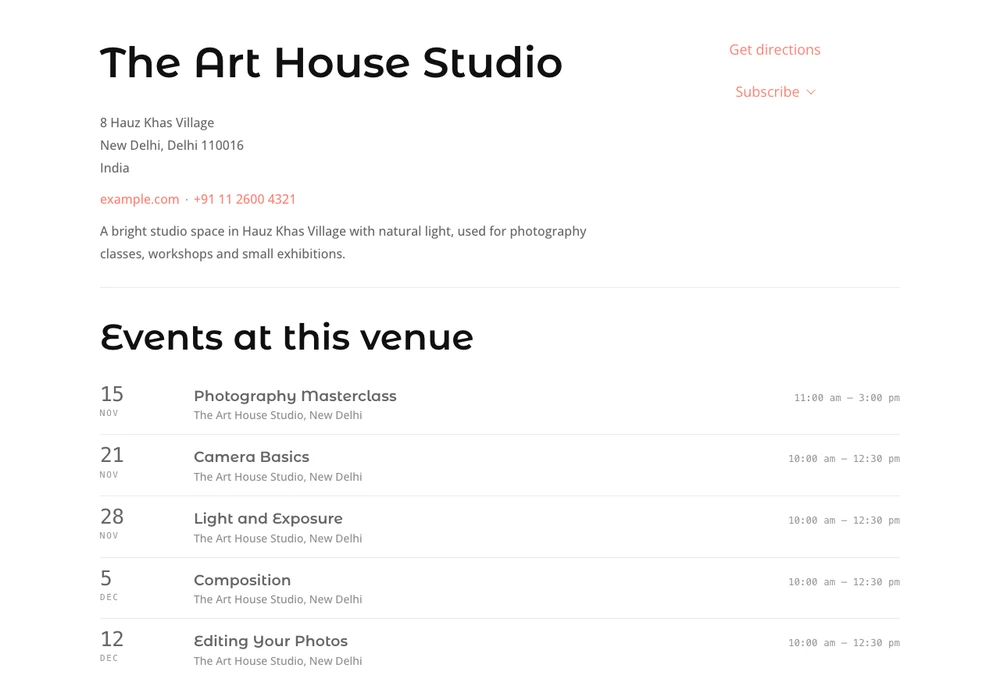
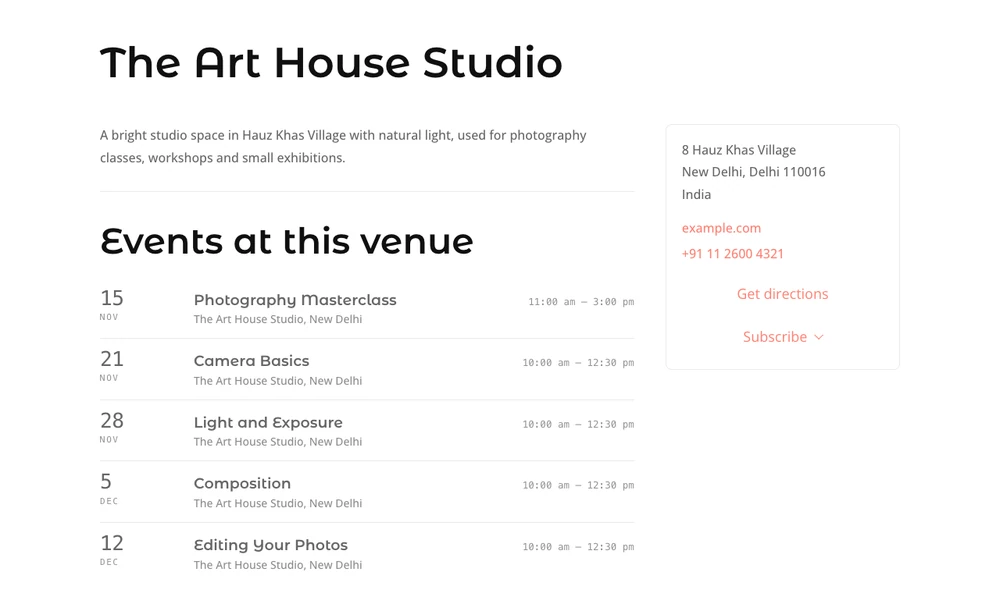
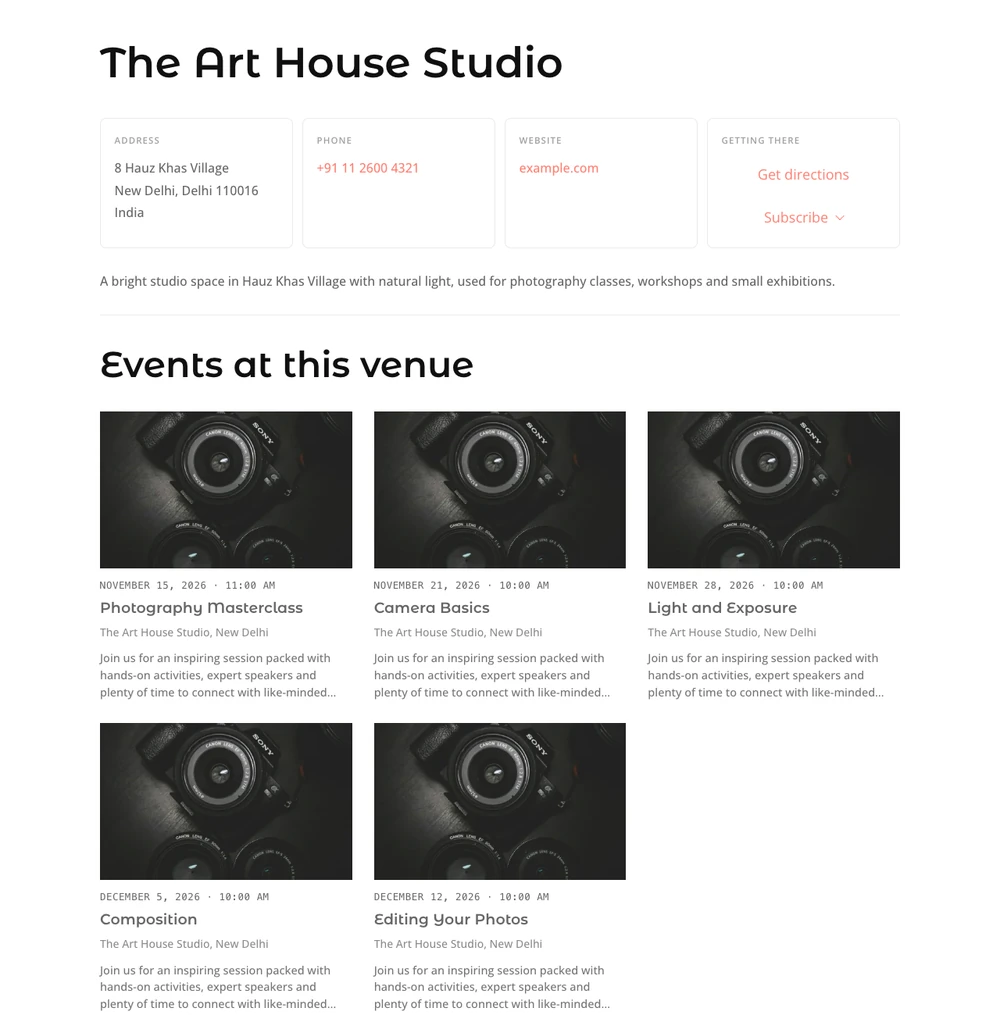
Venue page
- Band: the address across the top.
- Aside: the address in a card beside the events.
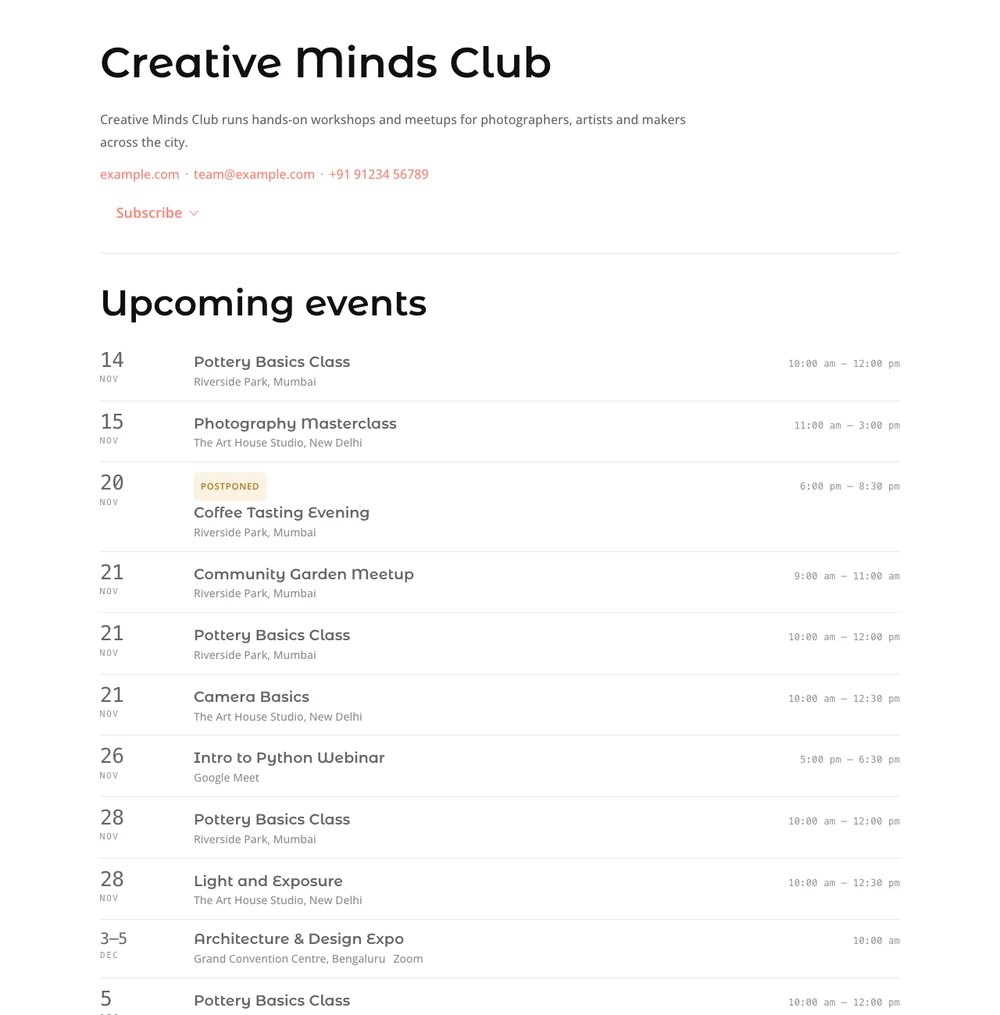
- Strip: the details in a row of boxes, and the events as cards.
Organizer page
- Logo: the logo beside the name.
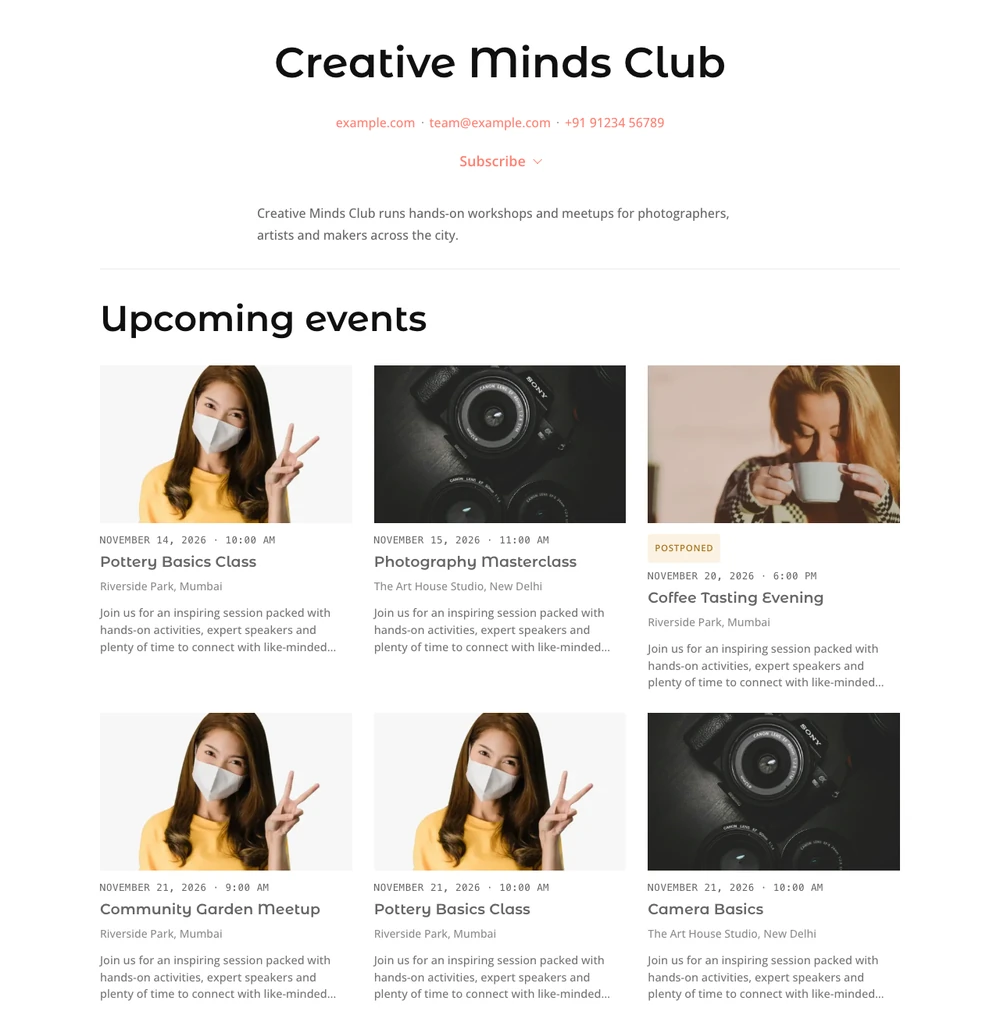
- Profile: everything centred, and the events as cards.
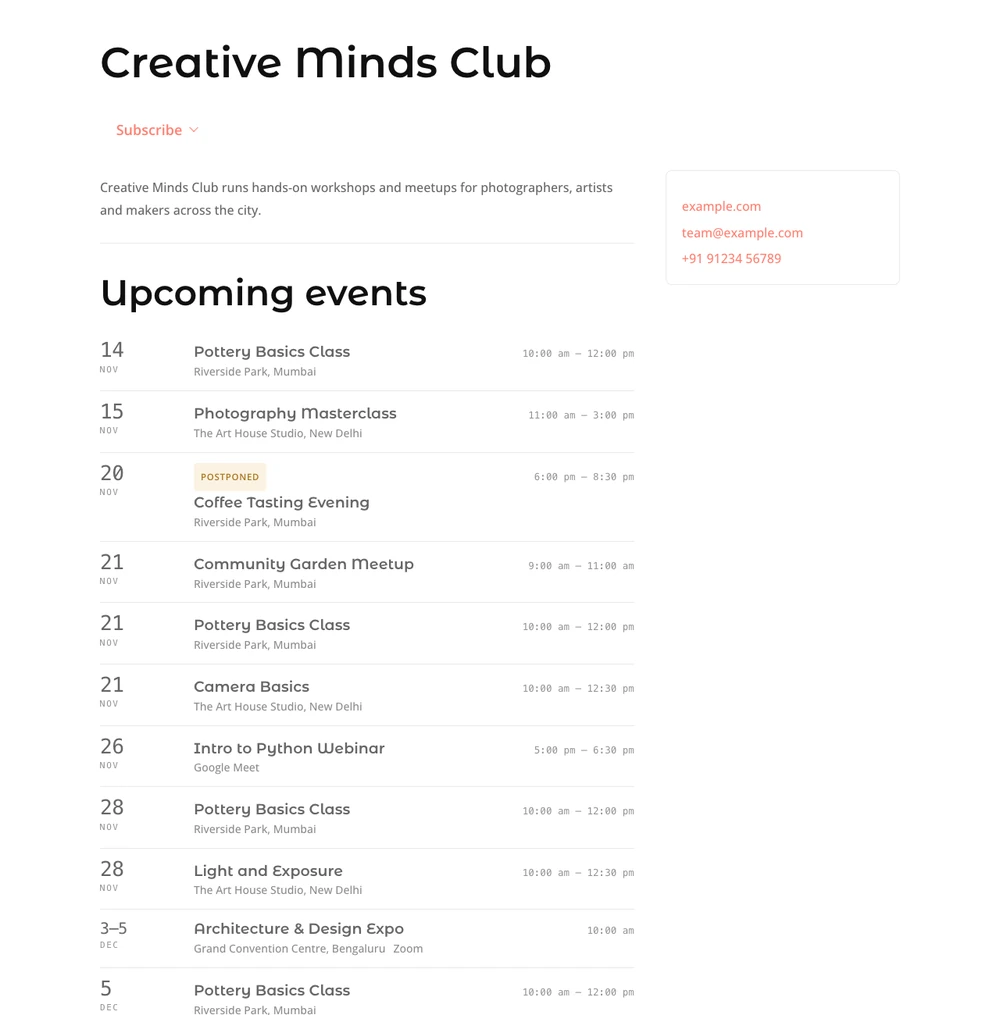
- Contact: the contact details in a card beside the events.
Events page
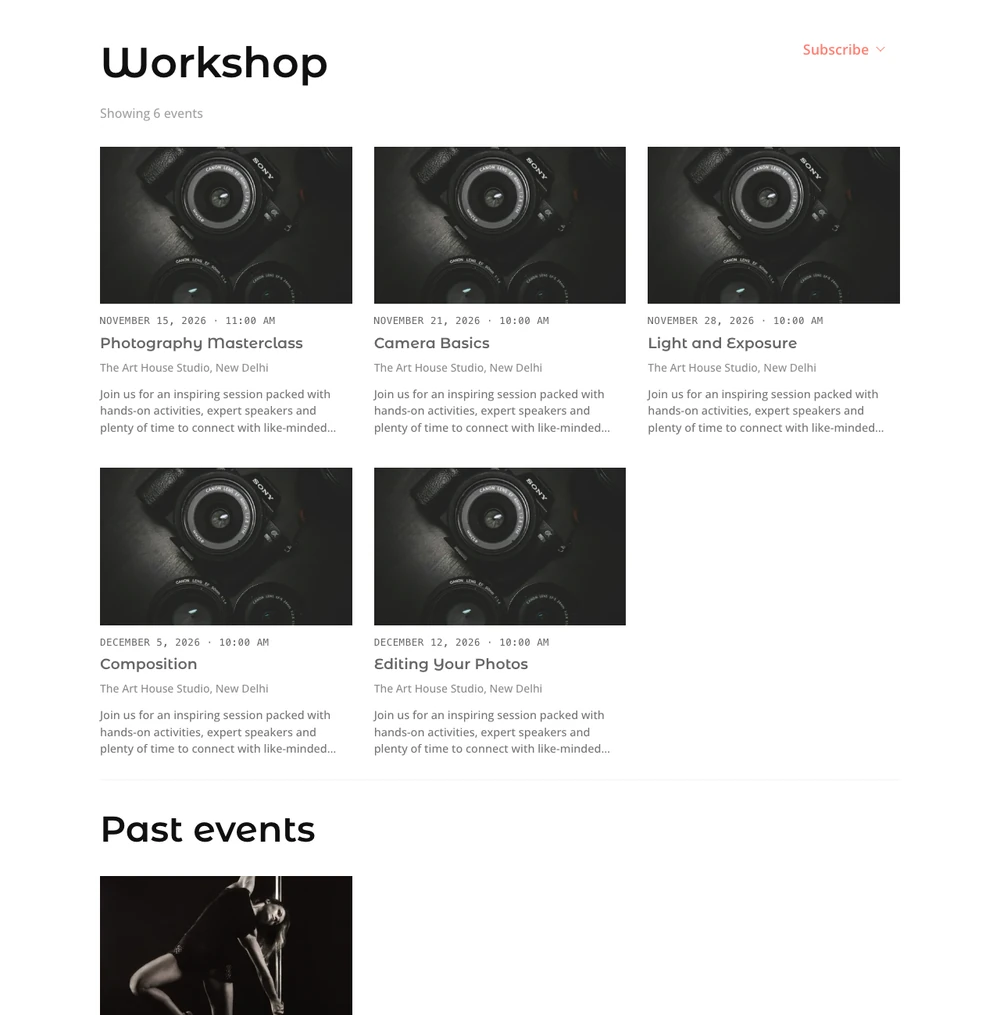
The Event archive setting sets the layout of the events page (example.com/events/): List, Grid of cards, Agenda, by month or Month calendar.
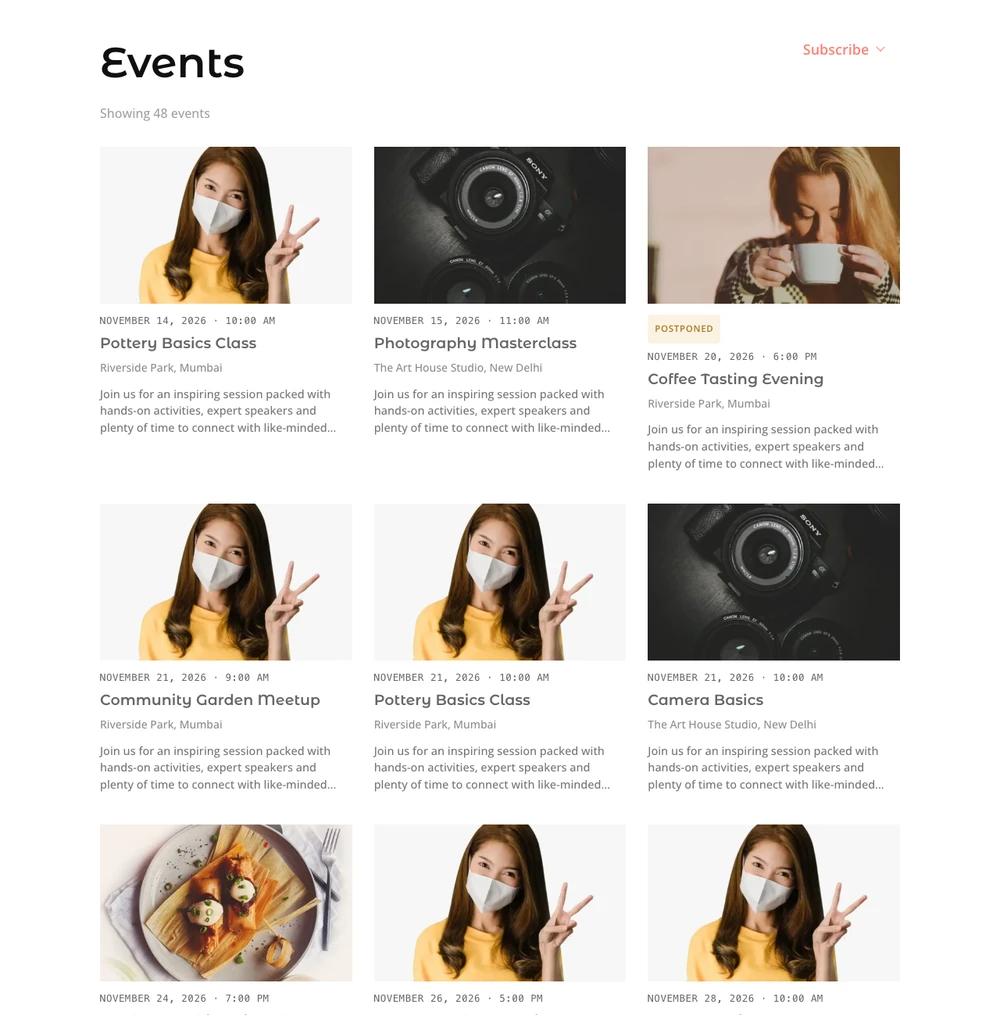
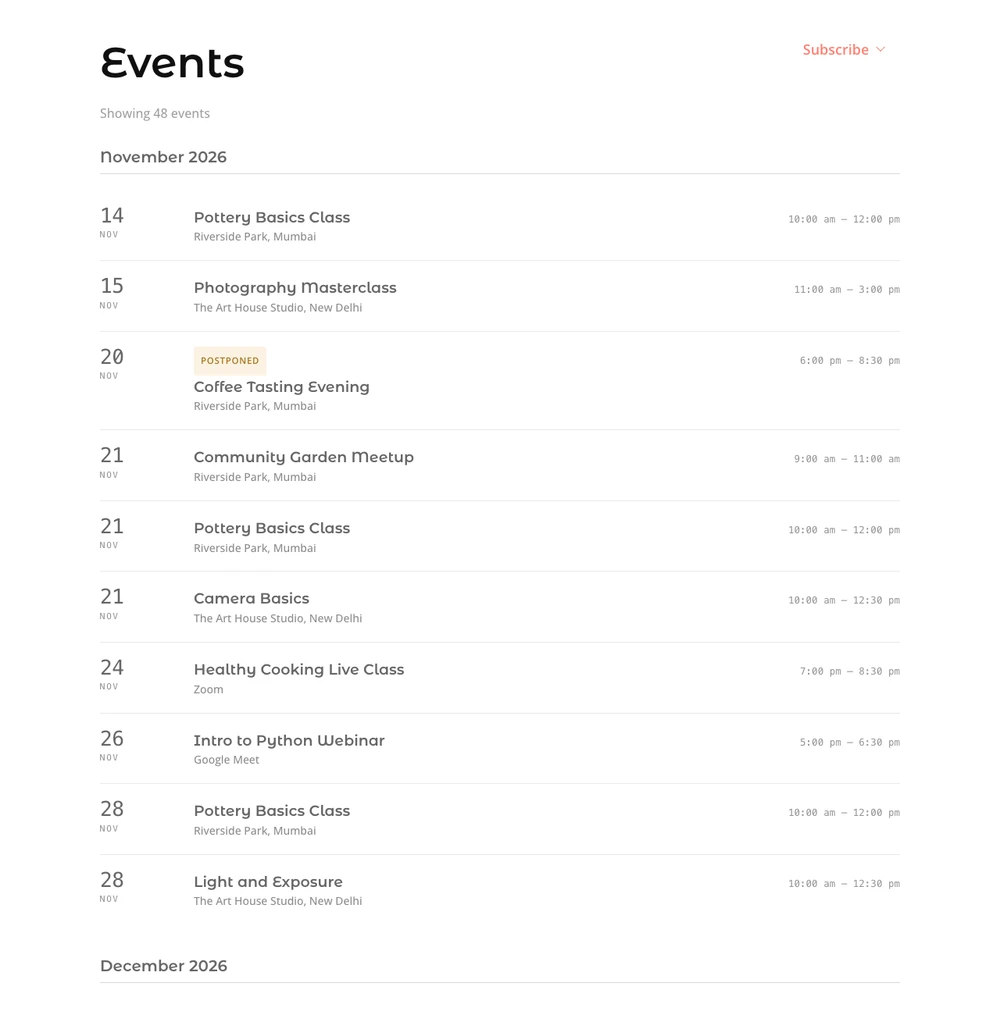
The category, tag and type pages follow the Grid and Agenda layouts. Under Month calendar they show the list, because a month calendar can’t be limited to one category.
Venue, organizer and series lists
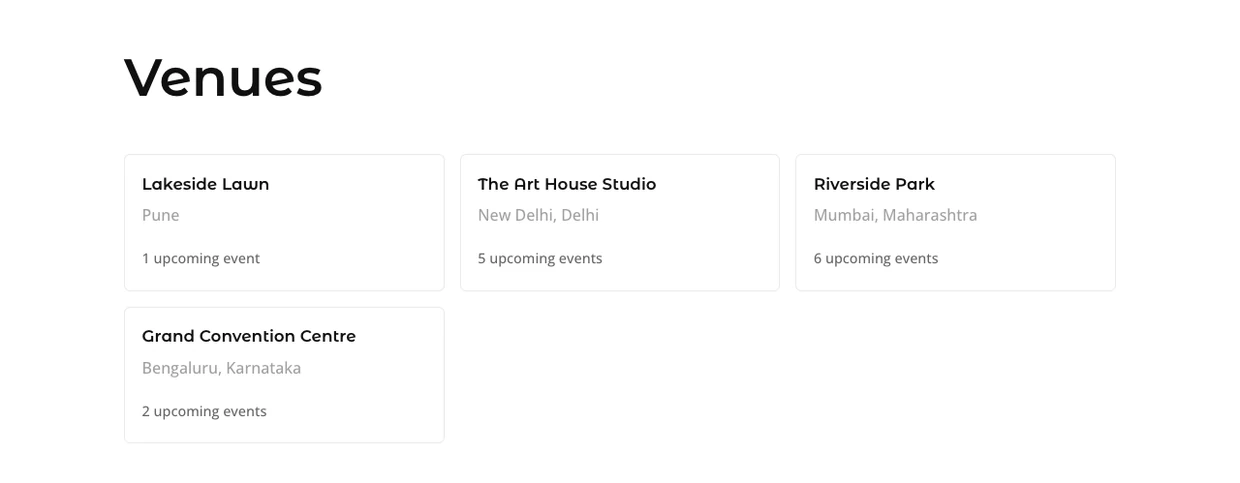
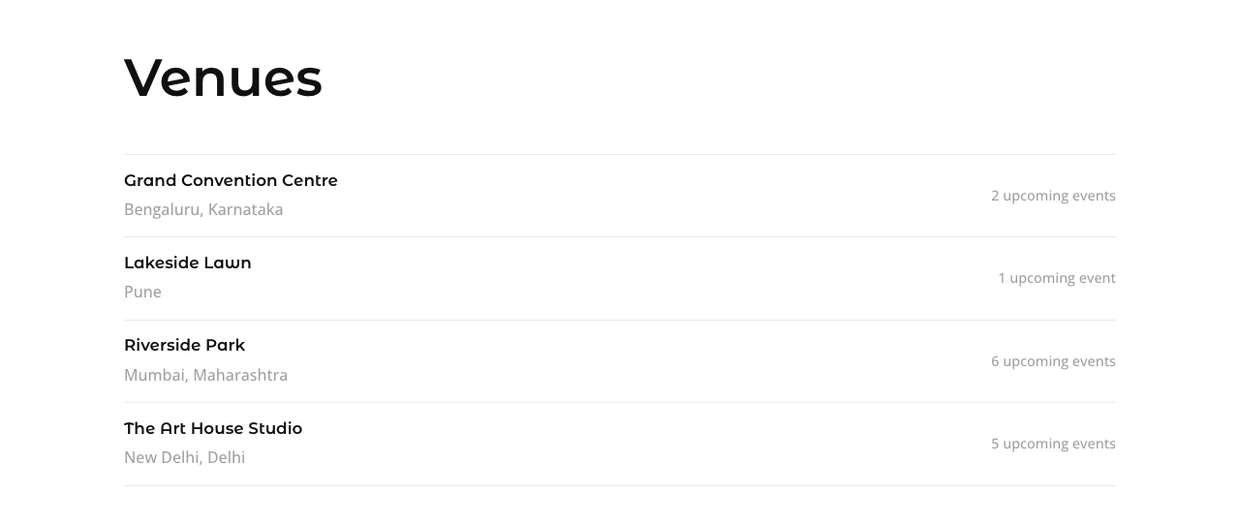
The Venue, organizer and series lists setting sets the layout of the lists of every venue, organizer and series: Cards or Rows. Rows suit a site with many venues, organizers or series, where cards take a lot of scrolling to find one name. Series cards show the series’ picture; rows do not.
Subscribe in the page heading
The events, category, tag, type, venue, organizer and series pages now have a Subscribe button in their heading. It subscribes the visitor to the events of that page, for example only the events at that venue. See Subscribe module.