Search Divi Events Extended Documentation
Search for answers or browse our knowledge base.
Events filter bar module
Overview of the events filter bar module
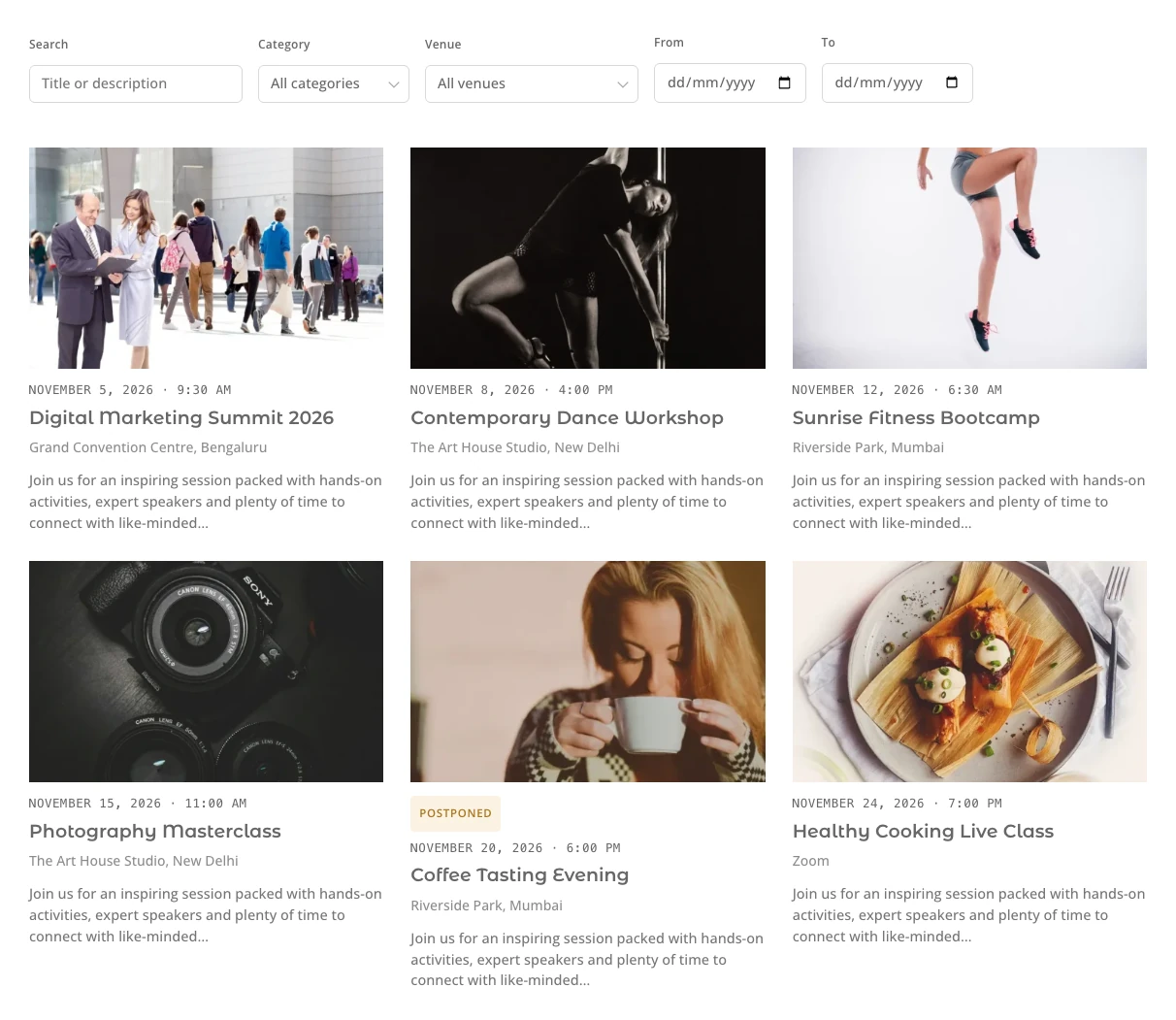
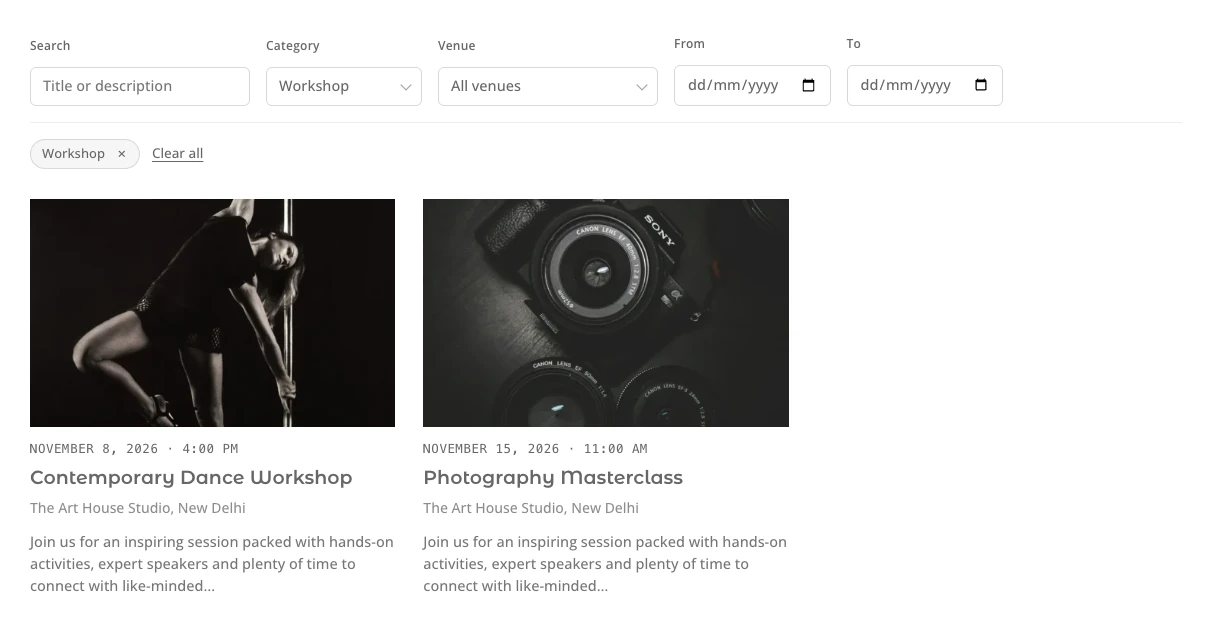
This document provides a comprehensive guide on configuring and using the Events Filter Bar module for Divi 5. This module adds search and filter controls (search, category, tag, event type, venue, organizer, attendance, price and date range) above an Events Feed or Events Calendar. It works as a normal form even with JavaScript off, and filters as visitors type when JavaScript is on.
How to add the events filter bar module to your page

- Open your page in the Divi Visual Builder.
- Click the gray (+) icon inside a row to add a new module.
- Search for Events Filter Bar in the module search box.
- Click the module to insert it. Its settings open on the right.
Content tab settings
The Content tab controls which events the module shows and how they are displayed. The module-specific settings are grouped into the toggles below; Link, Background and Element Label are the standard Divi options.
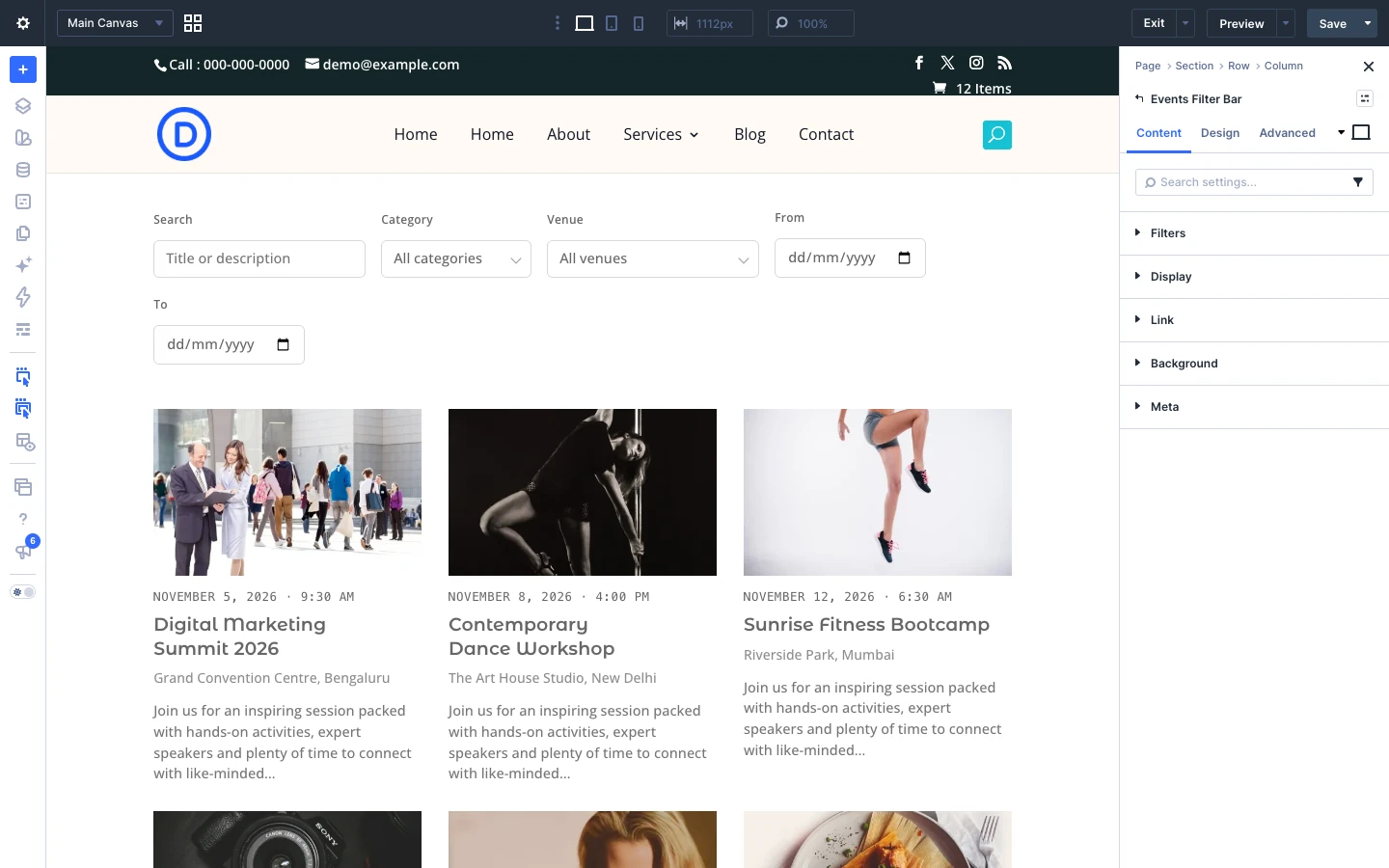
Filters
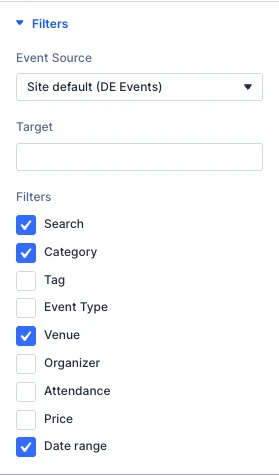
- Event Source: Which event source this bar offers filters from. Site default follows the setting under Divi Extended → Events.
- Target: Which lists this bar filters. Leave it blank and it drives every Events Feed and Calendar on the page — right for almost every layout.
- Filters: Which filters a visitor gets. One this source cannot answer is left out whether it is ticked or not, and so is one with nothing to choose from — categories on a site with none. Options: Search, Category, Tag, Event Type, Venue, Organizer, Attendance, Price, Date range.
Display
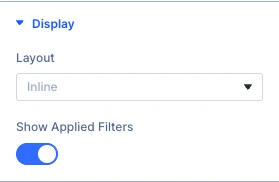
- Layout: Inline runs the controls across the page above the list they filter. Stacked puts one per row at full width, which is the one for a sidebar beside the list. Options: Inline, Stacked.
- Show Applied Filters: Names each filter in force under the bar, each with a way to take back that one filter rather than all of them. It is also the only thing that can report a filter arriving on the URL that this bar has no control for, so switching it off on a page you do not control the links into is worth thinking about.
Tip: Leave Target empty and the bar drives every Events Feed and Events Calendar on the page.
Design tab settings
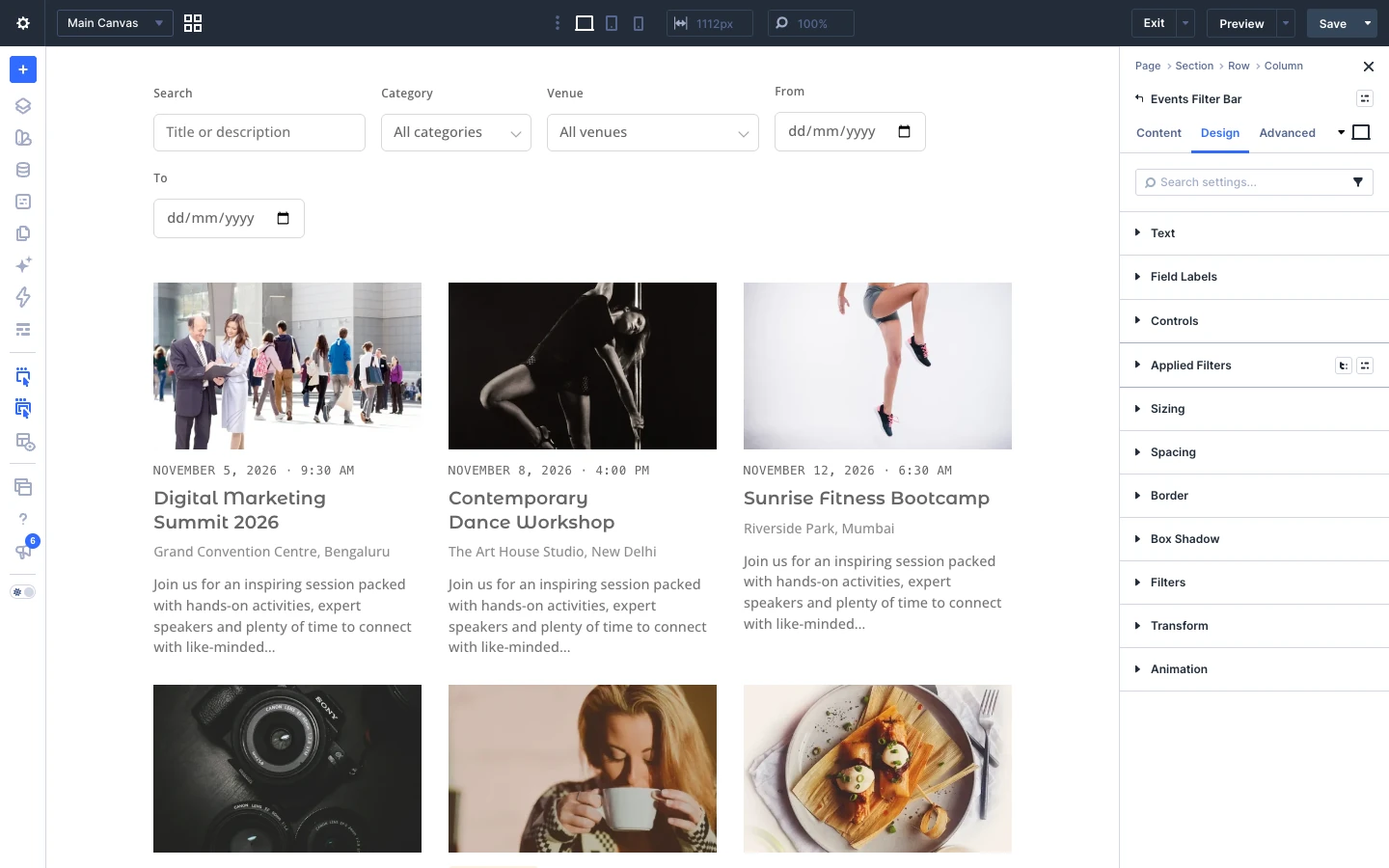
The Design tab lets you style every part of the module. Each toggle below controls one element:
- Field Labels: style of the labels above each filter.
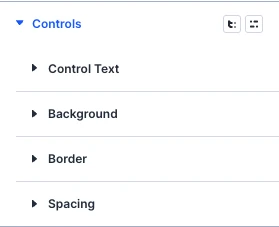
- Controls: style of the inputs and dropdowns.
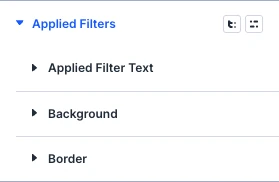
- Applied Filters: style of the applied filter chips.
- Sizing, Spacing, Border, Box Shadow, Filters, Transform, Animation: the standard Divi design options for the whole module.
Advanced tab settings
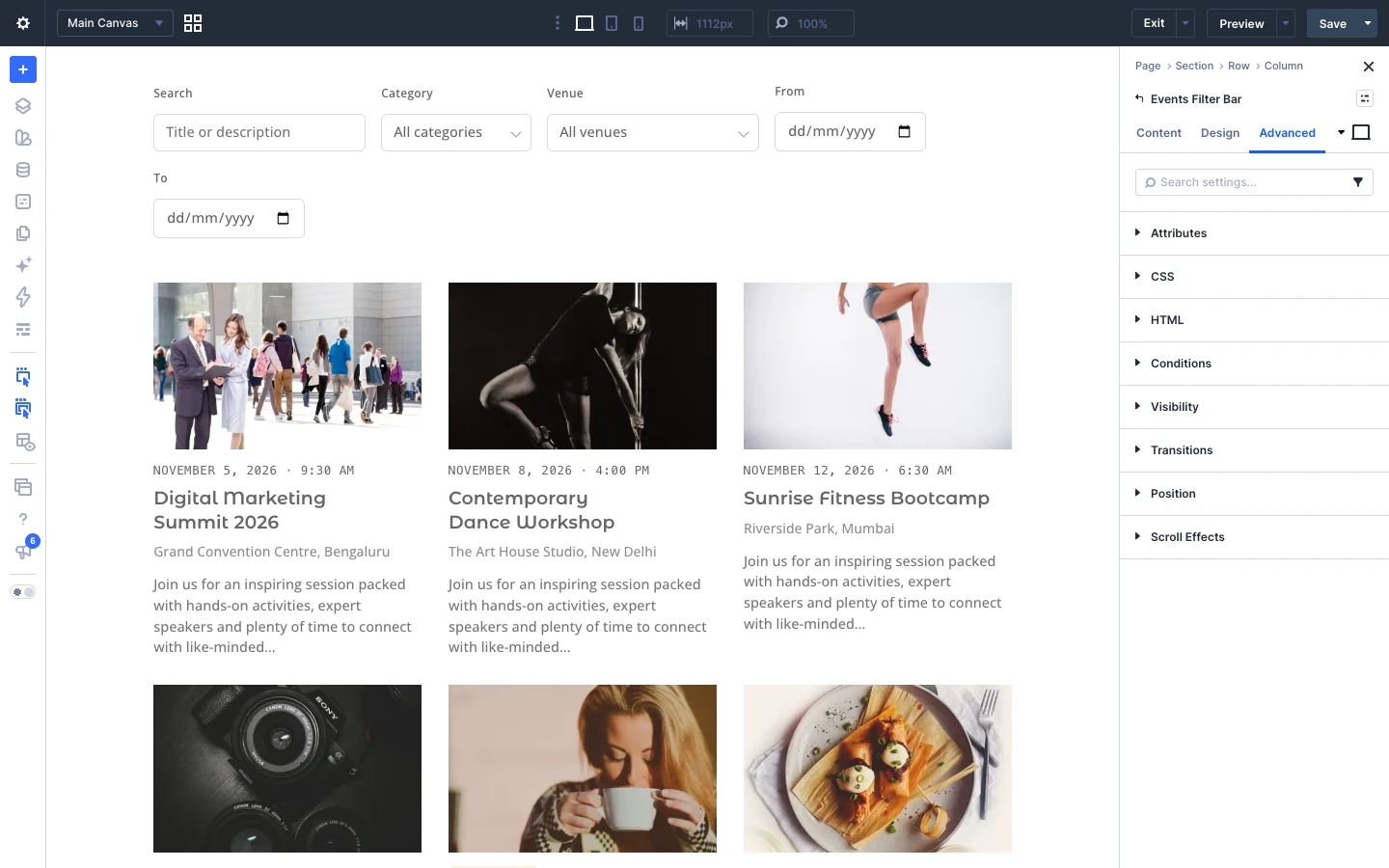
The Advanced tab has the standard Divi options: Attributes (add a CSS class or ID), CSS, HTML, Conditions, Interactions, Visibility, Transitions, Position and Scroll Effects.