Search Divi WooCommerce Extended Documentation
Search for answers or browse our knowledge base.
DWE Woo Recently Viewed Products
Overview of the Woo Recently Viewed Products module
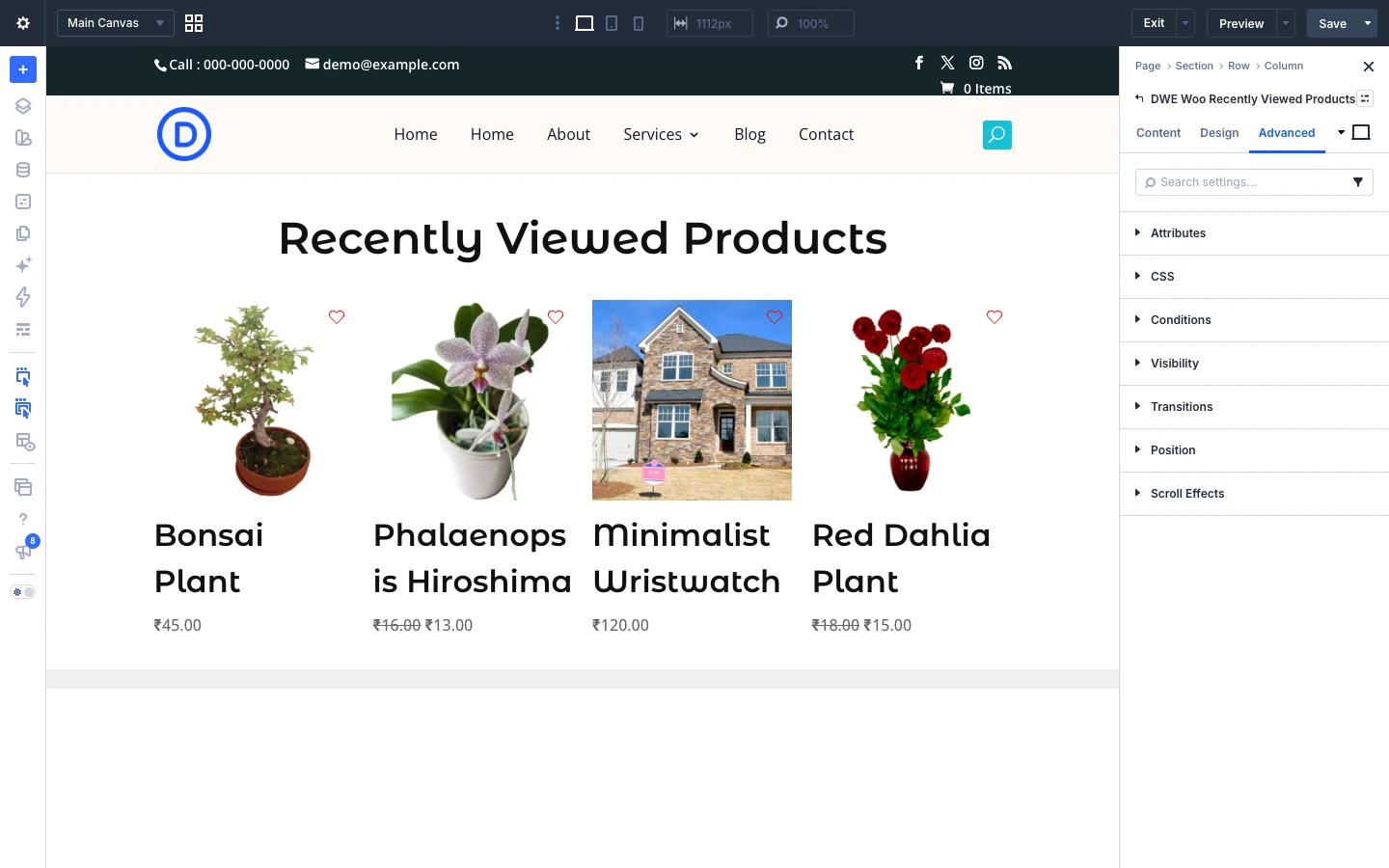
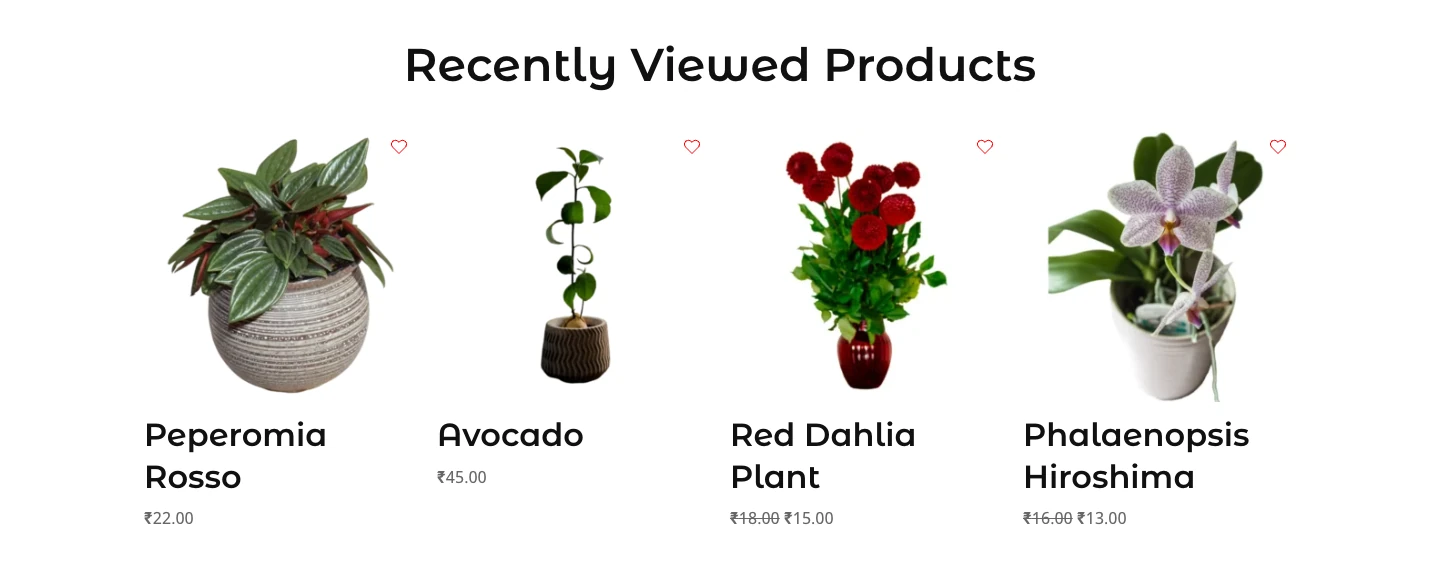
This page shows you how to add the Woo Recently Viewed Products module to your page and explains every setting in its Content, Design and Advanced tabs, with screenshots. The Woo Recently Viewed Products module shows each visitor the products they looked at most recently, so they can go back to them easily. Every visitor sees their own list. It works on any page or in a sidebar, for example on the shop page, the cart page or below a single product.
Requirements: Divi 5 and WooCommerce. This module is new in Divi WooCommerce Extended 2.3.0 and is available in the Divi 5 Visual Builder.
Turn on Recently Viewed Products first
The module stays empty until you turn the feature on. Go to Divi Extended → Divi WooCommerce Extended → General, switch on Enable Recently Viewed Products and click Save Changes.
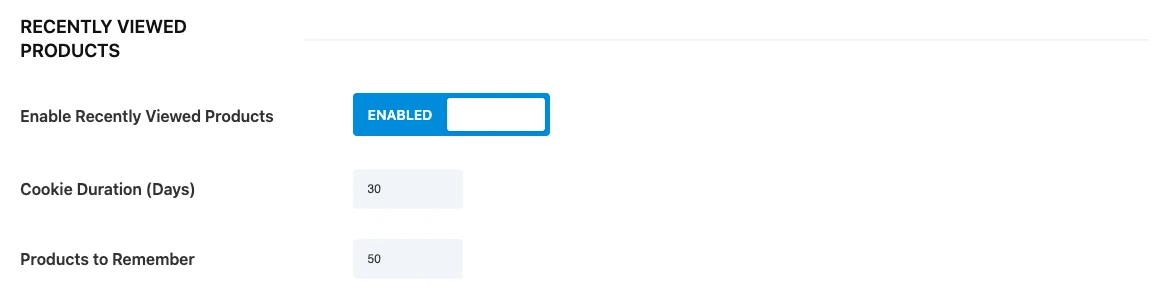
- Enable Recently Viewed Products: Remember the products each visitor views, using a browser cookie only. Nothing is saved in your database.
- Cookie Duration (Days): How many days a visitor’s viewed products are remembered before they expire. Allowed range is 1 to 365.
- Products to Remember: The most products stored per visitor. When the limit is reached, the oldest viewed product is dropped first. Allowed range is 1 to 50.
How it works
- A product is added to the visitor’s list when they open its single product page. The newest product comes first.
- The list is kept in the visitor’s own browser, so every visitor sees only the products they viewed, and it works for guests as well as logged in customers.
- If your site uses a caching plugin or host cache, set Products Loading Method to AJAX so cached pages still show each visitor their own products.
- Until a visitor has viewed a product, the module shows the Fallback Content: a message, or other products you choose.
How to add the Woo Recently Viewed Products module to your page
- Open your page in the Divi Visual Builder.
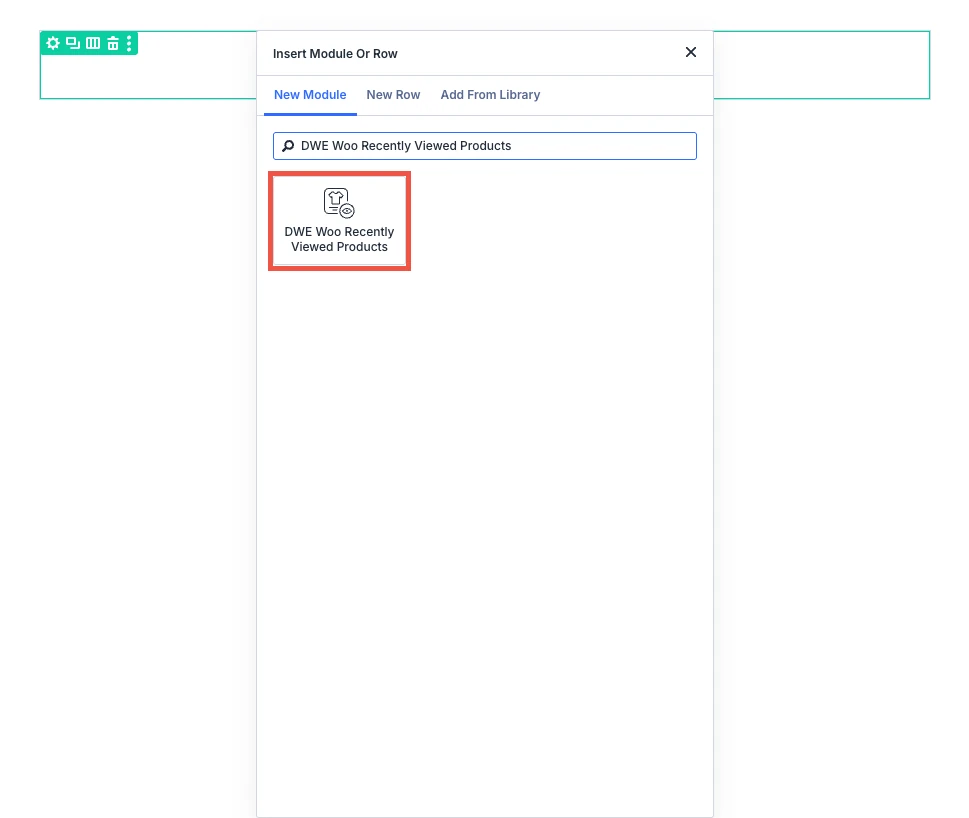
- Click the gray (+) icon inside a row to add a new module.
- Search for DWE Woo Recently Viewed Products in the module search box.
- Click the module to insert it. Its settings open on the right.
Content tab settings
The Content tab holds the module’s own settings, grouped in the toggles below. Background and Element Label are the standard Divi options.
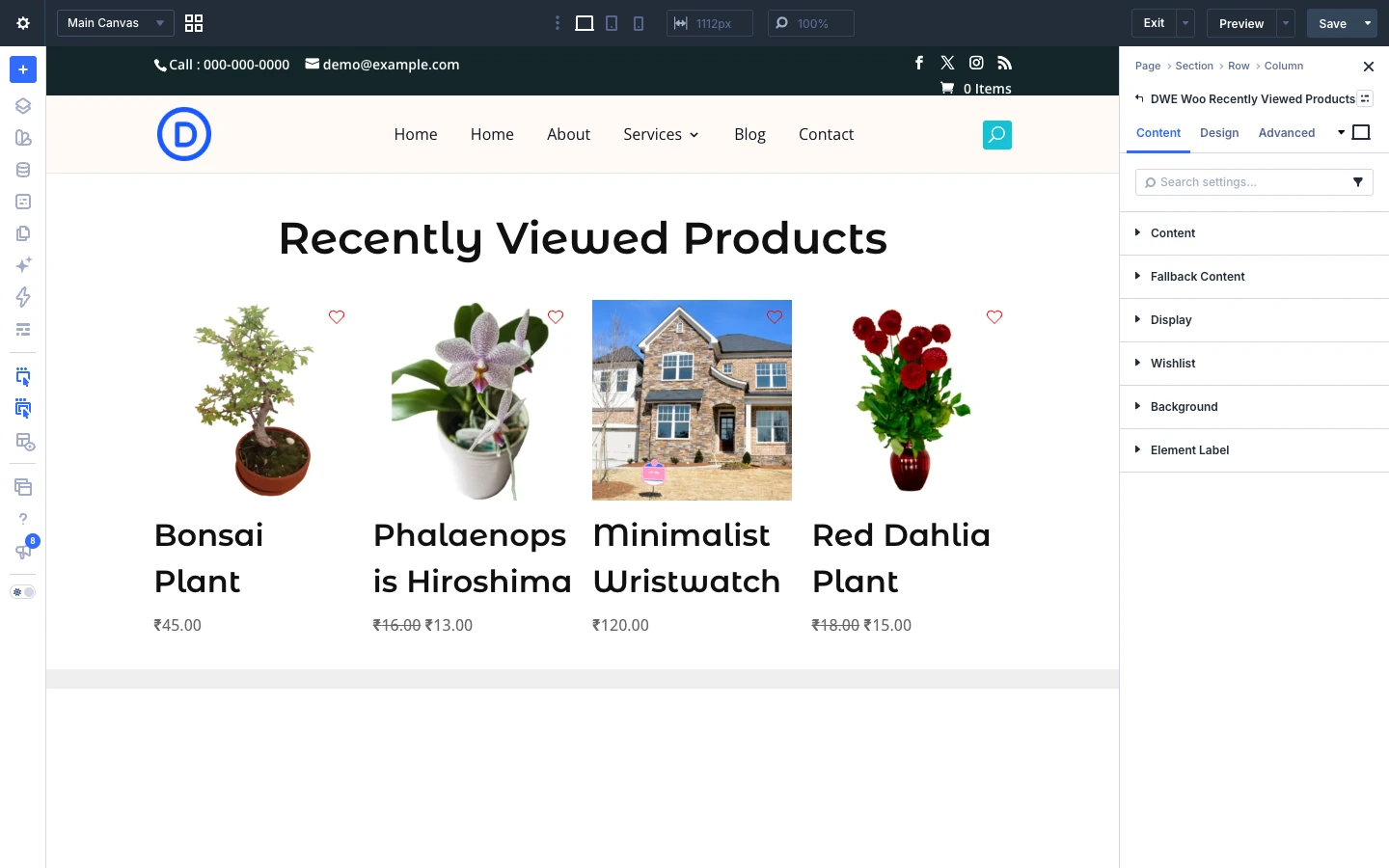
Content
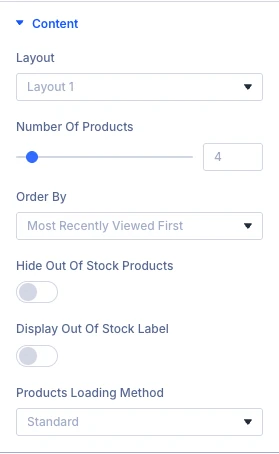
- Layout: Layout 1 shows products in columns. Layout 2 shows the price and the Add to Cart button side by side. Layout 3 places the Add to Cart button over the bottom of the image and the Quickview link in its top corner. Layout 4 shows a compact row per product, suited to a sidebar.
- Number Of Products: How many recently viewed products to display. It can never be more than the “Products to Remember” limit in the plugin settings.
- Order By: Choose how the recently viewed products are ordered.
- Hide Out Of Stock Products: Do not show products that are out of stock.
- Display Out Of Stock Label: Display Out of Stock label on products.
- Products Loading Method: Standard: the products load together with the page, with no extra request. This is the fastest option for sites without page caching. AJAX: the products load right after the page, so each visitor always sees their own correct list. Choose this when your site uses a caching plugin or host cache.
Fallback Content
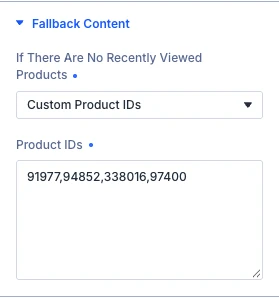
- If There Are No Recently Viewed Products: Choose what to show when the visitor has not viewed any products yet. Show Message Only shows the No Products Text. The other options show those products instead, up to the Number of Products.
- Product IDs: Enter the IDs of the products to show, separated by commas. Example: 12, 45, 78.
- No Products Text: Shown when Show Message Only is selected. Message shown when the visitor has not viewed any products yet. Leave it empty to show nothing.
Display
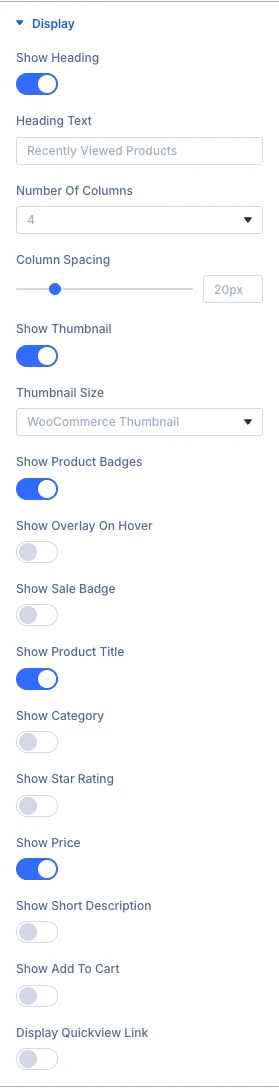
- Show Heading: Choose whether or not the heading above the products should be visible.
- Heading Text: Text of the heading shown above the products.
- Number Of Columns: Select the number of columns to display products.
- Column Spacing: Increase or decrease spacing between columns.
- Show Thumbnail: Choose whether or not the product thumbnail should be visible.
- Thumbnail Size: Specify the size of product image.
- Show Product Badges: Choose whether or not to display the badges from the Product Badges extension on the product image of this module.
- Show Overlay On Hover: Choose whether or not to display the overlay on hover.
- Show Sale Badge: Choose whether or not the sale badge should be visible.
- Show Product Title: Choose whether or not the product title should be visible.
- Show Category: Choose whether or not the product category should be visible.
- Show Star Rating: Choose whether or not the star rating should be visible.
- Show Price: Choose whether or not the price should be visible.
- Show Short Description: Choose whether or not the product short description should be visible.
- Show Add To Cart: Choose whether or not the add to cart button should be visible.
- Display Quickview Link: Choose whether or not to show a quickview link that opens the product details in a popup.
When you switch on the toggles above, these settings appear as well:

- Overlay Icon: Choose the icon to display on overlay.
- Badge Text: Choose which sale badge should be visible.
- Sale Label: Specify the text for Sale label.
- Short Description Length: Move the slider or input the value to increase or decrease the length of the short description, select zero to remove length limit.
- Show Add To Cart On Hover: Choose whether or not the add to cart button should be visible only on hover. This will not work on tablets and mobiles.
- Simple Product Add To Cart Text: Specify the text for Simple Product Add to Cart.
- Variable Product Add To Cart Text: Specify the text for Variable Product Add to Cart.
- Grouped Product Add To Cart Text: Specify the text for Grouped Product Add to Cart.
- External Product Add To Cart Text: Specify the text for External Product Add to Cart.
- Out Of Stock/Unpurchaseable Add To Cart Text: Specify the text for Out of stock/unpurchaseable Product Add to Cart.
- Quickview Link Text: Specify the text for the quickview link.
- Quickview Link Icon: Choose the icon to display on the quickview link.
- Show Quickview Icon Only: Choose whether or not only the quickview icon should be visible.
- Link Quickview Product Title: Choose whether or not to link the quickview product title to the product detail page.
- Quickview Short Description Length: Move the slider or input the value to increase or decrease the length of the quickview short description, select zero to remove length limit.
Wishlist
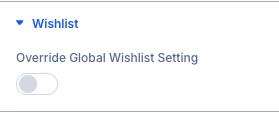
- Override Global Wishlist Setting: Override the wishlist link setting for this module.
When you switch on the toggles above, these settings appear as well:
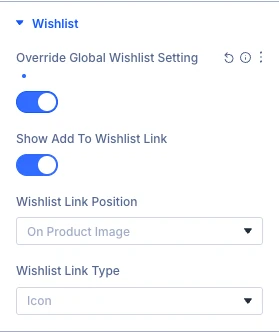
- Show Add To Wishlist Link: Choose whether or not to show the add to wishlist link for this module.
- Wishlist Link Position: Choose wishlist link position for this module.
- Wishlist Link Type: Choose whether the wishlist link shows text, an icon, or both for this module.
Design tab settings
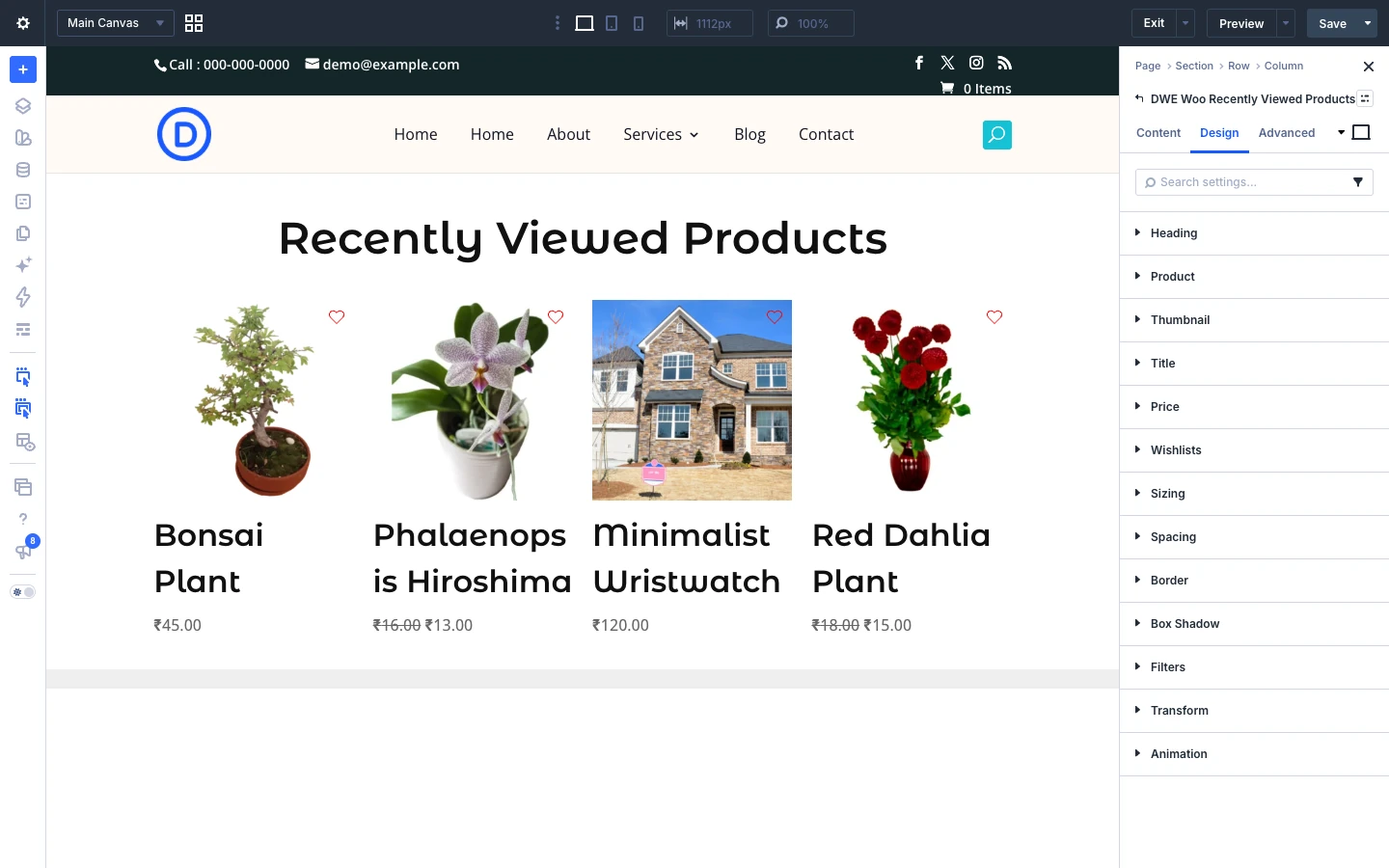
The Design tab lets you style each part of the module:
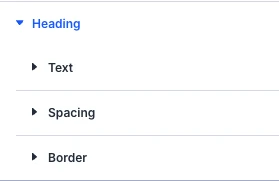
- Heading: styling options for the heading.
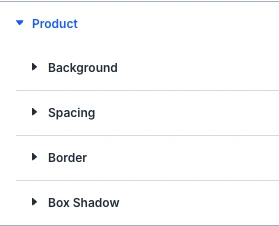
- Product: styling options for the product.
- Thumbnail: styling options for the thumbnail.
- Title: styling options for the title.
- Price: styling options for the price.
- Wishlists: styling options for the wishlists.
- Sizing, Spacing, Border, Box Shadow, Filters, Transform, Animation: the standard Divi design options for the whole module.
Advanced tab settings
The Advanced tab has the standard Divi options: Attributes (add a CSS class or ID), CSS, HTML, Conditions, Interactions, Visibility, Transitions, Position and Scroll Effects.