
Search Divi WooCommerce Extended Documentation
Search for answers or browse our knowledge base.
DWE Woo Products Ticker
This documentation page guides you on how to use and customize the DWE Woo Products Ticker module in Divi WooCommerce Extended. It provides step-by-step instructions for displaying featured products, sales items, and trending products in a sliding marquee ticker bar, along with detailed explanations of its Content, Design, and Advanced settings.
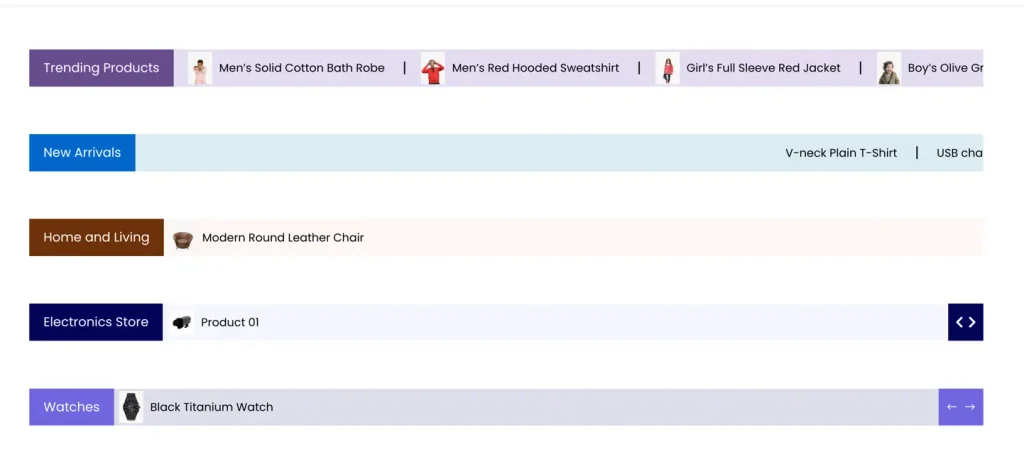
How to add module on page
To add the Woo Products Ticker module to your shop layouts, use these simple steps:
- Create or edit a page or theme builder template using the Divi builder.
- Create or edit a row.
- Click on Add New Module; search for and choose the DWE Woo Products Ticker module.
Content settings
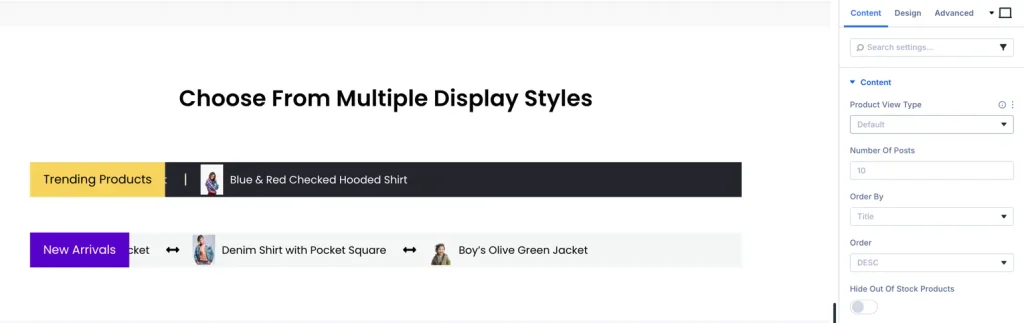
Define which products show in the ticker list. Select the Product Query Type (Recent Products, Featured Products, Best Selling, or Custom Categories) and set the maximum number of items to display.
Display options
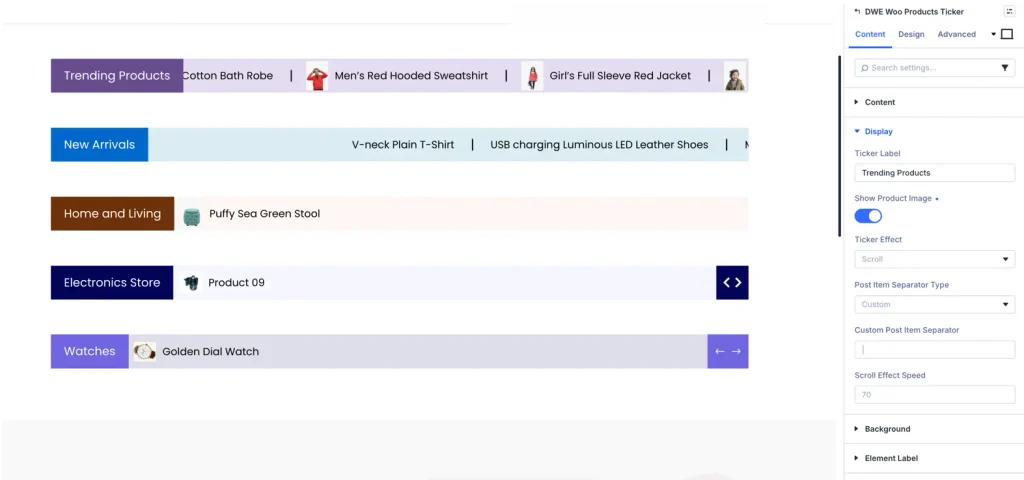
Under the Display option in the Content tab, the following settings are available:
- Ticker Label:
- Control Type: Text Input Field
- Description: Enter custom label text to display before the ticker items (e.g., “Trending Products”, “Hot Deals”, “New Arrivals”).
- Show Product Image:
- Control Type: Toggle (ON / OFF)
- Description: Enable this toggle to display product thumbnail images next to the product titles inside the ticker.
- Ticker Effect:
- Control Type: Dropdown (Options: Scroll, Fade, etc.)
- Description: Select the animation transition style for moving product items through the ticker.
- Post Item Separator Type:
- Control Type: Dropdown (Options: Custom, Icon, None, etc.)
- Description: Choose the separator style to place between individual product items in the ticker bar.
- Custom Post Item Separator:
- Control Type: Text Input Field
- Description: Enter custom text, symbol, or character to use as a separator between ticker items (e.g.,
|,•,/,-).
- Scroll Effect Speed:
- Control Type: Number / Text Input Field
- Description: Set the animation scrolling speed for the product ticker effect.
Design settings
Ticker label styling
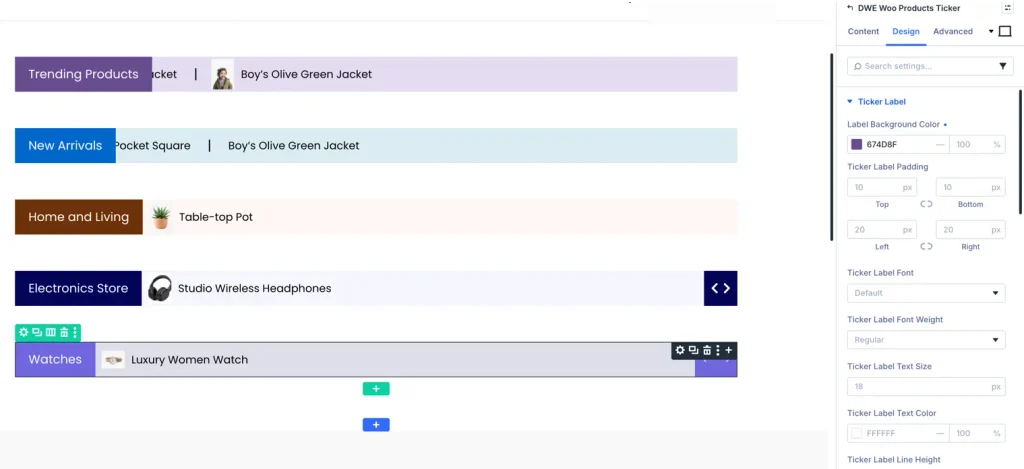
Customize the ticker label background color, text color, typography font, custom border properties, and margins to highlight the banner title.
Product typography
Set custom fonts, sizes, hover colors, and spacings specifically for the rotating product titles to make them clear and legible.
Pro Tip: Place the Products Ticker at the absolute top of your store’s homepage to highlight active promo items or hot sale items instantly.
Frequently Asked Questions
Can I filter the ticker to show only products currently on sale?
Yes. Under the Product Query Type settings, select ‘On Sale Products’ to filter the display list to only items with active discounts.
Can I display product thumbnail images inside the ticker?
Yes, you can toggle the “Show Product Image” option to display a small preview thumbnail alongside each product title.