
Search Divi WooCommerce Extended Documentation
Search for answers or browse our knowledge base.
Divi Library Shortcodes
Overview of the Divi Library Shortcodes extension
The Divi Library Shortcodes extension gives every item in your Divi Library its own shortcode, such as [dwe_divi_shortcode id="339443"]. Paste the shortcode wherever WordPress shortcodes work, and the saved layout, section, row or module is shown there.
This is useful when you want the same content in many places. For example, save a promotion banner once in the Divi Library and show it on several pages, in a product description or in a widget. When you edit the library item, every place that uses its shortcode shows the change.

How to turn on Divi Library Shortcodes
- In your WordPress dashboard, go to Divi Extended → Divi WooCommerce Extended → General.
- Switch on Enable Divi Library Shortcodes.
- Click Save Changes.

- Enable Divi Library Shortcodes: Turn this on to use your Divi Library layouts with shortcodes.
How to find the shortcode of a library item
- Go to Divi → Divi Library.
- Find the layout, section, row or module you want to use. The new Shortcode column shows its shortcode.
- Copy the shortcode.

The number in the shortcode is the ID of the library item. It does not change when you edit the item.
How to use the shortcode
Paste the shortcode anywhere shortcodes work. Some examples:
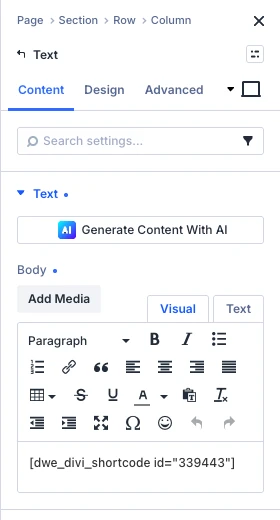
- In the Divi Visual Builder: add a Text module and paste the shortcode in its Body.
- In a widget: add a Shortcode or Text widget to a sidebar or footer and paste the shortcode.
- In a product or post: paste the shortcode in the content or in the WooCommerce product description.
Note: The Visual Builder may show the layout without all of its styling. Click Preview or view the page to see the layout as visitors see it.
Troubleshooting
- If the shortcode text itself appears on the page, Enable Divi Library Shortcodes is off. Turn it on and save.
- If nothing appears, check that the ID in the shortcode belongs to a published Divi Library item.
- Do not put a library item’s shortcode inside the same library item. It would try to show itself again and again.