Search Divi WooCommerce Extended Documentation
Search for answers or browse our knowledge base.
DWE Woo Brands Grid
Overview of the Woo Brands Grid module
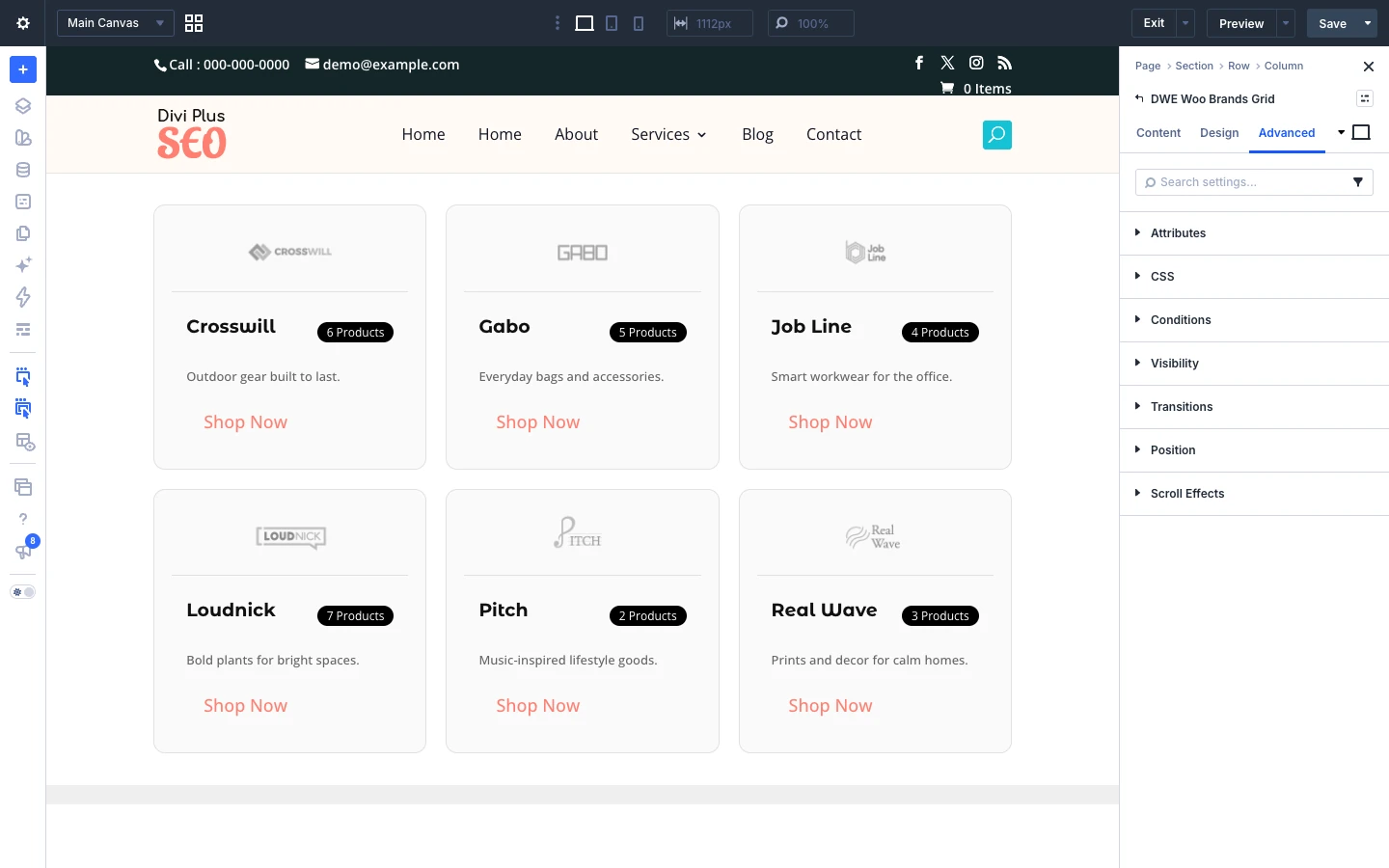
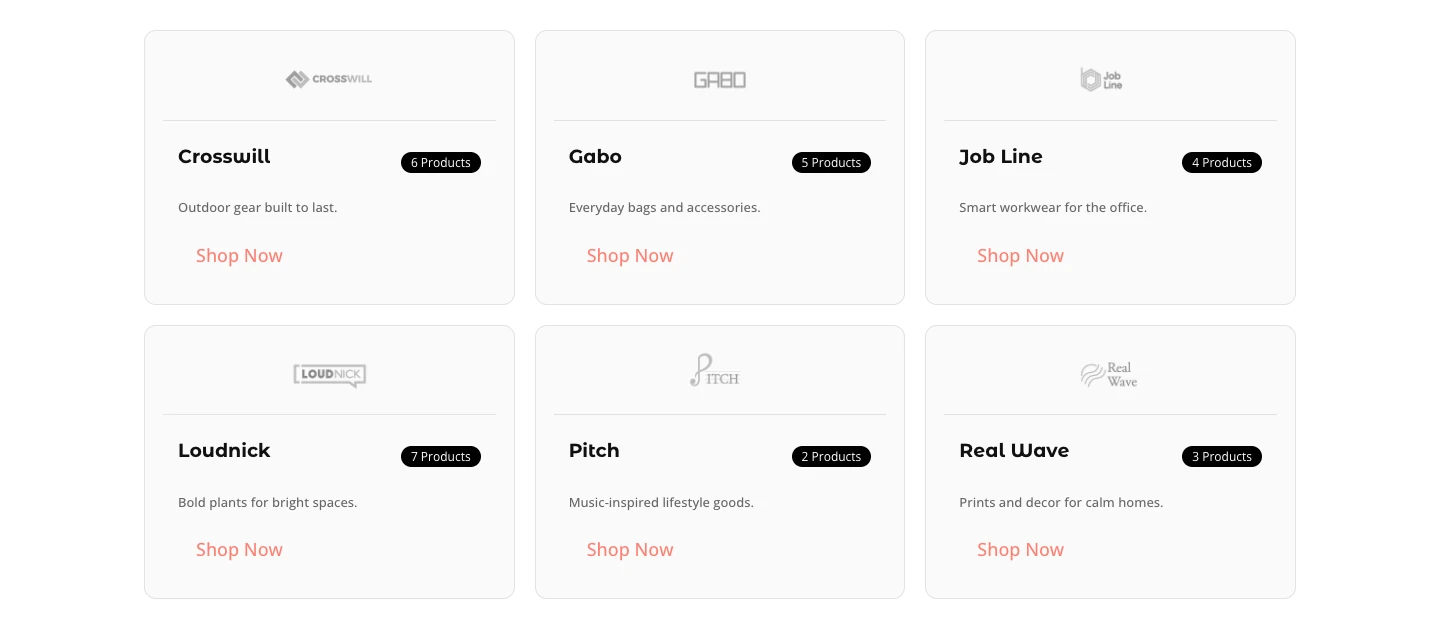
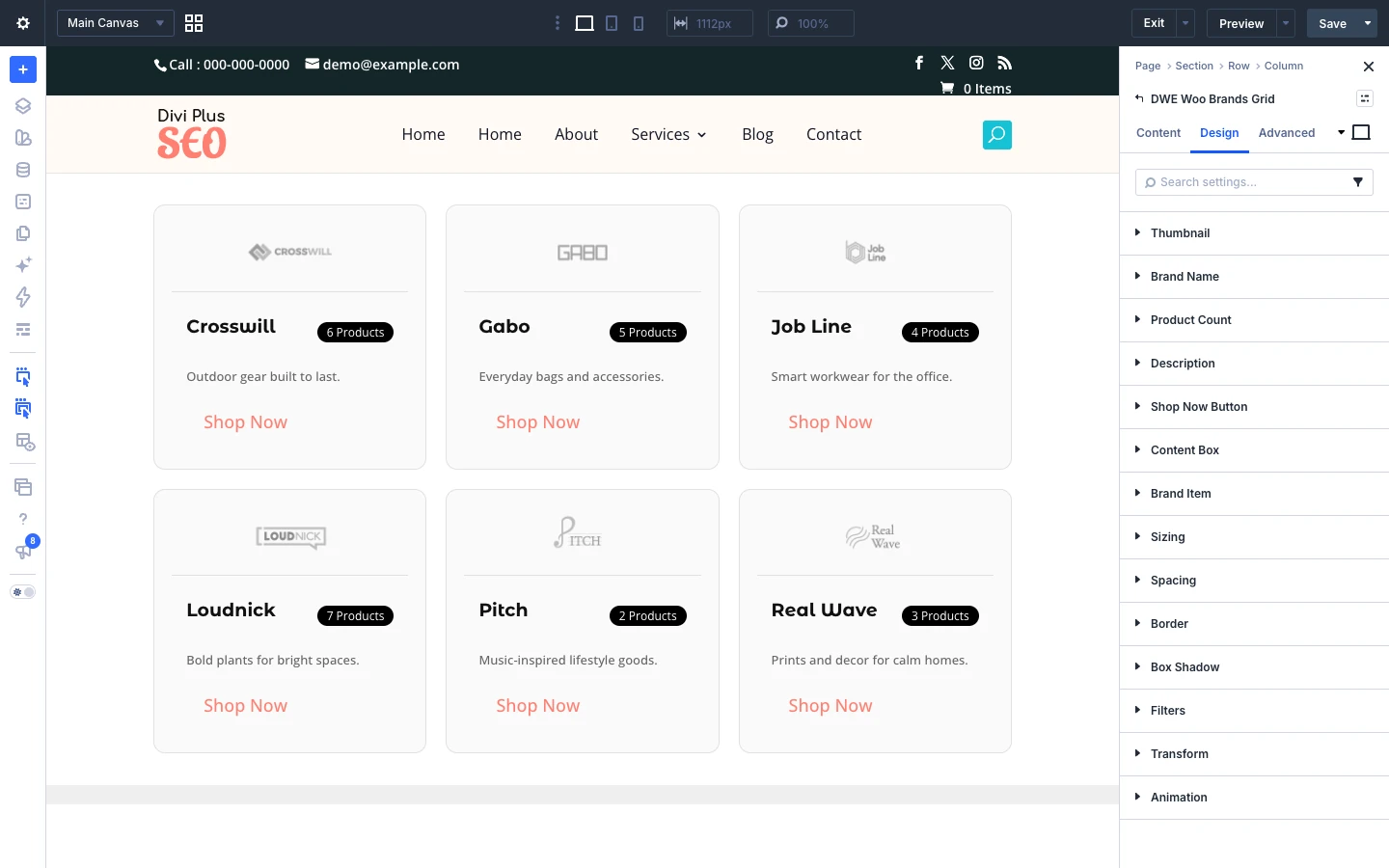
This page shows you how to add the Woo Brands Grid module to your page and explains every setting in its Content, Design and Advanced tabs, with screenshots. The Woo Brands Grid module shows your WooCommerce product brands in a grid of cards, each with the brand logo, name, product count, description and an optional Shop Now button that opens the brand page.
Requirements: Divi 5 and WooCommerce. This module is new in Divi WooCommerce Extended 2.3.0 and is available in the Divi 5 Visual Builder.
How to add the Woo Brands Grid module to your page
- Open your page in the Divi Visual Builder.
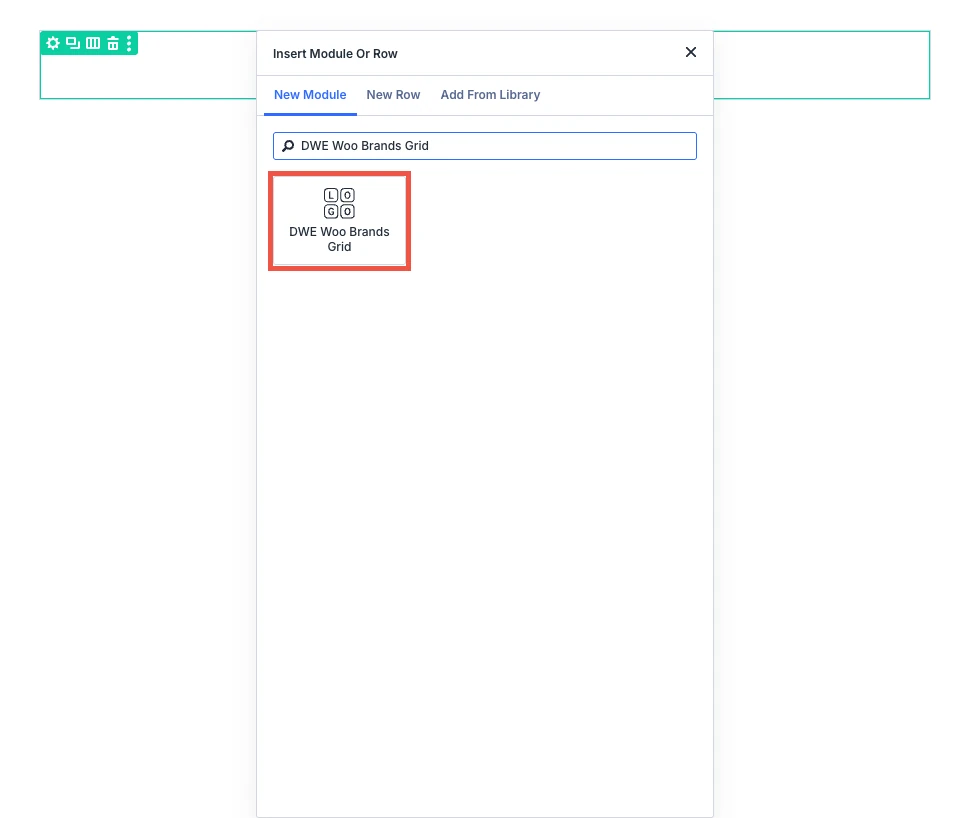
- Click the gray (+) icon inside a row to add a new module.
- Search for DWE Woo Brands Grid in the module search box.
- Click the module to insert it. Its settings open on the right.
Content tab settings
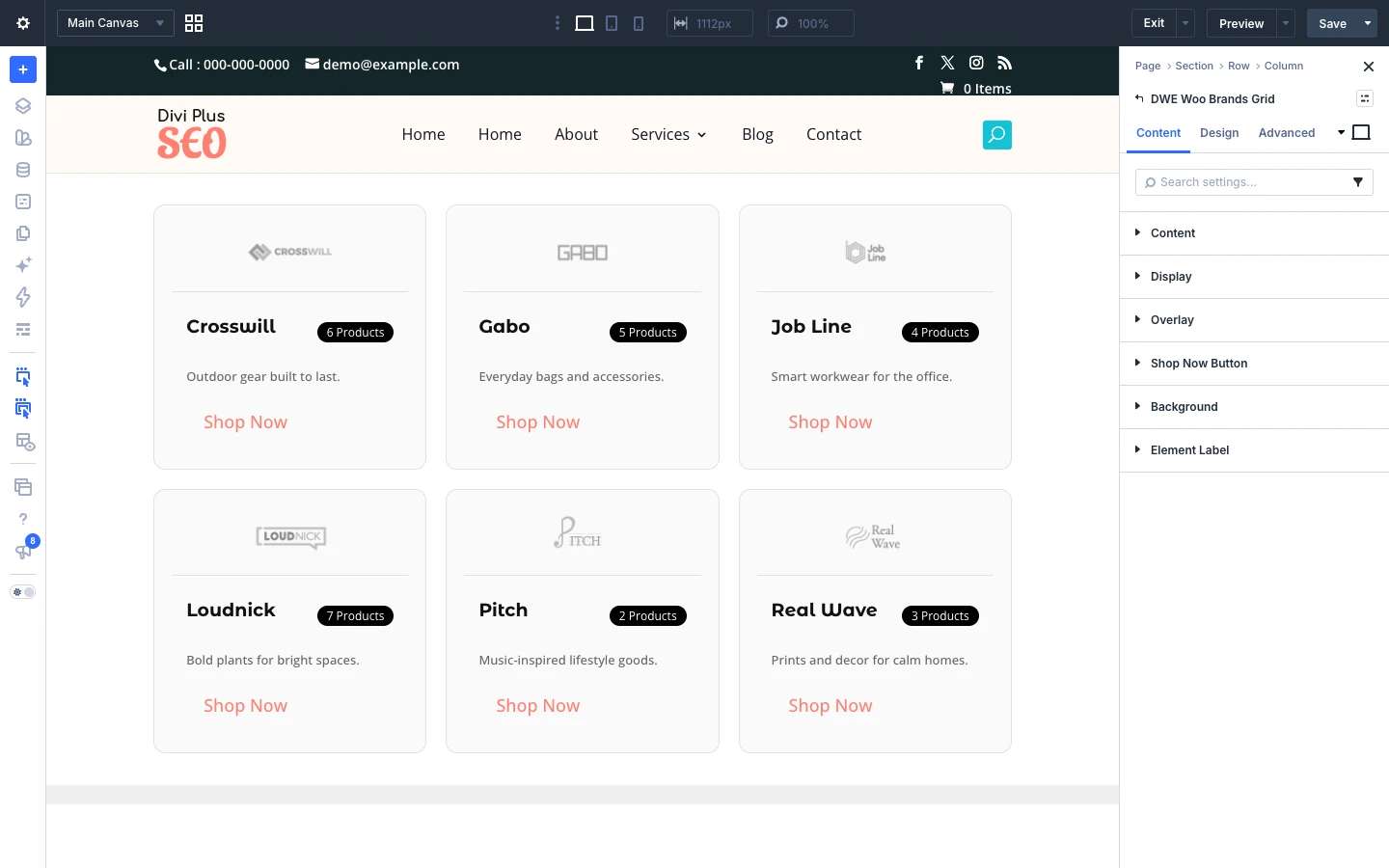
The Content tab holds the module’s own settings, grouped in the toggles below. Background and Element Label are the standard Divi options.
Content
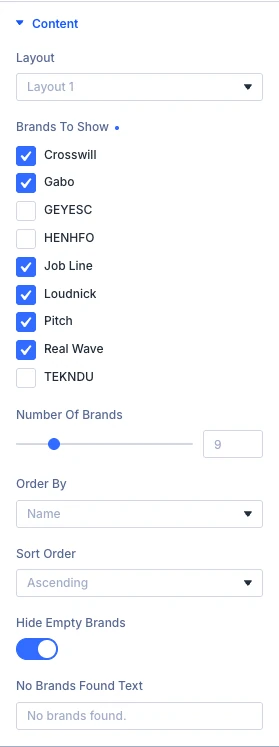
- Layout: Select the layout to display brands.
- Brands To Show: Pick specific brands to show. Leave empty to show all of them.
- Number Of Brands: How many brands to display. Use -1 to show all.
- Order By: Choose what brands are sorted by.
- Sort Order: Show brands in ascending or descending order.
- Hide Empty Brands: Hide brands that have no products.
- No Brands Found Text: Text shown when no brands match your settings.
Display
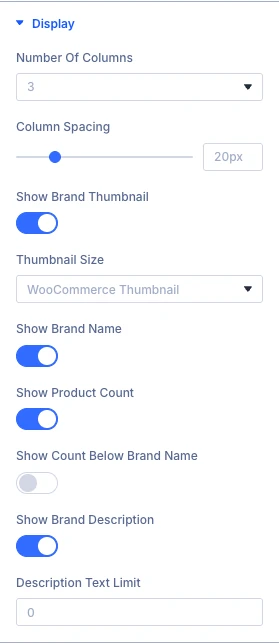
- Number Of Columns: How many brands to show per row.
- Column Spacing: Space between columns.
- Show Brand Thumbnail: Show the brand image (logo) on each card.
- Thumbnail Size: Image size used for the brand thumbnail.
- Show Brand Name: Show the brand name on each card.
- Show Product Count: Show how many products are in each brand.
- Show Count Below Brand Name: Move the count below the brand name instead of its default position — handy for longer brand names.
- Show Brand Description: Show the brand’s description text below the name on each card.
- Description Text Limit: Limit the description to this many characters. Use 0 to show the full text.
Overlay
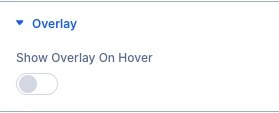
- Show Overlay On Hover: Reveal a white overlay on top of the whole card when it’s hovered.
When you switch on the toggles above, these settings appear as well:
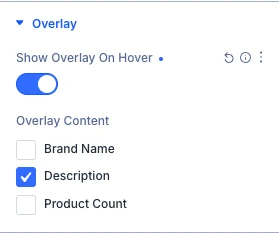
- Overlay Content: What to show inside the overlay. This is independent of the toggles above — something hidden on the card can still be shown here.
Shop Now Button
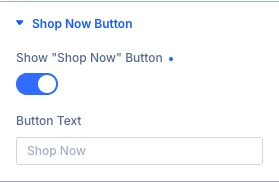
- Show “Shop Now” Button: Show a “Shop Now” button on each card.
- Button Text: Text shown on the “Shop Now” button, wherever it’s placed.
- Button Placement: Shown when Show Overlay On Hover is on. Choose whether the button shows on the card or only in the hover overlay.
Design tab settings
The Design tab lets you style each part of the module:
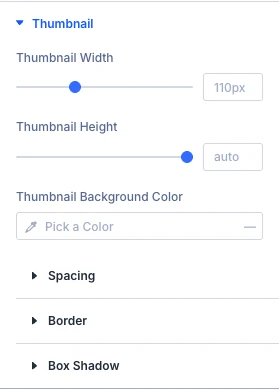
- Thumbnail: styling options for the thumbnail.
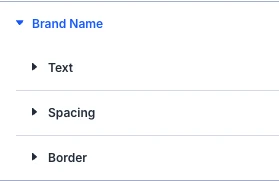
- Brand Name: styling options for the brand name.
- Product Count: styling options for the product count.
- Description: styling options for the description.
- Shop Now Button: styling options for the shop now button.
- Content Box: styling options for the content box.
- Brand Item: styling options for the brand item.
- Sizing, Spacing, Border, Box Shadow, Filters, Transform, Animation: the standard Divi design options for the whole module.
Advanced tab settings
The Advanced tab has the standard Divi options: Attributes (add a CSS class or ID), CSS, HTML, Conditions, Interactions, Visibility, Transitions, Position and Scroll Effects.