
Search Divi Motion Extended Documentation
Search for answers or browse our knowledge base.
Text Reveal
The DMOE Text Reveal module displays animated text with customizable scroll, page load, or hover reveal effects. This documentation details all the configuration settings available under the Content, Design, and Advanced tabs of the module.
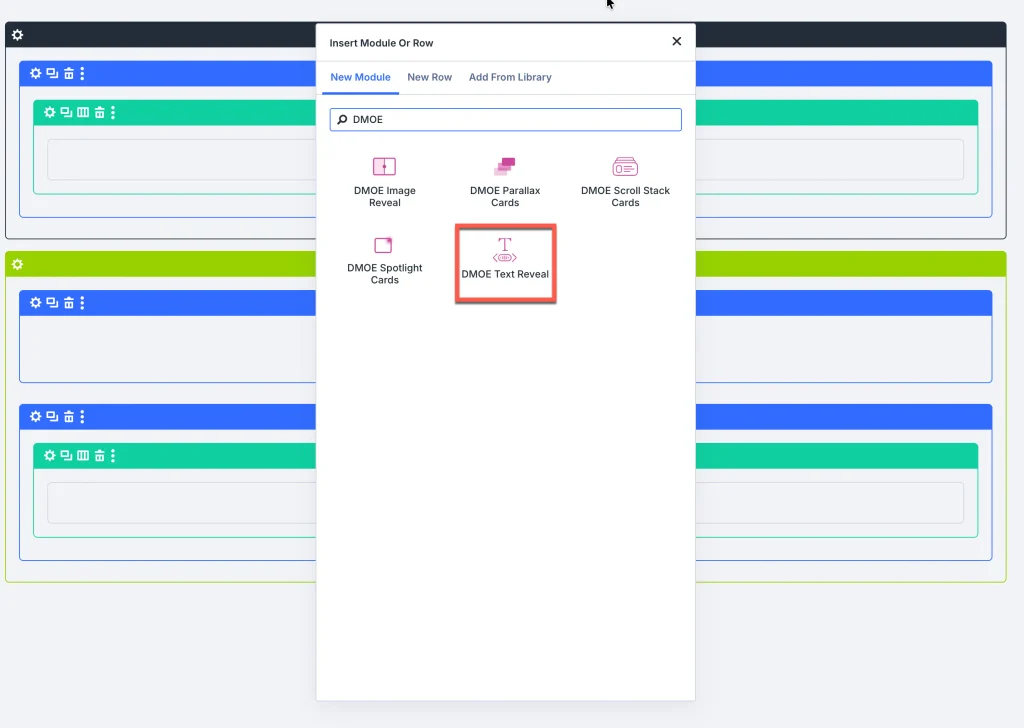
Add module on page
- Open your page in the Visual Builder.
- Click the green (+) Add Module icon inside a row.
- Search for DMOE Text Reveal and insert it.
Content Tab
Content
In the Content tab, the following settings are available:
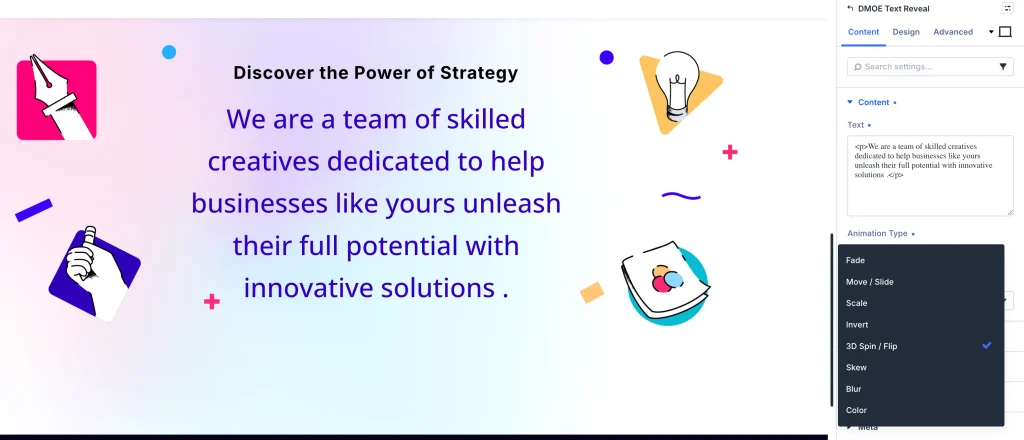
- Text:
- Control Type: Rich Text Editor (Visual & Text tabs)
- Description: Enter or edit the text content you want to animate on your page.
- Animation Type:
- Control Type: Dropdown (Fade, More / Slide, Scale, Invert, 3D Spin / Flip, Skew, Blur, Color)
- Description: Select the animation style used to reveal the text.
- Reveal By:
- Control Type: Dropdown (Characters, Words, Lines)
- Description: Select whether the reveal animation applies per character, per word, or per line.
Animation setting
Under the Animation accordion in the Content tab, the following settings are available:
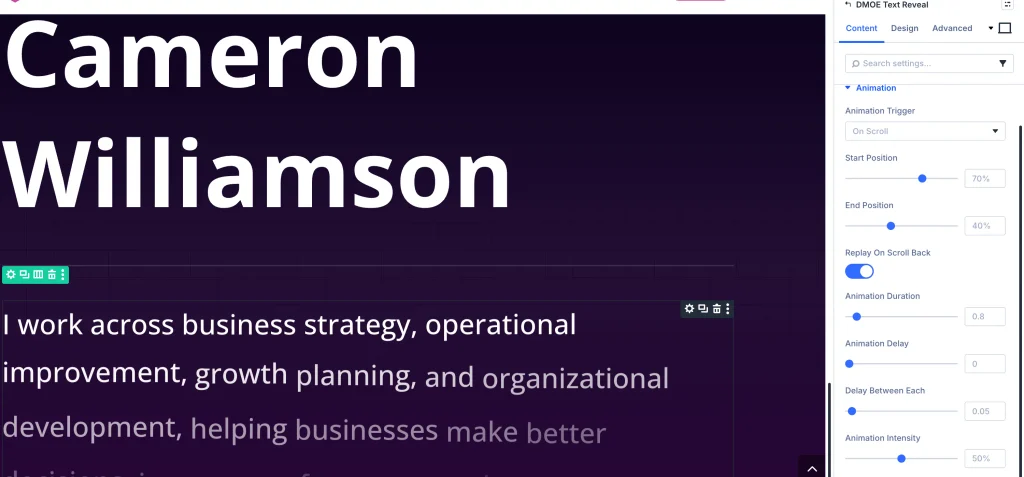
- Animation Trigger:
- Control Type: Dropdown (On Scroll, On Load, On Hover)
- Description: Choose what event initiates the text reveal animation.
- Start Position:
- Control Type: Range Slider (e.g.,
70%) - Description: Set the viewport scroll position percentage where the animation begins.
- Control Type: Range Slider (e.g.,
- End Position:
- Control Type: Range Slider (e.g.,
40%) - Description: Set the viewport scroll position percentage where the animation completes.
- Control Type: Range Slider (e.g.,
- Replay On Scroll Back:
- Control Type: Toggle (ON / OFF)
- Description: Enable to re-trigger the text reveal animation when the user scrolls back up the page.
- Animation Duration:
- Control Type: Number Input Field (e.g.,
0.8) - Description: Set the total duration/speed of the text reveal animation in seconds.
- Control Type: Number Input Field (e.g.,
- Animation Delay:
- Control Type: Number Input Field (e.g.,
0) - Description: Set waiting time before the animation starts.
- Control Type: Number Input Field (e.g.,
- Delay Between Each:
- Control Type: Number Input Field (e.g.,
0.05) - Description: Set stagger delay between individual characters, words, or lines.
- Control Type: Number Input Field (e.g.,
Link
Under the Link option in the Content tab, the following settings are available:
- Module Link URL:
- Control Type: Text Input Field
- Description: Enter a destination link URL to make the animated text clickable.
- Module Link Target:
- Control Type: Dropdown (In The Current Tab, In A New Tab)
- Description: Choose whether opening the link keeps the user on the current page or opens a new tab.
Design tab
Reveal text
Under the Reveal text accordion in the Design tab, the following typography settings are available:
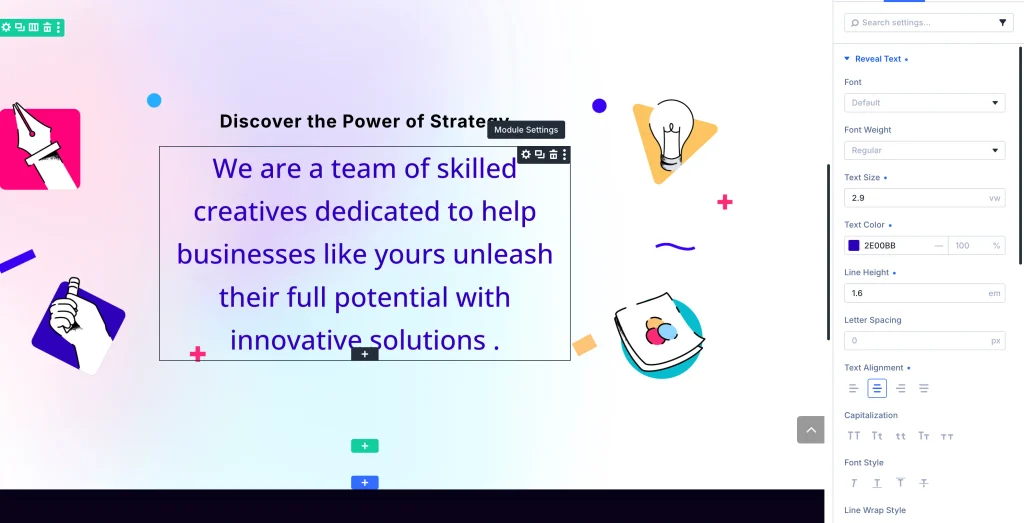
- Font and Font Weight:
- Control Type: Font Selector and Weight Dropdown
- Description: Customize the font family and font weight (Regular, Bold, Semi Bold, etc.).
- Text Size:
- Control Type: Range Slider / Unit Input
- Description: Set font size for the reveal text.
- Text Color:
- Control Type: Color Picker
- Description: Choose custom color for the text.
- Line Height and Letter Spacing:
- Control Type: Range Sliders
- Description: Adjust line height and letter spacing distance.
- Text Alignment and Capitalization:
- Control Type: Alignment Icons & Text Transform Controls
- Description: Set text alignment (Left, Center, Right, Justify) and text casing (Uppercase, Lowercase, Capitalize).
Advanced Tab
Under the Advanced tab, configure custom CSS ID & Classes, element-level Custom CSS, and responsive Visibility rules across Desktop, Tablet, and Mobile devices.