Search Divi Motion Extended Documentation
Search for answers or browse our knowledge base.
Image Viewer
This page shows you how to add the Image Viewer module to your page and explains every setting. The Image Viewer module lets visitors explore a large, detailed image inside a frame. They can drag and zoom with a small minimap, zoom with the mouse wheel, magnify the area under the cursor, or watch the image pan on its own in a Ken Burns style.
How to add the Image Viewer module
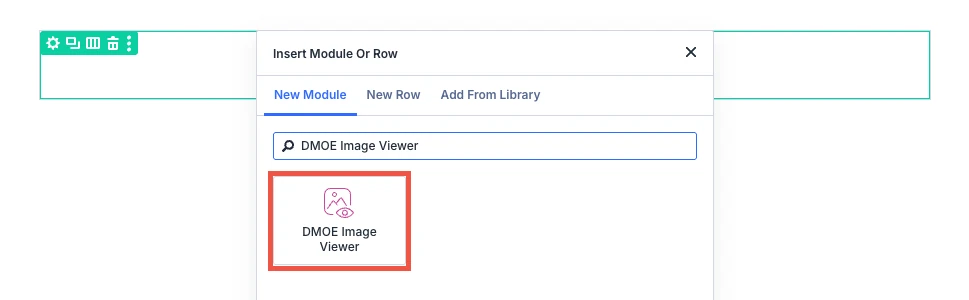
- Open your page in the Divi Visual Builder.
- Click the (+) icon inside a row to add a new module.
- Search for DMOE Image Viewer in the module search box.
- Click the module to insert it. Its settings open on the right.
Content tab
The Content tab holds the image, the viewer mode, what starts it, and the custom cursor. Some settings only show for one viewer mode.
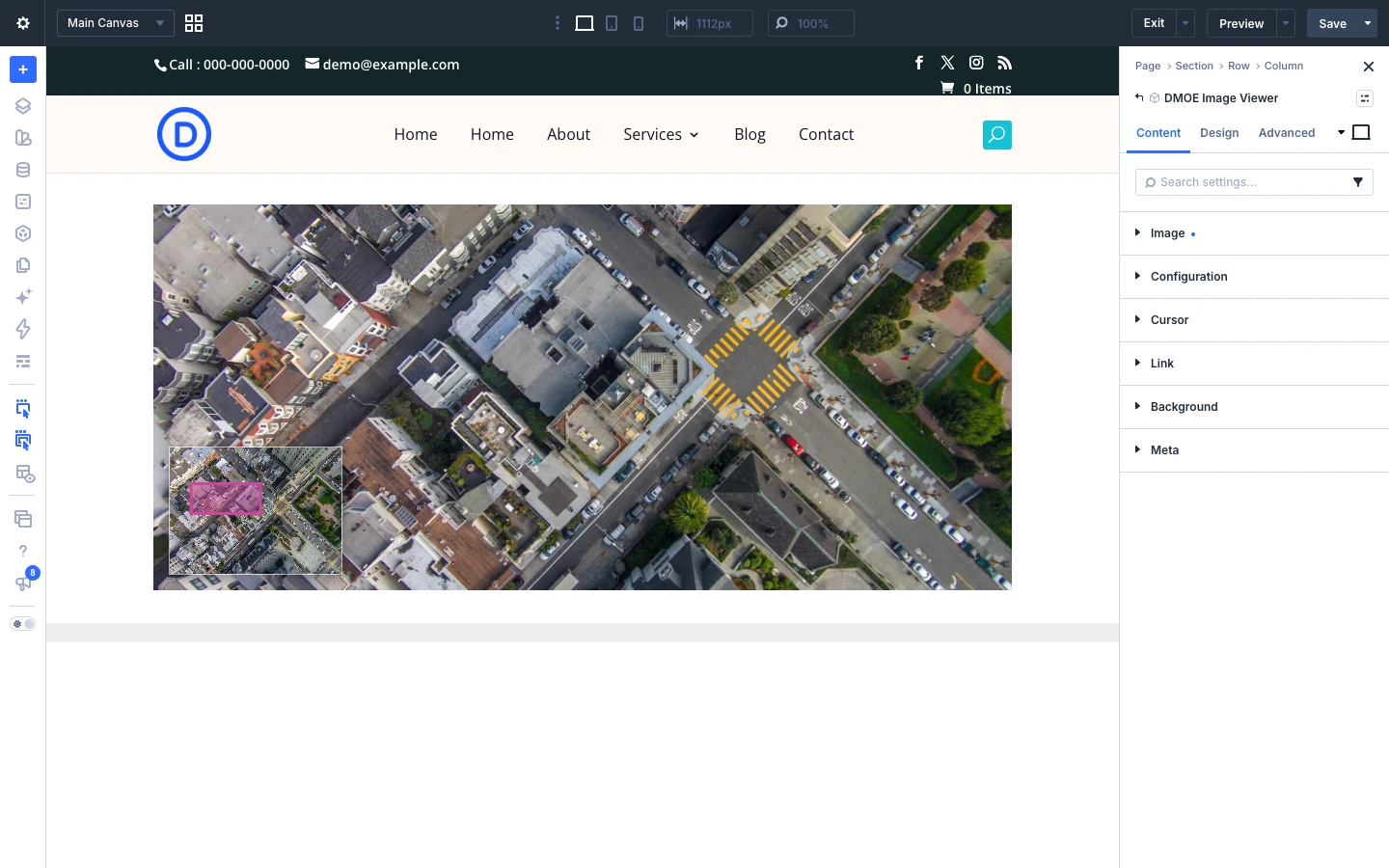
Content tab: Image
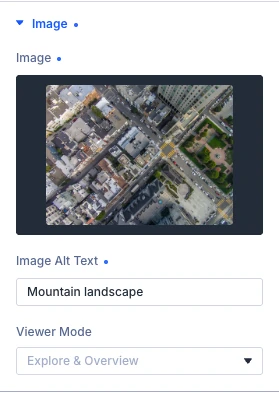
- Image: The large image visitors will explore.
- Image alt text: Describes the image for screen readers and search engines.
- Viewer mode: How visitors explore the image. Options: Explore and overview, Scroll and zoom, Ken Burns autoplay and Hover magnify.
- Trigger: What starts the viewer’s motion. Options: On load, On hover, On scroll into view and On click to expand.
Content tab: Configuration
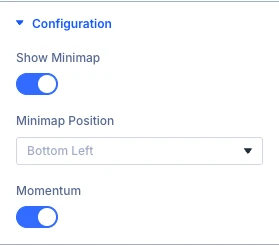
- Show minimap: The small draggable corner map that mirrors the main image.
- Minimap position: Which corner the minimap sits in. Options: Bottom left, Bottom right, Top left and Top right.
- Momentum: Keeps the pan drifting briefly after release, then eases to a stop.
- Show zoom controls: The +/− buttons, for visitors without a scroll wheel or pinch gesture.
- Minimum zoom: The most a visitor can zoom out, as a percentage of the image’s natural size.
- Maximum zoom: The most a visitor can zoom in, as a percentage of the image’s natural size.
- Pan pattern: The route the autoplay pan follows across the image. Options: Drift, Corners and Random.
- Loop: Keep panning indefinitely rather than stopping after one pass.
- Magnify strength: How far the image zooms in under the cursor.
- Return to center on leave: Off keeps the magnified view resting wherever the cursor last was.
Content tab: Animation
- Animation speed curve: How the motion speeds up and slows down. Applies to Ken Burns pans and the Hover magnify snap. Options: Constant speed, Smooth, Quick end, Quick start, Smooth both ends, Bounce and Springy.
- Animation duration: How long each Hover magnify snap takes, in seconds. Ken Burns paces its own pass more slowly for a cinematic feel, so the same value plays out longer there.
- Reduced motion fallback: Freezes autoplay and hover motion for visitors who have asked for less motion, showing a still frame instead.
Content tab: Cursor
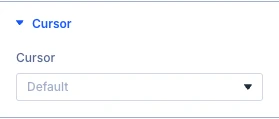
- Cursor: Replaces the pointer while hovering the viewer. Options: Default, Icon and Image.
- Cursor icon: The icon shown as the custom cursor.
- Cursor image: The image shown as the custom cursor.
The Link, Background and Meta groups are the standard Divi options.
Design tab
The Design tab styles the minimap and its marker, the custom cursor and the zoom buttons. The other groups (text, sizing, spacing, border, box shadow, filters, transform, animation) are the standard Divi design options.
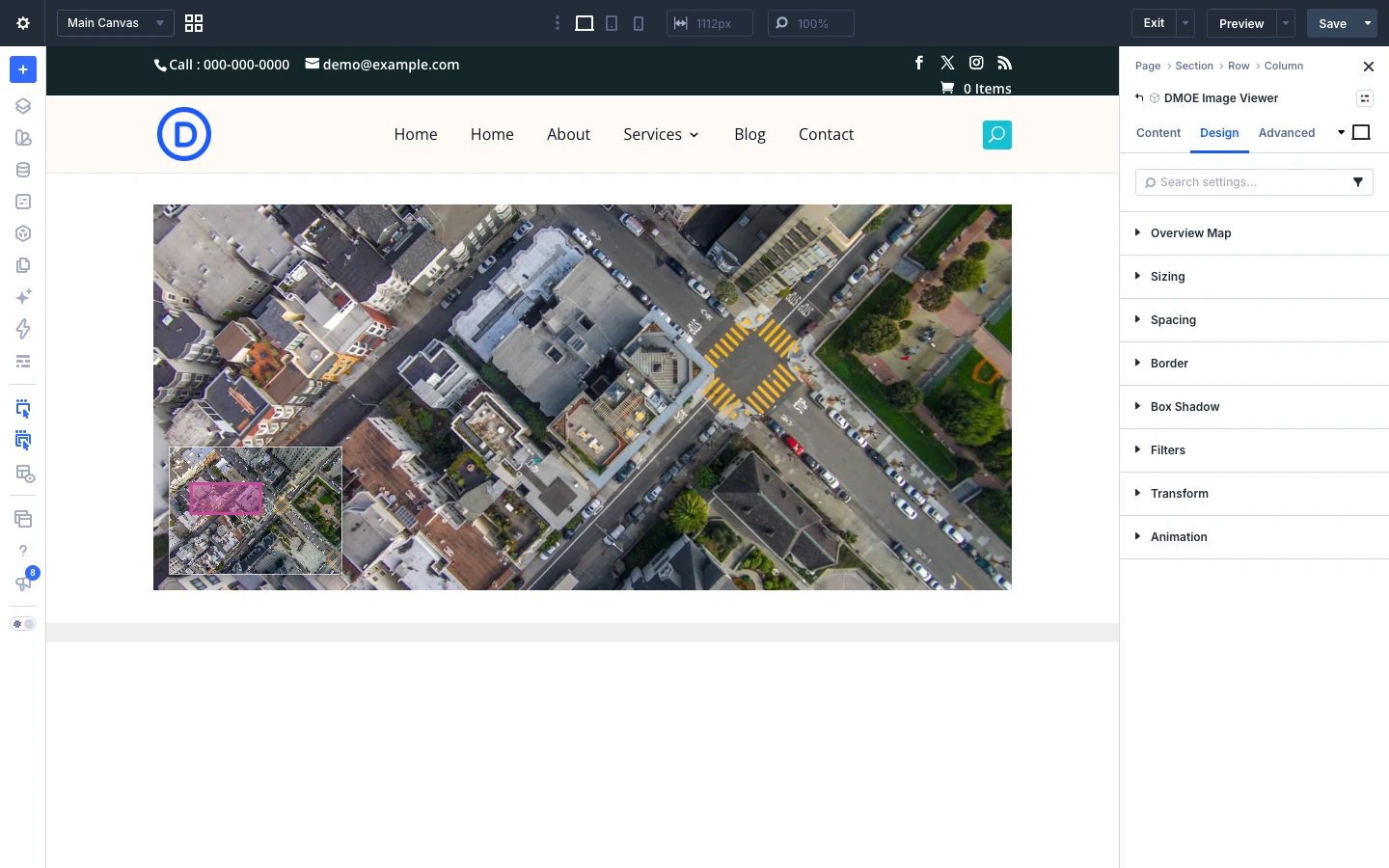
Design tab: Overview map
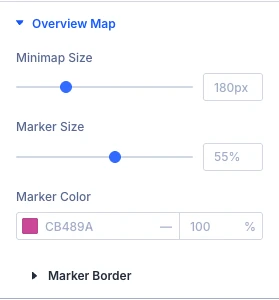
- Minimap size: Width of the corner minimap. It never grows past the main image’s own width.
- Marker size: Scales the marker up or down, relative to the minimap’s own size — kept within a range that can’t overflow it.
- Marker color: Tints the marker’s fill. Border color is set in the Marker Border group below.
Use the standard Divi border settings to style the minimap.
Design tab: Cursor
- Icon size: Font size of the cursor icon.
- Icon color: Color of the cursor icon.
- Image size: Width of the cursor image. Height follows its own proportions.
Use the standard Divi background, spacing and border settings to style the custom cursor.
Design tab: Controls
- Zoom button color: Background color of the +/− zoom controls.
- Zoom button icon color: Color of the +/− symbols themselves.
Advanced tab
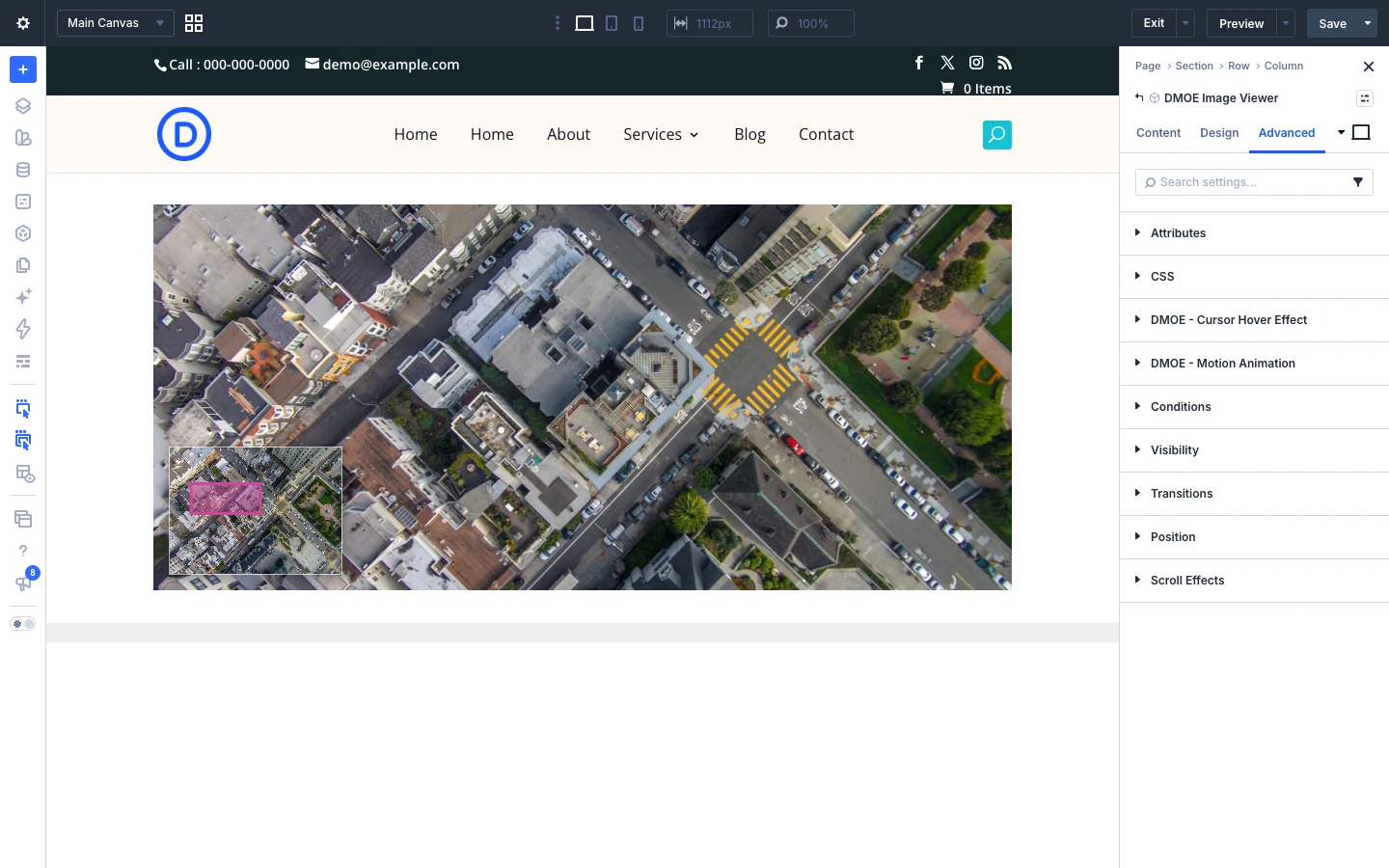
The Advanced tab has the standard Divi options: CSS ID and classes, custom CSS, attributes, conditions, visibility, transitions, position and scroll effects.