Search Divi Motion Extended Documentation
Search for answers or browse our knowledge base.
Motion Animations
This page shows you how to turn on the Motion Animations extension and explains every setting it adds, with examples. Motion Animations adds ready-made motion presets to any Divi section, row, column or module, with no code. There are four animation types: Entrance, Continuous, Hover and Scroll motion. Sections, rows and columns can also animate their children one after another (stagger).
Turn on Motion Animations
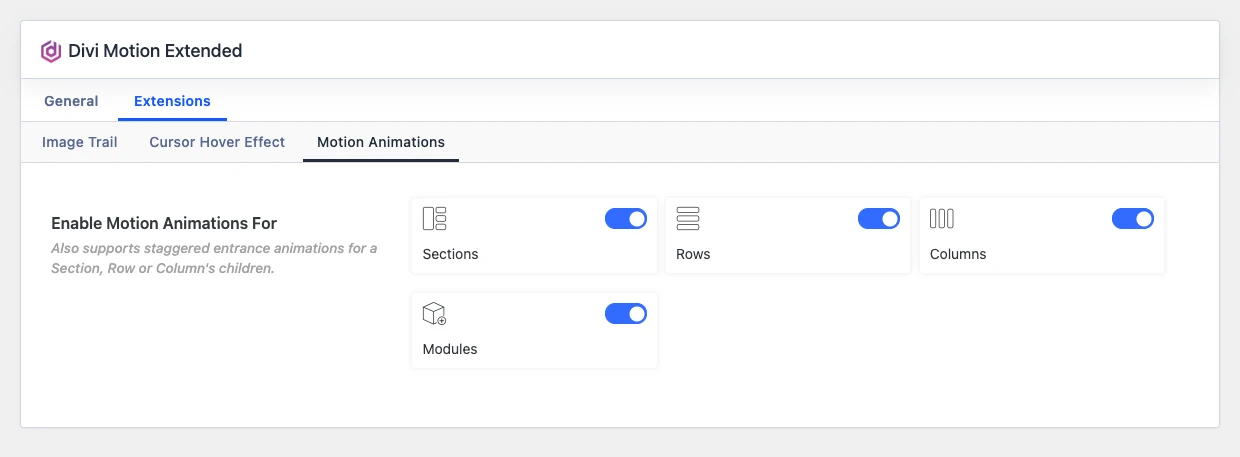
Motion Animations is on for sections, rows, columns and modules by default. To change where it is used, go to Divi Extended > Divi Motion Extended > Extensions > Motion Animations. Turn the Sections, Rows, Columns and Modules toggles on or off and click Save Changes. Turn all of them off to switch the extension off completely.
How to add a motion animation
- Open your page in the Divi Visual Builder.
- Open the settings of the section, row, column or module you want to animate.
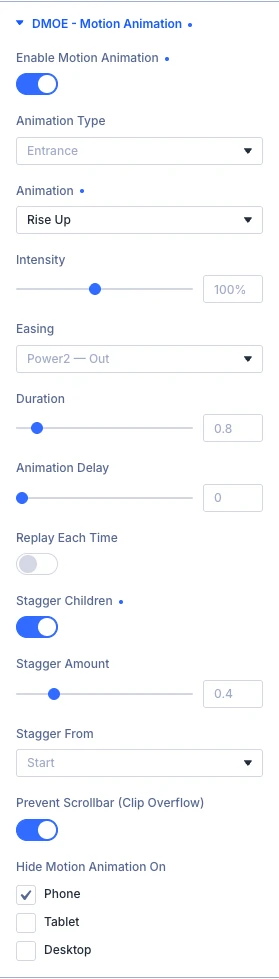
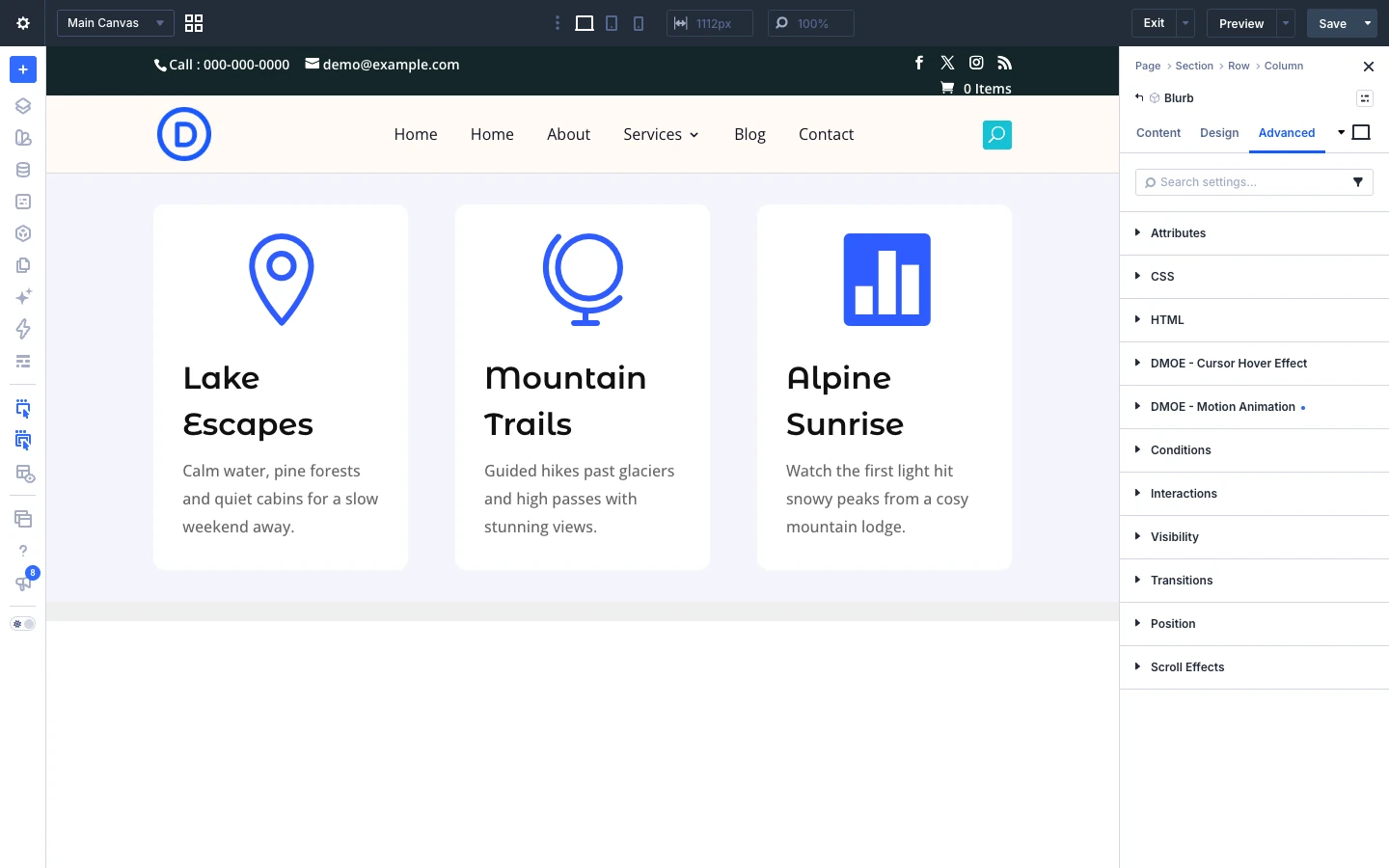
- Go to the Advanced tab and open the DMOE – Motion Animation group.
- Turn on Enable motion animation, then choose an Animation type and an Animation.
Note: Use only one motion source on an element. The presets use the same CSS properties as Divi’s own Transform, Filters, Animation and Scroll Effects settings, so they can override each other.
Animation type: Entrance
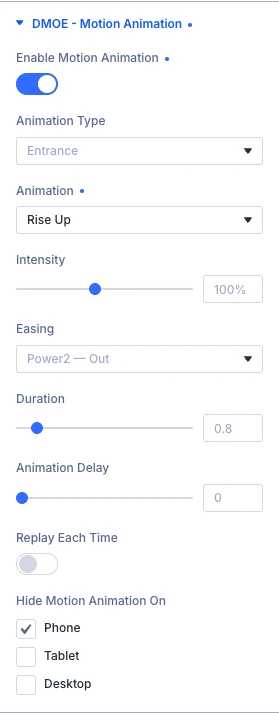
Entrance plays once (or every time, with Replay each time) when the element scrolls into view.
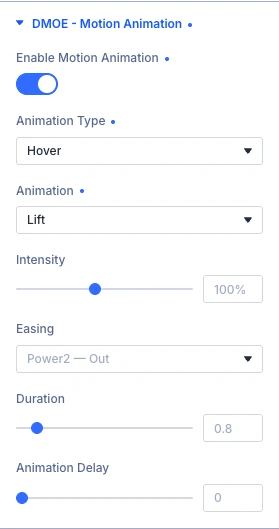
- Enable motion animation: Adds a ready-made motion preset to this element.
- Animation type: Entrance plays once (or replays) as the element scrolls into view. Continuous loops for as long as it’s on screen. Hover responds to the pointer. Scroll motion ties the motion directly to scroll position instead of a timer — it needs GSAP, loaded only when this is selected. Options: Entrance, Continuous, Hover and Scroll motion.
- Animation: The preset played once (or replayed) as the element scrolls into view. Curtain reveal and Iris reveal use Clip Path only; Blur in uses Opacity and Filter; every other preset also uses Opacity and Transform. This module’s own Design tab Transform (or Filters, for Blur in), and Divi’s own native Animation setting, use those same properties — enable only one motion source on a given element to avoid them overriding each other. Options: Fade in, Blur in, Rise up, Slide left, Slide right, Scale, Scale X, Scale Y, Curtain reveal, Iris reveal, 3D drop, 3D rotate, Flip X, Swing in and Skew in.
- Intensity: How pronounced the motion is. Doesn’t change Fade in, Curtain reveal, Iris reveal, Spin or Grayscale to color, which don’t have a size to scale.
- Easing: How the motion speeds up and slows down. Back, Bounce and Elastic overshoot past the end before settling — they read most clearly on Rise up, Scale, 3D drop and the Hover presets. Not shown for Continuous (its back-and-forth loop already uses a smooth curve of its own) or Scroll motion (progress follows the scroll position directly, with no curve to apply). Options: Linear, Power1 — in, Power1 — out, Power1 — in out, Power2 — in, Power2 — out, Power2 — in out, Power3 — in, Power3 — out, Power3 — in out, Sine, Expo, Circ, Back, Bounce and Elastic.
- Duration: How long the animation takes, in seconds. Entrance and Hover usually feel best under a second; Continuous presets loop, so they typically want something longer — 2 to 4 seconds. For Scroll motion this instead smooths how closely the motion tracks scroll position — 0.1s for an exact, immediate follow, higher for a softer lag behind the scroll.
- Animation delay: How long to wait before the animation starts, in seconds. Not shown for Scroll motion, which has no separate starting moment to delay — its progress follows scroll position directly. Give adjacent elements different delays to stagger them by hand.
- Replay each time: Play again every time this element scrolls back into view, instead of only once.
- Hide motion animation on: Turn the effect off on the chosen devices. Options: Phone, Tablet and Desktop.
Animation type: Continuous
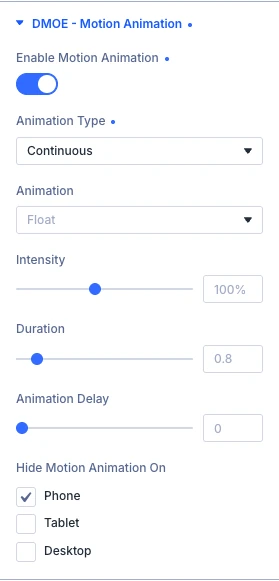
Continuous loops for as long as the element is on screen.
- Animation: The preset that loops for as long as the element is on screen, driven entirely by Transform. This module’s own Design tab Transform, and Divi’s own Scroll Effects or native Animation settings, use that same property — enable only one motion source on a given element to avoid them overriding each other. Options: Float, Pulse, Sway, Spin, Shake and Blink.
Intensity, Duration, Animation delay and Hide motion animation on work the same as for Entrance. Easing is not shown, because the loop uses its own smooth curve.
Animation type: Hover
Hover plays when the visitor moves the pointer over the element.
- Animation: The preset played on hover. Pop and Lift move this element (Transform); Glow and Grayscale to color light it (Filters). Tilt, Tilt X and Tilt Y follow the pointer’s position within the element — Tilt X only leans forward/back, Tilt Y only turns left/right, Tilt does both. If this module’s own Design tab already sets Transform or Filters, its value applies at rest and this preset takes over only while hovered. Options: Pop, Lift, Glow, Tilt, Tilt X, Tilt Y and Grayscale to color.
Animation type: Scroll motion
Scroll motion ties the motion to the scroll position, so it plays forward as you scroll down and reverses as you scroll up.
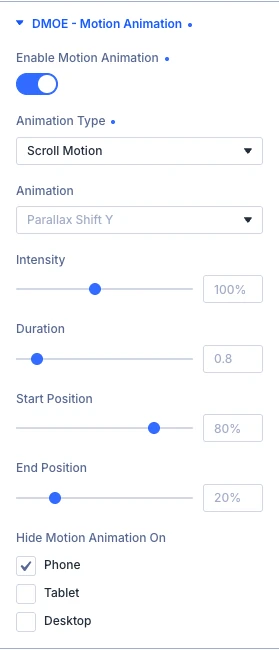
- Animation: The preset played continuously as this element crosses the viewport — its progress follows scroll position rather than a timer, so it runs forward and reverses cleanly as you scroll up. Requires GSAP (ScrollTrigger), loaded only for this Animation type. Options: Parallax shift Y, Parallax shift X, Parallax scale, Parallax rotate, Parallax fade and Parallax blur reveal.
- Start position: Where in the viewport the effect begins, as a percentage down from the top. 100% starts the moment this element enters the viewport; a lower value waits until it’s further up the screen.
- End position: Where in the viewport the effect finishes, as a percentage down from the top.
Stagger children
On a section, row or column with the Entrance type, you can animate each child one after another instead of the whole element at once.
- Stagger children: Plays the Entrance animation across every direct child of this Section, Row or Column one after another, instead of animating this element as a single block.
- Stagger amount: How much delay, in seconds, each child adds on top of the last.
- Stagger from: Which child plays first. Start goes left to right, in document order. Center plays the middle child first and ripples outward. Random shuffles the order once, per element. Options: Start, Center and Random.
- Prevent scrollbar (clip overflow): Hides any part of a child that swings or rotates past this element’s edge while animating, which is also what prevents a temporary horizontal scrollbar. Turn off if it’s hiding content you need visible.