
Search Divi Motion Extended Documentation
Search for answers or browse our knowledge base.
Image Trail
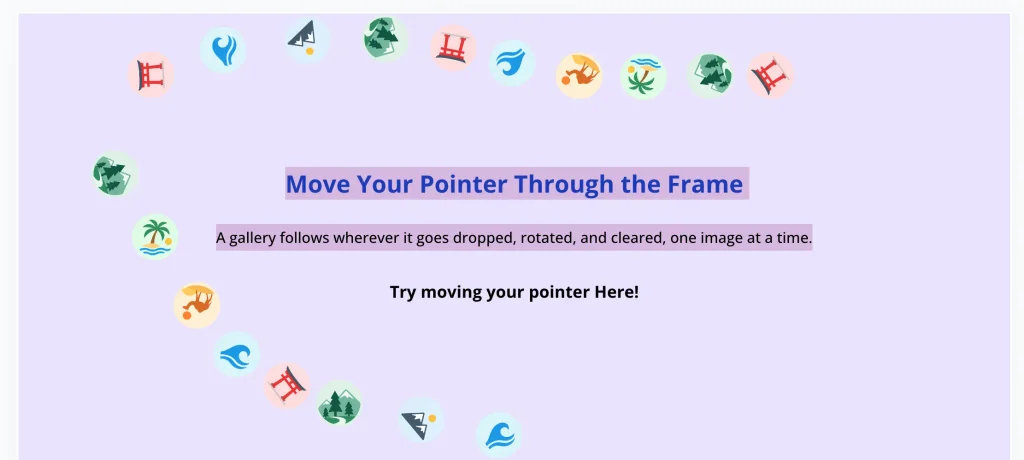
The DMOE Image Trail extension creates an interactive mouse-following image trail animation across Divi layout sections and rows. This documentation details how to enable the trail, upload gallery images, and configure entrance/exit motion styles, trail length, rotation, and border styling.
Note: The DMOE Image Trail extension is available exclusively for Divi Sections and Divi Rows under the Advanced tab. It is not available inside individual module settings.
How to access and enable the extension
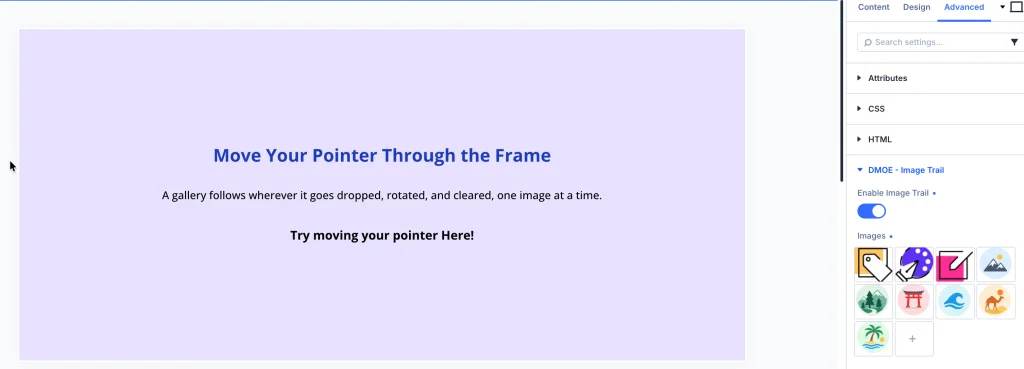
- Open the settings modal of any Divi Section or Divi Row.
- Navigate to the Advanced tab.
- Locate and expand the DMOE – Image Trail accordion.
- Switch the Enable Image Trail toggle to ON.
General settings breakdown
Once enabled under the Advanced tab > DMOE – Image Trail accordion, the following configuration options become available:
- Enable Image Trail:
- Control Type: Toggle (ON / OFF)
- Description: Enable or disable the mouse-following image trail animation on this section or row.
- Images:
- Control Type: Media Gallery Picker (+ Add Gallery Images)
- Description: Upload or select the set of images that appear sequentially in the cursor trail.
- Image Order:
- Control Type: Dropdown (In Order, Random)
- Description: Choose whether images appear sequentially in gallery order or in randomized sequence.
- Imag :
- Control Type: Range Slider / Unit Input (e.g.,
50px) - Description: Set the width dimensions for individual trail images.
- Control Type: Range Slider / Unit Input (e.g.,
- Image Opacity:
- Control Type: Range Slider (e.g.,
1/ 0 to 1) - Description: Control the transparency opacity level of trail images.
- Control Type: Range Slider (e.g.,
- Trail Length:
- Control Type: Range Slider / Number Input (e.g.,
20) - Description: Set the maximum number of visible trailing images displayed simultaneously behind the cursor.
- Control Type: Range Slider / Number Input (e.g.,
- Spacing Between Images:
- Control Type: Range Slider / Unit Input (e.g.,
100px) - Description: Define the mouse travel distance threshold required before spawning the next trail image.
- Control Type: Range Slider / Unit Input (e.g.,
- Appear Style:
- Control Type: Dropdown (Elastic Pop, Fade In, Zoom In)
- Description: Select the entrance animation style for newly spawned trail images.
- Exit Style:
- Control Type: Dropdown (Drop Away, Fade Out, Zoom Out, Drift Away)
- Description: Select the disappearance animation style as trail images fade out.
- Rotation Amount:
- Control Type: Range Slider / Degrees (e.g.,
360deg) - Description: Set rotation angle applied to trail images as they spawn and exit.
- Control Type: Range Slider / Degrees (e.g.,
- Animation Duration:
- Control Type: Range Slider / Number Input (e.g.,
1s) - Description: Set the lifespan/animation duration of each trail image.
- Control Type: Range Slider / Number Input (e.g.,
- Animation Speed Curve:
- Control Type: Dropdown (Smooth, Linear, Bounce)
- Description: Choose the motion acceleration easing curve.
- Hide Image Trail On:
- Control Type: Checkboxes (Phone, Tablet, Desktop)
- Description: Select specific viewports where the image trail effect should be hidden.
Styling
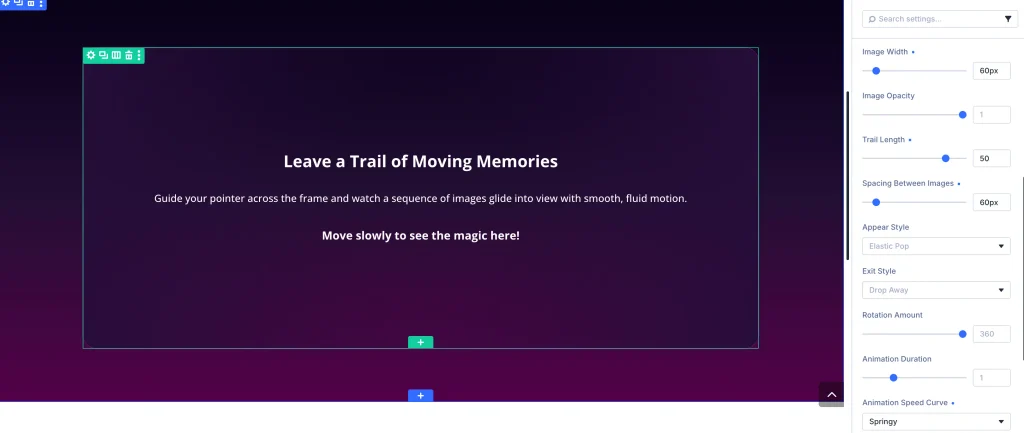
Image border
Located under DMOE – Image Trail > Image Border:
- Border Radius:
- Control Type: Multi-Input Range Controls (e.g.,
0pxor rounded corners) - Description: Apply corner rounding to individual trail images.
- Control Type: Multi-Input Range Controls (e.g.,
- Border Styles, Width and Color:
- Control Type: Border Controls
- Description: Add custom outline borders, border colors, and border styles around trail images.