Search Divi Motion Extended Documentation
Search for answers or browse our knowledge base.
Scramble Text
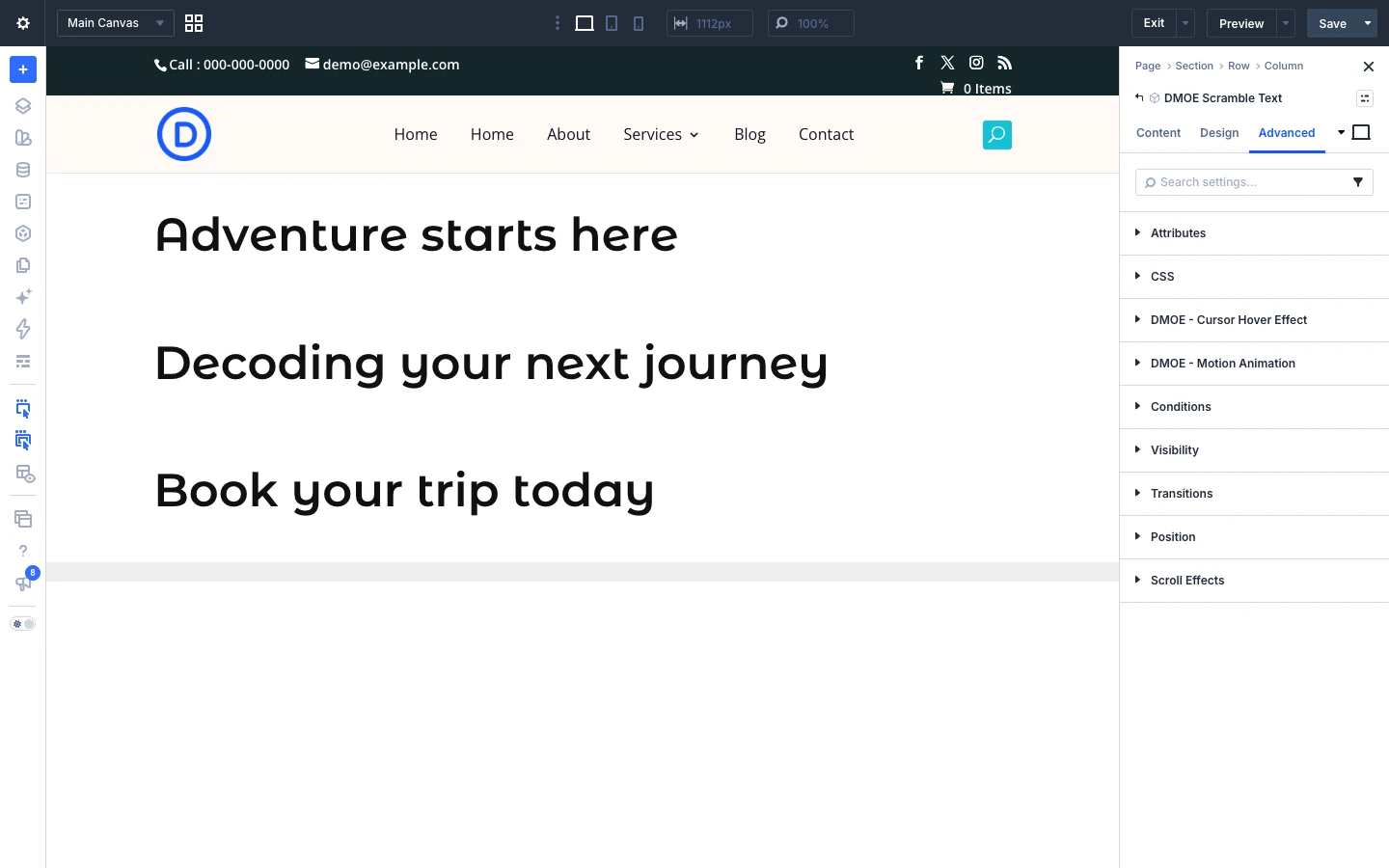
This page shows you how to add the Scramble Text module to your page and explains every setting. The Scramble Text module shows a line of text that starts as random characters and then turns into your real text, like a decoding effect. You can choose which characters are used, what starts the effect (page load, scroll or hover) and add an extra motion such as fade, slide or blur.
How to add the Scramble Text module
- Open your page in the Divi Visual Builder.
- Click the (+) icon inside a row to add a new module.
- Search for DMOE Scramble Text in the module search box.
- Click the module to insert it. Its settings open on the right.
Content tab
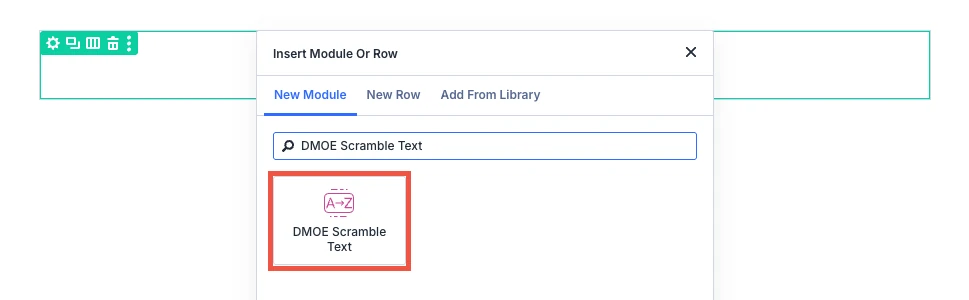
The Content tab holds the text, the characters used for the scramble, and the settings that control when and how the animation plays.
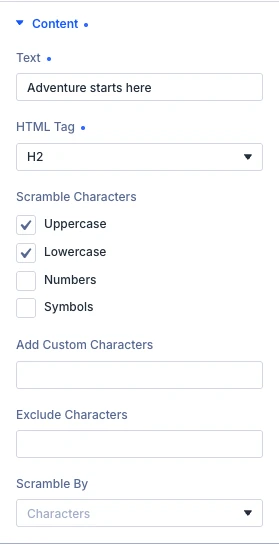
Content tab: Content
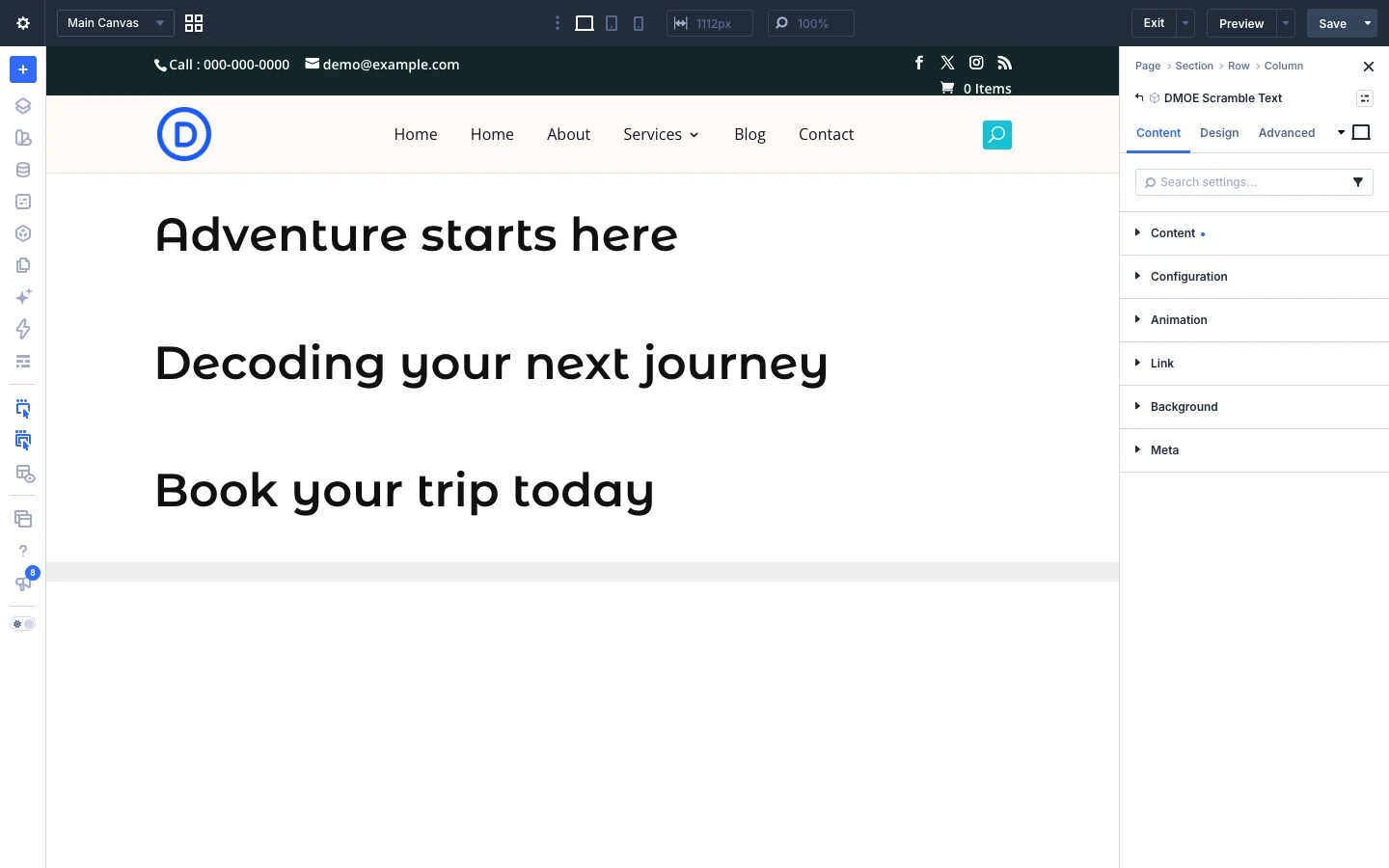
- Text: Enter the text you want to scramble and reveal. Single line only — the scramble effect rewrites this as one flat string each frame, so a line break would not survive it.
- HTML tag: The HTML tag that wraps your text. Use a heading (H1–H6) where it should carry SEO/accessibility meaning, or Div / Paragraph for regular body text. Options: Div, Paragraph, H1, H2, H3, H4, H5 and H6.
- Scramble characters: Which character sets to draw from while your text is still scrambling. Check more than one to mix them together. Options: Uppercase, Lowercase, Numbers and Symbols.
- Add custom characters: Extra characters to mix into the scramble pool on top of whatever is checked above.
- Exclude characters: Characters to leave out of the scramble pool, even if they came from a checked set above or from Add custom characters.
- Scramble by: Scramble one character at a time, or whole words at once. Spaces are never touched either way. Options: Characters and Words.
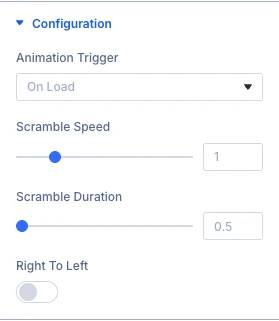
Content tab: Configuration
- Animation trigger: Choose what makes the animation play. Options: On load, On scroll and On hover.
- Start position: How far up the screen the text must be before the animation begins. Only used when Animation trigger is On scroll.
- End position: How far up the screen the text must be for the animation to finish. Only used when Animation trigger is On scroll.
- Replay on scroll back: Let the animation rewind as you scroll back up. Turn off to have it stay finished once it has played through. Only used when Animation trigger is On scroll.
- Scramble speed: How fast the scrambling characters flicker while still unresolved.
- Scramble duration: How long the text stays purely scrambled, in seconds, before it starts locking in real characters. The rest of Animation duration is spent revealing, so raising this makes the reveal itself happen faster. Keep it below Animation duration, or there is nothing left to lock in.
- Right to left: Reveal the text from right to left instead of left to right.
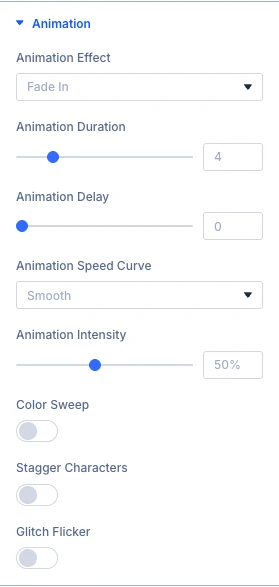
Content tab: Animation
- Animation effect: An extra motion effect that plays alongside the scramble. Options: None — scramble only, Fade in, Slide up, Slide down, Scale in, Blur in, Rotate in, 3D flip and Skew in.
- Animation duration: How long the animation takes to finish, in seconds.
- Animation delay: How long to wait before the animation starts, in seconds. Only used when Animation trigger is On load.
- Animation speed curve: How the animation speeds up and slows down. Also shapes the Animation effect, since the scramble itself has no in-between state for a curve to show on. Options: Constant speed, Smooth, Quick end, Quick start, Smooth both ends, Bounce and Springy.
- Animation intensity: How strong the Animation effect looks — for example how far it moves, scales, or rotates.
- Color sweep: Have the text glow through a chosen color as it locks in, then settle back to its own color. Pick the color in the Design tab’s Effect style group.
- Stagger characters: Have the Animation effect enter one character at a time instead of all at once. Only available when Scramble by is set to Characters — Words mode animates as a single block, since it scrambles as one too.
- Glitch flicker: A brief flicker while the text is still scrambling, for a rougher “decoding” look.
The Link, Background and Meta groups are the standard Divi options.
Design tab
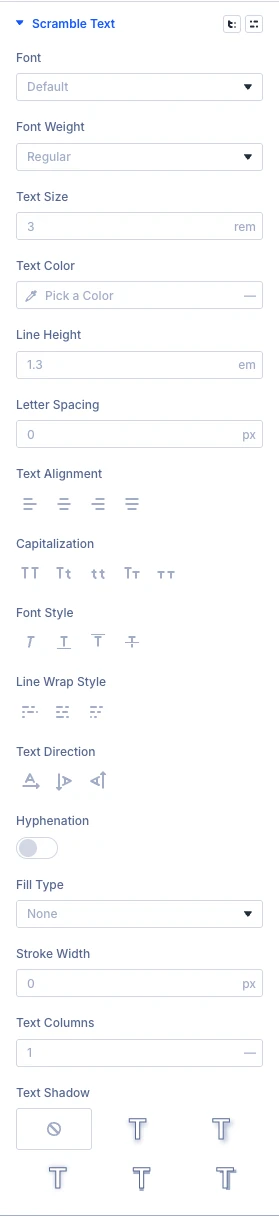
In the Design tab, the Scramble Text group sets the font of the text and the color used by Color Sweep. The other groups (text, sizing, spacing, border, box shadow, filters, transform, animation) are the standard Divi design options.
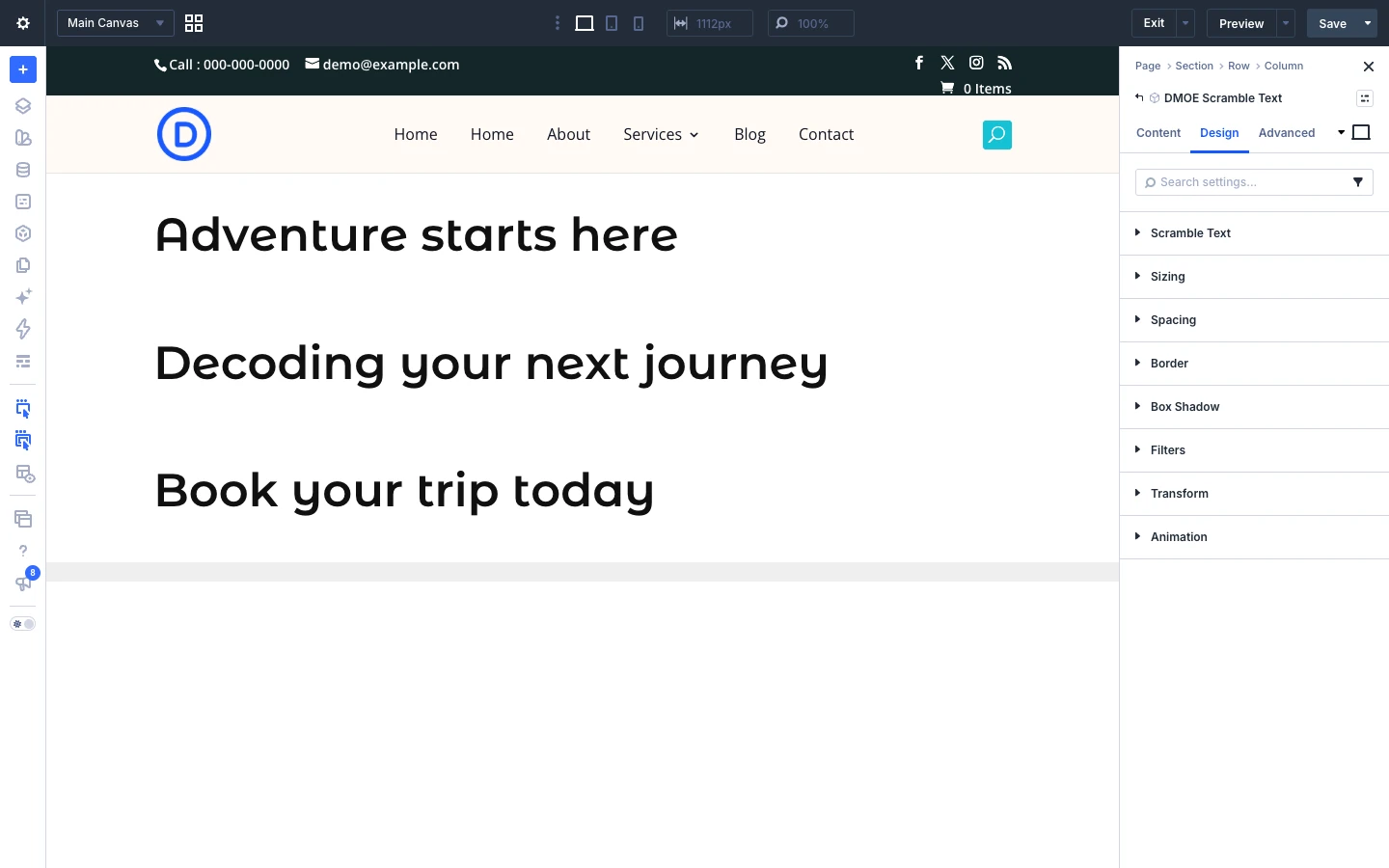
Design tab: Scramble text
Use the standard Divi font settings to style the text.
Design tab: Effect style
- Sweep color: The color the text sweeps from when Color sweep is turned on.
Advanced tab
The Advanced tab has the standard Divi options: CSS ID and classes, custom CSS, attributes, conditions, visibility, transitions, position and scroll effects.