
Search Divi Gallery Extended Documentation
Search for answers or browse our knowledge base.
Admin panel to enable or disable plugin modules
Overview of the plugin admin panel
The Divi Gallery Extended plugin includes a central admin control panel in the WordPress dashboard. This panel features an interactive toggle grid that allows website administrators to selectively enable or disable individual plugin modules for the Divi Builder. Disabling unused modules optimizes website performance and keeps the builder menu clean.
How to access the admin panel
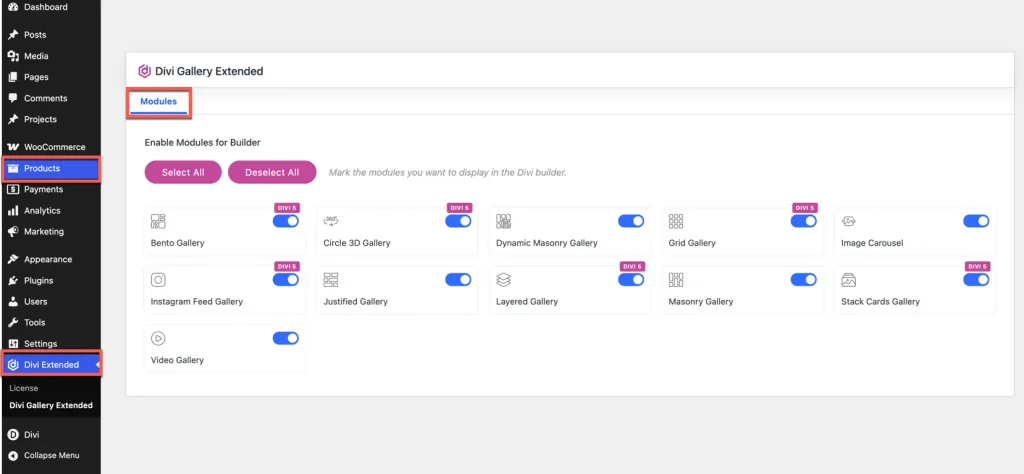
- Log into your WordPress administrative dashboard.
- In the left sidebar menu, click Divi Extended.
- Select Plugin Settings to open the module management screen.
- Alternatively, go to Plugins in your WordPress dashboard and click the Settings link under Divi Gallery Extended.
Module enable and disable grid settings
Modules tab controls
- Module checkbox grid: Displays a list of all plugin modules alongside dedicated toggle switches and module icons.
- Enable or disable toggles: Switch individual module toggles to On to make them available in the Divi Visual Builder, or Off to hide them.
- Select all button: Click this button at the top of the grid to enable all plugin modules simultaneously with a single click.
- Deselect all button: Click this button to disable all plugin modules at once.
Module status indicators and Divi 5 compatibility badges
- Divi 5 badge: Modules designed exclusively for Divi 5 feature a clear badge indicating that Divi 5 or a later builder version is required.
- Automatic force disabled state: If Divi 5 is not currently active on your website, Divi 5 exclusive modules are automatically greyed out and disabled to prevent builder conflicts.
Features and benefits of module control
Performance optimization
- Lightweight page loading: When a module is toggled off in the admin panel, the plugin automatically stops registering its front-end JavaScript and CSS files.
- Clean builder interface: Disabling modules you do not plan to use reduces clutter in the Divi Visual Builder module insertion modal.
Saving changes in the admin panel
- After adjusting your module toggles, click the Save Changes button located at the bottom of the page.
- An AJAX saving indicator will process your request without requiring a full browser page refresh.
- Once saved, open the Divi Visual Builder to see the updated module availability.