Search Divi Countdown Extended Documentation
Search for answers or browse our knowledge base.
DE Promo Bar
Overview of the DE promo bar module
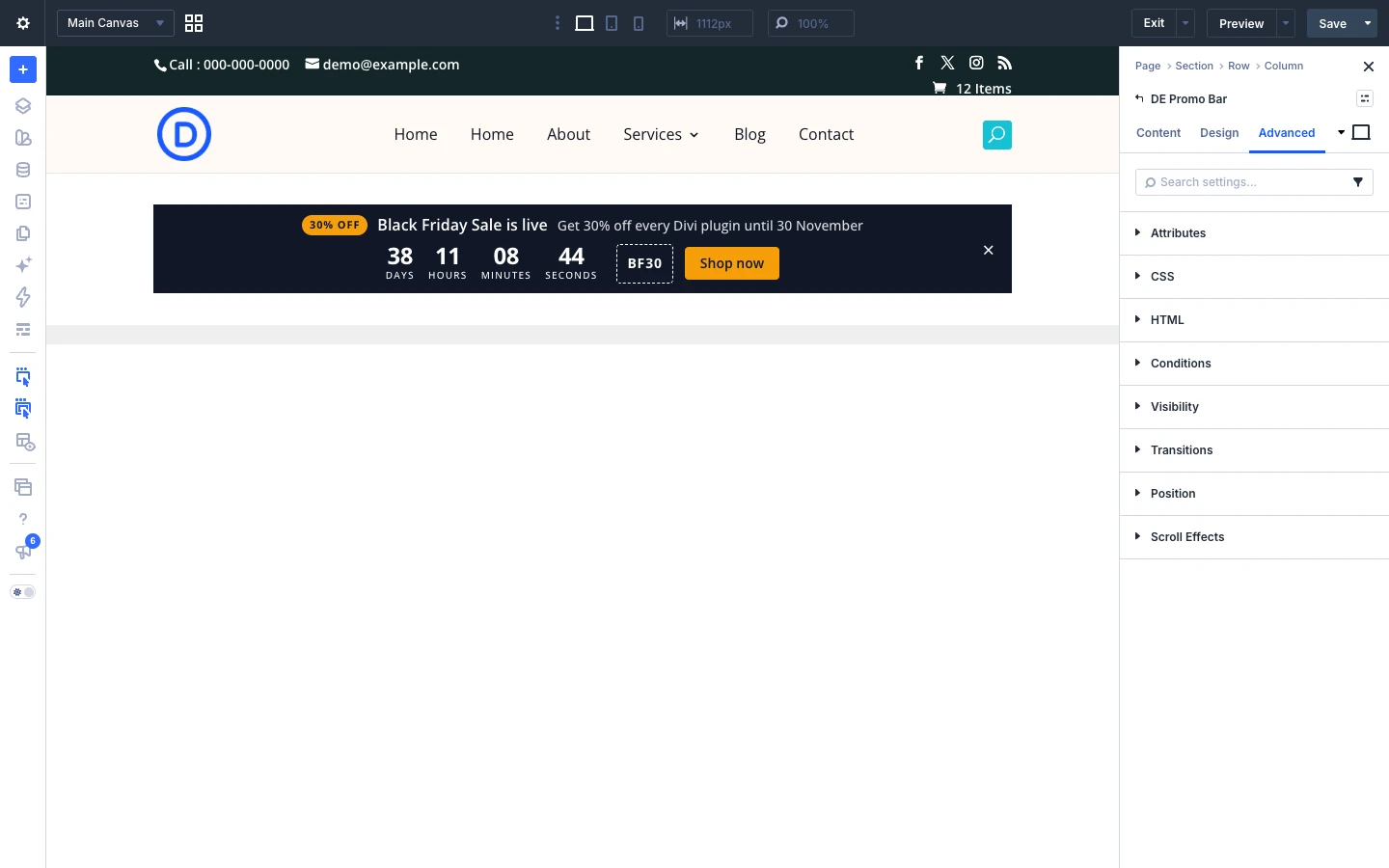
The DE Promo Bar module shows a promotion strip with a badge, headline, subheading, live countdown, coupon code and button. Place it inside the page or pin it to the top or bottom of the window, and let visitors close it. The words come from the campaign stage that is running, so the bar changes on its own as the sale moves through its stages.



How to add the DE promo bar module to your page
Create a countdown campaign first (Countdown Campaigns → Add Campaign), unless the module will use its own date.
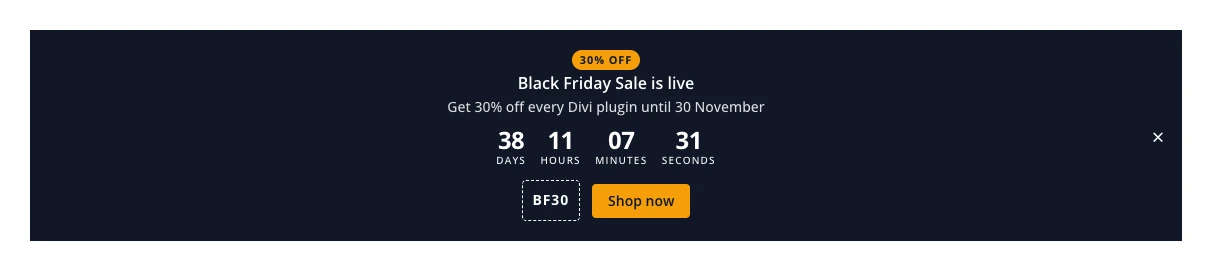

- Open your page in the Divi Visual Builder.
- Click the gray (+) icon inside a row to add a new module.
- Search for DE Promo Bar (it is in the DE Countdown Modules folder).
- Click the module to insert it, then choose your campaign in the Campaign settings.
Content tab settings
The Content tab sets where the countdown takes its dates from and what the module shows. Link, Background and Element Label are the standard Divi options.
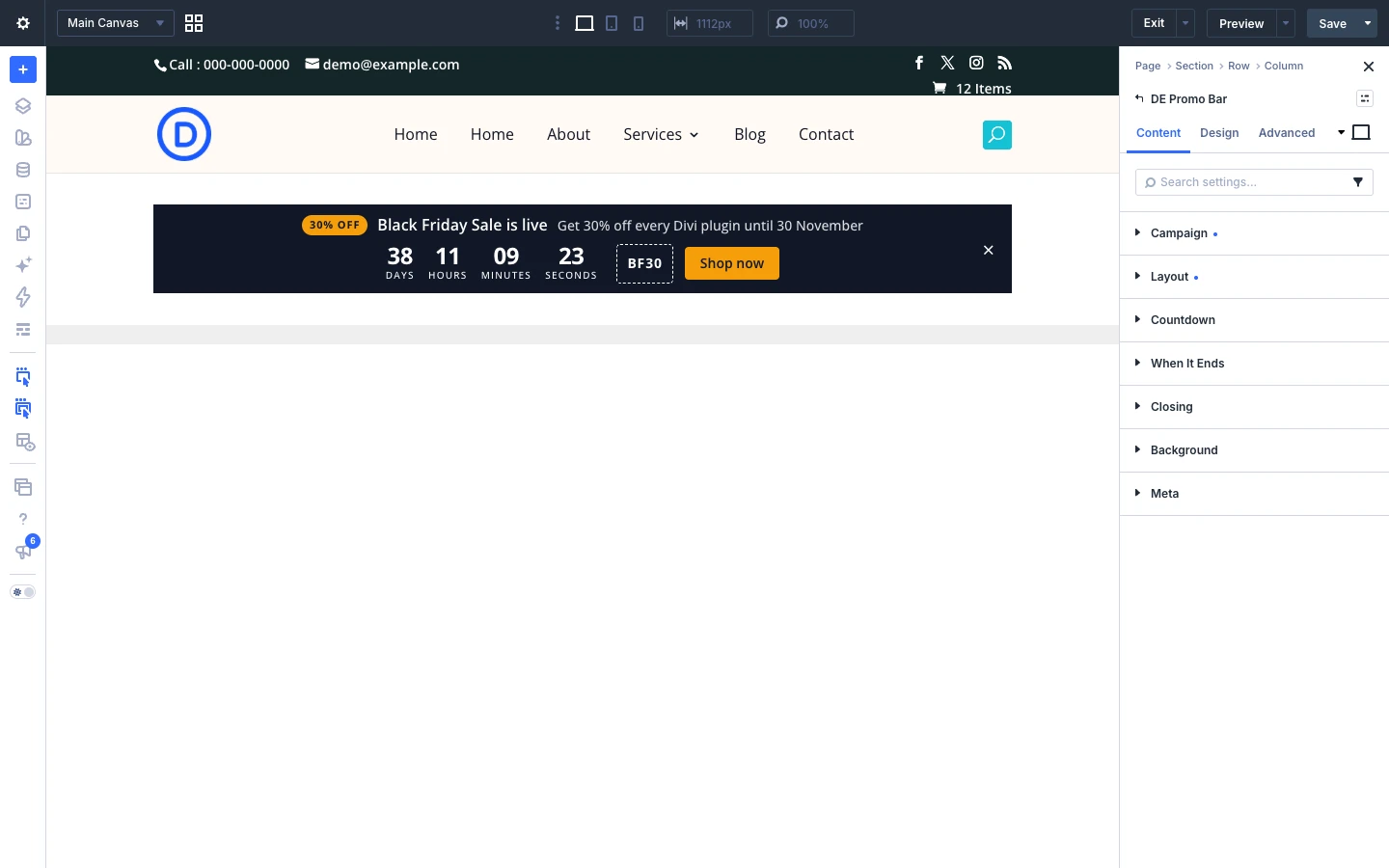
Campaign
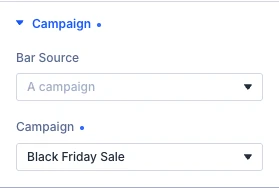
- Bar Source: Where the schedule and the words come from. A campaign owns its dates, its stages, what each stage says and its coupon in one place, so every bar bound to it follows. Options: A campaign, Its own date and words, A product’s sale.
- Campaign: A stage’s words reach the page only once that stage has begun, so nobody reads tomorrow’s offer in today’s page. On a page served from a cache, the bar asks for the new stage’s words when its own have ended, and appears a moment late rather than a stage behind.
- Product: Left on the current product, one module in a Theme Builder product template counts down each product’s own sale. A product with sizes follows the size a visitor picks.
- Counts: Whether the date below is a deadline to run out to or an origin to run on from. Options: Down to a date, Up from a date.
- Date And Time: Read in the timezone below, never in the visitor’s own. The seconds are always zero.
- Timezone: Which clock the date above is on. Always a city rather than a UTC offset: an offset stops being right at the next daylight saving change.
Layout
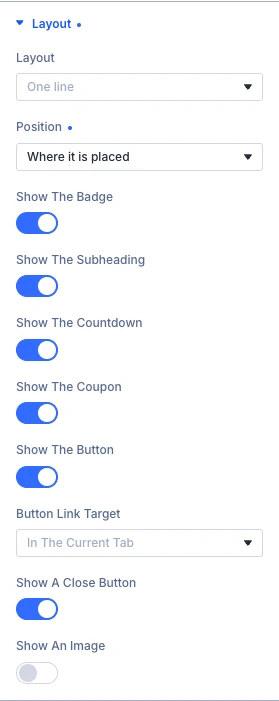
- Layout: One line centres everything in a strip, and wraps onto more rows when it runs out of room. Split puts the words at one end and what to do about them at the other. Options: One line, Split, Stacked, Compact strip.
- Position: At the top or the bottom, the published page holds the bar at that edge of the window and makes room for it. Here in the builder it stays where you placed it, so it can be edited. Options: Top of the window, Bottom of the window, Where it is placed.
- Stay In View: On, the bar stays at its edge as the page scrolls. Off, it scrolls away with the page as though it were the first — or the last — thing on it.
- Move Divi’s Header Down: Moves a fixed Divi header, or a section fixed with Divi’s Position setting, below the bar rather than leaving it underneath.
- Show The Badge: Turn on to show this part.
- Show The Subheading: Turn on to show this part.
- Show The Countdown: Turn on to show this part.
- Show The Coupon: A code stops being a secret the moment its stage begins, because it is in the page from then on. Its dates in WooCommerce are what actually limit it.
- Show The Stock Line: Set per screen, so the line can be kept off a phone, where a thin strip has least room.
- Show The Button: Turn on to show this part.
- Button Link Target: Whether the button opens its link in the visitor’s own tab or a new one. The same for every stage, and for Before and after. Options: In The Current Tab, In A New Tab.
- Show A Close Button: Closing the bar hides every bar for the same campaign, on every page, for as long as Closing below says.
- Show An Image: Turn on to show this part.
- Image: Drawn beside the words, the same for every stage. It is treated as decoration and screen readers skip it, so say what it shows in the headline.
Stock
These settings appear when the source is A product’s sale (WooCommerce) or the campaign follows a product.
- Stock Line: “Only 7 left”, for a product that tracks its stock. On a site with a page cache, Only a few left and Live number stay right; an exact number can be a few orders behind. Options: Follow the campaign, Off, Exact number, Only a few left, Live number.
- Show When This Many Or Fewer Are Left: Turn on to show this part.
- Sentence: Where {count} is, the number goes. Left empty, the plugin’s own words are used, in the site’s language.
- When One Is Left: Left empty, the sentence above is used.
- A Few Left: Left empty, “Only a few left”.
- Stock Line Position: Where a part the bar is set to leave out would have held it — the countdown, or a button with no link — the line sits after the countdown instead. Options: Above the countdown, Beside the badge, Under the button, After the button, After the subheading, After the countdown.
Countdown
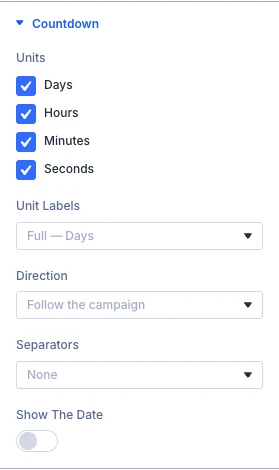
- Units: Which units to show. Whichever is largest absorbs everything above it, so clearing Days gives you the full number of hours rather than dropping them. Options: Days, Hours, Minutes, Seconds.
- Unit Labels: How each unit is named under its digits. Options: Full — Days, Short — Dys, Single letter — D, None.
- Direction: Follow the campaign unless you say otherwise. Counting up over an ordinary sale reads as how long it has been running rather than how long is left. Options: Follow the campaign, Count down, Count up.
- Separators: A character drawn between each pair of units. It is hidden from screen readers, which read the unit labels instead. Options: None, Colon :, Pipe |, Slash /, Dot ·, Dash –, Custom character….
- Custom Separator: Anything you like, including more than one character. Left empty, no separator is drawn.
- Show The Date: Writes the date out under the digits, in the timezone the countdown runs on. Screen readers hear it whichever way this is set.
- Show The Timezone: Ends the date with the timezone it is written in: “(Asia/Kolkata)”. Off suits a shop whose visitors are all in one place, since somebody elsewhere would read the time as their own.
Text
These settings appear when Bar Source is set to Its own date and words.
- Headline: Turn on to show this part.
- Subheading: Turn on to show this part.
- Badge: A short tag ahead of the headline — New, Last day.
- Coupon Code: Turn on to show this part.
- Button Label: Turn on to show this part.
- Button Link: A button is drawn only when it has both a label and a link.
When It Ends
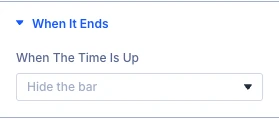
- When The Time Is Up: What the bar does once the campaign, or its own date, is over. A message is whatever the campaign says about its end, or the one below when it says nothing. Options: Hide the bar, Show a message, Stay at zero, Send the visitor to a page.
- Message: Used when there is nothing else to say once the time is up — a campaign’s own After words come first.
- Redirect To: Where a visitor goes once the time is up. The redirect happens in the browser, so it never fires here in the builder.
Closing
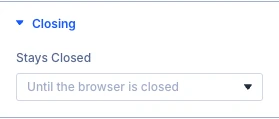
- Stays Closed: Remembered in the visitor’s own browser, and only there: nothing is sent anywhere, and clearing their browser’s data brings the bar back. Options: Until the browser is closed, For a number of days, For good.
- Days: Turn on to show this part.
Tip: To show a bar on every page without placing a module, turn on Site-wide bar in the campaign itself.
Design tab settings
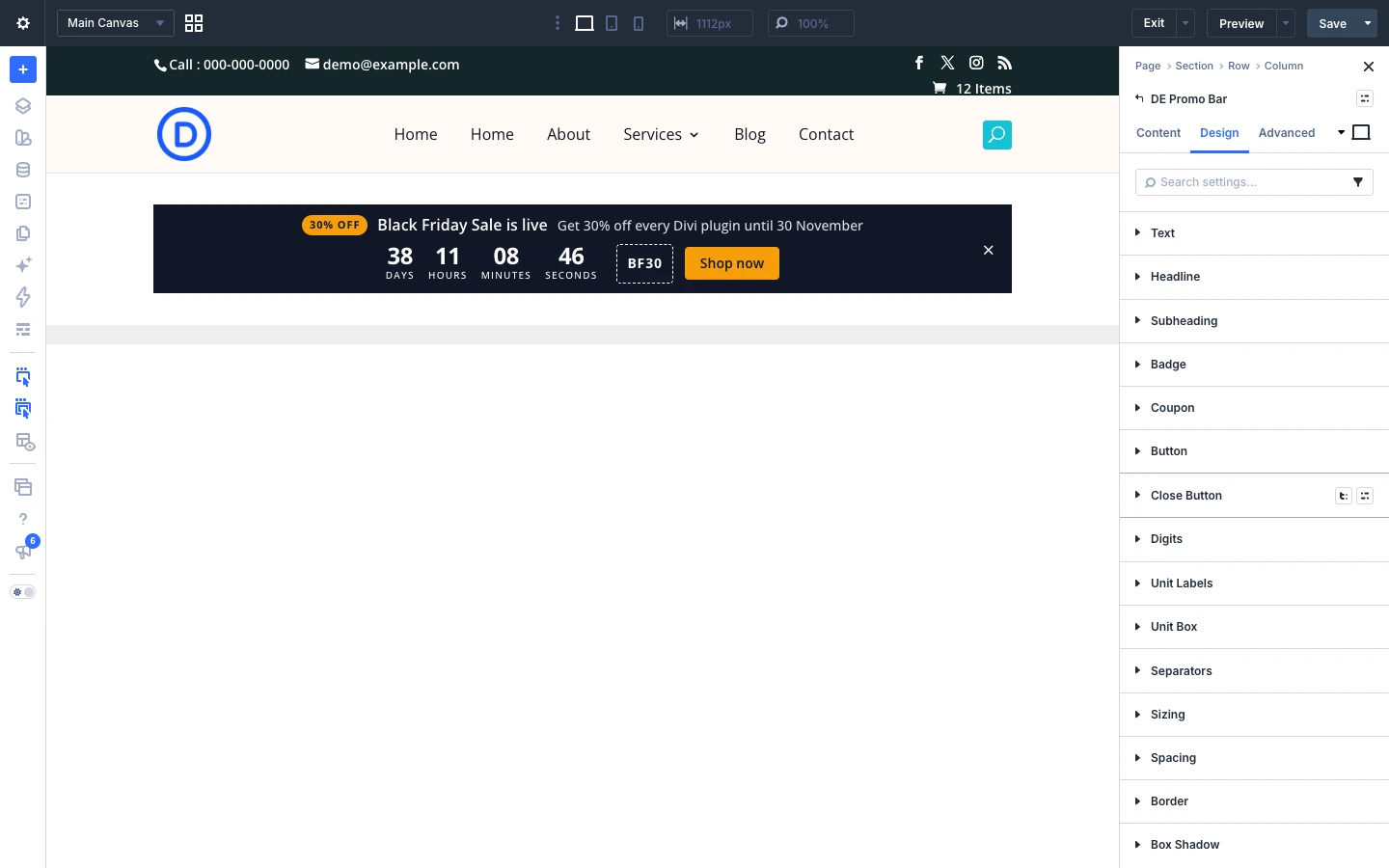
The Design tab lets you style every part of the module. Each toggle controls one element:
- Text: overall text styling.
- Headline: font, size and color of the headline.
- Subheading: style of the subheading.
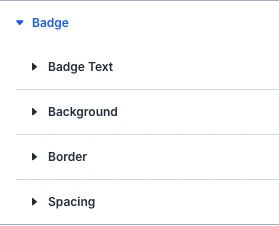
- Badge: colors, font and corners of the badge.
- Coupon: style of the coupon code box.
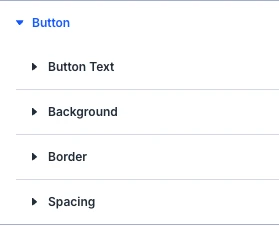
- Button: colors, border, font and spacing of the button.
- Digits: font, size and color of the countdown numbers.
- Unit Labels: style of the Days, Hours, Minutes, Seconds labels.
- Unit Box: background, border and spacing around each unit.
- Separators: size and color of the separator characters.
- Close Button: size and color of the close (×) button.
- Sizing, Spacing, Border, Box Shadow, Filters, Transform, Animation: the standard Divi design options for the whole module.
Advanced tab settings
The Advanced tab has the standard Divi options: Attributes (add a CSS class or ID), CSS, HTML, Conditions, Interactions, Visibility, Transitions, Position and Scroll Effects. Under Conditions you can also add a Campaign Stage condition to any Divi module, so it only shows during chosen stages of a campaign.