Search Divi Countdown Extended Documentation
Search for answers or browse our knowledge base.
DE Countdown Timer
Overview of the DE countdown timer module
The DE Countdown Timer module shows a live days, hours, minutes and seconds countdown on any Divi page. Link it to a countdown campaign so every timer on your site follows one schedule, count down to a date of its own, or follow a WooCommerce product’s sale dates. It stays correct even on cached pages.


How to add the DE countdown timer module to your page
Create a countdown campaign first (Countdown Campaigns → Add Campaign), unless the module will use its own date.
- Open your page in the Divi Visual Builder.
- Click the gray (+) icon inside a row to add a new module.
- Search for DE Countdown Timer (it is in the DE Countdown Modules folder).
- Click the module to insert it, then choose your campaign in the Campaign settings.

Content tab settings
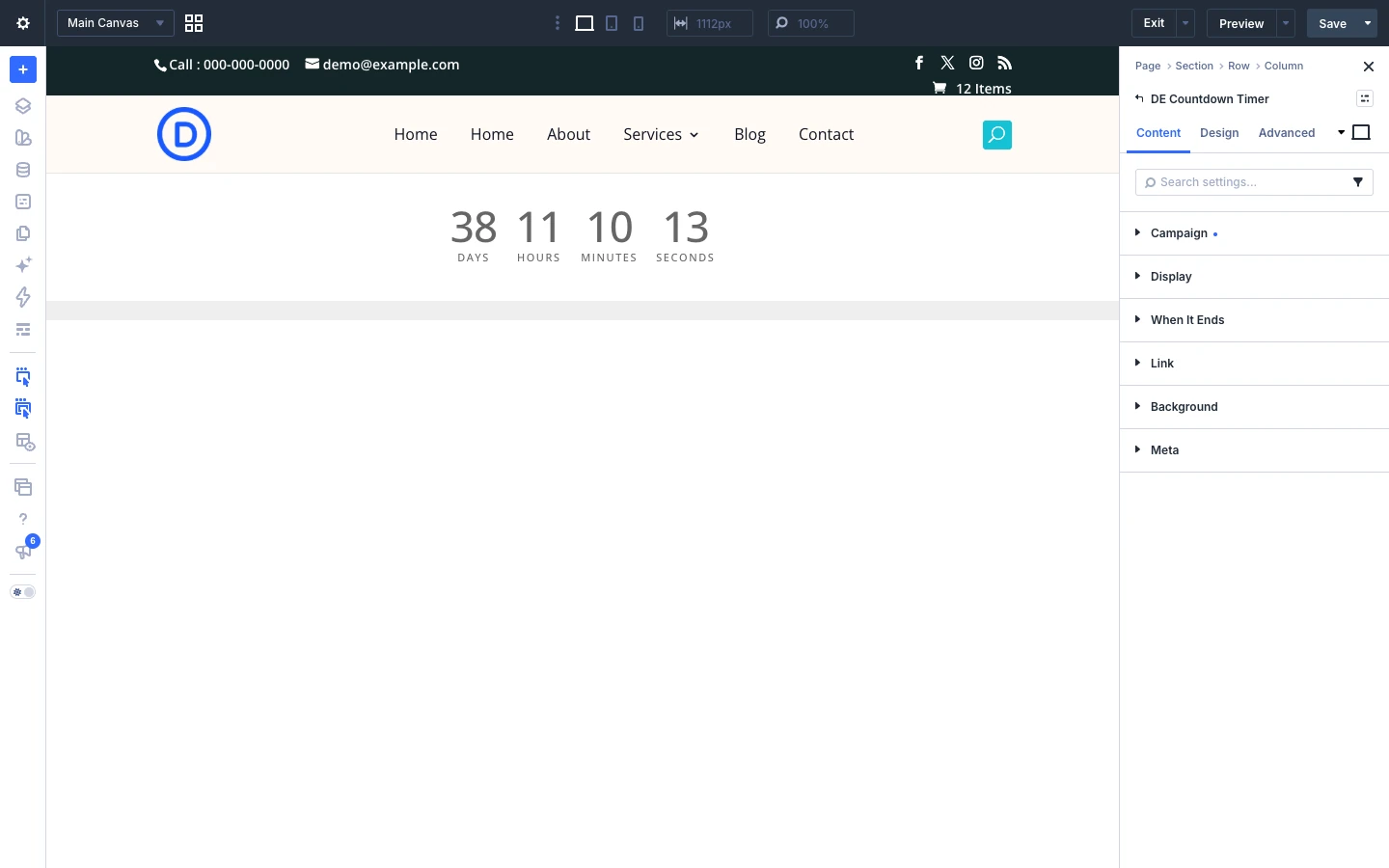
The Content tab sets where the countdown takes its dates from and what the module shows. Link, Background and Element Label are the standard Divi options.
Campaign
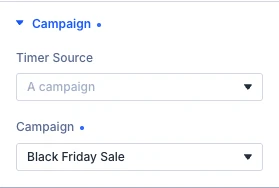
- Timer Source: Where the schedule comes from. A campaign owns its dates, its stages and its coupon in one place, so moving an end date once moves every timer and bar bound to it. Options: A campaign, Its own date, A product’s sale.
- Campaign: The campaign this timer follows. If it is later unpublished or deleted the module renders nothing rather than switching to another campaign, so a timer never quietly becomes a countdown to a different sale.
- Product: Left on the current product, one module in a Theme Builder product template counts down each product’s own sale. A product with sizes follows the size a visitor picks.
- Counts: Whether the date below is a deadline to run out to or an origin to run on from. Options: Down to a date, Up from a date.
- Date And Time: Read in the timezone below, never in the visitor’s own. The seconds are always zero.
- Timezone: Which clock the date above is on. Always a city rather than a UTC offset: an offset stops being right at the next daylight saving change, and a timer that is an hour out twice a year is the bug this plugin exists not to have.
Stock
These settings appear when the source is A product’s sale (WooCommerce) or the campaign follows a product.
- Stock Line: “Only 7 left”, for a product that tracks its stock. On a site with a page cache, Only a few left and Live number stay right; an exact number can be a few orders behind. Options: Follow the campaign, Off, Exact number, Only a few left, Live number.
- Show When This Many Or Fewer Are Left: Turn on to show this part.
- Sentence: Where {count} is, the number goes. Left empty, the plugin’s own words are used, in the site’s language.
- When One Is Left: Left empty, the sentence above is used.
- A Few Left: Left empty, “Only a few left”.
Display
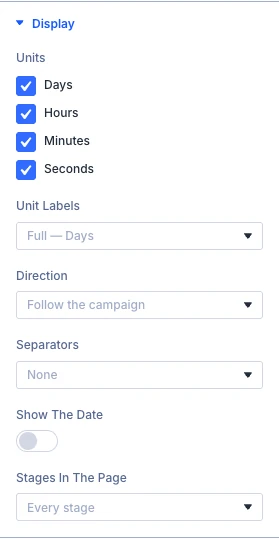
- Units: Which units to show. Whichever is largest absorbs everything above it, so clearing Days gives you the full number of hours rather than dropping them. Options: Days, Hours, Minutes, Seconds.
- Unit Labels: How each unit is named under its digits. Options: Full — Days, Short — Dys, Single letter — D, None.
- Direction: Follow the campaign unless you say otherwise. Counting up over an ordinary sale reads as how long it has been running rather than how long is left. Options: Follow the campaign, Count down, Count up.
- Separators: A character drawn between each pair of units. It is hidden from screen readers, which read the unit labels instead. Options: None, Colon :, Pipe |, Slash /, Dot ·, Dash –, Custom character….
- Custom Separator: Anything you like, including more than one character. Left empty, no separator is drawn.
- Show The Date: Writes the date out under the digits, in the timezone the countdown runs on: “Ends 30 November 2026 at 23:59 (Asia/Kolkata)”. Screen readers hear it whichever way this is set.
- Show The Timezone: Ends the date with the timezone it is written in: “(Asia/Kolkata)”. Off suits a shop whose visitors are all in one place, since somebody elsewhere would read the time as their own.
- Stages In The Page: A campaign’s stages each ship with the page so the browser can move between them on its own, which is what keeps a cached page from showing yesterday’s stage. Sending only the current one is smaller, and right on a site with no page cache in front of it. Options: Every stage, Only the current stage.
When It Ends
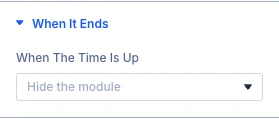
- When The Time Is Up: What the module does once the countdown reaches zero. On a staged campaign this is the end of the whole campaign — a stage boundary is a transition rather than an expiry. Options: Hide the module, Show a message, Stay at zero, Send the visitor to a page.
- Message: Shown in place of the digits once the countdown reaches zero. It ships with the page even while the timer is still running, so a page left open across the deadline can make the swap without asking the server.
- Redirect To: Where a visitor goes once the countdown reaches zero. The redirect happens in the browser, so it never fires here in the builder.
Tip: Moving a campaign’s end date updates every timer linked to it, so you never edit the pages one by one.
Design tab settings
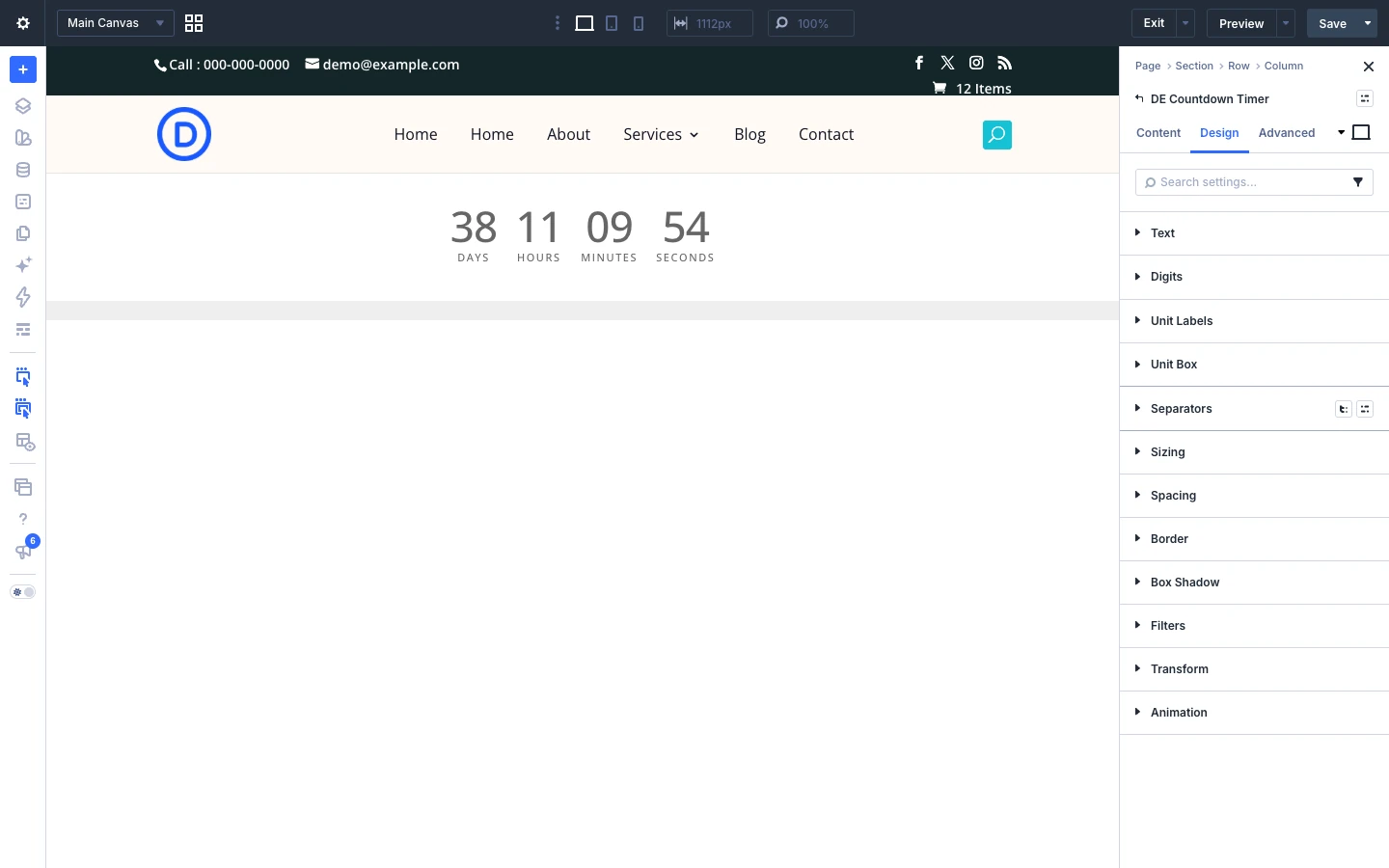
The Design tab lets you style every part of the module. Each toggle controls one element:
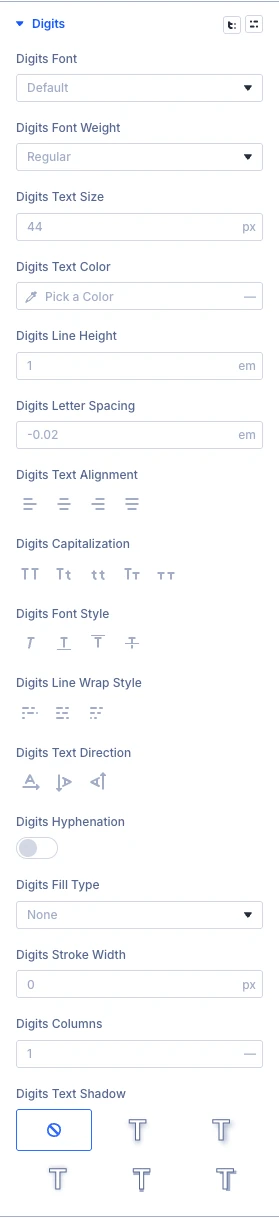
- Digits: font, size and color of the countdown numbers.
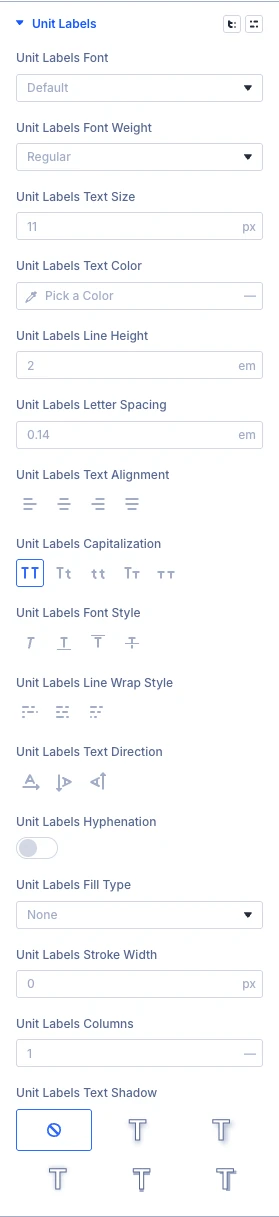
- Unit Labels: style of the Days, Hours, Minutes, Seconds labels.
- Unit Box: background, border and spacing around each unit.
- Separators: size and color of the separator characters.
- Sizing, Spacing, Border, Box Shadow, Filters, Transform, Animation: the standard Divi design options for the whole module.
Advanced tab settings
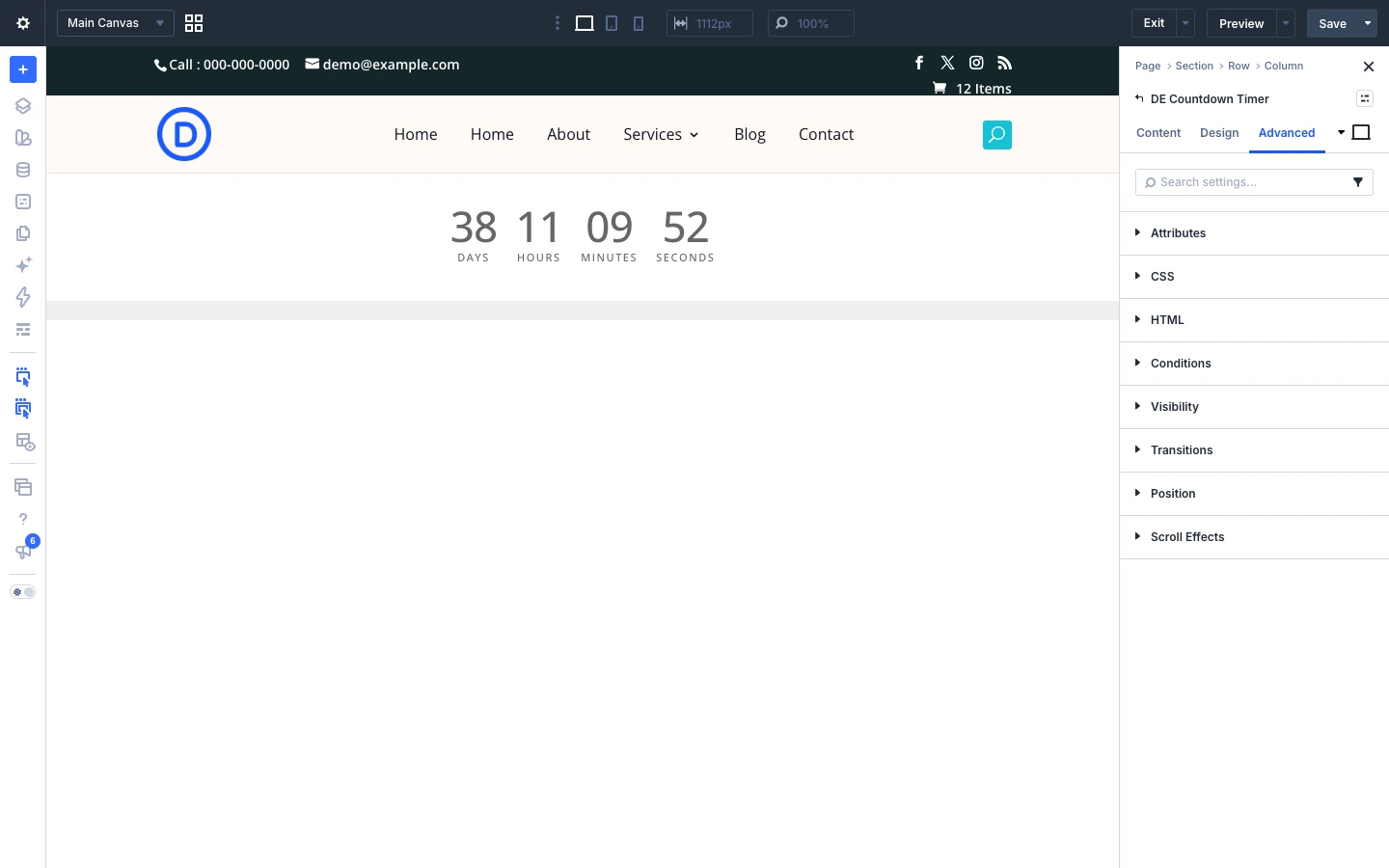
The Advanced tab has the standard Divi options: Attributes (add a CSS class or ID), CSS, HTML, Conditions, Interactions, Visibility, Transitions, Position and Scroll Effects. Under Conditions you can also add a Campaign Stage condition to any Divi module, so it only shows during chosen stages of a campaign.