
Search Divi Countdown Extended Documentation
Search for answers or browse our knowledge base.
Creating a countdown campaign
A countdown campaign holds a sale’s dates, its stages and what each stage says. Every DE Countdown Timer and DE Promo Bar linked to the campaign follows it, so changing the end date or the offer is one edit instead of one per page.
Step 1: Add a new campaign
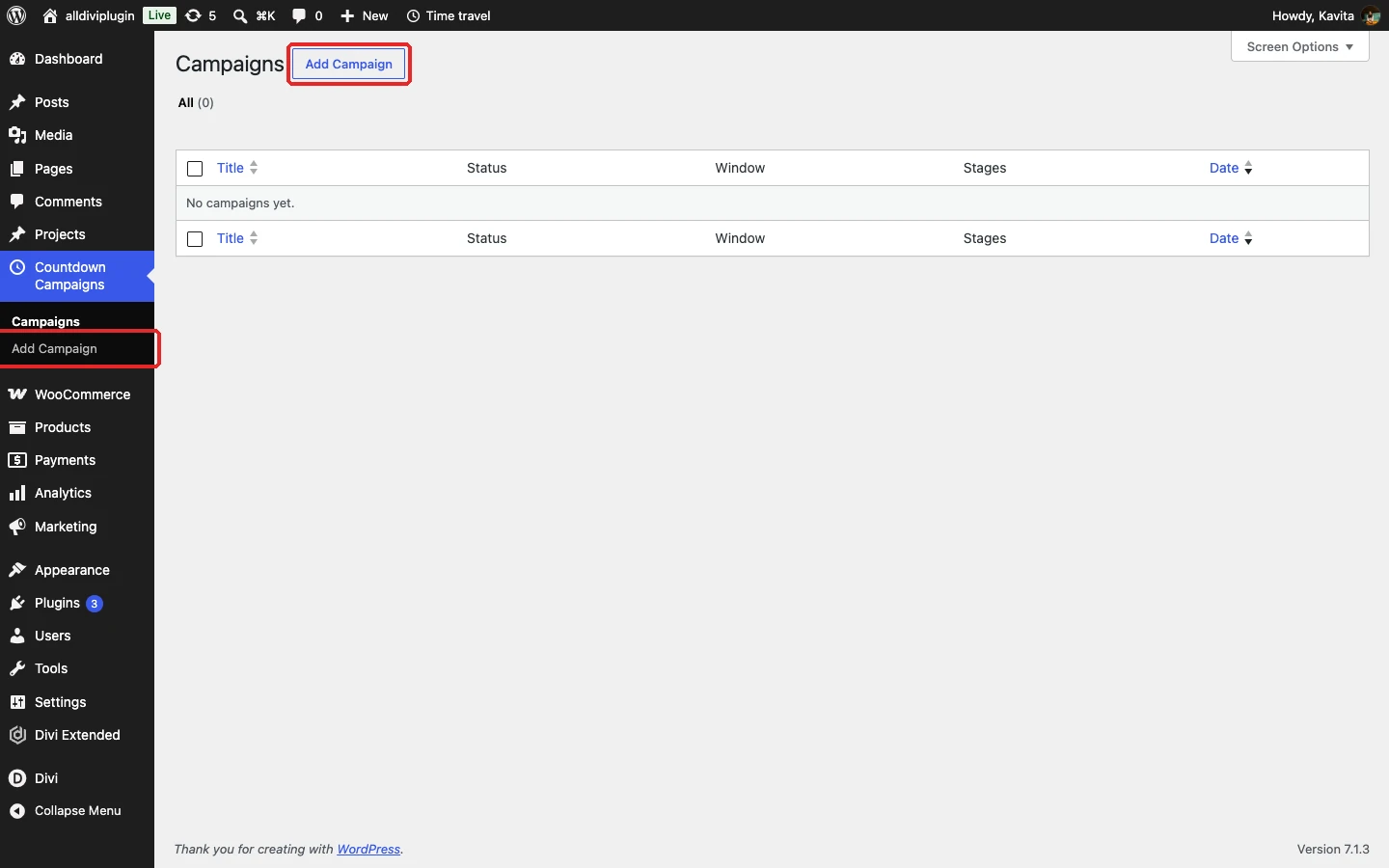
In your WordPress dashboard, go to Countdown Campaigns → Add Campaign and give the campaign a name, for example “Black Friday Sale”.
Step 2: Set the schedule
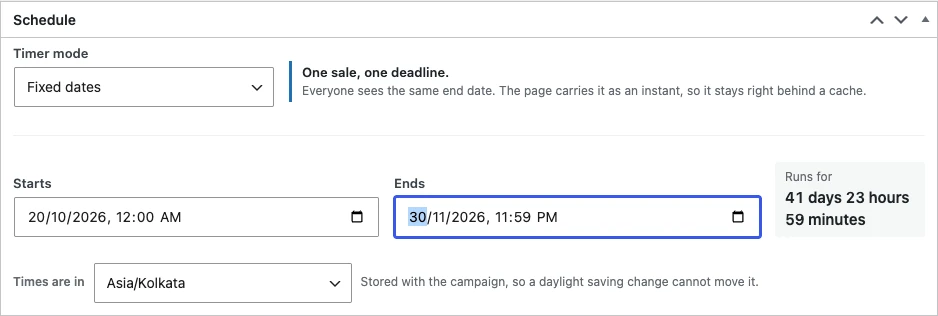
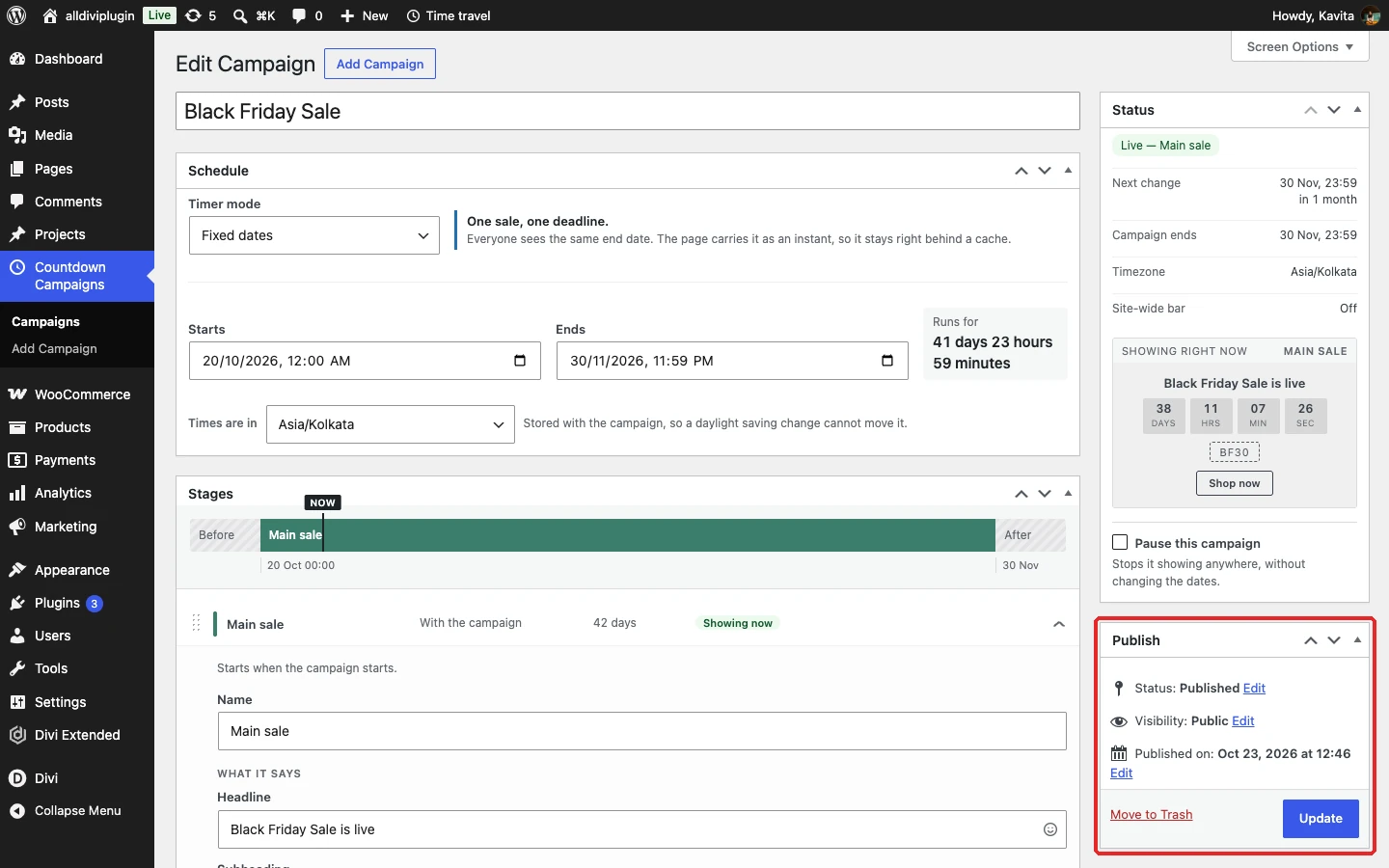
In the Schedule box, choose a Timer mode, then set when the campaign starts and ends and the timezone it runs in.
- Fixed dates: one start and one end. Everyone sees the same deadline.
- Repeating: daily, weekly, monthly or yearly, with dates to skip and an optional end.
- Evergreen (per visitor): each visitor gets their own clock from their first visit, for example “ends one hour after you arrived”.
- Count up: shows how long the campaign has been running instead of how long is left.
- WooCommerce sale: takes the dates from a product’s sale price dates.
Times are in: pick a city (for example Asia/Kolkata) rather than the site offset, so daylight saving changes never move your deadline.
Step 3: Write the stages
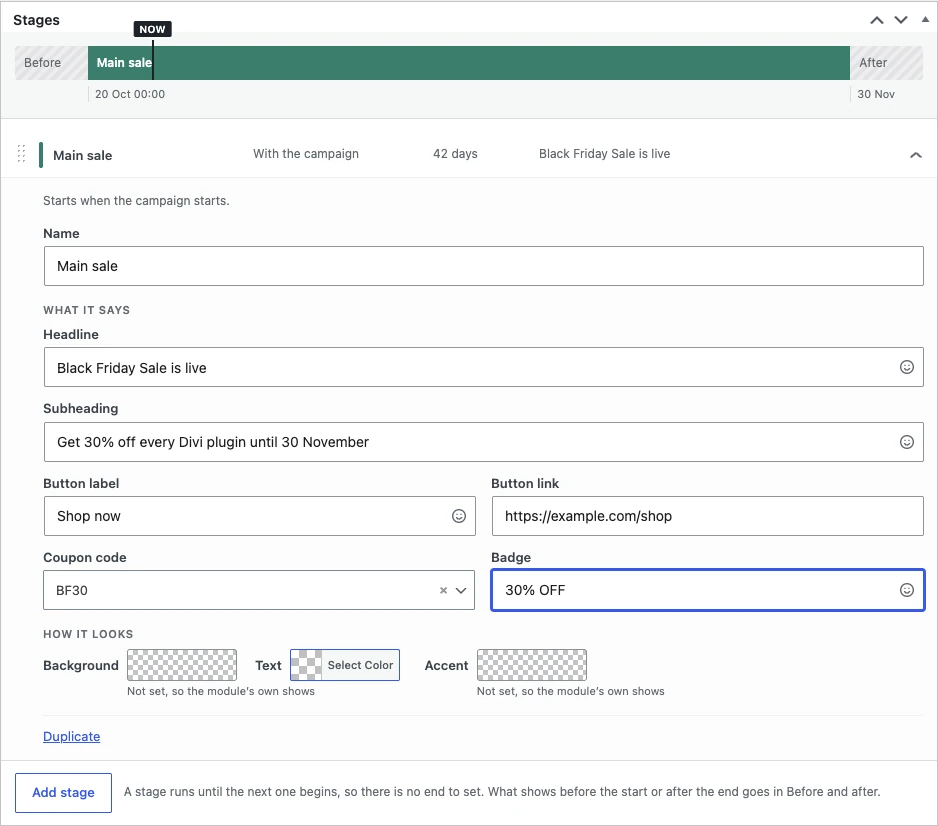
A stage is what the campaign says while it runs. Fill in the Name, Headline, Subheading, Button label and Button link, a Coupon code and a short Badge such as “30% OFF”. Under How it looks you can set a background, text and accent color for this stage.
Click Add stage for a campaign that changes as it runs, for example early access, then the main sale, then a last-hours push. A stage can start with the campaign, a set time into it, a set time before the end, or on a date, and runs until the next stage begins. The timeline at the top shows every stage to scale.
Step 4: Before and after (optional)
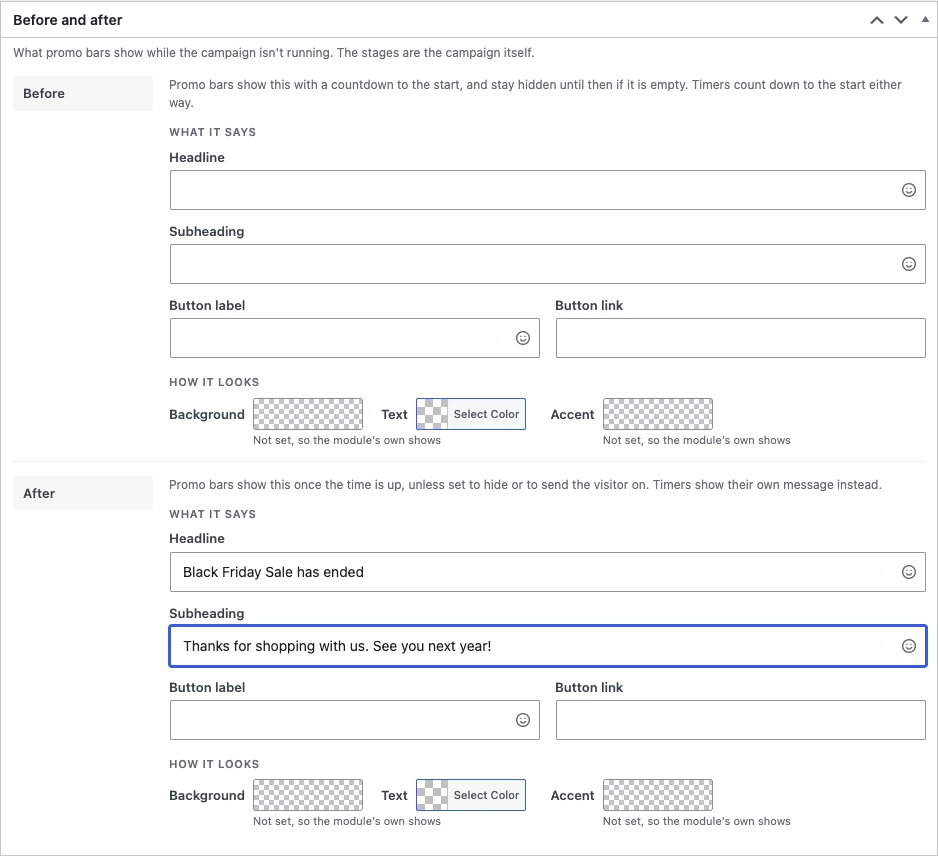
Before is what promo bars show before the campaign starts (with a countdown to the start). After is what they show once it has ended. Leave them empty and nothing shows.
Step 5: Site-wide bar (optional)
Tick Show this campaign as a bar across the site to show the campaign as a promo bar on your pages without placing any module. You can choose where it appears (content types, specific pages, front page, URL, logged-in visitors or roles) and add exceptions.

Step 6: Publish the campaign
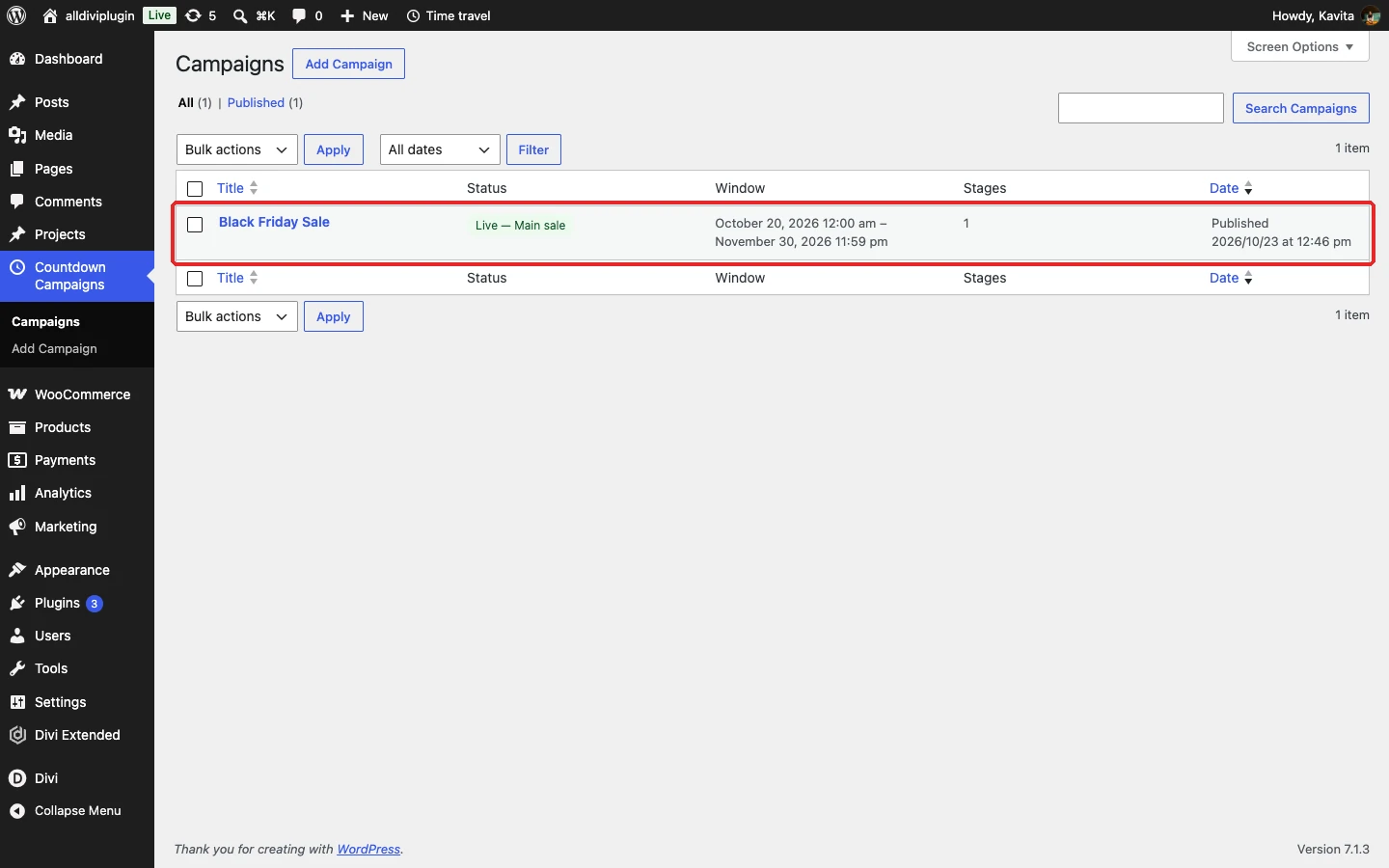
Click Publish. The Status box then shows whether the campaign is live, which stage is showing right now, and when the next change happens.
Tip: use Time travel in the admin bar to preview your site at any moment of a campaign, for example the moment a new stage starts. Only you see the preview.