
Divi Extended Documentation
Search for answers or browse our knowledge base.
License Management Guide
This guide explains how to manage your Divi Extended license keys and updates.
1. How to obtain your license key
If you have purchased a Divi Extended product or membership, you can generate your license key directly from your account dashboard:
- Log in to your Divi Extended account.
- Navigate to the License Keys tab in your account menu.
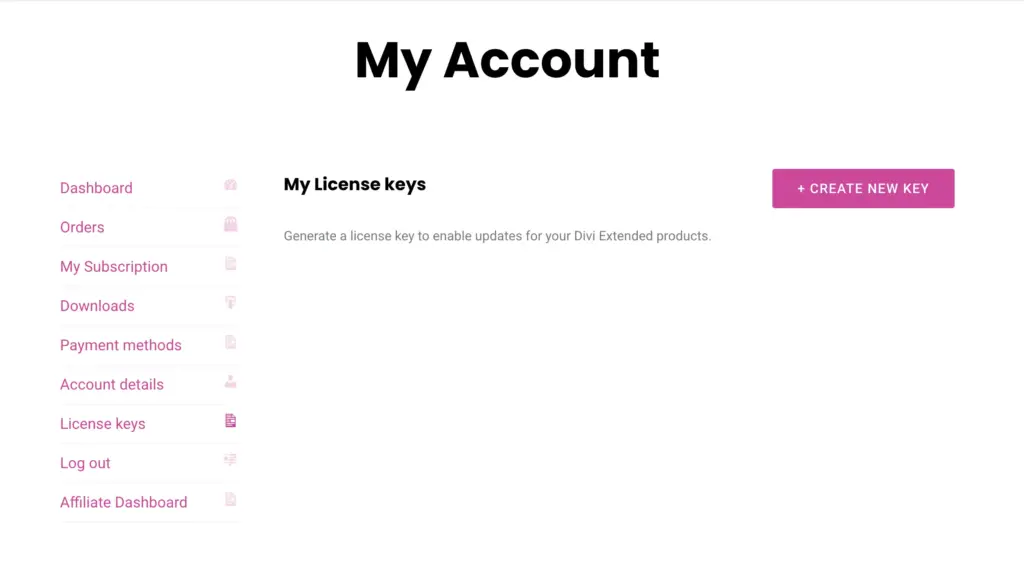
- Click the Create New License Key button.
- Enter a Label for your key to help you identify where it’s used. (e.g., “Main Production Site”).
- Your new key will be generated and displayed. All your purchased products are automatically linked to this key.
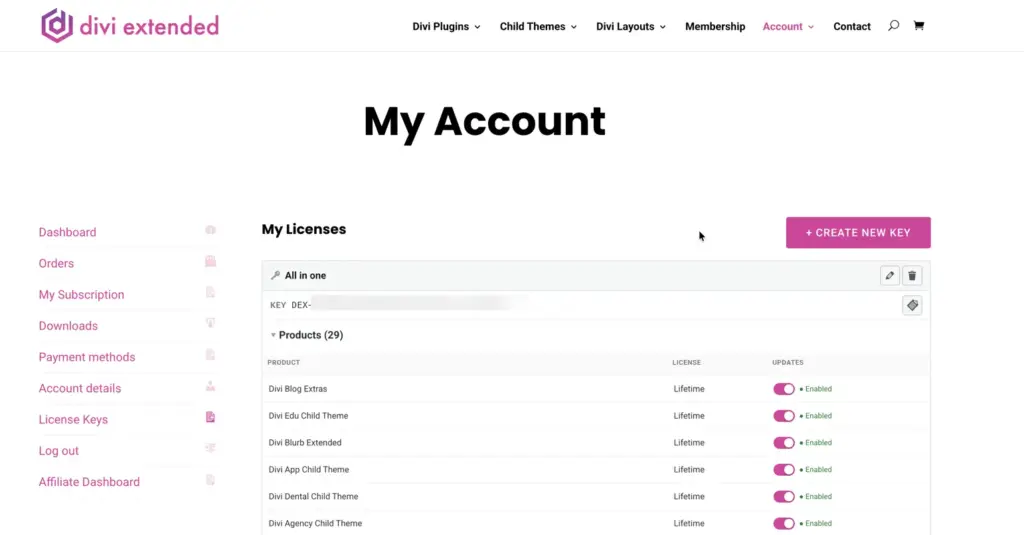
Note: License key activation may require a short propagation time due to caching and synchronization between the licensing server and API endpoints. If a “License not found” error appears immediately after key generation, please retry after a few minutes.
2. Accessing your license settings
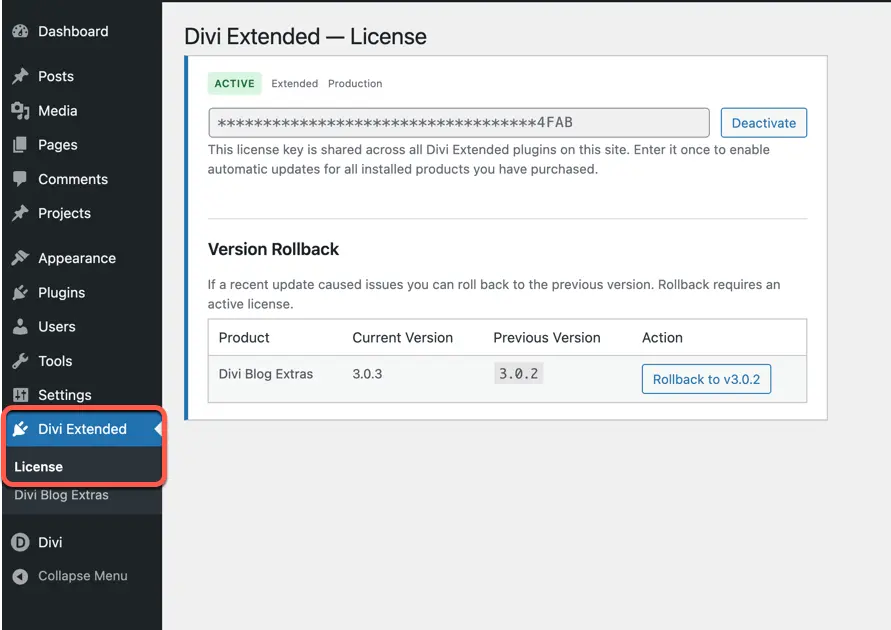
All Divi Extended plugins on your site share a single license management interface. To access it:
- Log in to your WordPress Admin dashboard.
- Navigate to Divi Extended in the left-hand menu.
- Click on the License sub-menu.
3. Activating a license key
If your site is not yet activated:
- Go to the License page (as described above).
- Paste your license key into the input field.
- Click the Activate License button.
- Once activated, you will see an Active badge and your license tier (e.g., Single Site, Annual, or Lifetime).
4.Manage Your License Keys Easily
You can manage all your active license keys directly from your account panel.
✅ View all websites using your license key
✅ Disable license activation for specific domains
✅ Control unauthorized usage of your products
Please note: without a valid license key, plugin updates will no longer be available.
To manage your licenses:
• Log in to your account
• Open the “License Keys” tab
• Review and manage activated domains as needed
5. Staging and local sites
To prevent license abuse, Single-Site licenses are restricted to production environments only.
- Automatic updates are disabled on staging and local environments for the Single-Site tier.
6. Lifetime and extended licenses
If you own an Annual, Agency, or Lifetime license, our “Zero-Touch” system is enabled:
- These licenses support multiple activations.
- The system will automatically attempt to “self-heal” and re-activate if a connection is momentarily lost.
- Manual deactivation is not required when moving between sites, provided you are within your activation limit.
7. Rolling back a recent update
If a recent plugin update has caused issues on your site, you can quickly revert to the previous version:
- Ensure your license is Active.
- Scroll down to the Version Rollback section on the License page.
- Find the product you wish to revert and click Rollback to vX.X.X.
- The plugin will automatically be replaced with the previous version.
Note: Rollback is only available for one version jump. Once you have rolled back, you must update to the latest version again before the rollback option becomes available once more.
8. Troubleshooting error messages
| Error Message | Meaning & Resolution |
|---|---|
| SITE_LIMIT_REACHED | Your Single-Site license is already activated on another domain. |
| STAGING_UPDATES_BLOCKED | Single-Site licenses do not support automatic updates on staging/local URLs. |
| LICENSE_EXPIRED | Your subscription has ended. Please renew to resume automatic updates. |
| LICENSE_REVOKED | Your license has been revoked or refunded. |
| PRODUCT_NOT_ENTITLED | This key does not include the plugin currently installed on this site. |
| LICENSE_NOT_FOUND | The key entered is invalid. Please double-check for typos. |
| SITE_NOT_ACTIVATED | Please activate your license to enable automatic updates. |
| SITE_DISABLED | Updates for this specific site have been disabled by an administrator. |
| PRODUCT_DISABLED_ON_KEY | Updates for this product have been disabled on your license. |
| rate_limit_exceeded | Too many requests. Please wait an hour before trying again. |
Note: If your license key has been activated successfully, but the plugin still shows “License not found” or continues to display an available update, please go to the Dashboard → Updates page in your WordPress admin and click Check Again (or Refresh Updates).
If the update for the specific plugin appears there, please update it from the Updates page. This will refresh the plugin’s update information and create a new update instance.
Need more help? Visit our Support Center for further assistance.