
Divi Extended Documentation
Search for answers or browse our knowledge base.
How to import layout in Divi Library in Divi 5
Divi lets you import layouts (sections, rows, modules or full pages) into the Divi Library from a .json file. Once imported, you can add the layout to any page from the Visual Builder. These steps are for Divi 5.
Before you start
- Keep the layout
.jsonfile ready on your computer. If you downloaded a.zip, unzip it first and use the.jsonfile inside. - Use a file exported from the Divi Library (Divi Builder Layouts). A file exported from Theme Options or the Theme Builder has to be imported from those screens instead.
Step 1: Open the Divi Library

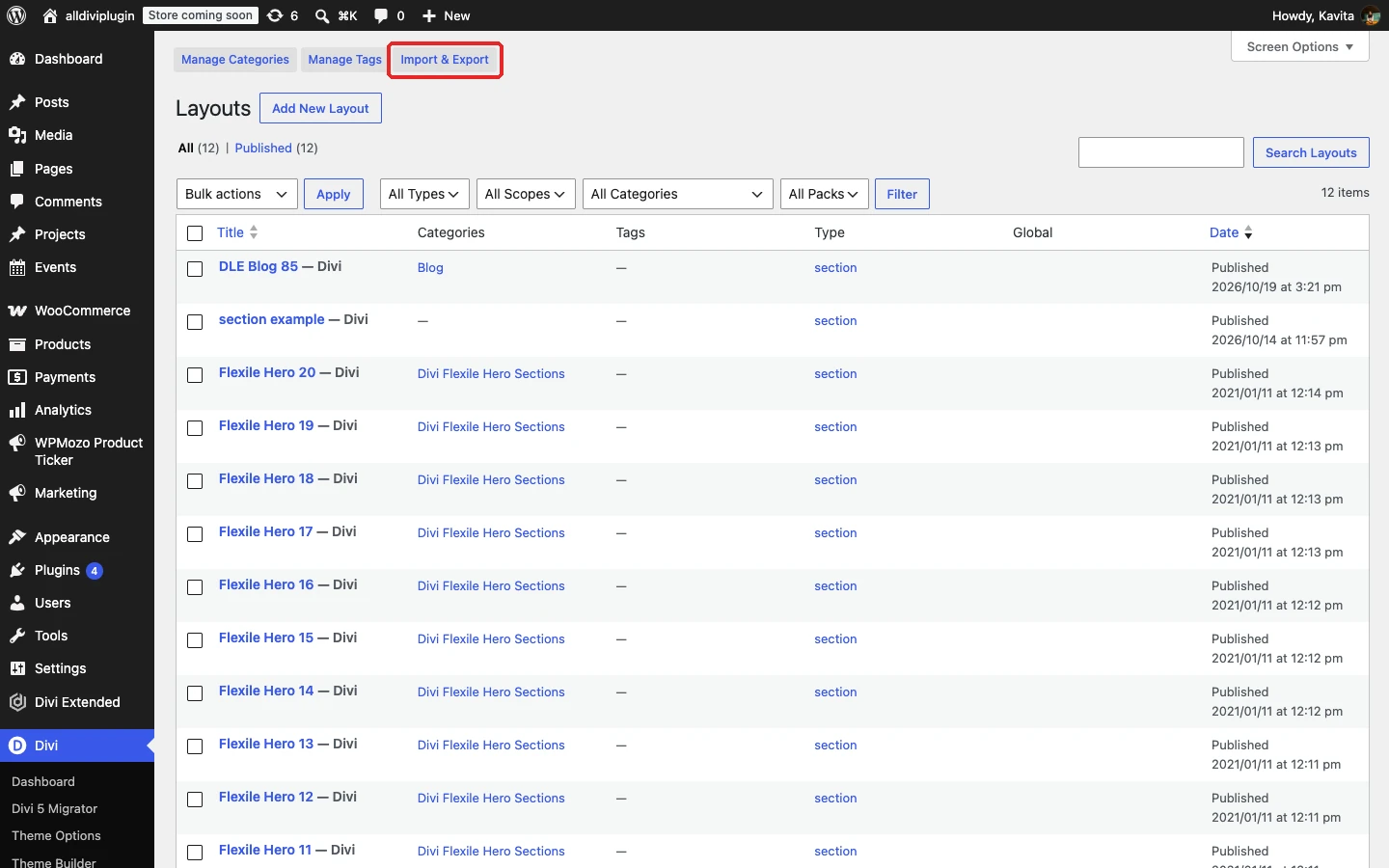
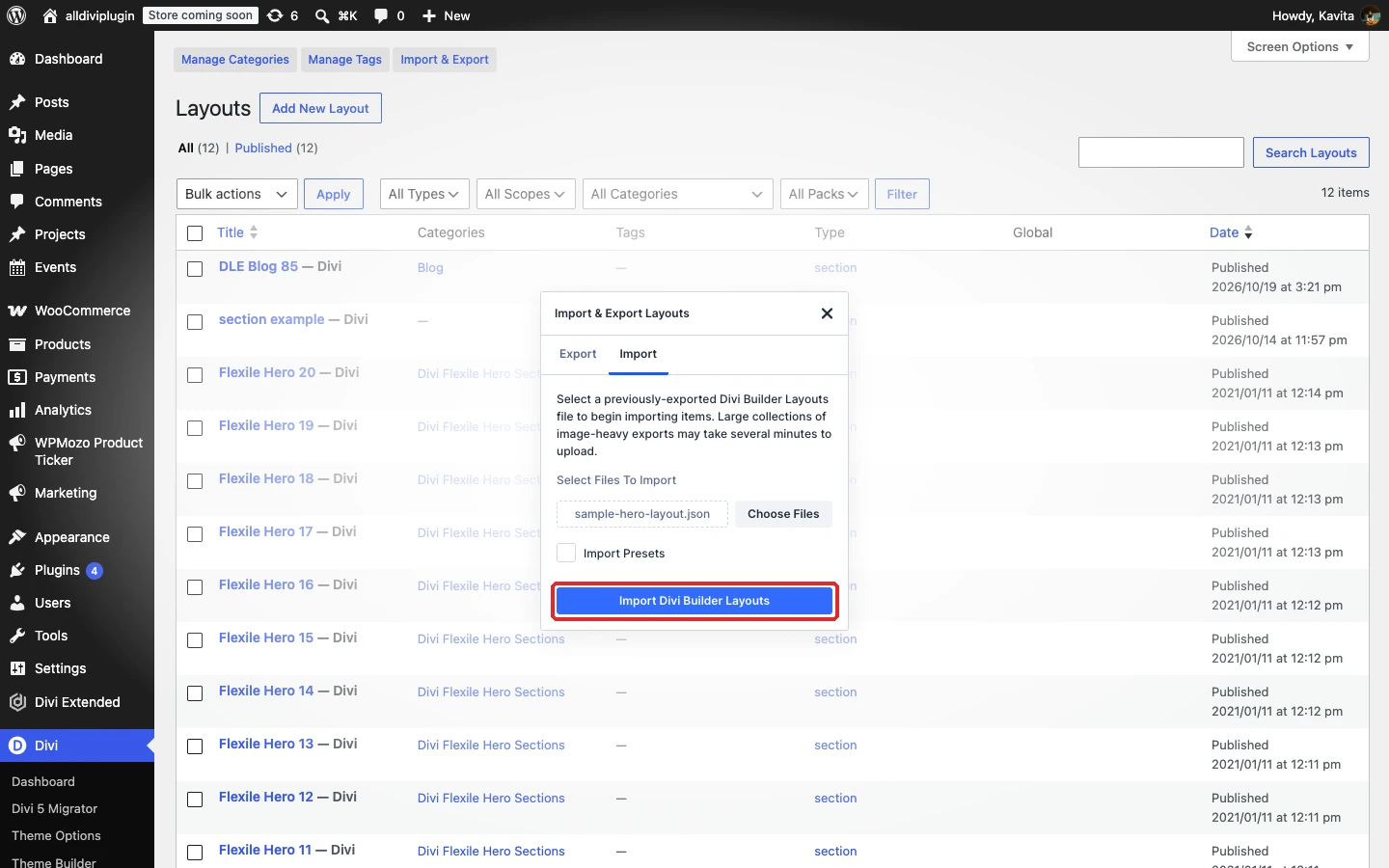
In your WordPress dashboard, go to Divi → Divi Library. At the top of the Layouts screen, click the Import & Export button.
Step 2: Open the Import tab
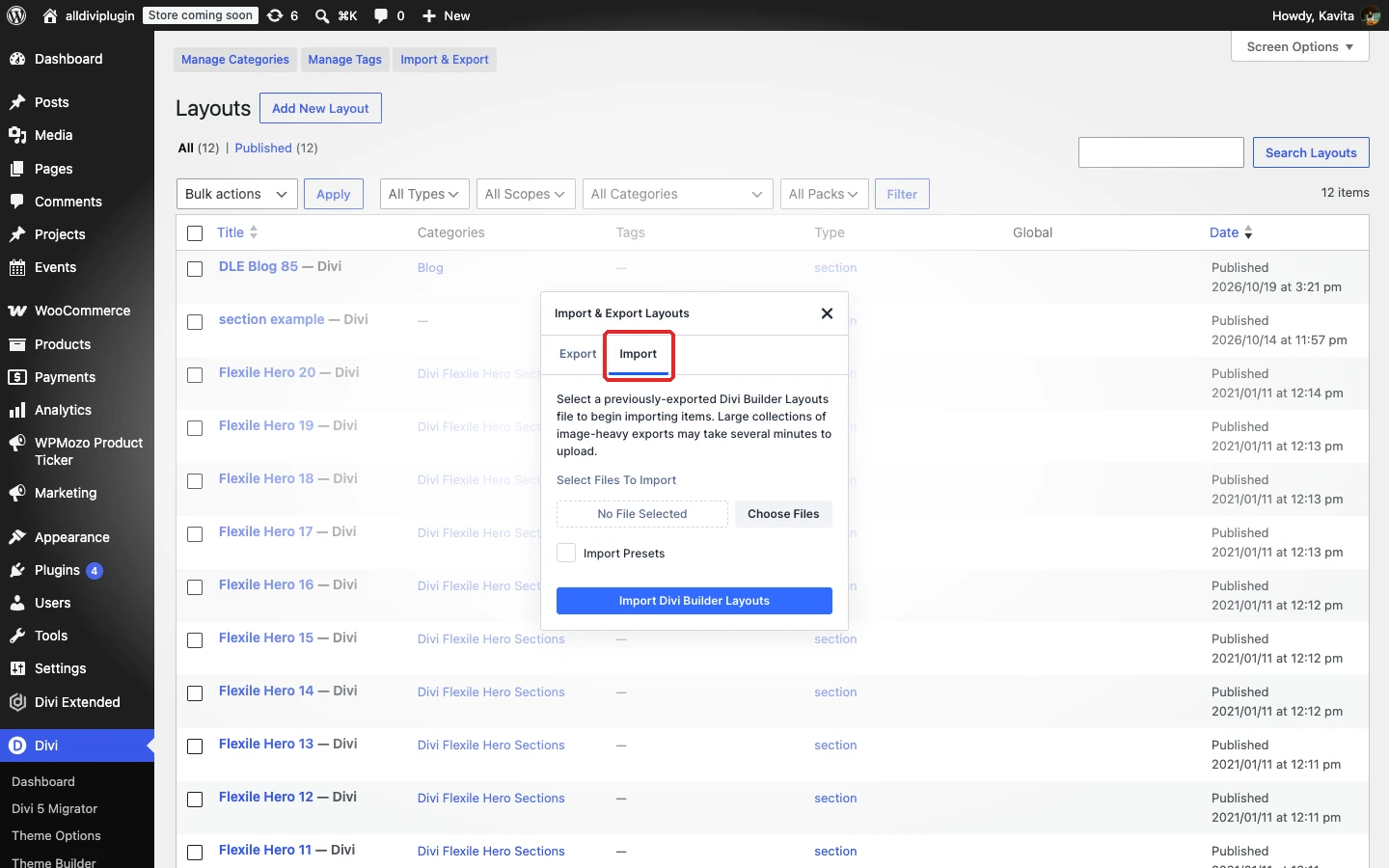
The Import & Export Layouts window opens on the Export tab. Click the Import tab.
Step 3: Choose the layout file
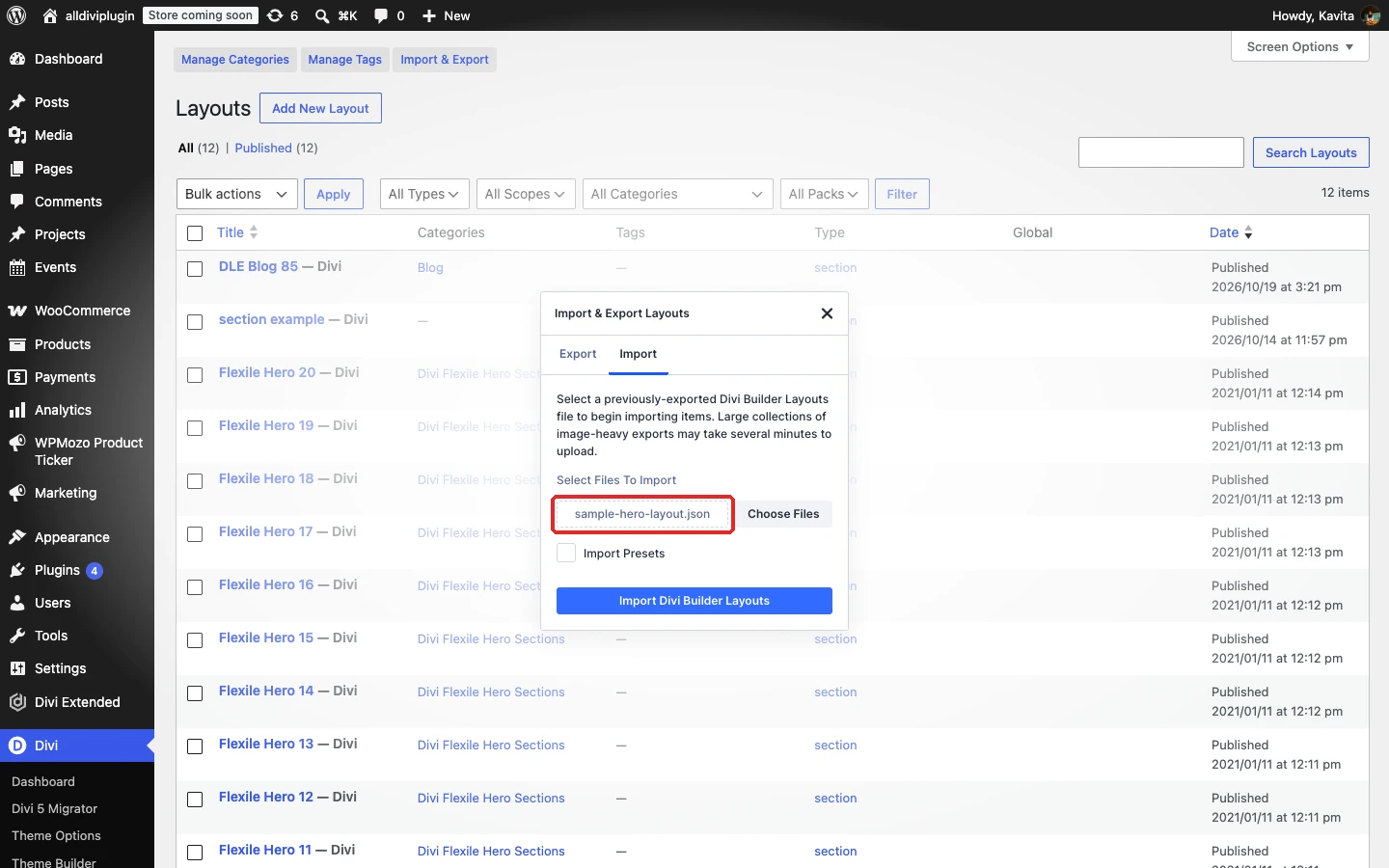
Click Choose Files and select your layout .json file. Its name appears in the field.
Tick Import Presets only if you also want to bring in the module presets saved with the layout. Leave it unticked to keep your site’s current presets.
Step 4: Import the layout
Click Import Divi Builder Layouts and wait for the import to finish. Large, image-heavy files can take a few minutes, so keep the window open until it is done.
Step 5: Find the layout in your library
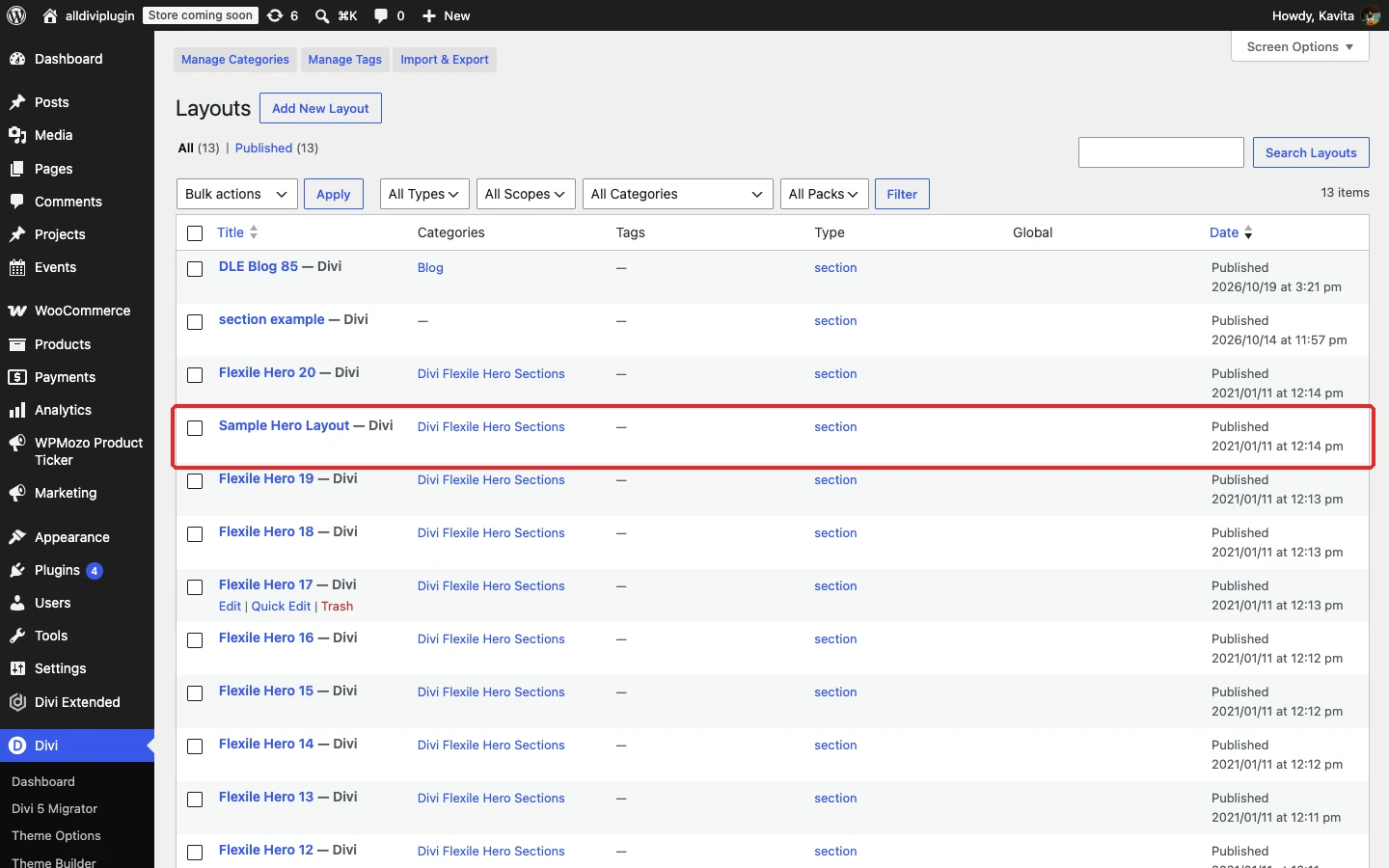
When the import finishes, the layout appears in the Layouts list of the Divi Library.
To use it on a page, open the page in the Visual Builder, click (+) to add a section, row or module, open the Add From Library tab and select your layout.
Troubleshooting
- “This file should not be imported in this context”: the file was exported from a different place (for example Theme Builder or Theme Options). Import it from that screen instead.
- The import stops or times out: ask your host to raise the PHP
max_execution_time,memory_limitandupload_max_filesize, then try again. - You only have a .zip file: unzip it and import the
.jsonfile inside.