
Divi Extended Documentation
Search for answers or browse our knowledge base.
How to change your account email address on Divi Extended
This documentation guide provides step-by-step instructions on how to update the registered email address associated with your Divi Extended account.
Step by step instructions
Step 1: Log In to your Divi Extended account
- Visit the Divi Extended login page: https://diviextended.com/my-account/.
- Enter your current account credentials (Username/Email and Password) and click Log In.
Step 2: Access account details
- After logging in, you will be redirected to your My Account dashboard.
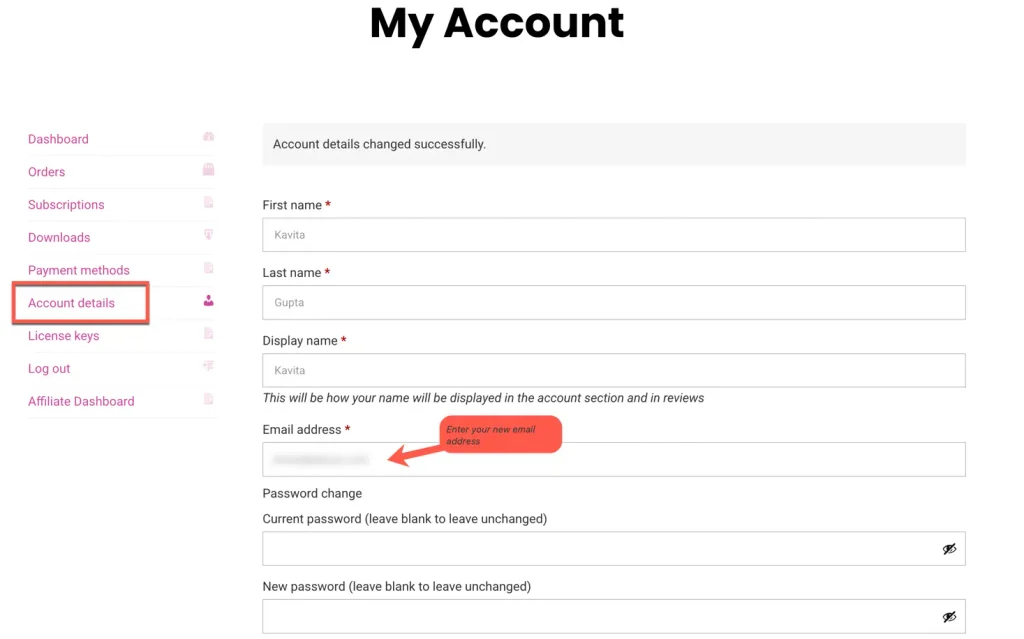
- On the left-hand navigation sidebar, click on Account details.
Step 3: Enter your new email address
- In the account details form, locate the Email address field.
- Remove your old email address and type in your new email address.
Step 4: Save Your Changes
- Click the Save changes button at the bottom of the form.
Once saved, a confirmation message reading “Account details changed successfully.” will appear at the top of the page, confirming your email address update.